
Feature Support
Connector support for specific features is shown in the following table. Key: Y - Supported; N - Not Supported; N/A - not applicableConnect to BigQuery
When connecting to BigQuery, provide the following information:- Key Path: you have to specify the absolute path to the file that must be available for the connector.
- Public Project IDs.
Authorize the BigQuery Connection
To authorize the BigQuery connection, you need to create a security key for it. Before you can create the security key, you must access or create a BigQuery microservice account. Create a BigQuery microservice account- Login to your Google API Console.
- Select the required project from the list.
-
Make sure that current account is linked to a billing account. To check this, select the menu (
 ) icon and then select Billing.
-
On the API Manager page, select Credentials:
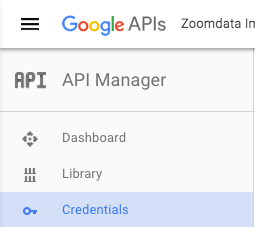
- On the Credentials page, select Manage service accounts.
-
On the Service Accounts page, select Create Service Account and specify the following:
- Service account name
- Role - grant this microservice account role based access to the project. From the list, select the BigQuery category and then select BigQuery Data Viewer and BigQuery User roles.
- Service account ID
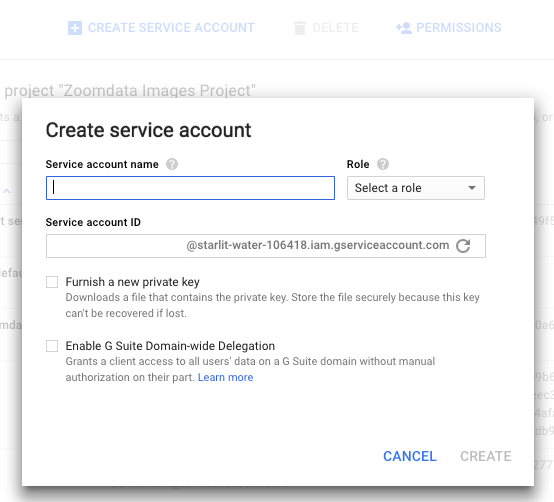
- Select Create.
- On the Service Accounts page, find the required account.
- From the menu, select Create key.
- In the Create private key dialog, select JSON for the key type and select Create. The local copy of the key is saved on your computer. For more information, see the following Google resource: BigQuery Introduction to Authentication.
- Move the file with the key to the server, on which the connector is running.
Connect to BigQuery Using OAuth
To create a BigQuery connection use one of the available authentication methods:- Key authentication flow requires a security key to be generated at BigQuery and placed to the Self-Service Analytics instance.
- OAuth 2.0 requires providing OAuth
client_idandclient_secretsgenerated for a user that will serve for data retrieval, such as an integration user. Users are asked to authenticate via a separate authentication form. Users provide their individual credentials when accessing the data retrieved using this connection.
| Authentication Flow | ||
|---|---|---|
| Key Path | Key Authentication | Absolute path to the key authentication file obtained from BigQuery and placed to Self-Service Analytics instance. |
| Public Project Ids | List of public project IDs that will be queried for the data. | |
| OAuth 2.0 Enabled | OAuth 2.0 | TRUE/FALSE |
| Project Id | Billing project ID that will be queried for the data. Optional if keys authentication is used. | |
| OAuth 2.0 Client Id | client_id: Obtain from BigQuery.See https://cloud.google.com/bigquery/docs/authentication/end-user-installed. | |
| OAuth 2.0 Client Secrets | client_secrets: Obtain from BigQuery.See https://cloud.google.com/bigquery/docs/authentication/end-user-installed. |
Scheduled Override Options
To maintain Self-Service Analytics’s ability to perform scheduled operations such as scheduled dashboard reports, alerts notifications, and more when using OAuth 2.0 authentication flow, you can setup scheduled overrides with key authentication method by providing a key path. Additional OAuth 2.0 parameters available for override, however, already have prepopulated BigQuery values and do not require manual editing:OAUTH2.AUTHORIZATION_URIOAUTH2.TOKEN_URIOAUTH2.SCOPES
Scheduled source refresh is not available when you use OAuth 2.0 authentication.