
Generate an Embeddable Dashboard HTML Snippet
You can generate an embeddable HTML snippet for a dashboard using the UI. For even more control, use JavaScript to embed the dashboard. See Embed Components Using JavaScript and Trusted Access.In this release, when your admin enables the Enhanced Experience user interface, you will see changes to workflows you may have used in previous releases.
- Log into the UI as an administrator or as a user assigned to a group with the Generate Embed Code privilege.
- Select the Discovery Board card on your home page or Library from the main menu. The dashboard library opens.
- Locate the dashboard in the library list for which you want to generate an embeddable snippet.
-
Select
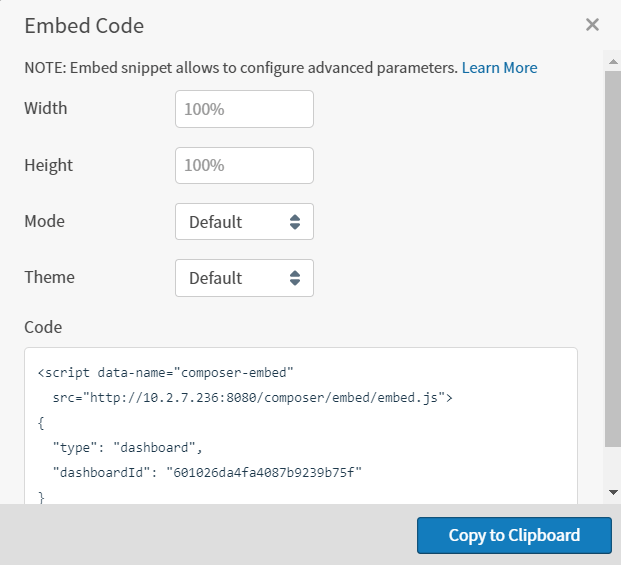
 in the associated Actions column. The Embed Code dialog appears.
-
The default width setting (100%) is shown in the Width box. Click in the box and enter the width value you want in CSS units. For example,
800px,75%,500emand80vware all valid settings. -
The default height setting (100%) is shown in the Height box. Click in the box and enter the height value you want in CSS units. For example,
800px,75%,500emand80vhare all valid settings. -
Select a mode in the Mode box. The mode setting determines the way in which your users will be able to work with the embedded dashboard. If you do not want the user in your application to change anything and only be able to view the dashboard, select Read Only. If you want your users to be able to make changes to the dashboard, select Interactive. The default is Interactive.
When the mode is Read Only, the dashboard cannot be changed.
The level of interactivity a user has with an embedded dashboard is determined by the interactivity settings of each visual in the dashboard. See Control How Users Interact With a Visual.
- Select a theme in the Theme box. You can select any available themes. See Supplied Themes. If you add your own themes to the application, more options are available in this list. For information on adding your own UI themes, see Manage User Interface Themes.
- When all the optional settings are specified as you need, select Copy to Clipboard to copy the embeddable dashboard snippet to the clipboard. You can then paste the embeddable HTML snippet into your application code.
- Close the Embed Code dialog by selecting the x in the upper right corner of the dialog.
- If you want to specify additional properties for your embedded dashboard, use Javascript. The supported dashboard properties are described in Embedded Dashboard Properties and Objects.
Generate an Embeddable Report HTML Snippet
You can generate an embeddable HTML snippet for a report using the UI.To use self service reports, you will need to enable it in your environment. See Server-Level Variables.
In this release, when your admin enables the Enhanced Experience user interface, you will see changes to workflows you may have used in previous releases.
- Log into the UI as an administrator or as a user assigned to a group with the Generate Embed Code privilege.
- Select the Reports card on your home page or Library from the main menu. The library opens; select the Reports tab if needed.
- Locate the report for which you want to generate an embeddable snippet.
-
Select in the associated Actions column. The Embed Code dialog appears.
-
The default width setting (100%) is shown in the Width box. Click in the box and enter the width value you want in CSS units. For example,
800px,75%,500emand80vware all valid settings. -
The default height setting (100%) is shown in the Height box. Click in the box and enter the height value you want in CSS units. For example,
800px,75%,500emand80vhare all valid settings. -
Select a mode in the Mode box. The mode setting determines the way in which your users will be able to work with the embedded report. If you do not want the user in your application to change anything and only be able to view the report, select Read Only. If you want your users to be able to make changes to the report, select Interactive. The default is Interactive.
When the mode is Read Only, the report cannot be changed.
The level of interactivity a user has with an embedded report is determined by the interactivity settings of each visual in the report. See Control How Users Interact With a Visual.
- Select a theme in the Theme box. You can select any available themes. See Supplied Themes. If you add your own themes to the application, more options are available in this list. For information on adding your own UI themes, see Manage User Interface Themes.
- When all the optional settings are specified as you need, select Copy to Clipboard to copy the embeddable report snippet to the clipboard. You can then paste the embeddable HTML snippet into your application code.
- Close the Embed Code dialog by selecting the x in the upper right corner of the dialog.
- If you want to specify additional properties for your embedded report, use Javascript. The supported dashboard properties are described in Embedded Dashboard Properties and Objects.
Generate a Sources Inventory HTML Snippet
You can generate an embeddable HTML snippet for the sources inventory using the UI. Generate an embeddable HTML snippet- Log into the UI as an administrator or as a user assigned to a group with the Generate Embed Code privilege.
- Select the Source card on your home page or Data Sources from the main menu. The Sources page appears.
-
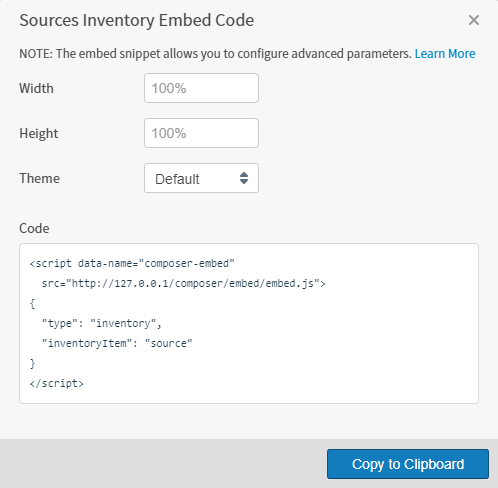
Select the embed sources inventory icon () above the list of sources. The Embed Code dialog appears.
-
The default width setting (100%) is shown in the Width box. Select the entry field, then enter the width value you want in CSS units. For example,
800px,75%,500emand80vware all valid settings. -
The default height setting (100%) is shown in the Height box. Select the entry field, then enter the height value you want in CSS units. For example,
800px,75%,500emand80vhare all valid settings. - Select a theme in the Theme box. By default, three possible themes are available: Logi-Composer, Logi-Modern, and Logi-Dark. However, if you add your own themes to the application, more options are available in this list. The default is Logi-Composer, which is the same as the Logi-Modern theme. For information on adding your own UI themes, see Manage User Interface Themes.
- When all the optional settings are defined as you need, select Copy to Clipboard to copy the HTML snippet to the clipboard. You can then paste the this snippet into your application code.
- Close the Embed Code dialog by selecting the x in the upper right corner of the dialog.
Generate a Visual Gallery HTML Snippet
You can generate an embeddable HTML snippet for the visual gallery using the UI. Generate an embeddable HTML snippet- Log into the UI as an administrator or as a user assigned to a group with the Generate Embed Code privilege.
- Select Visual Gallery from the main menu. The visual gallery appears.
-
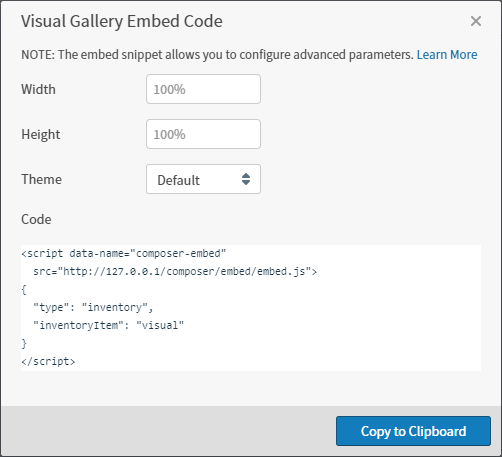
Select the embed library icon () above the list of visuals. The Embed Code dialog appears.
-
The default width setting (100%) is shown in the Width box. Select the entry field, then enter the width value you want in CSS units. For example,
800px,75%,500emand80vware all valid settings. -
The default height setting (100%) is shown in the Height box. Select the entry field, then enter the height value you want in CSS units. For example,
800px,75%,500emand80vhare all valid settings. - Select a theme in the Theme box. By default, three possible themes are available: Logi-Composer, Logi-Modern, and Logi-Dark. However, if you add your own themes to the application, more options are available in this list. The default is Logi-Composer, which is the same as the Logi-Modern theme. For information on adding your own UI themes, see Manage User Interface Themes.
- When all the optional settings are defined as you need, select Copy to Clipboard to copy the HTML snippet to the clipboard. You can then paste the this snippet into your application code.
- Close the Embed Code dialog by selecting the x in the upper right corner of the dialog.