
You can only tailor theme colors. Other tailoring properties (such as fonts or font sizes) should not be changed.
customization/themes API endpoint. Any changes you make to the theme are applied for all users in the tenant account. Users in other tenant accounts are not affected.
You can specify a master theme in the theme JSON using the masterThemeID property to define properties you want have inherited by a custom theme. Using a master theme is optional. Only Self-Service Analytics-supplied themes can be used as a master theme. See Supplied Themes.
User Interface Themes: v26.3 and Later
You now have access to a refreshed user interface for use in your environment. For information on previous releases, see User Interface Themes: Earlier Releases. Your home page, main menu, and overall user interface have been enhanced with a new look, feel, and fresh color theme. We call it the Enhanced Experience. It modernizes and expands the Classic Experience that has defined your embedded analytics experience. The home page updates bring together changes that make it easier for users to access sources, visuals, libraries, and administrative features. The main menu has been reimagined, so your users and administrators can quickly access the features, information, tenants, or other tools they need. For more information, see Home Page and The Main Menu. Which interface will I see when I implement Self-Service Analytics 26.3? No matter your transition path, when implement 26.3 in your environment, your custom theme is honored. When you are ready to stage and then roll out the layout changes to your users, enable theenhanced-experience toggle. See Server-Level Variables.
- The Enhanced Experience If you are transitioning from Symphony 26.1 or earlier, you will see the enhanced experience layout and colors you are already using.
- The Classic Experience If this is a fresh installation of 26.3 in your environment, you will see the classic experience layout and default composer color theme. Enable the
enhanced-experiencetoggle in your staging environment to try it out, then roll it out to your users. - The Classic Experience If you are transitioning from Composer 26.2 or earlier and using any previous color theme (composer, modern, dark), you will see the classic experience layout and composer color theme. Enable the
enhanced-experiencetoggle in your staging environment to try it out, then roll it out to your users. - The Classic Experience If you are transitioning from Composer 26.2 or earlier and using a custom color theme, you will see the classic experience layout with your colors. Enable the
enhanced-experiencetoggle in your staging environment to see what it looks like. You will need to add information to your existing color theme to expand it to include the new user interface elements before you roll it out to your users. See User Interface Themes: v26.3 and Later and Themes and UI Updates.
Update your custom theme and enable the
enhanced-experience toggle before upgrading past version 26.1. The enhanced homepage and navigation will become the standard experience for all users in the near future. We recommend making these updates now to ensure a smooth transition.Supplied Themes
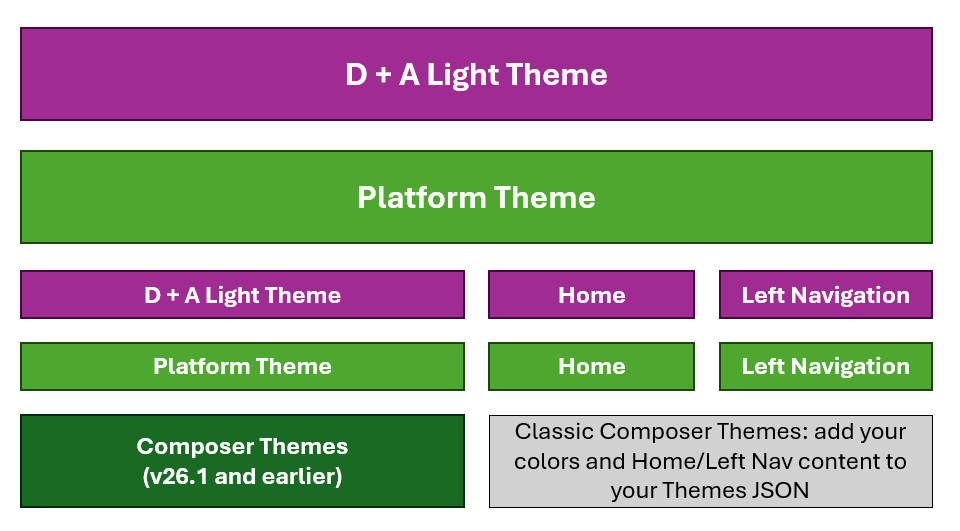
When you install or upgrade to Self-Service Analytics 26.3 or later, five themes are provided. You can switch to (activate) a different theme when needed using the provided API. API documentation is provided in your environment at this link:https://<Self-Service Analytics-URL>/composer/swagger-ui.html.
- Two of these themes fully support color and customization for environments that enable the
enhanced-experienceuser interface toggle:d+a_lightand__platform__(for environments transitioning from Symphony that previously used the platform theme). - Three themes support the classic experience from earlier releases: composer, modern (light) and dark. The composer theme is used by default in 26.3 and earlier releases when you install 26.3 or upgrade to 26.3 to ease the transition.
Update your custom theme and enable the
enhanced-experience toggle before upgrading past version 26.2. The enhanced homepage and navigation will become the standard experience for all users in the near future. We recommend making these updates now to ensure a smooth transition.User Interface Interaction With Themes
Thed+a_light and __platform__ themes have definitions for the full range of user interface changes introduced when you enable the enhanced-experience toggle.
You will need expand and update your classic theme colors to accommodate the new interface objects. For more detailed customization information, see Themes and UI Updates.
User Interface Themes: Earlier Releases
Supplied Themes
When Composer was installed, three themes were provided: composer, modern (light) and dark. The composer theme is used by default. You can switch to (activate) a different theme when needed. See Activate a Theme. API documentation is provided in your environment at this link:https://<Self-Service Analytics-URL>/composer/swagger-ui.html.
Create a Theme
You can create your own themes to use in the Self-Service Analytics UI. Create a theme-
Set up the JSON file that describes your theme. Download and use the JSON files provided with the supplied modern and dark themes to get started or create your own.
-
To use the JSON files for either the modern or dark theme as a template for your own, retrieve the theme JSON file using the
/api/customization/themes/name/<name>API endpoint in a GET request. The following request obtains the JSON for the modern theme.where<ip-address>is the IP address or host name of your Self-Service Analytics instance and <port> is its port. The JSON is provided in the response from the request. You can download the JSON and review and alter it as needed. - You can create a JSON file that describes your theme. See Themes JSON File for information on downloading and editing a theme.
-
To use the JSON files for either the modern or dark theme as a template for your own, retrieve the theme JSON file using the
-
Use the
/api/customization/themes/API endpoint in a POST request to create the theme. Use the text of your JSON file as the body ("content": "<string>") of the request. Be sure to remove the"system": trueand"id": "<string>"properties from the JSON file before you use it to create a theme. Self-Service Analytics automatically generates an ID for the theme and sets the value of the"system"property when the API request to create the theme is processed. If you want to specify a master theme, provide the theme name in themasterThemeIDproperty. Master themes are optional, but allow you to identify the Self-Service Analytics-supplied theme from which properties should be inherited by a custom theme, if the properties are not specified in the custom theme JSON. Master themes can only be Self-Service Analytics- supplied themes. See Supplied Themes. The following shows a sample request to create a theme based on the supplied modern theme, but using the supplied composer theme as its master theme.You can only tailor theme colors. Other tailoring properties (such as fonts or font sizes) should not be changed.
where
<ip-address> is the IP address or host name of your Self-Service Analytics instance, <port> is its port, <theme-name> is the name of your new theme, and <JSONcontent> is the JSON content for your theme.
After the theme is successfully created, it shows up in the list of available themes when one is generated (see List Themes) and it can be updated and patched (see Update a Theme and Patch a Theme). It can also be deleted (see Delete a Theme). However, it will not be used by the Self-Service Analytics UI until it has been activated (see Activate a Theme).
Update a Theme
When you update a theme, you replace the entire JSON file for an existing theme.
You can only tailor theme colors. Other tailoring properties (such as fonts or font sizes) should not be changed.
Update a theme
- Update the JSON file that describes your theme. You can download a copy of it to work with if needed. See Review and Download the Theme JSON Code.
- Note the ID for your theme. This must be specified separately from the rest of the JSON file in an update request.
- Remove the ID for your theme from the JSON file.
- Use the
/api/customization/themes/<id>API endpoint in a PUT request to update the theme. Use the text of your updated JSON file as the body ("content" : "<string>") of the request, but specify the ID of the theme as a parameter for the endpoint PUT request.
The following request patches the theme called mytheme.
where
<ip-address> is the IP address or host name of your Self-Service Analytics instance, <port> is its port, and <id> is the theme ID.
If the theme is the active theme, refresh the Self-Service Analytics UI to see the theme changes. If the theme is not the active theme, activate it to see the theme changes in the UI.
Activate a Theme
To set the active theme in your Self-Service Analytics environment, you need to activate it.
Activate a theme
- Obtain the theme ID. You can do this by listing the themes in your environment. See List Themes.
- Use the
/api/customization/themes/activateAPI endpoint in a POST request to activate the theme. The following request activates the supplied dark theme.
where
<ip-address> is the IP address or host name of your Self-Service Analytics instance and <port> is its port.
The theme is set as the active theme for the UI. You must refresh your UI screen to see it.
Delete a Theme
You can delete the JSON definition of a theme for the Self-Service Analytics UI. You must know the theme ID before you can delete it.
Delete a theme
- Obtain the theme ID. You can do this by listing the themes in your environment. See List Themes.
- Use the
/api/customization/themes/<id>API endpoint in a DELETE request to delete the theme. The following request deletes the theme named mytheme.
where
<ip-address> is the IP address or host name of your Self-Service Analytics instance and <port> is its port.
The theme is deleted.
List Themes
You can list the themes defined for your Self-Service Analytics environment.
List themes
- Use the
/api/customization/themesAPI endpoint in a GET request. For example:
where
<ip-address> is the IP address or host name of your Self-Service Analytics instance and <port> is its port.
A list of the themes defined to your environment is provided in the body of the response output.
The response output might look like this, with three themes defined: modern, dark, and mytheme. The ID for a theme is generated by Self-Service Analytics when the theme is created in the system.
Review and Download the Theme JSON Code
You can review and download the JSON definition of a theme for the Self-Service Analytics UI. You must know the theme ID or the theme name before you can obtain and review the theme JSON. When you install Self-Service Analytics, three themes are provided with the following IDs and names: composer, modern and dark. The composer theme is the same as the modern theme.
Review a theme’s JSON definition using the theme ID
- Obtain the theme ID. You can do this by listing the themes in your environment. See List Themes.
- Use the
/api/customization/themes/<id>API endpoint in a GET request to obtain the JSON for the theme. The following request obtains the JSON for the supplied modern theme. The supplied modern theme’s ID is modern (the same as its name).
where
<ip-address> is the IP address or host name of your Self-Service Analytics instance and <port> is its port.
The JSON is provided in the response from the request. You can download the JSON and review it.
Review a theme’s JSON definition using the theme name
- Obtain the theme name. You can do this by listing the themes in your environment. See List Themes.
- Use the
/api/customization/themes/name/<name>API endpoint in a GET request to obtain the JSON for the theme. The following request obtains the JSON for the theme named mytheme.
where
<ip-address> is the IP address or host name of your Self-Service Analytics instance and <port> is its port.
The JSON is provided in the response from the request. You can download the JSON and review it.
Patch a Theme
When you patch a theme, you replace small sections of an existing theme.
You can only tailor theme colors. Other tailoring properties (such as fonts or font sizes) should not be changed.
Patch a theme
- Identify the section of the JSON file that you want to patch. You can download a copy of it to work with if needed. See Review and Download the Theme JSON Code. The section that you select to patch does not need to include an entire section of the file, but it must be clear what you are changing and it must be well-formed. For example, suppose the following color variables are used in your JSON file but you only want to patch the setting for the
backgroundcolor variable.
To patch the setting for the
background variable, you would use this snippet of code when you submit the API request later in these steps.
- Note the ID for your theme. This must be specified separately from the rest of the JSON file in a patch request.
- Use the
/api/customization/themes/<id>API endpoint in a PATCH request to update the theme. Use snippet of JSON code as the body ("content" : "<string>") of the request, but specify the ID of the theme as a parameter for the endpoint PATCH request.
The following request patches the theme called mytheme.
where
<ip-address> is the IP address or host name of your Self-Service Analytics instance, <port> is its port, and <id> is the theme ID.
If the theme is the active theme, refresh the Self-Service Analytics UI to see the theme changes. If the theme is not the active theme, activate it to see the theme changes in the UI.
Themes API Endpoint
The API endpoint used to manage themes is
customization/themes.
API documentation is provided in your environment at this link:
https://<Self-Service Analytics-URL>/composer/swagger-ui.html.
Themes and UI Updates
Themes provide the color and styling of your analytics software environment. Match your corporate colors, or use one of the default themes included with installation or upgrade.
If you’re upgrading to v26.2 or later from an earlier release, the user interface has changed. Roll out this experience in your staging environment, then production environment by enabling the enhanced-experience toggle. The enhanced experience expands the classic experience with changes to navigation though the main menu and the home page.
Update your existing theme to include color properties for these new UI elements. If you don’t update your classic theme (composer, modern (light) , dark) or any custom theme you’ve built on these classic themes, the new navigation elements will render unstyled, missing your desired accent colors, or rendering plain black text on a default white background. See User Interface Interaction With Themes.
Update your custom theme and enable the
enhanced-experience toggle before upgrading past version 26.2. The enhanced homepage and navigation will become the standard experience for all users in the near future. We recommend making these updates now to ensure a smooth transition.General Theme Update Workflow
- Determine your update scenario, as laid out in Themes and UI Update Scenarios.
- Identify your current theme by sending a
GETrequest to the/api/customization/themes/activeendpoint, then download the JSON of the theme you want to update. - Add or edit the properties of your JSON file. If you are updating a classic theme, see Expand a Theme to Support the Enhanced Experience. If you are updating a theme that supports the enhanced experience, see JSON File Updates.
- Upload your updated theme. See Update a Theme or Patch a Theme.
- Test in staging by enabling the enhanced-experience toggle, refresh your browser, then verify colors in your environment.
- Rollout to your production environment when ready.
Safe Update and Editing Tips
- Keep the same JSON structure and property names as in the Themes JSON File.
- When you apply updates to your existing theme, PATCH it using the appropriate API endpoint.
- Replace hex values with your brand colors.
- Keep non-color style values as-is unless you specifically want to change behavior:
mixBlendModetabBg
- Ensure your selected text and icon colors have enough contrast against your background colors.
- Keep your active and hover states visually distinct from default states.
Themes and UI Update Scenarios
Depending on the version of your current instance, you may need to complete several tasks to support your roll out of an enabled enhanced experience.
| Previous Environment | Default User Interface on update to v26.2 | Default Theme on update to v26.2 | Actions |
|---|---|---|---|
| Symphony 26.1 or earlier | enhanced-experience (enabled) | Your existing theme remains unchanged. | No action required. You can continue using your custom theme, d+a_light theme, or __platform__ theme. |
| New install: v26.2 | Classic experience. | composer theme. | Enable the enhanced-experience toggle, and select the d+a_light theme, or __platform__ theme. Alternatively, expand and update a classic theme. |
| Composer v26.1 or earlier (custom theme) | Classic experience. | Your custom classic theme is applied. |
Alternatively, apply the d+a_light theme, or __platform__ theme. |
| Composer v26.1 or earlier (composer, modern, or dark theme) | Classic experience. | Your existing theme selection is applied. |
Alternatively, apply the d+a_light theme, or __platform__ theme. |
User Interface Changes
When you enable the enhanced-experience toggle, the following broad changes are applied to your environment.| Previous Interface Element | When Enhanced Experience is enabled | Notes |
|---|---|---|
| Login Page | Updated User Interface | White background may not show white images or text well. |
| Home Page | Replaced with a new Home Page layout. The specific layout is dependent on the user’s privileges. | Card functionality is similar to the previous home page. Supports advanced features such as AI integration. |
| Side Bar (Main Menu) | New User Interface, replacing UI menu. | Replaces and reorganizes features available to users in the UI menu. Supports advanced features such as AI integration. |
| Top Navigation Bar | Removed. Functionality replicated by the new main menu and home page. | This element has been retired. |
| Optional Side Navigation | Replaced. Functionality moved to Main Menu. | This element, enabled in some environments optionally using a server-level variable, has been retired. |
| Tenant Switching | Moved. | Tenant switching and some administrative functions have been moved and reorganized into sub menus. |
IFrame Access URL References
The enhanced experience user interface changes also have back end url address changes you will need to be aware of when updating your environment. Items that were in the main UI menu for Administrators and members of the Supervisor group have been reorganized into an Administration menu and Tools dropdown menu. The Switch Tenant menu has moved to a sub menu of the Profile menu option.| Admin Page | v26.1 and Earlier Retiring Reference | v26.2+ Enhanced-Experience |
|---|---|---|
| Users | {baseURL}/composer/admin.html#users-and-groups | {baseURL}/composer/admin.html#users |
| Groups | {baseURL}/composer/admin.html#groups | |
| Group Privileges | {baseURL}/composer/admin.html#group-privileges | |
| Tenants | No change. See v26.2 column. | {baseURL}/composer/admin.html#accounts |
| System Users | {baseURL}/composer/admin.html#users | Removed. Use the Users page or Groups page as needed. |
| License | {baseURL}/composer/admin.html#license | |
| Custom Charts | {baseURL}/composer/admin.html#visualizations | |
| Console | {baseURL}/composer/admin.html#scheduler | |
| Actions | {baseURL}/composer/admin.html#actions | |
| Customize UI | {baseURL}/composer/admin.html#customize | |
| Security | {baseURL}/composer/admin.html#security | |
| Connectors | {baseURL}/composer/admin.html#connectors | |
| Advanced (Admin-Level Variables) | {baseURL}/composer/admin.html#advanced | |
| Configuration (if the configuration microservice is enabled) | {baseURL}/composer/admin.html#configuration |