
insightsoftware recommends using Trusted Access for all embed-related workflows.
In environments where you use Typescript for your client side code, you can use Embed Manager as an npm package. See https://www.npmjs.com/package/logi-embed.
- Trusted Access Prerequisites
- Trusted Access Recommendations
- Register a Client
- Generate a User’s Access Token
Trusted Access Prerequisites
- Every end user must have Self-Service Analytics user account defined, unless you are using LDAP autoprovisioning with Self-Service Analytics. See Manage Users.
- Trusted Access is enabled by default. If it is disabled, enable Trusted Access by selecting the Trusted Access option on the Security page. See Enable Trusted Access.
Trusted Access Recommendations
For security reasons, we recommend that you use short-lived tokens. Tokens that are valid for less than 10 minutes are recommended. The validity time of a user access token is defined when you register a client with Self-Service Analytics.Register a Client
To start using Trusted Access, you first need to register your application, as Self-Service Analytics refers to it, as a client. Registering a client will generate a client ID and client secret. These credentials can then be used to generate user access tokens for any user in the Self-Service Analytics platform, as needed. To register your application as a client, POST the/api/trusted-access/clients API endpoint. You can also patch, delete, and list Trusted Access clients using the /api/trusted-access/clients API endpoint. See Trusted Access API Endpoints.
Generate a User’s Access Token
To generate a user’s access token, pass the client ID and client secret to HTTP BasicAuth. To obtain the client ID and client secret, use the/api/trusted-access/clients API endpoint. See Trusted Access API Endpoints.
Generate a User’s Access Token for Existing Self-Service Analytics Users
You can only generate tokens for regular users and for administrators.
Generate a User’s Access Token for New Self-Service Analytics Users
You can only generate tokens for regular users and for administrators.
Trusted Access API Endpoints
The following API endpoints can be used to manage Trusted Access.| Endpoint | Method | Description |
|---|---|---|
/api/trusted-access/clients | GET | Returns all the Trusted Access client information in the metadata. Included with this information is the access token validity time (in seconds), client ID, client name, client secret expiration time (in seconds), and the token authentication method. For a description of these, see Trusted Access Client Properties. |
/api/trusted-access/clients | POST | Creates a Trusted Access client. The request must specify the number of seconds for which the access token is valid and the client name. The client name must be unique. When you create the client, the client ID, client secret, secret expiration time, and the token authentication method are automatically generated. |
/api/trusted-access/clients/<id> | GET | Returns the Trusted Access client information for a specific client. The request must specify the client ID. |
/api/trusted-access/clients/<id> | DELETE | Deletes a specific Trusted Access client. The request must specify the client ID. |
/api/trusted-access/clients/<id> | PATCH | Updates the Trusted Access client information for a specific client. The request must specify the client ID and the number of seconds for which the access token is valid. |
/api/trusted-access/pull/tokens | POST | Use pull to request a user access token for users that already exist in Self-Service Analytics. The user must already exist, and have an active Self-Service Analytics user account (unless you are using LDAP with automatic provisioning for Self-Service Analytics). You can not update user context such as user attributes or groups using pull. |
/api/trusted-access/push/tokens | POST | Use push to request a user access token for new and existing users by sending their context to Self-Service Analytics. Existing users are updated if their context has changed. Context must contain username, and account. It can optionally include email, fullname, groups and other individual attributesSeveral reserved keys are restricted from use in Self-Service Analytics as custom user attributes: composerUserName and accountId. If you push these reserved keys, a 400 Bad Request error is returned via API. |
Trusted Access Client Properties
The following table describes the Trusted Access client properties. All of this information is encrypted when it is stored in the Self-Service Analytics metadata store, except the client secret, which is hashed using BCrypt.| Endpoint | Description |
|---|---|
client_name | The human-readable string name of the client application. The client name must be unique. |
client_id | The client ID issued to the client when the client is registered with Trusted Access. This is generated by the system and cannot be modified. |
client_secret | The client secret string issued to the client when the client is registered with Trusted Access. This value is used by applications to authenticate to the token endpoint. The client secret is not available after it is initially created — developers must store it locally in order to retain it. |
access_token_validity_seconds | The validity (in seconds) of the access token. Short-lived tokens (less than 10 minutes) are recommended. |
client_secret_expires_at | The time (in seconds) at which the client_secret will expire. A value of zero (0) means that the client secret never expires. |
token_endpoint_auth_method | A string indicator of the authentication method used for the token endpoint. For Trusted Access, this value is always "client_secret_basic", which means that the client must always use HTTP basic authentication to request an access token. |
Enable Trusted Access
Trusted Access is enabled by default in Self-Service Analytics. This enables you to create clients, and Self-Service Analytics to provide access tokens to authorized clients using Trusted Access. It can be disabled by a system administrator or member of the supervisors group, and another authentication method used.insightsoftware recommends using Trusted Access for all embed-related workflows.
-
Log in as a system admin or a member of the Supervisors group.
The default supervisor user is no longer installed; add users to the Supervisors group instead.
-
Select Tools > Security from the Administration menu.
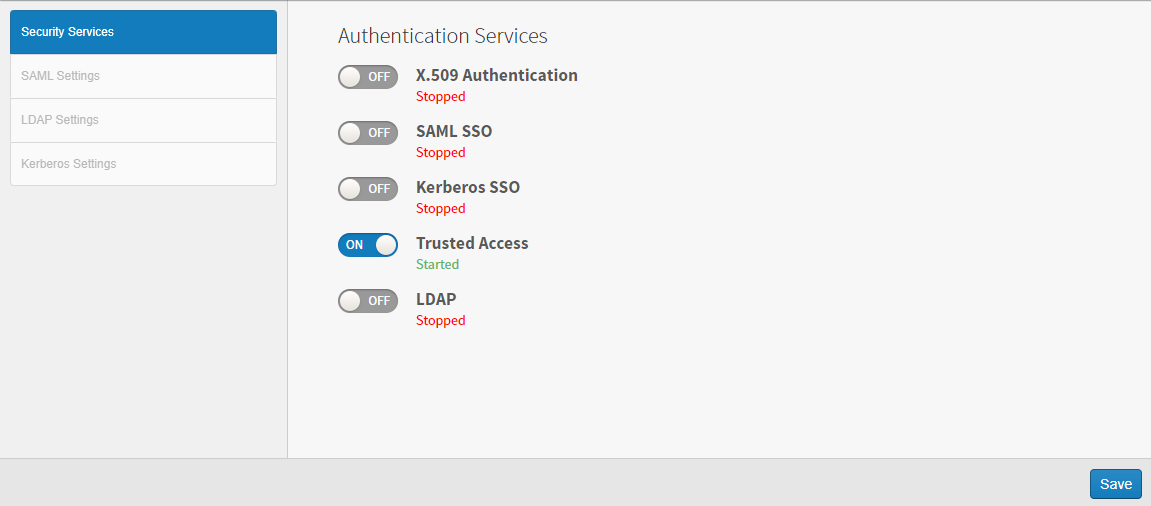
- Switch the Trusted Access setting to OFF to disable, or ON to enable.
- Select Save.
- Restart Self-Service Analytics. See Restart Microservices.