
https://<Self-Service Analytics-URL>/composer/swagger-ui.html.
This topic describes the following REST API topics:
- Authentication
- Version Compatibility
- HATEOAS Architecture
- API Entry Point
- The /api/ Path
- Optimistic Locking on PATCH Calls
- Reference Documentation
Authentication
The API currently uses basic access authentication. Most actions require admin-level access to the particular account manipulated using the API.Version Compatibility
Each version of the API maintains backward compatibility with previous versions. The HTTP Accepts/Content-type header is used to specify the version for the resources that are produced and used by the API. When sending data to or receiving data from the API, you must use the appropriate HTTP header. When working with the API, you should explicitly set the version of the API that you want to use. For example, in cURL requests, you would include the--header parameter as shown below.
application/vnd.composer+json.
There is a risk associated with using this generic media time to ensure you always use the latest version. Because this approach does not tie calls to specific API versions, if the latest version changes, your integration may break. It is safer to tie your API calls to specific versions.
X-composer-Media-Type, in the response to every API request.
The rule for specifying media types is simple. Always include the generic media type application/vnd.composer+jsonand, if you specify a particular version, always put it first. For example:
- Correct:
application/vnd.composer.v3+json,application/vnd.composer+json - Incorrect:
application/vnd.composer+json, application/vnd.composer.v3+json
HATEOAS Architecture
The API implements the HATEOAS architectural pattern. Most resources returned by the API have alinks element. The links elements is an array of objects, each with two properties:
rel: short description of how this link relates to the parent objecthref: the actual link value
rel: "self" link, which is the canonical reference to that object. You can use the other links to explore the relations of a given object, for example, the users in a tenant or the sources tied to a connection.
API Entry Point
The initial entry point to the API ishttp://<host>:<port>/<context>/api. For example:
The /api/ Path
Some functions of the Self-Service Analytics client application call APIs using a/api/ path. Except where noted in the developer documentation, endpoints that use the /api/ path are for insightsoftware’s internal use only.
Applications built with Self-Service Analytics’s internal-use APIs, are subject to a high risk of unexpected breakage.
/api/ path that are safe to use include, for example, the /api/sources/key endpoint.
Optimistic Locking on PATCH Calls
API data source PATCH calls use optimistic locking to ensure the PATCH is applied to the most recent records. Aversion parameter is used in these calls to track the version counter number. If this counter is not incremented in the payload of the call or if it is in error, the PATCH call will fail with an error similar to this:
- Perform a GET call immediately prior to the PATCH call to retrieve the latest version counter number. This is the recommended approach.
- If no changes have been made using the UI, and you can safely remember the version counter number of the previous call after every successful PATCH call, simply increment the version counter number in your newest PATCH call.
Reference Documentation
insightsoftware maintains Swagger-based reference materials for the Self-Service Analytics REST APIs. In this testing environment, you can experiment with the APIs features. API documentation is provided in your environment at this link:https://<Self-Service Analytics-URL>/composer/swagger-ui.html.
Cautionary Note About Internal APIs
Self-Service Analytics offers a number of REST APIs so you can extend and embed Self-Service Analytics in your own custom applications. These APIs are denoted as publicly available using the/api/ path.
API documentation is provided in your environment at this link: https://<Self-Service Analytics-URL>/composer/swagger-ui.html.
Manage Connectors with REST APIs
The administrative REST APIs enable developers to manage connectors, connections, and data sources. The data connectivity with data stores is organized in these segments, illustrated below.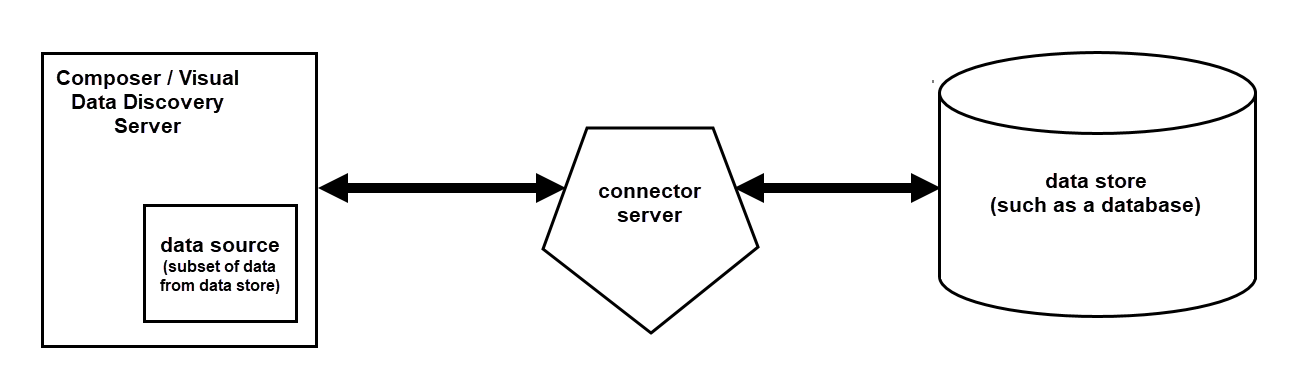
-
Self-Service Analytics registers a connector, that is a connector server from which it requests data. Registering a connector server involves the following REST endpoints:
/api/connector-server/- Use this endpoint to manage the Self-Service Analytics object that provides HTTP connectivity information about the connector server/api/connectors/- Use this endpoint to list functioning connector servers to validate that Self-Service Analytics has registered the connector server/api/connection-type/- Use this endpoint to manage the object that holds the data store parameters and connection parameters that the connector server needs to connect to a data store. This information commonly includes minimum and maximum supported version and connection parameters such as authentication information. A connection-type corresponds to an icon in the administrator’s Sources page and makes it possible for end users to provide login credentials and make a data source from a data store.
-
The connector server connects to a data store such as a database, or file upload to create a subset of data called a data source. That data source serves as a source of data for end users to use with visuals. Connecting to a data store involves the following REST endpoints:
/api/connections/- Use this endpoint to provide required parameters, often login credentials, that a connector server uses to access a data store following parameters set by the connection-type./api/sources/{id}- Use this endpoint to create a data source using a connection to a data store. End users can see the date in this data source using visuals.
Registering Self-Service Analytics with a Connector Server
Before Self-Service Analytics can use a connector server, it must register the connector server. Unless connector microservice discovery is turned off, Self-Service Analytics automatically discovers preinstalled connector servers when Self-Service Analytics is started up. Self-Service Analytics does not automatically discover custom-built connector servers. You can use the Self-Service Analytics client application to manually register a connector server, or you can do so using REST APIs. For more information about using the Self-Service Analytics client application to register a connector server, see Configuring a New Connector Manually.Using REST APIs to Register a Self-Service Analytics Connector Server
Before Self-Service Analytics can access a connector server, the connector server must be registered with Self-Service Analytics. If automatic discovery does not work, then you must do this process manually using either the client application or using APIs. Registering a connector server requires providing the information needed to connect with and understand the connector server. Use the following steps to register a connector server using the provided APIs. API documentation is provided in your environment at this link:https://<Self-Service Analytics-URL>/composer/swagger-ui.html.
To register a connector server with Self-Service Analytics:
-
Provide the server with the information that it needs to connect to the connector server using the POST method with the
/api/connector-servers/endpoint. Of the body parameters listed in the reference documentation, the following are required:in which:nameshould be unique and easily remembered.protocolshould be set asHTTP. It is set as DISCOVERY or CORE if the connector was automatically discovered or built into Self-Service Analytics. If you do manual API-based registering, use HTTP.HTTP_URLshould be set to the URL used to access the connector server.
-
After connector server discovery has detected and registered a connector server, or after you have manually registered the connector server using the
/api/connector-servers/endpoint, Self-Service Analytics can validate that the connector server is registered by using the/api/connectors/endpoint. The API returns a dynamically generated list of all registered connectors. -
Provide additional connection parameters using the POST method with the
/api/connection-types/endpoint.in which:-
nameis a string by which the connection type is to be identified by the end user on the Sources page. There may be more than one connection type (configuration) for how each connector is used. End users see each of these as a distinct type of connector, so the best practice is to name it as if it were a distinction connector. For example, you might make two different connection types to access a MySQL database using your MySQL connector server. One connection type might be low-security, using generic credentials for all users. The other connection type might require a user to provide specific, personal credentials that the connector server then passes along to the MySQL database to access specific data available only to that person. The two connection types, show up as two distinct connectors when a user creates a source, name, for example, “All-company MySQL Connector” and “Employee-specific MySQL Connector”. -
storageTypecorresponds to thestorageTypereturned by a connector server when it is asked to describe the database to which is connects. The storage types available via a particular connector server can be found by making a GET call to/api/connector-servers/{connector-server-id}/connection-types.
-
-
Optionally, provide a custom icon to denote the new connection type using the
/api/connection-types/{id}/icon/endpoint. The endpoint expects oneformDataparameter - the icon image. It should be a 72 x 72 image in the form of either an SVG string or a PNG file in base 64 format.
Connecting to a Data Store
After the connector server is registered with Self-Service Analytics and one or more connection types have been defined, you can use the connector server to connect to a data store and create a data source.-
Create a connection via the connector server to a data store by using the POST method with the
/api/{accountId}/connections/endpoint. The response object includes the ID of the created connection attheResponseObject.links[0].href. This value is a string representation of a URL, the last component of which is the id of the object itself. For instance, inhttps://<Self-Service Analytics-URL>/composer/api/connections/58176703e4b06f699c7c70cathe ID of the object is58176703e4b06f699c7c70ca. You can also modify an existing connection by using PUT with the/api/connections/{id}/endpoint. The parameters required by these endpoint are conditioned by the configuration provided by/api/connection-type/.in which:-
nameis the name of the connection. -
connectorNameis the name of the connector used to make the connection. -
connectorParametersis an object of connector parameters as key-value pairs. For example:Connector parameters are different for each connector. Connector servers present these requirements when they are discovered by Self-Service Analytics. TheconnectorParameterscan be identified by calling/api/connection-typesand finding theparametersobject for the appropriatestorageType.Self-Service Analytics periodically introduces or deprecates connector servers. For information about the current status of a particular connector server, see Create and Manage Data Store Connections. -
sourceParametersandimpersonationParametersmay also be required for a particular connection. This information can be found using the approach used to discoverconnectorParameters.
-
-
Create a data source, that is, a subset of data from a data store, by using POST with the endpoint
/api/connections/{connectionId}/sources/. Required parameters for the source are listed below.in which:nameis the name of the new data source (subset of data from a data store)sourceParametersis an object containing the parameters required to create a source on its particular kind of connection, connector, and data store.
sourceParametersobject are defined by thesourceParametersarray included in theconnectorsobject returned by making a GET call to/api/connectors. In the sourceParameters array, each object defines a key-value pair for thesourceParametersobject required to create a source. For example, thesourceParametersdefinition in this array defines asourceParametersobject that requires anindex, amapping, and apatternType:That definition would be satisfied by thesourceParametersobject below, which could be used to create a source using the/api/connections/{connectionId}/sourcesAPI.
Configure Data Source Refresh Rates Using the API
You can modify source refresh rates using Self-Service Analytics’s REST APIs. Only live data sources have refresh rates. Consequently, you can only modify the refresh rate of a live data source.Identify Current Refresh Rates
You can identify whether a data source is live and, if so, what its current refresh rate is usingcurl or another HTTP utility or library to make the following call:
<name>and<password>are the name and password with authorization to request information about the source<yourserver_path>is the DNS and path for your Self-Service Analytics server<123456789>is replaced with the sourceID that contains the source that you wish to inspect
live key indicates whether the data source is live (also known as streaming or real-time).
The liveRefreshRate key indicates the refresh frequency of the data source. Note that this frequency has no predefined units. The units are supplied by the granularity of the source’s data. For example, if granularity is hour, then a refresh rate of 3 indicates a refresh every three hours.
Make note of the name and sourceParameters keys because they must be included in the PUT method used to modify the refresh rate.
Modify the Source Refresh Rate
You can modify a live data source’s refresh rate using cURL or another HTTP utility or library to make the following call:<name>and<password>are the name and password with authorization to modify the source<ratenum>is replaced with the refresh rate that you wish to use for the source<yourserver_path>is the DNS and path for your Self-Service Analytics server<123456789>is replaced with the sourceID that contains the source that you wish to inspect<name>is replaced with the name of the data source as discovered in the GET method detailed above<PARAM>and<PARAMVAL>are replaced with the actual values of<sourceParameters>as discovered in the GET method detailed above
Manage the Upload API Source
Self-Service Analytics supports live streaming sources. This source uses PostgreSQL as a storage medium for the incoming data flow. By default, Self-Service Analytics uses PostgreSQL to store the data for Upload API. This PostgreSQL instance is separate from other PostgreSQL instances you may have in existence. You can elect to use another PostgreSQL instance that you may have by changing the configuration properties.Before You Begin
If you want to use an existing PostgreSQL instance in conjunction with the Upload API microservice, you need to find the above information in youredc-postgresql.properties file.
Use Another PostgreSQL Instance for Upload API
- Use the following command to access and open the properties file:
-
Add the following parameters to the file:
- Save and exit the configuration file.
- Restart the Self-Service Analytics server.