> ## Documentation Index
> Fetch the complete documentation index at: https://insightsoftware.mintlify.site/llms.txt
> Use this file to discover all available pages before exploring further.

# Access and Use Self-Service Analytics

> Describes how to access your software from a web browser.

<h2 id="log-into-the-user-interface">
  Log Into the User Interface
</h2>

When you launch your browser and enter the web address provided by your administrator, you will see a login prompt. For more information on accessing your environment from a web browser, see Access and Use Self-Service Analytics.

Your administrator's instructions provide guidance about using a single sign-on system if your organization's installation is configured to use one. In that case, select the appropriate log in prompt and proceed as directed by your organization's guidance. If your company uses Self-Service Analytics's authentication, select the box labeled **Show Self-Service Analytics Authentication**.

<h3 id="sign-on-using-self-service-analytics-credentials">
  Sign On Using Self-Service Analytics Credentials
</h3>

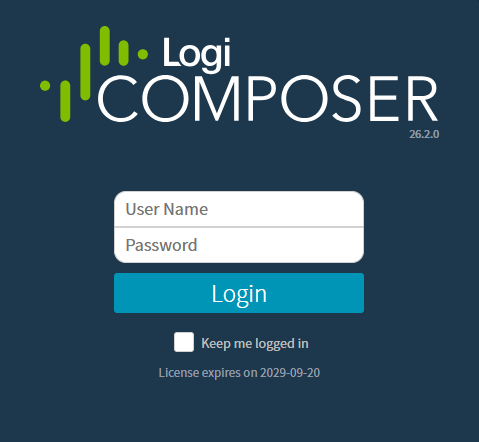
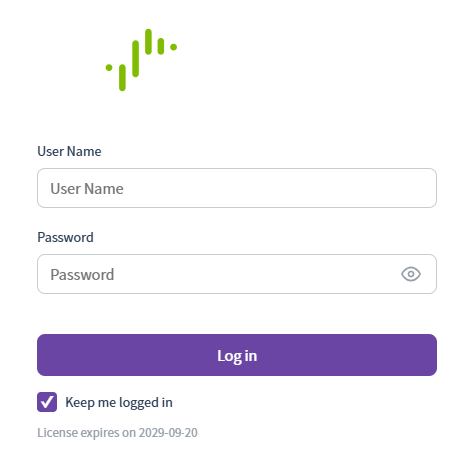
To sign on using Self-Service Analytics credentials, enter your User Name and Password in the appropriate fields. Enable the **Keep me logged in** checkbox, if needed.

<img src="https://mintcdn.com/insightsoftware/1fCfZrK84x8KmAw8/simba-embedded-analytics/docs/self-service-analytics/26.3/images/v26/custom-theme/cex-login-26-2.png?fit=max&auto=format&n=1fCfZrK84x8KmAw8&q=85&s=ca02692281b560496b354004126a30d8" alt="use this to log into your analytics environment" width="479" height="442" data-path="simba-embedded-analytics/docs/self-service-analytics/26.3/images/v26/custom-theme/cex-login-26-2.png" />

<img src="https://mintcdn.com/insightsoftware/1fCfZrK84x8KmAw8/simba-embedded-analytics/docs/self-service-analytics/26.3/images/v26/custom-theme/eex-login-26-2.png?fit=max&auto=format&n=1fCfZrK84x8KmAw8&q=85&s=f7e0c5674b94e23e6a76b197d7c818ef" alt="use this to log into your analytics environment" width="472" height="467" data-path="simba-embedded-analytics/docs/self-service-analytics/26.3/images/v26/custom-theme/eex-login-26-2.png" />

If this is your first time accessing Self-Service Analytics, you may be asked to change a password, depending on the settings defined by your organization's administrator. Contact your administrator for more information.

After you have logged in, you can switch between the Self-Service Analytics tenant accounts to which you have been assigned. See Switch Tenants .
<h2 id="home-page">
  Home Page
</h2>

When you [log in](#log-into-the-user-interface), your home page opens. Explore and interact with your data analytics environment, including dashboards, visuals, and reports ([if enabled in your environment](/simba-embedded-analytics/docs/self-service-analytics/26.3/administer/configure/config-mgmt-ov#server-level-variables)) in a variety of ways.

This topic covers the different options and features available to you.

<Note>
  In this release, when your admin enables the Enhanced Experience user interface, you will see changes to workflows you may have used in previous releases. If you are running an earlier release or your admin has not enabled the new interface, see [View the Home Page (Earlier Releases)](https://logi-composer-v26.insightsoftware.com/hc/en-us/articles/43701136935821-Home-Page).
</Note>

### View Your Home Page

Your home page components and main menu options are determined by the rights and privileges assigned to the user group you belong to, as defined by your system administrator.

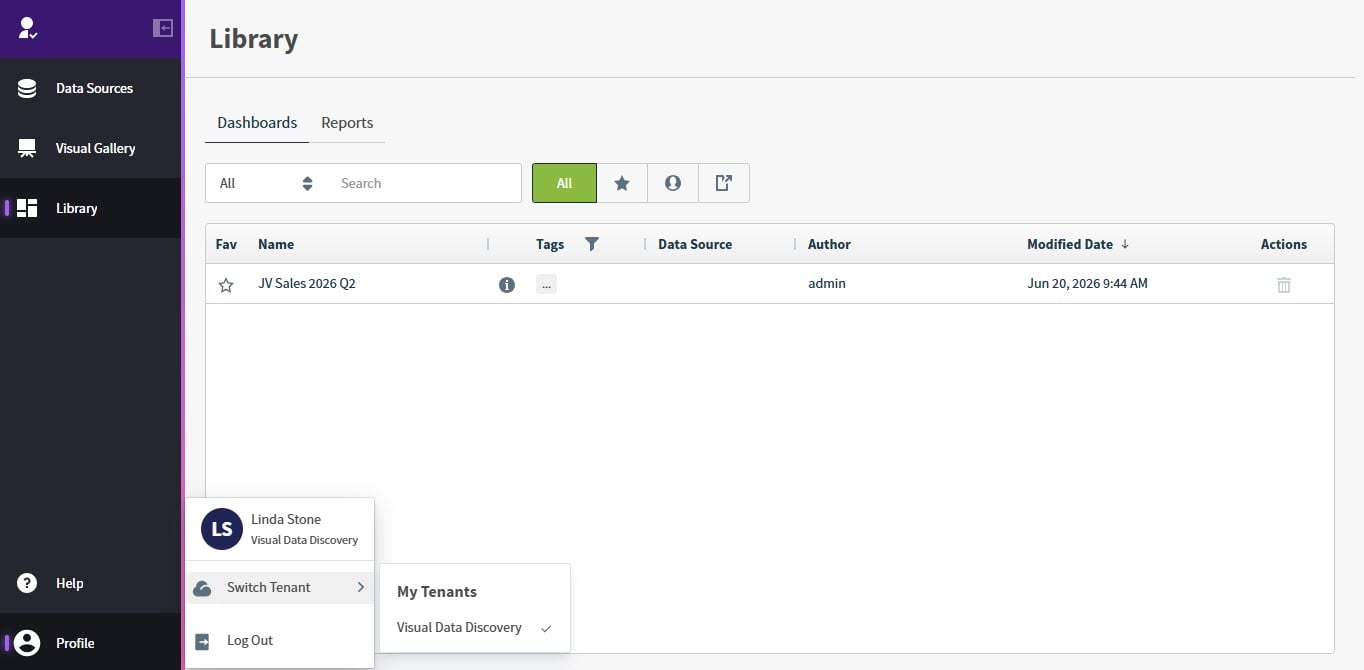
If you are a user with minimal access, your home page takes you directly to your **Library** work area for [dashboards](/simba-embedded-analytics/docs/self-service-analytics/26.3/analyze-data/dashboards/dash-manage#use-the-library-for-dashboards), and optionally, [self service reports](/simba-embedded-analytics/docs/self-service-analytics/26.3/analyze-data/ssr-manage#use-the-self-service-reports-library). You can navigate to [Data Sources](/simba-embedded-analytics/docs/self-service-analytics/26.3/connect-to-data/sources/data-source-config-overview#data-sources-page) or [Visual Gallery](/simba-embedded-analytics/docs/self-service-analytics/26.3/analyze-data/visuals/visual-gallery) work areas, and access your profile to log out or switch tenants using the [main menu](#the-main-menu).

<img src="https://mintcdn.com/insightsoftware/1fCfZrK84x8KmAw8/simba-embedded-analytics/docs/self-service-analytics/26.3/images/v26/work-areas/min-hp-26-2.jpg?fit=max&auto=format&n=1fCfZrK84x8KmAw8&q=85&s=81045f0c7b1c42709fa65f4d1370cdc6" alt="Use the library work area to access dashboards and reports if self service reports are enabled in your environment" width="1364" height="670" data-path="simba-embedded-analytics/docs/self-service-analytics/26.3/images/v26/work-areas/min-hp-26-2.jpg" />

Depending on your application privileges, your home page and [main menu](#the-main-menu) give you direct access to a number of work areas you may use to create, update, or review data in your environment. Administrators and users with appropriate privileges can also manage various aspects of the environment, as well as manage users, groups, and more.
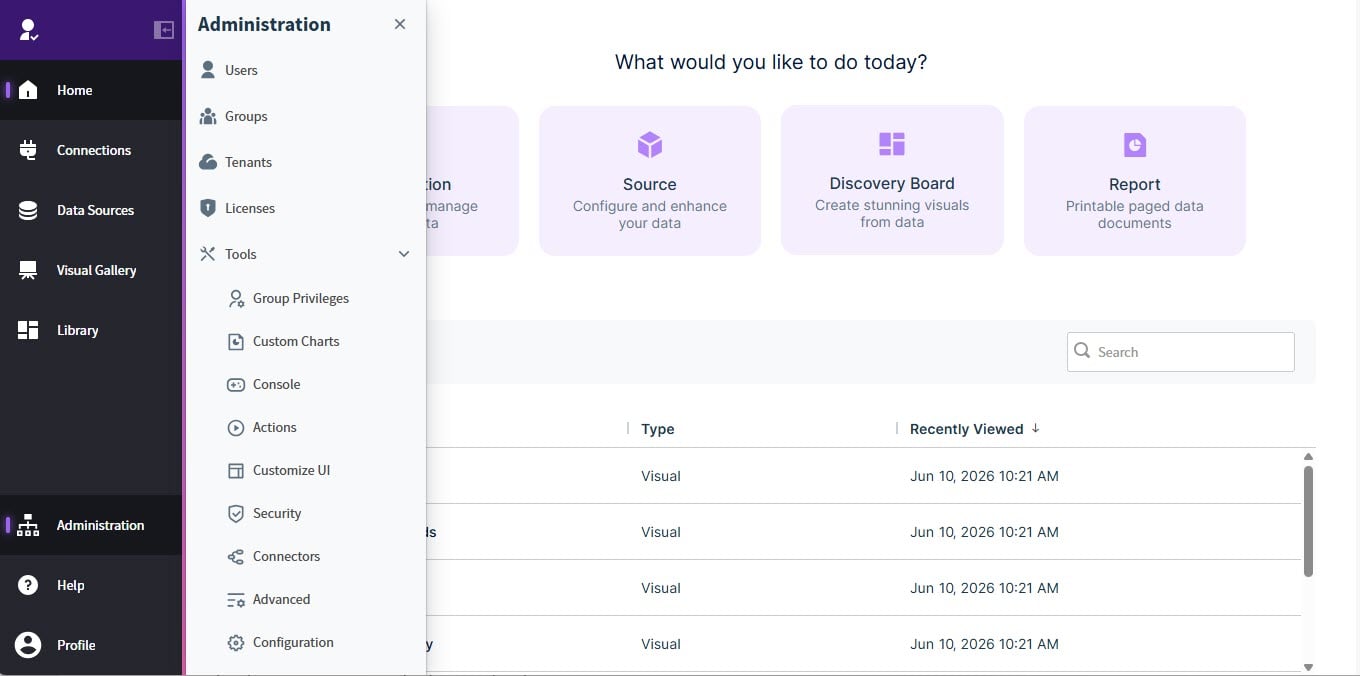
<img src="https://mintcdn.com/insightsoftware/b9ogX_L4Mqut_Uxb/simba-embedded-analytics/docs/self-service-analytics/26.3/images/v26/work-areas/sys-admin-hp-26-2.jpg?fit=max&auto=format&n=b9ogX_L4Mqut_Uxb&q=85&s=25313b7a8854eb18e128e93e510de7b8" alt="select a menu item, car, or listed item to work with your data or environment or search for items" width="1360" height="676" data-path="simba-embedded-analytics/docs/self-service-analytics/26.3/images/v26/work-areas/sys-admin-hp-26-2.jpg" />

The main work area may give you access to:

* **Connection**: [Connect to and manage](/simba-embedded-analytics/docs/self-service-analytics/26.3/connect-to-data/connections-managing) your data to use in Self-Service Analytics.

* **Source**: [Configure and enhance](/simba-embedded-analytics/docs/self-service-analytics/26.3/connect-to-data/sources/data-source-config-overview#data-sources-page) your data for use in visuals, dashboards, and self service reports.

* **Discovery Board**: [Create and design](/simba-embedded-analytics/docs/self-service-analytics/26.3/analyze-data/dashboards/dash-manage#create-dashboards) stunning visuals from your data in your [Dashboards](/simba-embedded-analytics/docs/self-service-analytics/26.3/analyze-data/dashboards/dash-manage#use-the-library-for-dashboards) or [Reports](/simba-embedded-analytics/docs/self-service-analytics/26.3/analyze-data/ssr-manage#use-the-self-service-reports-library) library.

* **Report**: [Create and generate](/simba-embedded-analytics/docs/self-service-analytics/26.3/analyze-data/ssr-manage#create-self-service-reports) printable paged data documents in your Reports [library](/simba-embedded-analytics/docs/self-service-analytics/26.3/analyze-data/ssr-manage#use-the-self-service-reports-library), when enabled in your environment.
  <Note>
    To use self service reports, you will need to enable it in your environment. See [Server-Level Variables](/simba-embedded-analytics/docs/self-service-analytics/26.3/administer/configure/config-mgmt-ov#server-level-variables).
  </Note>

* **Generate Visuals with AI**: [Generate visuals](/simba-embedded-analytics/docs/self-service-analytics/26.3/analyze-data/visuals/generate-visuals) of your data by providing natural language prompts.

  <Warning>
    You must have the appropriate licensing from insightsoftware to see this option.
  </Warning>

The [menu](#the-main-menu) to the left of your work area may include links to Connections, Data Sources, Visual Gallery, Library, and Visuals with AI.

Expand and collapse the menu by selecting the icon at the top of the menu. Administrators have access to an **Administration** menu to perform more environment management tasks. See [The Main Menu](#the-main-menu).

<Note>
  The availability of elements on your home page depends on the access rights that were granted to your user account. See [Authorize Self-Service Analytics Access for Users in Groups](/simba-embedded-analytics/docs/self-service-analytics/26.3/administer/users/aaa-ov).
</Note>

#### Switch Between Tenants

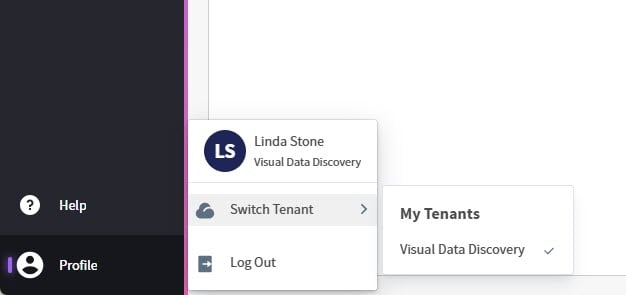
If you belong to more than one tenant, you can switch between the tenant you are working in using your profile menu. Select your profile from the [menu](#the-main-menu), then select a tenant from the **Switch Tenant** menu.

<img src="https://mintcdn.com/insightsoftware/b9ogX_L4Mqut_Uxb/simba-embedded-analytics/docs/self-service-analytics/26.3/images/v26/work-areas/sw-tenant-26-2.jpg?fit=max&auto=format&n=b9ogX_L4Mqut_Uxb&q=85&s=2bcc5353e14c9e09284ffa254f1bf19c" alt="Use the switch tenant option in your profile to switch among tenants" width="626" height="295" data-path="simba-embedded-analytics/docs/self-service-analytics/26.3/images/v26/work-areas/sw-tenant-26-2.jpg" />

<h2 id="the-main-menu">
  The Main Menu
</h2>

The main navigation menus are located on the left side of Self-Service Analytics. The menu options you see are dependent on your application privileges and licensed features.

<Note>
  In this release, when your admin enables the Enhanced Experience user interface, you will see changes to workflows you may have used in previous releases. If you are running an earlier release or your admin has not enabled the new interface, see [UI Menu (Earlier Releases)](https://logi-composer-v26.insightsoftware.com/hc/en-us/articles/43701160499853-The-Main-Menu).
</Note>

### Main Menu Options for All Users

All users' menus include:

* An expand and collapse option. Expand and collapse the menu by selecting the expand or collapse icon at the top of the menu.
* A **Data Sources** option. Select this icon to navigate to the [Data Sources work area](/simba-embedded-analytics/docs/self-service-analytics/26.3/connect-to-data/sources/data-source-config-overview#data-sources-page).
* A **Visual Gallery** option. Select this icon to navigate to the [Visual Gallery work area](/simba-embedded-analytics/docs/self-service-analytics/26.3/analyze-data/visuals/visual-gallery).
* A **Library** option. Select this icon to navigate to the [Dashboard Library](/simba-embedded-analytics/docs/self-service-analytics/26.3/analyze-data/dashboards/dash-manage#use-the-library-for-dashboards), and when enabled, the [Reports Library](/simba-embedded-analytics/docs/self-service-analytics/26.3/analyze-data/ssr-manage#use-the-self-service-reports-library).
* **Help** icon. Select to open product help, access [Technical Support](/simba-embedded-analytics/docs/self-service-analytics/26.3/get-started/tech-support), or view information [about](#about-dialog) your environment.
* **Profile** icon. Select to open the profile menu. View your user information, switch between tenants if you are a member of more than one tenant, or log out.

### All Main Menu Options

The menu options you see are dependent on your application privileges and licensed features. Administrators, members of the Supervisors group, and the specific [privileges](/simba-embedded-analytics/docs/self-service-analytics/26.3/administer/users/aaa-ov#group-privilege-reference) your administrator defines for you determine what you can see, access, or manage.

<table>
  <thead>
    <tr>
      <th>Menu Option</th>
      <th>Select this option to...</th>
    </tr>
  </thead>

  <tbody>
    <tr>
      <td>Expand / Collapse Icon</td>
      <td>Expand or collapse the menu in any work area.</td>
    </tr>

    <tr>
      <td>Connections</td>

      <td>
        Review and manage the defined connections.

        <br />

        See [Create and Manage Data Store Connections](/simba-embedded-analytics/docs/self-service-analytics/26.3/connect-to-data/connections-managing).
      </td>
    </tr>

    <tr>
      <td>Data Sources</td>

      <td>
        Review and manage data source configurations.

        <br />

        See [Create and Manage Data Sources](/simba-embedded-analytics/docs/self-service-analytics/26.3/connect-to-data/sources/data-source-config-overview).
      </td>
    </tr>

    <tr>
      <td>Visual Gallery</td>

      <td>
        Review and manage shared visuals.

        <br />

        See [Use the Visual Gallery](/simba-embedded-analytics/docs/self-service-analytics/26.3/analyze-data/visuals/visual-gallery).
      </td>
    </tr>

    <tr>
      <td>Library</td>

      <td>
        Review and manage dashboards and self service reports in their libraries.

        <br />

        See [Use the Library for Dashboards](/simba-embedded-analytics/docs/self-service-analytics/26.3/analyze-data/dashboards/dash-manage#use-the-library-for-dashboards) and [Use the Self Service Reports Library](/simba-embedded-analytics/docs/self-service-analytics/26.3/analyze-data/ssr-manage#use-the-self-service-reports-library).
      </td>
    </tr>

    <tr>
      <td>Generate Visuals with AI</td>

      <td>
        Generate visuals with AI, if enabled in your environment.

        <br />

        See [Generate Visuals](/simba-embedded-analytics/docs/self-service-analytics/26.3/analyze-data/visuals/generate-visuals).
      </td>
    </tr>

    <tr>
      <td>Administration</td>

      <td>
        Several options are available to members of the Administrators Group:

        <br />

        * **Users**: Manage users. Adjust **General** information for a user, their tenant memberships, or add and edit their **Custom Attributes**. See [Manage Users](/simba-embedded-analytics/docs/self-service-analytics/26.3/administer/users/users-manage).
        * **Groups**: Manage user groups. See [Manage User Groups](/simba-embedded-analytics/docs/self-service-analytics/26.3/administer/users/aaa-ov#manage-user-groups).
        * **Tenants**: Manage tenants. See [Manage Tenants](/simba-embedded-analytics/docs/self-service-analytics/26.3/administer/users/acct-manage).
        * **Licenses**: View your **Instance ID**, download an **Instance Token**, view your **License Status**, or **Submit a New License** key file. See [Request and Apply a New License Key](/simba-embedded-analytics/docs/self-service-analytics/26.3/administer/license-request).
        * **Tools**: Opens a sub menu of other administrative options and resources. The options you can see and use are based on your privileges.
      </td>
    </tr>

    <tr>
      <td>Tools (sub menu of Administration)</td>

      <td>
        * **Group Privileges**: Manage the privileges associated with users who are members of various user groups.
        * **Custom Charts**: Manage the availability of custom visuals. See [Manage Custom Charts](/simba-embedded-analytics/docs/self-service-analytics/26.3/embed-and-extend/custom-charts/custom-chart-managing).
        * **Console**: Review the Console of Refreshing Jobs. See [Review Refresh Jobs](/simba-embedded-analytics/docs/self-service-analytics/26.3/connect-to-data/sources/console).
        * **Actions**: Review and manage Actions templates. See [Integrate Visual Data Into Your Applications](/simba-embedded-analytics/docs/self-service-analytics/26.3/embed-and-extend/actions-overview).
        * **Customize UI**: Customize the user interface of your environment. See [Customize the User Interface](/simba-embedded-analytics/docs/self-service-analytics/26.3/administer/configure/customizing-ui).
        * **Security**: Enable or disable a security authentication service in your environment. See [Enable or Disable a Security Service](/simba-embedded-analytics/docs/self-service-analytics/26.3/administer/security/changing-encryption-mode#enable-or-disable-a-security-service).
        * **Connectors**: Manage the available data connectors in your environment. See [Connect Self-Service Analytics to Data Stores](/simba-embedded-analytics/docs/self-service-analytics/26.3/connect-to-data/connectors/connectors-ov).
        * **Advanced**: Review and edit server-level variables. We suggest you change these only at the request of [Technical Support](/simba-embedded-analytics/docs/self-service-analytics/26.3/get-started/tech-support). See [Server-Level Variables](/simba-embedded-analytics/docs/self-service-analytics/26.3/administer/configure/config-mgmt-ov#server-level-variables).
        * **Configuration**: Configure specific services.
      </td>
    </tr>

    <tr>
      <td>Help</td>

      <td>
        * **Help**: Opens product documentation.
        * **Support**: Access [Technical Support](/simba-embedded-analytics/docs/self-service-analytics/26.3/get-started/tech-support).
        * **About**: View the About dialog that identifies the version of Self-Service Analytics you are using and provides a link to the terms of service. See [About Dialog](#about-dialog).
      </td>
    </tr>

    <tr>
      <td>Profile</td>
      <td>View your user information, switch between tenants if you are a member of more than one tenant, or log out.</td>
    </tr>
  </tbody>
</table>

In environments where the [enhanced-experience](/simba-embedded-analytics/docs/self-service-analytics/26.3/administer/configure/config-mgmt-ov#server-level-variables) toggle has been enabled, the menu option **System Users** has been removed from the main menu UI. Users with appropriate privileges can instead access users using the **User** menu option, and groups using the **Groups** menu option.

<h3 id="switch-tenants">
  Switch Tenants
</h3>

<Note>
  In this release, when your admin enables the Enhanced Experience user interface, you will see changes to workflows you may have used in previous releases.
</Note>

1. Log in as a user assigned to multiple tenants.
2. Select your profile in the main menu, then select **Switch Tenant**. A My Tenants menu opens, listing the names of the tenants you can access.
3. Select the tenant you want to work in from the list of your tenants.

Depending on your group memberships and settings, you may have different levels of access to Self-Service Analytics features and functions in different tenants. After switching tenants, your group membership and other settings determine what you can access of data sources, connections, and dashboards.

Admins and Supervisor Group members can specify the tenant seen by a user the next time they log in. See [Set the Current Tenant for a User](/simba-embedded-analytics/docs/self-service-analytics/26.3/administer/users/users-manage#set-the-current-tenant-for-a-user). You can also assign users to multiple tenants. See [Assign and Remove Users in Tenants](/simba-embedded-analytics/docs/self-service-analytics/26.3/administer/users/users-manage#assign-and-remove-users-in-tenants).

## Filtering and Search Options

Find the content you need in your environment by searching for sources, visuals, dashboards, and self service reports in several ways: by item name, author, and tags you define for your items.

<h3 id="search-and-filter-lists">
  Search and Filter Lists
</h3>

If there are many items included in your work area, you may need to search and filter for what you need.

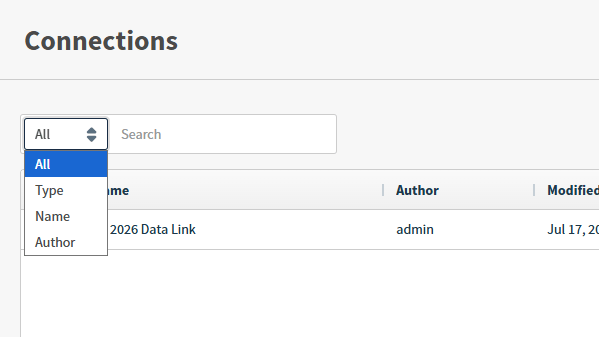
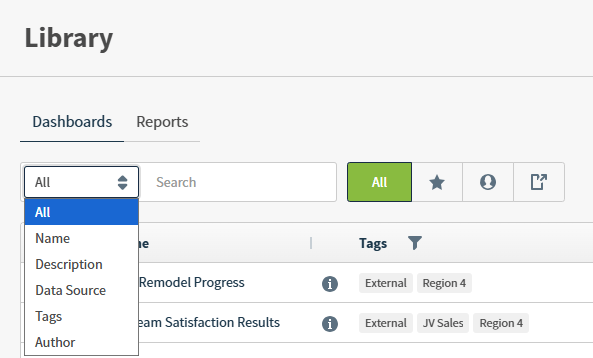
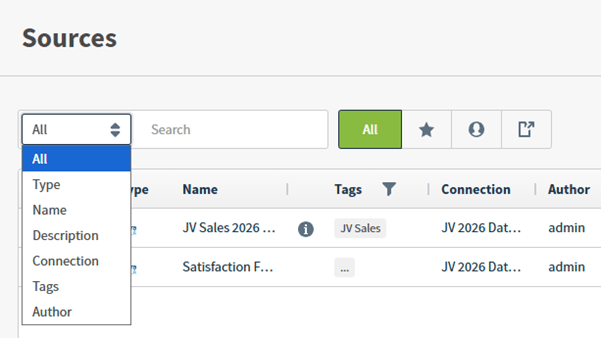
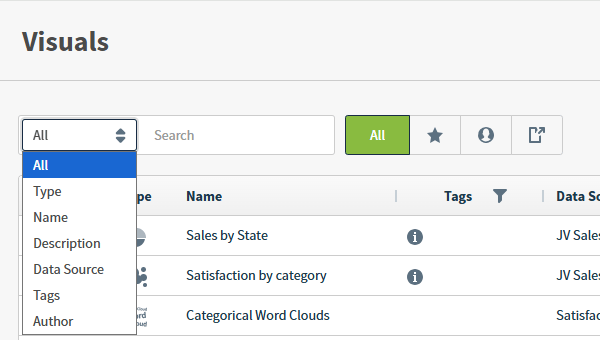
You can use the search bar to perform a search, and a filter to filter all items or your search results, using built in filters or content tags.

<img src="https://mintcdn.com/insightsoftware/1fCfZrK84x8KmAw8/simba-embedded-analytics/docs/self-service-analytics/26.3/images/v26/work-areas/shared/cnn-search-26-2.png?fit=max&auto=format&n=1fCfZrK84x8KmAw8&q=85&s=789023bec12d73a4728886d3d3f90874" alt="Use a search field to search by an available column" width="599" height="337" data-path="simba-embedded-analytics/docs/self-service-analytics/26.3/images/v26/work-areas/shared/cnn-search-26-2.png" />

<img src="https://mintcdn.com/insightsoftware/1fCfZrK84x8KmAw8/simba-embedded-analytics/docs/self-service-analytics/26.3/images/v26/work-areas/shared/lib-search-26-2.png?fit=max&auto=format&n=1fCfZrK84x8KmAw8&q=85&s=83b7e9be9cf2e82b1f8cd177abcfc16a" alt="Use a search field to search by an available column" width="593" height="358" data-path="simba-embedded-analytics/docs/self-service-analytics/26.3/images/v26/work-areas/shared/lib-search-26-2.png" />

<img src="https://mintcdn.com/insightsoftware/1fCfZrK84x8KmAw8/simba-embedded-analytics/docs/self-service-analytics/26.3/images/v26/work-areas/shared/src-search-26-2.png?fit=max&auto=format&n=1fCfZrK84x8KmAw8&q=85&s=b148d3eb0c87f93809465b71ef4f94ee" alt="Use a search field to search by an available column" width="601" height="338" data-path="simba-embedded-analytics/docs/self-service-analytics/26.3/images/v26/work-areas/shared/src-search-26-2.png" />

<img src="https://mintcdn.com/insightsoftware/1fCfZrK84x8KmAw8/simba-embedded-analytics/docs/self-service-analytics/26.3/images/v26/work-areas/shared/vis-search-26-2.png?fit=max&auto=format&n=1fCfZrK84x8KmAw8&q=85&s=102c9b541ea93a08b8dd7a39a762beae" alt="Use a search field to search by an available column" width="600" height="340" data-path="simba-embedded-analytics/docs/self-service-analytics/26.3/images/v26/work-areas/shared/vis-search-26-2.png" />

### Use The Search Field

You can search many of the columns in your list to find what you need. Select **All** to search all searchable columns, or select an option available from the drop-down menu, such as **Author**, **Name**, or **Type**. Some work areas also allow you to search the text of a **Description** associated with an item.

<Note>
  The columns you can search vary by work area.
</Note>

Enter some characters into the search field. Self-Service Analytics hides items that do not match your partial search criteria. Narrow the results further by entering a complete search term or character string, or by performing a more complex search.

To perform a complex search, you can include the following special characters in the Search field:

<Note>
  Searches are performed from left to right, with no logical preference or grouping.
</Note>

| Character      | Use to ...                                    |
| -------------- | --------------------------------------------- |
| **&** or **:** | Conditionally AND items in the search string. |
| **\|**         | Conditionally OR items in the search string.  |

Optionally, use these column keywords in complex searches and map to columns in the list.

<Note>
  A column keyword is not searchable in a list that does not contain that column. For example, dashboards and reports do not include a **Type** column.
</Note>

| Keyword     | Use to identify a search for ...                                                          |
| ----------- | ----------------------------------------------------------------------------------------- |
| Author      | The name of an author in the Author column.                                               |
| Connection  | The name of a connection in the Connection column (outside of the Connections work area). |
| Data Source | The name of the data source referenced by the item.                                       |
| Description | Items with specific words in the Description.                                             |
| Name        | The name of an item in the Name column.                                                   |
| Tags        | The name of a tag in the Tags column                                                      |
| Type        | The type of an item in the Type column.                                                   |

For example, in the Connections work area, the following search string would search for connections with names that include the characters `impala` and that were created by user `linda`:

```
name:impala & author:linda
```

If no connections in the list meet both of these criteria, a message is returned indicating that no items match the current search.

### Filter Lists or Results

You can search for specific items using the search field, and narrow your returned results by selecting a content filter at the top of your work area. These filters are available in the Sources work area, the Visual Gallery, and the Library.

| Filter                                                                                                                                                                                                                                                                                                                                                                                                                                                                                                                                                                                                                                                                                                                                                                                                                                                                                                                                                                                                                                                                                                                                                                                                                                                                                                                                                                                                                                                                                                                                                                                                                                                                                                                                                                                                                                                                                                                                                                                                                                                         | Description                                                                                                                                                                                                             |
| -------------------------------------------------------------------------------------------------------------------------------------------------------------------------------------------------------------------------------------------------------------------------------------------------------------------------------------------------------------------------------------------------------------------------------------------------------------------------------------------------------------------------------------------------------------------------------------------------------------------------------------------------------------------------------------------------------------------------------------------------------------------------------------------------------------------------------------------------------------------------------------------------------------------------------------------------------------------------------------------------------------------------------------------------------------------------------------------------------------------------------------------------------------------------------------------------------------------------------------------------------------------------------------------------------------------------------------------------------------------------------------------------------------------------------------------------------------------------------------------------------------------------------------------------------------------------------------------------------------------------------------------------------------------------------------------------------------------------------------------------------------------------------------------------------------------------------------------------------------------------------------------------------------------------------------------------------------------------------------------------------------------------------------------------------------- | ----------------------------------------------------------------------------------------------------------------------------------------------------------------------------------------------------------------------- |
| **All**                                                                                                                                                                                                                                                                                                                                                                                                                                                                                                                                                                                                                                                                                                                                                                                                                                                                                                                                                                                                                                                                                                                                                                                                                                                                                                                                                                                                                                                                                                                                                                                                                                                                                                                                                                                                                                                                                                                                                                                                                                                        | Removes any filters for the list and displays all items of this type you can access within your Self-Service Analytics environment.                                                                                     |
| <img src="https://mintcdn.com/insightsoftware/2cXq_sDOxrDVXUcv/simba-embedded-analytics/docs/self-service-analytics/26.3/images/buttons/dash-favorites.png?fit=max&auto=format&n=2cXq_sDOxrDVXUcv&q=85&s=3f42e7b5a7ec088f144961fc4e0b8168" alt="" width="32" height="32" noZoom style={{display: 'inline', verticalAlign: 'middle', width: '32px', height: '32px', margin: '0 2px'}} data-path="simba-embedded-analytics/docs/self-service-analytics/26.3/images/buttons/dash-favorites.png" /> | Displays only items that you have marked as favorites.                                                                                                                                                                  |
| <img src="https://mintcdn.com/insightsoftware/2cXq_sDOxrDVXUcv/simba-embedded-analytics/docs/self-service-analytics/26.3/images/buttons/dash-myitems.png?fit=max&auto=format&n=2cXq_sDOxrDVXUcv&q=85&s=75cdbc10c3bd2b5d2e24e0f566314a74" alt="" width="32" height="32" noZoom style={{display: 'inline', verticalAlign: 'middle', width: '32px', height: '32px', margin: '0 2px'}} data-path="simba-embedded-analytics/docs/self-service-analytics/26.3/images/buttons/dash-myitems.png" />                 | Displays only items that you created and saved. Visuals created and saved by other users are hidden.                                                                                                                    |
| <img src="https://mintcdn.com/insightsoftware/2cXq_sDOxrDVXUcv/simba-embedded-analytics/docs/self-service-analytics/26.3/images/buttons/dash-shared.png?fit=max&auto=format&n=2cXq_sDOxrDVXUcv&q=85&s=acc922b30add9660f0e1a0c755601279" alt="" width="32" height="32" noZoom style={{display: 'inline', verticalAlign: 'middle', width: '32px', height: '32px', margin: '0 2px'}} data-path="simba-embedded-analytics/docs/self-service-analytics/26.3/images/buttons/dash-shared.png" />                         | Displays only items that other users shared with you. See [Grant Permissions for a Visual](/simba-embedded-analytics/docs/self-service-analytics/26.3/analyze-data/visuals/visual-auth#grant-permissions-for-a-visual). |

<h3 id="filter-lists-and-search-results-using-tags">
  Filter Lists and Search Results Using Tags
</h3>

After you have added tags to one or more sources, visuals, dashboards, or self service reports, you can filter your view of these items by selecting one or more tags (or select items that do not have a tag, specifically).

**Filter your items using tags**

1. Navigate to the work area you want to filter or search and filter (Sources, Visual Gallery, Library (either the Dashboards or Reports tab).
2. Optionally, enter a search term in the **Search** field to find items in your list that match that search query.
3. Select the filter icon for the **Tags** column header to open a drop-down selection list.
4. Select one or more tags in the list by selecting (checking) the checkbox. The list changes to reflect items that included your selected tags criteria.
5. Select any portion of the work area to hide the drop-down selection list and view your results.
6. Clear the **Search** field and the filtered tags to return your entire list of items to the work area, or simply refresh the page.

<h4 id="tags-drop-down-selection-list-options">
  Tags Drop-Down Selection List Options
</h4>

The tags shown in your list are determined by the available tags in your environment. Tags are shared among sources, Visual Gallery visuals, dashboards, and self service reports. For example, if the sources in your instance only have two associated tags, while visuals dashboards, and self service reports have a broader range of associated tags, you will see all available tags in the drop-down selection list.

Two options you can use to filter are not tags. They are listed at the top of the drop-down selection list: **Select All (*n*)** and **\[NONE]**.

* **Select All (*n*)**: Use Select All to quickly select or deselect all tags in the list by filling or clearing the checkbox.

* **\[NONE]**: Use NONE to return all items in the list that do not have associated tags.

  * If you select NONE while any or all tags are selected, those selections are cleared, and only items with no tags are shown.
  * If you select any other tag while NONE is selected, the NONE checkbox is cleared, and only items with selected tags are shown.

<h2 id="keyboard-controls">
  Keyboard Controls
</h2>

If keyboard controls are supported for a UI widget, you can use the following keyboard controls instead of a mouse:

<table>
  <thead>
    <tr>
      <th>Keyboard Control</th>
      <th>Description</th>
    </tr>
  </thead>

  <tbody>
    <tr>
      <td>Tab key</td>
      <td>Use the tab key to move between areas of the widget.</td>
    </tr>

    <tr>
      <td>Space bar</td>
      <td>Use the space to select or clear a value or item in a widget.</td>
    </tr>

    <tr>
      <td>Space bar + Up or Down Arrow key</td>

      <td>
        Drag and drop items in the widget. Hold the space bar down while you use the up and down arrow keys.

        <br />

        When you have placed reached the location where you want the item, push the space bar key again to place it.
      </td>
    </tr>
  </tbody>
</table>

<h2 id="access-your-self-service-analytics-environment-administrator">
  Access Your Self-Service Analytics Environment - Administrator
</h2>

After you have completed installation, log in as the system administrator to start setting up your environment for your tenants and users.

1. Open a supported web browser. See [caniuse.com](https://caniuse.com/#search=websockets).

2. If you have configured your firewall based on instructions provided, then use the following URL format:

   ```
   http://<composer-server-IP-address>/composer/
   ```

   Otherwise, use the following URL format:

   ```
   http://<composer-server-IP-address:8080>/composer/
   ```

   Ensure you replace the `<composer-server-IP-address>` placeholder with the one you obtained when you [identified your IP address](/simba-embedded-analytics/docs/self-service-analytics/26.3/administer/install/install-ov#configure-the-maximum-number-of-open-processes-and-files).

   <Note>
     If you receive a message indicating that Self-Service Analytics is not accessible yet, it may not have completed its setup yet. Please wait a few minutes before trying again or opening a Support ticket. If you continue to have issues accessing the environment from your browser, open a ticket with insightsoftware [Technical Support](/simba-embedded-analytics/docs/self-service-analytics/26.3/get-started/tech-support).
   </Note>

3. The browser issues a warning specifying that the security certificate is not trusted. This warning occurs because the certificate that is deployed is self-signed. The warning does not appear when deploying your own certificate. For now, select **Proceed anyway**.

4. The first time that you access the login screen, you are asked to change the passwords for the admin user. See [Supplied Users and User Groups](/simba-embedded-analytics/docs/self-service-analytics/26.3/administer/users/users-manage#supplied-users-and-user-groups) for more details.

To log in, see [Log Into the User Interface](#log-into-the-user-interface).

<h2 id="about-dialog">
  About Dialog
</h2>

The About dialog identifies the version of Self-Service Analytics you are using and provides a link to the terms of service. Access by selecting **About** in the [main menu](#the-main-menu).

Log out of the product: Select **Log out**.

View the Terms of Service by selecting the Terms of Service link.

<h2 id="the-top-level-navigation-banner">
  The Top-Level Navigation Banner
</h2>

<Note>
  In this release, when your admin enables the Enhanced Experience user interface, you will see changes to workflows you may have used in previous releases. If you are running an earlier release or your admin has not enabled the new interface, see [Top-Level Navigation (Earlier Releases)](https://logi-composer-v26.insightsoftware.com/hc/en-us/articles/43701115577869-The-Top-Level-Navigation-Banner).
</Note>

<Note>
  In environments where the [enhanced-experience](/simba-embedded-analytics/docs/self-service-analytics/26.3/administer/configure/config-mgmt-ov#server-level-variables) toggle has been enabled, the top-level navigation option has been removed from the user interface. Access your content and navigate options using the [main menu](#the-main-menu) or [home page](#home-page).
</Note>

<h2 id="the-self-service-analytics-supervisor-menu">
  The Self-Service Analytics Supervisor Menu
</h2>

When you log in as a user that belongs to the Supervisors group, you have default access to more options than are in the [main menu](#the-main-menu) for other users. The supplied [admin user](/simba-embedded-analytics/docs/self-service-analytics/26.3/administer/users/users-manage#admin-user) and other system administrators are members of the Supervisors group.