> ## Documentation Index
> Fetch the complete documentation index at: https://insightsoftware.mintlify.site/llms.txt
> Use this file to discover all available pages before exploring further.
# Integrate Visual Data Into Your Applications
> You can integrate visual data into your applications using actions and action templates.
You can integrate visual data into your applications using actions and action templates.
Action templates provide specifics about the external application you want integrated with your data source. Each action template is data source-specific and defines an *application integration definition* that connects Self-Service Analytics with an external application.
After your system and data administrators have defined an action template in Self-Service Analytics and granted proper permissions to use actions, you can invoke an action while working with a visual on your dashboard. The invoked action:
* Creates a query definition based on the filters applied to the visual and on the data and limit specifications in the associated action template.
* Sends the query definition to your application. Your application can use the Self-Service Analytics API to run the query and display or use the data that it collects.
You must be logged in as an administrator or as a user with the **Manage Action Templates** [privilege](/simba-embedded-analytics/docs/self-service-analytics/26.3/administer/users/aaa-ov#group-privilege-reference) to define an action template. You must be logged in as an administrator or as a user with the **Invoke Actions** [privilege](/simba-embedded-analytics/docs/self-service-analytics/26.3/administer/users/aaa-ov#group-privilege-reference) to invoke an action.
The following diagram depicts action processing.
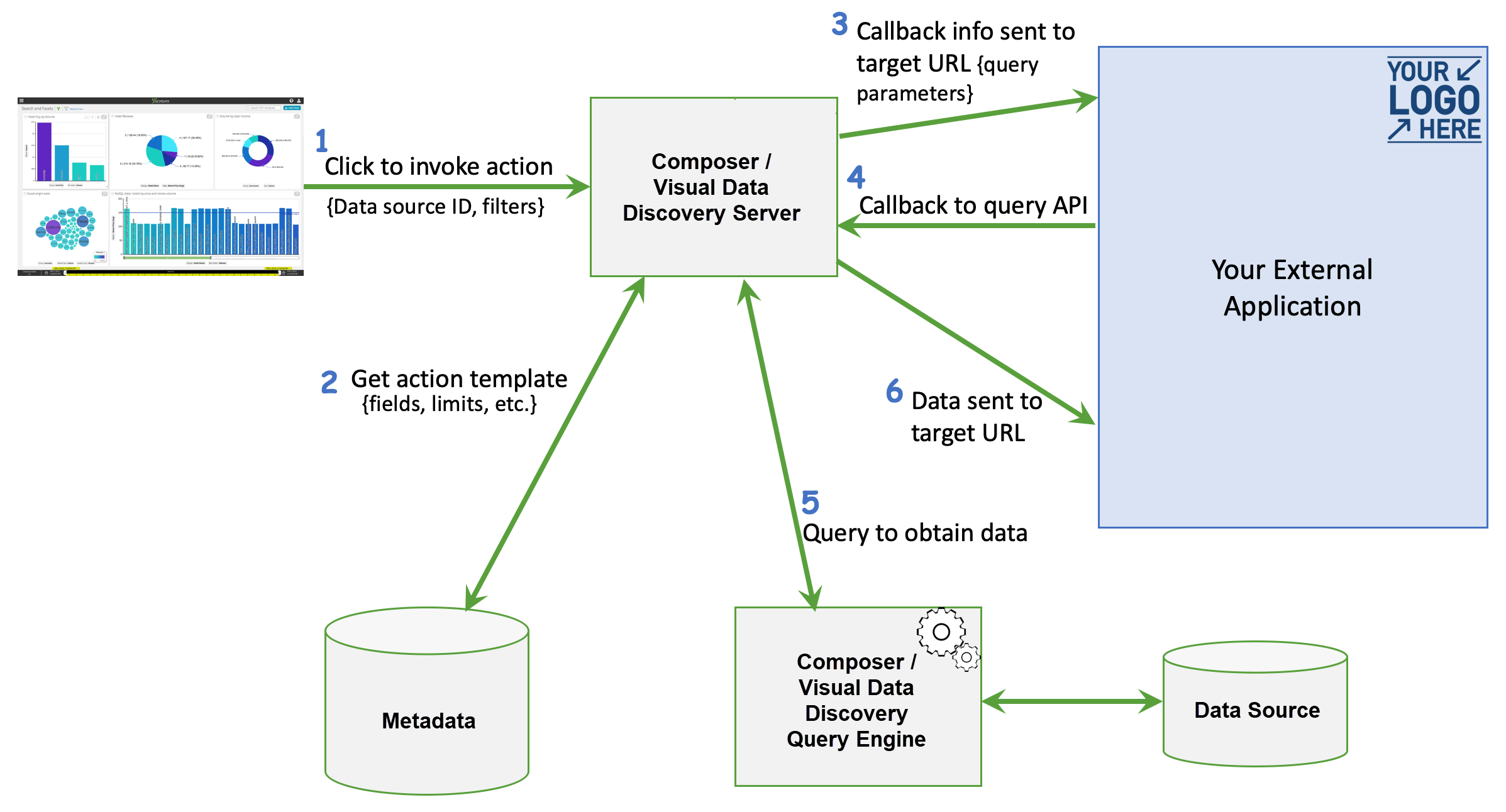 See the following topics:
* [Define an Action Template](#define-an-action-template)
* [Modify an Action Template](#modify-an-action-template)
* [Enable and Disable an Action Template](#enable-and-disable-an-action-template)
* [Delete an Action Template](#delete-an-action-template)
* [Invoke an Action](#invoke-an-action)
See the following topics:
* [Define an Action Template](#define-an-action-template)
* [Modify an Action Template](#modify-an-action-template)
* [Enable and Disable an Action Template](#enable-and-disable-an-action-template)
* [Delete an Action Template](#delete-an-action-template)
* [Invoke an Action](#invoke-an-action)
Define an Action Template
Use action templates to provide specifics about the external application you want integrated with your data source. Each action template defines an application integration definition that connects Self-Service Analytics with an external application.
You must be logged in as an administrator or as a user with the **Manage Action Templates** [privilege](/simba-embedded-analytics/docs/self-service-analytics/26.3/administer/users/aaa-ov#group-privilege-reference).
### Define a New Action Template
1. Log in as a n administrator or a user with the **Manage Action Templates** [privilege](/simba-embedded-analytics/docs/self-service-analytics/26.3/administer/users/aaa-ov#group-privilege-reference).
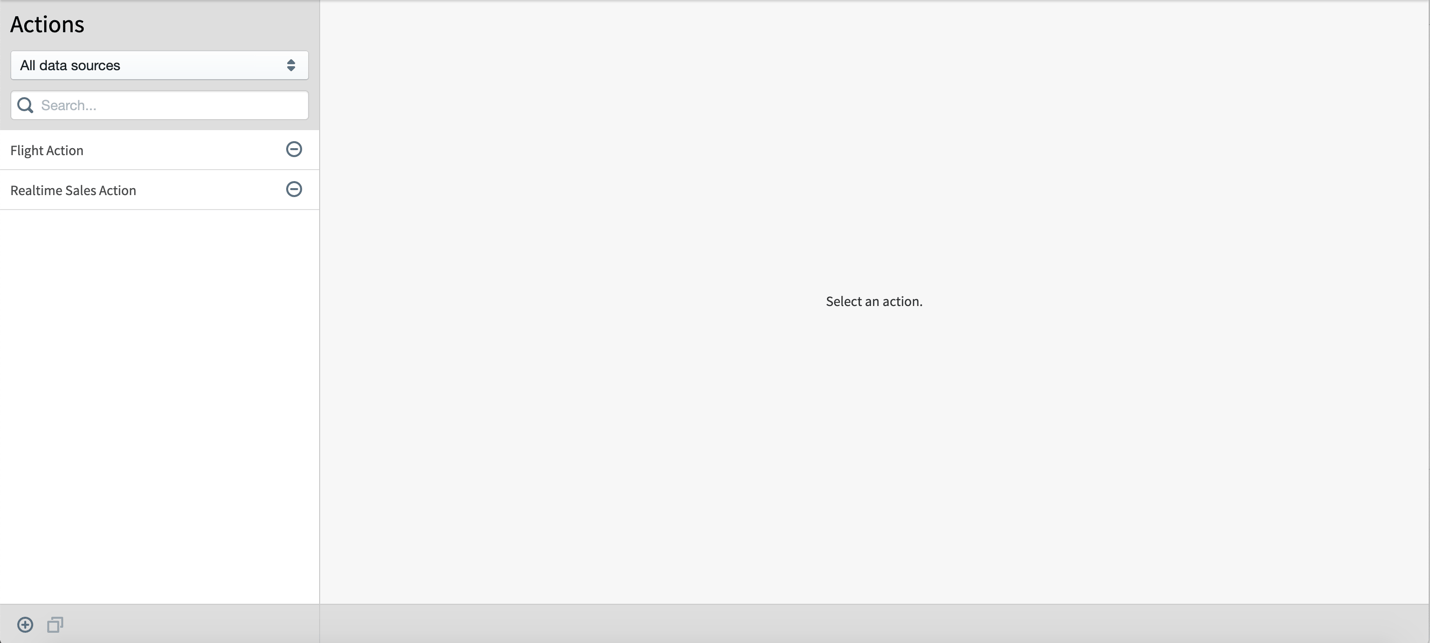
2. Select **Tools > Actions** from the Administration menu. The Actions page appears.
The Actions page is split into two parts. Action templates (if any) you have defined are listed on the left. When you select an action template on the left, its details appear on the right.
 3. Select the add icon
  . Action properties are listed on the right side of the page.
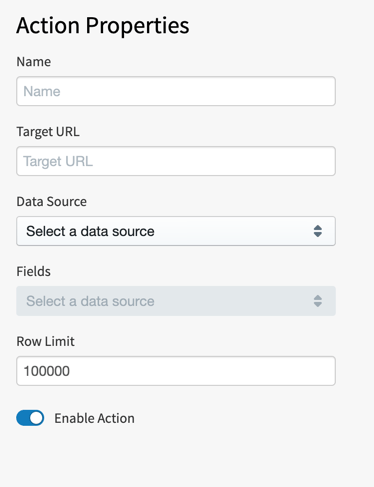 4. Specify appropriate action properties on the right side of the page, as described below.
| Action Property | Description |
| --------------- | ------------------------------------------------------------------------------------------------------------------------------------------------------------------------------------------------------------------------------------------------------------------------------------------------------------------------------------------------------------------------------------------------------------------------------------------------------------- |
| Name | Specify a unique name for the action template definition. |
| Target URL | Specify the URL of the external application for the action template. Specify the URL of the external application for the action template. The [supplied context variables](/simba-embedded-analytics/docs/self-service-analytics/26.3/administer/users/users-manage#supplied-context-variables) `${User.composerUserName}` and `${User.accountId}` can be used in the URL to insert the name or account ID of the user that is currently invoking the action. |
| Data Source | Select the Self-Service Analytics data source configuration for the action template. |
| Fields | Select (check) fields in the data source configuration for which data should collected by the action template when it is invoked. |
| Row Limit | Specify a positive integer ranging from 1 through 999999999 to limit the number of rows of data submitted to your application when the action template is invoked. |
| Enable Action | Slide the **Enable Action** selector to the left or right to disable or enable the action template. See [Enable and Disable an Action Template](#enable-and-disable-an-action-template). |
5. Select **Save**.
4. Specify appropriate action properties on the right side of the page, as described below.
| Action Property | Description |
| --------------- | ------------------------------------------------------------------------------------------------------------------------------------------------------------------------------------------------------------------------------------------------------------------------------------------------------------------------------------------------------------------------------------------------------------------------------------------------------------- |
| Name | Specify a unique name for the action template definition. |
| Target URL | Specify the URL of the external application for the action template. Specify the URL of the external application for the action template. The [supplied context variables](/simba-embedded-analytics/docs/self-service-analytics/26.3/administer/users/users-manage#supplied-context-variables) `${User.composerUserName}` and `${User.accountId}` can be used in the URL to insert the name or account ID of the user that is currently invoking the action. |
| Data Source | Select the Self-Service Analytics data source configuration for the action template. |
| Fields | Select (check) fields in the data source configuration for which data should collected by the action template when it is invoked. |
| Row Limit | Specify a positive integer ranging from 1 through 999999999 to limit the number of rows of data submitted to your application when the action template is invoked. |
| Enable Action | Slide the **Enable Action** selector to the left or right to disable or enable the action template. See [Enable and Disable an Action Template](#enable-and-disable-an-action-template). |
5. Select **Save**.
Invoke an Action
After you define an action template and enable it for a data source, you can invoke this action from a visual on your dashboard that uses the data source. The invoked action:
* Creates a query definition based on the filters applied to the visual and on the data and limit specifications in the associated action template.
* Sends the query definition to your application. Your application can use the Self-Service Analytics API to run the query and display or use the data that it collects.
You must be logged in as an administrator or as a user with the **Invoke Actions** [privilege](/simba-embedded-analytics/docs/self-service-analytics/26.3/administer/users/aaa-ov#group-privilege-reference). In addition, the associated action templates must be [enabled](#enable-and-disable-an-action-template) to be invoked from your visuals.
To control whether actions can be invoked on a visual, use the interactivity sidebar. See [Control How Users Interact With a Visual](/simba-embedded-analytics/docs/self-service-analytics/26.3/analyze-data/visuals/visual-interactivity).
### Invoke an Action from a Visual
1. Log in as an administrator or a user with the **Invoke Actions** [privilege](/simba-embedded-analytics/docs/self-service-analytics/26.3/administer/users/aaa-ov#group-privilege-reference).
2. Select the dashboard containing a visual that uses the data source for which you have defined and enabled one or more action templates.
3. Filter or group the visual data as needed.
For example, if you only want to send sales data from the state of Virginia to your external application, filter your sales data visual by the state of Virginia.
4. Select an area of the visual to display the [context menu](/simba-embedded-analytics/docs/self-service-analytics/26.3/analyze-data/visuals/visual-interactivity#use-the-context-menu) and select **Actions**. A list of the action templates defined for the visual's data source appears.
Alternatively, select **Actions** from the [visual drop-down menu](/simba-embedded-analytics/docs/self-service-analytics/26.3/analyze-data/visuals/visual-setup#use-the-visual-drop-down-menu).
If the **Actions** menu option does not appear on the context menu or the visual drop-down menu, an action template is either not defined or is not enabled for the data source used by the visual.
5. Select an action template from the list. The action is invoked. A query is created and sent to your application. Use the Self-Service Analytics API endpoint `api/action` in your application to run the query.
API documentation is provided in your environment at this link: `https:///composer/swagger-ui.html`.
Some API endpoints are marked as `experimental` in the Swagger documentation we provide. These endpoints are in the early stages of design and are subject to change. We make no commitment to their stability and may remove them without notice. These experimental endpoints are not recommended for use in production.
Modify an Action Template
### Modify an Existing Action Template
1. Log in as an administrator or a user with the **Manage Action Templates** [privilege](/simba-embedded-analytics/docs/self-service-analytics/26.3/administer/users/aaa-ov#group-privilege-reference).
2. Select **Tools > Actions** from the Administration menu. The Actions page appears.
The Actions page is split into two parts. Action templates (if any) you have defined are listed on the left. When you select an action template on the left, its details appear on the right.
3. Locate and select the action template you want to modify in the list on the left.
You can locate an action template using the search bar on the top left side of the Actions page. You can also filter the action template by the data source to which they apply using the drop-down list on the top left side of the Actions page. When you do this, only action templates for the selected data source configuration are shown in the list.
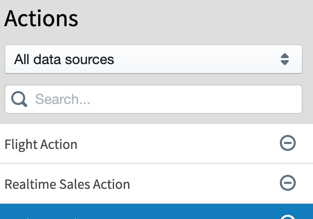 The properties for the selected action template appear on the right side of the Actions page.
4. Modify action properties on the right side of the page, as needed.
| Action Property | Description |
| --------------- | ---------------------------------------------------------------------------------------------------------------------------------------------------------------------------------------- |
| Name | Specify a unique name for the action template definition. |
| Target URL | Specify the URL of the external application for the action template. |
| Data Source | Select the Self-Service Analytics data source configuration for the action template. |
| Fields | Select (check) fields in the data source configuration for which data should collected by the action template when it is invoked. |
| Row Limit | Specify a positive integer ranging from 1 through 999999999 to limit the number of rows of data submitted to your application when the action template is invoked. |
| Enable Action | Slide the **Enable Action** selector to the left or right to disable or enable the action template. See [Enable and Disable an Action Template](#enable-and-disable-an-action-template). |
5. Select **Save**.
The properties for the selected action template appear on the right side of the Actions page.
4. Modify action properties on the right side of the page, as needed.
| Action Property | Description |
| --------------- | ---------------------------------------------------------------------------------------------------------------------------------------------------------------------------------------- |
| Name | Specify a unique name for the action template definition. |
| Target URL | Specify the URL of the external application for the action template. |
| Data Source | Select the Self-Service Analytics data source configuration for the action template. |
| Fields | Select (check) fields in the data source configuration for which data should collected by the action template when it is invoked. |
| Row Limit | Specify a positive integer ranging from 1 through 999999999 to limit the number of rows of data submitted to your application when the action template is invoked. |
| Enable Action | Slide the **Enable Action** selector to the left or right to disable or enable the action template. See [Enable and Disable an Action Template](#enable-and-disable-an-action-template). |
5. Select **Save**.
Delete an Action Template
1. Log in as an administrator or a user with the **Manage Action Templates** [privilege](/simba-embedded-analytics/docs/self-service-analytics/26.3/administer/users/aaa-ov#group-privilege-reference).
2. Select **Tools > Actions** from the Administration menu. The Actions page appears.
The Actions page is split into two parts. Action templates (if any) you have defined are listed on the left. When you select an action template on the left, its details appear on the right.
3. Locate the action template you want to delete in the list on the left.
You can locate an action template using the search bar on the top left side of the Actions page. You can also filter the action template by the data source to which they apply using the drop-down list on the top left side of the Actions page. When you do this, only action templates for the selected data source configuration are shown in the list.
4. Select the delete icon  next to the action template you want to delete on the left side of the Actions page.
5. Select **Delete** to delete the action template.
next to the action template you want to delete on the left side of the Actions page.
5. Select **Delete** to delete the action template.
Enable and Disable an Action Template
Only enabled action templates can be invoked from Self-Service Analytics. You can [enable](#enable-an-action-template) and [disable](#disable-an-action-template) action templates using the user interface.
You must be logged in as an administrator or as a user with the **Manage Action Templates** [privilege](/simba-embedded-analytics/docs/self-service-analytics/26.3/administer/users/aaa-ov#group-privilege-reference).
Enable an Action Template
1. Log in as an administrator or a user with the **Manage Action Templates** [privilege](/simba-embedded-analytics/docs/self-service-analytics/26.3/administer/users/aaa-ov#group-privilege-reference).
2. Select **Tools > Actions** from the Administration menu. The Actions page appears.
The Actions page is split into two parts. Action templates (if any) you have defined are listed on the left. When you select an action template on the left, its details appear on the right.
3. Locate and select the action template you want to enable in the list on the left.
You can locate an action template using the search bar on the top left side of the Actions page. You can also filter the action template by the data source to which they apply using the drop-down list on the top left side of the Actions page. When you do this, only action templates for the selected data source configuration are shown in the list.
4. On the right side of the Actions page, slide the **Enable Action** selector to the right to enable the action template.
5. Select **Save**.
Disable an Action Template
1. Log in as an administrator or a user with the **Manage Action Templates** [privilege](/simba-embedded-analytics/docs/self-service-analytics/26.3/administer/users/aaa-ov#group-privilege-reference).
2. Select **Tools > Actions** from the Administration menu. The Actions page appears.
The Actions page is split into two parts. Action templates (if any) you have defined are listed on the left. When you select an action template on the left, its details appear on the right.
3. Locate and select the action template you want to disable in the list on the left.
You can locate an action template using the search bar on the top left side of the Actions page. You can also filter the action template by the data source to which they apply using the drop-down list on the top left side of the Actions page. When you do this, only action templates for the selected data source configuration are shown in the list.
4. On the right side of the Actions page, slide the **Enable Action** selector to the left to disable the action template.
5. Select **Save**.