> ## Documentation Index
> Fetch the complete documentation index at: https://insightsoftware.mintlify.site/llms.txt
> Use this file to discover all available pages before exploring further.
# Restrict Access to Data Using Row and Column Security
> As an administrator, you can manually restrict the data in a data source configuration that can be viewed or used by an authorization group. By default, all data in a data source is available.
Users with appropriate permissions can manually restrict the data in a data source configuration that can be viewed or used by [group](/simba-embedded-analytics/docs/self-service-analytics/26.3/administer/users/aaa-ov#manage-user-groups), [tenant](/simba-embedded-analytics/docs/self-service-analytics/26.3/administer/users/acct-manage), or user. By default, all data in a data source is available.
Row and column security filters allow you to secure potentially confidential data within a data source. Selected users or group or account members would only be able to view limited information within the data it collects.
Row security filters can be maintained for a data source by:
* an administrator.
* User in a group that has been granted the **Administer Sources** [privilege.](/simba-embedded-analytics/docs/self-service-analytics/26.3/administer/users/aaa-ov#group-privilege-reference)
* User in a group that has been granted the **Manage Source Permissions** [privilege](/simba-embedded-analytics/docs/self-service-analytics/26.3/administer/users/aaa-ov#group-privilege-reference) who also has **read** [permission](/simba-embedded-analytics/docs/self-service-analytics/26.3/connect-to-data/sources/ds-permissions) for the data source.
Security filters will not be applied to users with the privileges mentioned above. Source administrators can manage security filters for regular users but not for other source administrators.
## Security Conflicts
### Row Security
If a user is included in more than one row security filter for the same data source (via group, user, or account specifications), an error message appears when they try to view a dashboard using the data source.
The error is shown because the row restriction conflicts set by the different row security filters.
If the user is included more than once in a single row security filter (either as an explicit user, a member of more than one group, or as a member of the account), no error occurs because it is a single row security filter.
A "Data Unavailable" message appears when an error occurs obtaining data from a data source for a row security filter. If a row security filter returns no results, a "No search results" message appears.
### Column Security
If a user is included in more than one column security filter for the same data source, a most permissive model for the filter is used.
For example, if a user is a member of two groups, Group A and Group B, and
* Column filters restrict Group A from using Field A
* Column filters restrict Group B from using Field B
The user can use both Field A and Field B because they are in both groups. Group A can use Field B and Group B can use Field A. Likewise, if Group A is restricted from using Field A, but Group B has no restrictions, the user can use Field A.
Users for whom column security filters have been applied in a data source will receive an **Invalid Visual Configuration** error for a dashboard based on the data source if the dashboard shows any of the fields the user is restricted from seeing.
Row and column security is supported by the API endpoint `/api/sources//security/filters`.
API documentation is provided in your environment at this link: `https:///composer/swagger-ui.html`.
This section covers the following topics:
* [Add Row Security Definitions](#add-row-security-definitions)
* [Modify Row Security Definitions](#modify-row-security-definitions)
* [Remove Row Security Definitions](#remove-row-security-definitions)
Add Row Security Definitions
Add row security to restrict the data source data that can be viewed or used by a group, user, or account.
1. Log in as a user in a group that has been granted the **Administer Sources** [privilege](/simba-embedded-analytics/docs/self-service-analytics/26.3/administer/users/aaa-ov#group-privilege-reference), or a user in a group that has been granted the **Manage Source Permissions** [privilege](/simba-embedded-analytics/docs/self-service-analytics/26.3/administer/users/aaa-ov#group-privilege-reference) *and* who also has **read** [permission](/simba-embedded-analytics/docs/self-service-analytics/26.3/connect-to-data/sources/ds-permissions) for the data source. If you are logged in as a tenant admin, verify you're in or switch to the appropriate tenant.
2. Select the **Sources** card on your home page or **Data Sources** from the main menu. The Sources page appears.
3. Locate the data source for which you want to restrict data access and select the icon in the **Row** column for the data source. The Row Security dialog appears.
4. Select **Add Filter**. The Row Security dialog fills with information about the data source you selected.
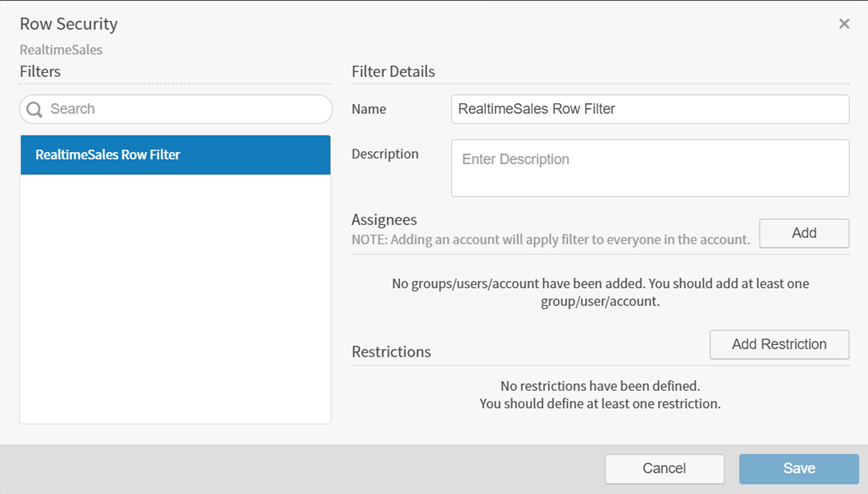 5. Specify a name for the row security definition in the **Name** field. This name will be used to distinguish one row security field definition from another in the Row Security dialog.
6. Optionally, use the **Description** field to supply a description for the row security definition.
7. Select **Add** to select accounts, groups, or users to which the row security definition applies. Then select **Groups**, **Users**, or **Tenant** from the drop-down list.
The behavior of the dialog varies depending on what you select.
* If you select **Groups**, the Add Groups panel appears.
5. Specify a name for the row security definition in the **Name** field. This name will be used to distinguish one row security field definition from another in the Row Security dialog.
6. Optionally, use the **Description** field to supply a description for the row security definition.
7. Select **Add** to select accounts, groups, or users to which the row security definition applies. Then select **Groups**, **Users**, or **Tenant** from the drop-down list.
The behavior of the dialog varies depending on what you select.
* If you select **Groups**, the Add Groups panel appears.
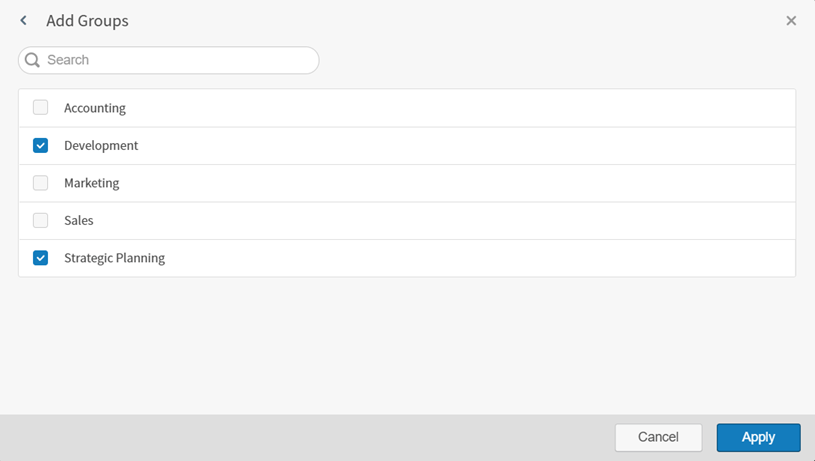 Select at least one group on the Add Groups panel and select **Apply**. The Add Groups panel closes and the groups you selected are added to the Row Security dialog.
* If you select **Users**, the Add Users panel appears.
Select at least one group on the Add Groups panel and select **Apply**. The Add Groups panel closes and the groups you selected are added to the Row Security dialog.
* If you select **Users**, the Add Users panel appears.
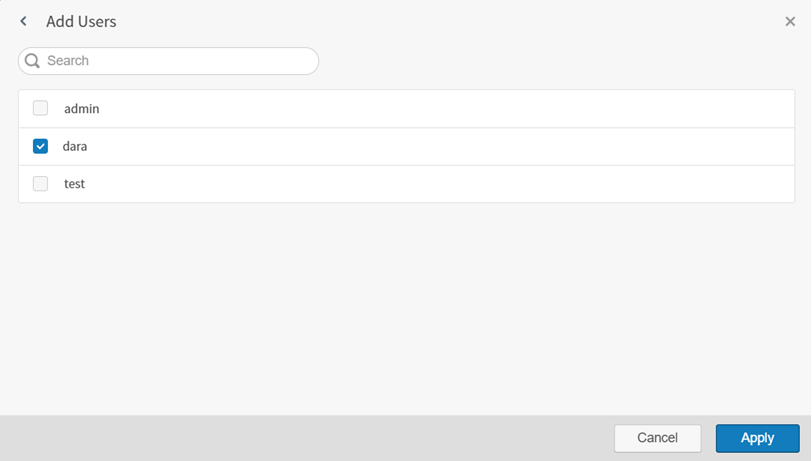 Select at least one user on the Add Users panel and select **Apply**. The Add Users panel closes and the users you selected are added to the Row Security dialog.
* If you select **Tenant**, the tenant in which you are working is added to the Row Security dialog. You can only add your current account to the row security definition. After that, the **Tenant** option is disabled.
8. Repeat Step 7 until all users, tenants, and groups are selected for the row security filter.
9. Select **Add Restriction** to add at least one restriction to the row security definition. The Select a Field dialog appears.
Select at least one user on the Add Users panel and select **Apply**. The Add Users panel closes and the users you selected are added to the Row Security dialog.
* If you select **Tenant**, the tenant in which you are working is added to the Row Security dialog. You can only add your current account to the row security definition. After that, the **Tenant** option is disabled.
8. Repeat Step 7 until all users, tenants, and groups are selected for the row security filter.
9. Select **Add Restriction** to add at least one restriction to the row security definition. The Select a Field dialog appears.
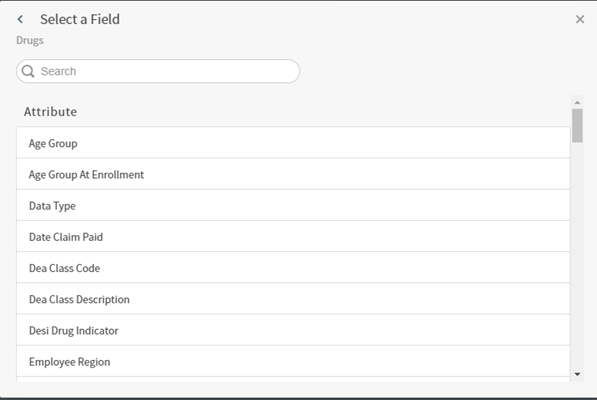 10. Select a field for the restriction filter on the Select a Field dialog. A Select Values dialog appears with fields that vary, depending on the type of field you selected: attribute, number, or time. Derived fields are included in the list of fields and can be selected for a row security filter.
##### Attribute Fields
If the field you selected is an attribute, the Select Values dialog looks something like this:
10. Select a field for the restriction filter on the Select a Field dialog. A Select Values dialog appears with fields that vary, depending on the type of field you selected: attribute, number, or time. Derived fields are included in the list of fields and can be selected for a row security filter.
##### Attribute Fields
If the field you selected is an attribute, the Select Values dialog looks something like this:
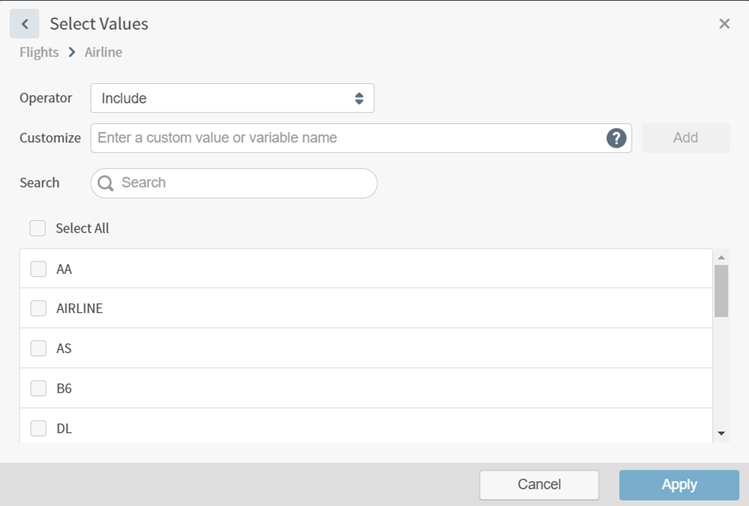 It allows you to:
* Select the filter operator (**Include** or **Exclude**, depending on whether you want to include or exclude the value from the data).
* Specify an optional custom value. To create and select a custom value, enter the value in the **Customize** field and select **Add**. Your custom field is added and selected in the list of possible values. To remove the custom value, uncheck it in the list of possible values. It is removed from the filter and from the list of possible values for the filter. You can insert variables as values for the attribute filter. See [Insert Variables for Row Security Restriction Filters](#insert-variables-for-row-security-restriction-filters).
* Select one or more values from the list of available values for the attribute you selected. To select all values, select **Select All**.
##### Number Fields
If the field you select is a numeric field, the Select Values dialog looks something like this:
It allows you to:
* Select the filter operator (**Include** or **Exclude**, depending on whether you want to include or exclude the value from the data).
* Specify an optional custom value. To create and select a custom value, enter the value in the **Customize** field and select **Add**. Your custom field is added and selected in the list of possible values. To remove the custom value, uncheck it in the list of possible values. It is removed from the filter and from the list of possible values for the filter. You can insert variables as values for the attribute filter. See [Insert Variables for Row Security Restriction Filters](#insert-variables-for-row-security-restriction-filters).
* Select one or more values from the list of available values for the attribute you selected. To select all values, select **Select All**.
##### Number Fields
If the field you select is a numeric field, the Select Values dialog looks something like this:
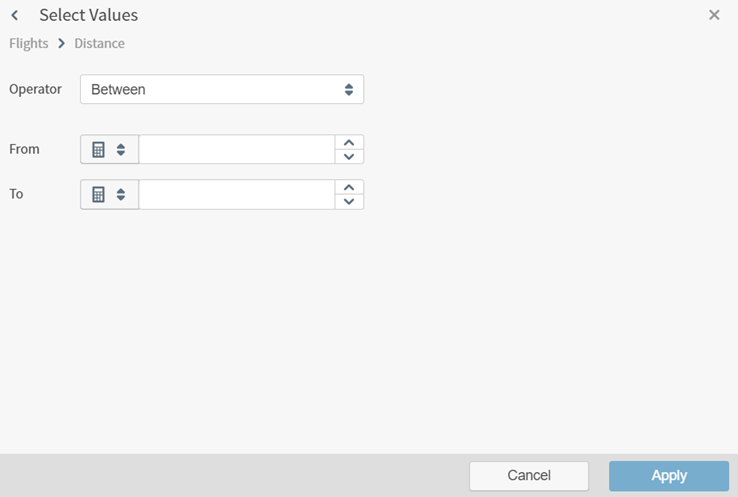 It allows you to:
* Select a relational comparison operator in the **Operator** selection box. Data is included in the visual when the data in the filter field meets the condition set by the relational operator and the numeric values you specify. Valid numeric operators are described in [Operators](/simba-embedded-analytics/docs/self-service-analytics/26.3/connect-to-data/data/fx-aggregate#operators).
* Use the arrows in the **From** and **To** boxes to increase and decrease the maximum and minimum values. You can insert variables as values for the numeric filter. See [Insert Variables for Row Security Restriction Filters](#insert-variables-for-row-security-restriction-filters).
##### Time Fields
If the field you select is a time field, the Select Values dialog looks something like this:
It allows you to:
* Select a relational comparison operator in the **Operator** selection box. Data is included in the visual when the data in the filter field meets the condition set by the relational operator and the numeric values you specify. Valid numeric operators are described in [Operators](/simba-embedded-analytics/docs/self-service-analytics/26.3/connect-to-data/data/fx-aggregate#operators).
* Use the arrows in the **From** and **To** boxes to increase and decrease the maximum and minimum values. You can insert variables as values for the numeric filter. See [Insert Variables for Row Security Restriction Filters](#insert-variables-for-row-security-restriction-filters).
##### Time Fields
If the field you select is a time field, the Select Values dialog looks something like this:
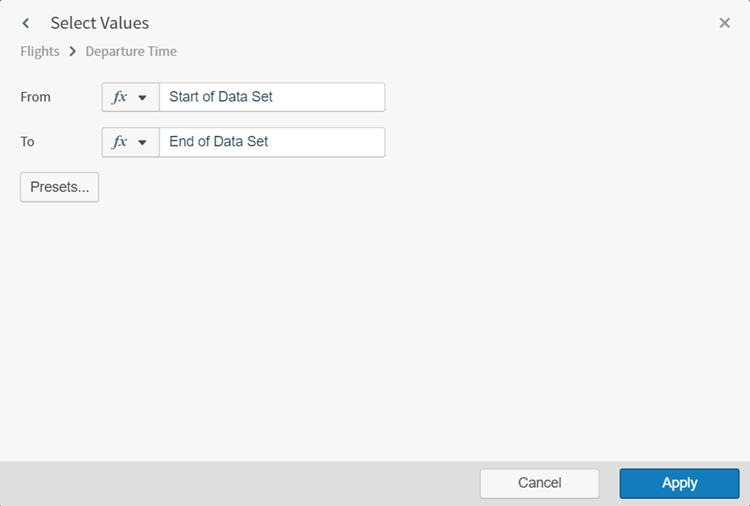 It allows you to use the **From** and **To** boxes to specify the time range for the filter. You can set the range in static time or dynamic time, or use preset ranges provided with Self-Service Analytics.
* Select **Static Time**, **Dynamic Time**, or **Variables** in the **fx** drop-down menu.
It allows you to use the **From** and **To** boxes to specify the time range for the filter. You can set the range in static time or dynamic time, or use preset ranges provided with Self-Service Analytics.
* Select **Static Time**, **Dynamic Time**, or **Variables** in the **fx** drop-down menu.
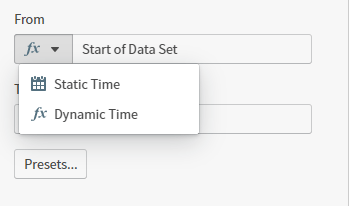 If you select **Variables**, specify a variable to use for the time filter value. See [Insert Variables for Row Security Restriction Filters](#insert-variables-for-row-security-restriction-filters).
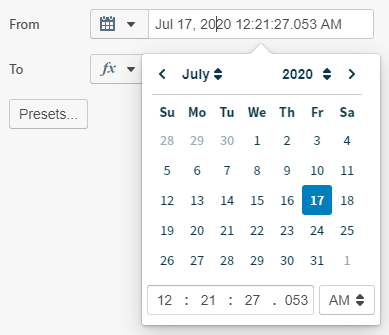
If you select **Static Time**, the **From** and **To** boxes are filled with default dates and times. Use the boxes to select specific from and to times.
If you select **Variables**, specify a variable to use for the time filter value. See [Insert Variables for Row Security Restriction Filters](#insert-variables-for-row-security-restriction-filters).
If you select **Static Time**, the **From** and **To** boxes are filled with default dates and times. Use the boxes to select specific from and to times.
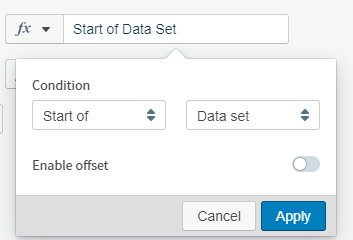
 If you select **Dynamic Time**, the **From** and **To** boxes are filled with **Start of Data Set** and **End of Data Set** automatically and a Condition dialog appears. Use the boxes on the Condition dialog to select different dynamic from and to times:
 * Alternatively, select **Presets...** to fill the **From** and **To** boxes with predefined time ranges provided by Self-Service Analytics.
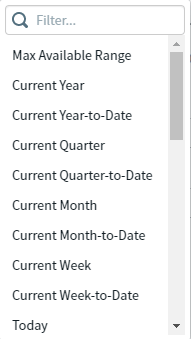 Use the filter box at the top of the presets list to locate the preset setting you want. Descriptions of each of the preset options are provided in [Preset Time Ranges](/simba-embedded-analytics/docs/self-service-analytics/26.3/connect-to-data/data/data-number-formatting#preset-time-ranges).
11. To remove a restriction from the security definition, select the delete icon next to the restriction.
12. Repeat Steps 9-10 if additional restrictions are needed. All restrictions for a row security definition are listed on the Row Security dialog.
13. When you are finished data restrictions for the group, select **Save** to save the row security definition.
14. Repeat Steps 4-13 to add more row security definitions for the data source.
15. When all row security definition modifications have been made, select **Close** to close the Row Security dialog.
Use the filter box at the top of the presets list to locate the preset setting you want. Descriptions of each of the preset options are provided in [Preset Time Ranges](/simba-embedded-analytics/docs/self-service-analytics/26.3/connect-to-data/data/data-number-formatting#preset-time-ranges).
11. To remove a restriction from the security definition, select the delete icon next to the restriction.
12. Repeat Steps 9-10 if additional restrictions are needed. All restrictions for a row security definition are listed on the Row Security dialog.
13. When you are finished data restrictions for the group, select **Save** to save the row security definition.
14. Repeat Steps 4-13 to add more row security definitions for the data source.
15. When all row security definition modifications have been made, select **Close** to close the Row Security dialog.
Modify Row Security Definitions
**Modify row security for a data source**
1. Log in as a user in a group that has been granted the **Administer Sources** [privilege](/simba-embedded-analytics/docs/self-service-analytics/26.3/administer/users/aaa-ov#group-privilege-reference), or a user in a group that has been granted the **Manage Source Permissions** [privilege](/simba-embedded-analytics/docs/self-service-analytics/26.3/administer/users/aaa-ov#group-privilege-reference) *and* who also has **read** [permission](/simba-embedded-analytics/docs/self-service-analytics/26.3/connect-to-data/sources/ds-permissions) for the data source. If you are logged in as a tenant admin, verify you're in or switch to the appropriate tenant.
2. Select the **Sources** card on your home page or **Data Sources** from the main menu.. The Sources page appears.
3. Locate the data source for which you want to restrict data access and select the icon in the **Row** column for the data source. The Row Security dialog appears.
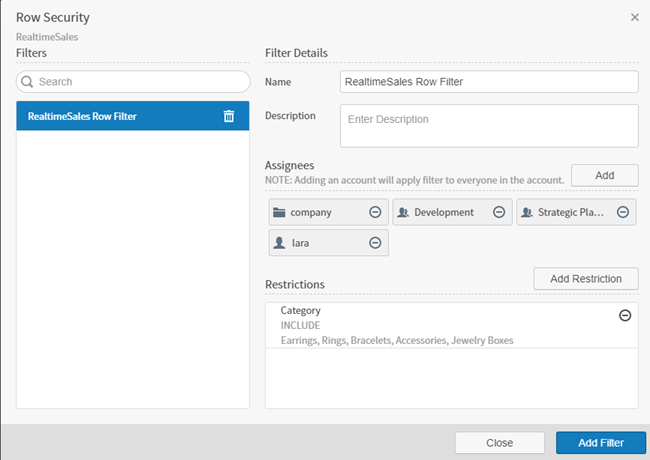 4. To modify a row security definition, select it on the left side of the Row Security dialog. The settings for the definition appear in the Filter Details on the right side of the dialog and can be modified.
5. Modify any of the information for the row security definition, as described in [Add Row Security Definitions](#add-row-security-definitions). When you are finished, select **Save** to save the row security settings.
6. When all row security definition modifications have been made, select **Close** to close the Row Security dialog.
4. To modify a row security definition, select it on the left side of the Row Security dialog. The settings for the definition appear in the Filter Details on the right side of the dialog and can be modified.
5. Modify any of the information for the row security definition, as described in [Add Row Security Definitions](#add-row-security-definitions). When you are finished, select **Save** to save the row security settings.
6. When all row security definition modifications have been made, select **Close** to close the Row Security dialog.
Remove Row Security Definitions
**Remove row security for a data source**
1. Log in as a user in a group that has been granted the **Administer Sources** [privilege](/simba-embedded-analytics/docs/self-service-analytics/26.3/administer/users/aaa-ov#group-privilege-reference), or a user in a group that has been granted the **Manage Source Permissions** [privilege](/simba-embedded-analytics/docs/self-service-analytics/26.3/administer/users/aaa-ov#group-privilege-reference) *and* who also has **read** [permission](/simba-embedded-analytics/docs/self-service-analytics/26.3/connect-to-data/sources/ds-permissions) for the data source. If you are logged in as a tenant admin, verify you're in or switch to the appropriate tenant.
2. Select the **Sources** card on your home page or **Data Sources** from the main menu. The Sources page appears.
3. Locate the data source and select the row icon in the **Row** column for the data source. The Row Security dialog appears.
4. Locate the row security definition you want to remove (delete) on the left side of the Row Security dialog and select the delete icon next to its name.
5. Select **Delete** on the confirmation dialog. The row security definition is removed.
6. When all row security definition modifications have been made, select **Close** to close the Row Security dialog.
Insert Variables for Row Security Restriction Filters
Variables can be inserted as values for any restriction filter in a row security definition. The variables are passed to the connection string via custom attributes specified in the user definition or dynamically in the custom attributes specified in the SAML or LDAP configurations for your Self-Service Analytics installation.
You can also specify user attributes for use in the connection parameters of a connection definition. See [Use User Attributes for Connection Parameters](/simba-embedded-analytics/docs/self-service-analytics/26.3/connect-to-data/connections-managing#use-user-attributes-for-connection-parameters).
If a you use a variable in a row security definition, but do not define a corresponding custom attribute the user, an error message appears when the user attempts to view a dashboard on which the row security is applied.
Step 1: Define Custom Attributes for the Variables
A custom attribute must be defined for every variable you want to use. The only exceptions are the Self-Service Analytics context variables `${User.composerUserName}`, `${User.accountId}`, and `${User.credentials}`. These built-in attributes which automatically exist and can be used connect the currently logged in user.
You can define custom attributes in several ways:
* Individually for every user. If you use this method, the variable names must be the same for every user. See [Specify Custom User Attributes](/simba-embedded-analytics/docs/self-service-analytics/26.3/administer/users/users-manage#specify-custom-user-attributes).
* Dynamically in the LDAP or SAML configurations for your Self-Service Analytics instance. See [Use Lightweight Directory Access Protocol (LDAP)](/simba-embedded-analytics/docs/self-service-analytics/26.3/administer/security/authorization-tools#use-lightweight-directory-access-protocol-ldap) and [Configure Self-Service Analytics to Support SAML](/simba-embedded-analytics/docs/self-service-analytics/26.3/administer/security/authorization-tools#configure-self-service-analytics-to-support-saml).
Details about specifying custom attribute values are provided in [Specify Custom User Attributes](/simba-embedded-analytics/docs/self-service-analytics/26.3/administer/users/users-manage#specify-custom-user-attributes).
Step 2: Using Variables in Row Security
**Use variables in row security**
1. Log into Self-Service Analytics as a user in a group that has been granted the **Administer Sources** [privilege](/simba-embedded-analytics/docs/self-service-analytics/26.3/administer/users/aaa-ov#group-privilege-reference), or a user in a group that has been granted the **Manage Source Permissions** [privilege](/simba-embedded-analytics/docs/self-service-analytics/26.3/administer/users/aaa-ov#group-privilege-reference) *and* who also has **read** [permission](/simba-embedded-analytics/docs/self-service-analytics/26.3/connect-to-data/sources/ds-permissions) for the data source.
2. Follow the instructions in Restrict Access to Data Using Row and Column Security to add or modify a row security definition. When you get to the step where you select values for the restriction filter, specify the custom attribute (variable) you defined in Step 1 as a value for the filter. If custom attributes are defined, they can be directly entered using the following syntax:
```
${User.}
```
3. Save the row security definition and close the Row Security dialog, as described in Restrict Access to Data Using Row and Column Security.
### Row Security Filter Errors
When a custom user attribute, used as a variable in a row security filter, is invalid (for example, it cannot be parsed as a value of a required type), a generic error message is given and a detailed message is logged describing what is wrong with the row security filter.
Restrict Access to Fields Using Column Security
If a user is included in more than one column security filter for the same data source, a most permissive model for the filter is used.
Users for whom column security filters have been applied in a data source will receive an **Invalid Visual Configuration** error for a dashboard based on the data source if the dashboard shows any of the fields the user is restricted from seeing.
Column security is supported by the API endpoint `/api/sources//security/attributes`.
API documentation is provided in your environment at this link: `https:///composer/swagger-ui.html`.
This section covers the following topics:
* [Add Column Security Definitions](#add-column-security-definitions)
* [Modify Column Security Definitions](#modify-column-security-definitions)
* [Remove Column Security Definitions](#remove-column-security-definitions)
Add Column Security Definitions
Add column security to restrict data source fields that can be viewed or used by the group.
1. Log in as a user in a group that has been granted the **Administer Sources** [privilege](/simba-embedded-analytics/docs/self-service-analytics/26.3/administer/users/aaa-ov#group-privilege-reference), or a user in a group that has been granted the **Manage Source Permissions** [privilege](/simba-embedded-analytics/docs/self-service-analytics/26.3/administer/users/aaa-ov#group-privilege-reference) *and* who also has **read** [permission](/simba-embedded-analytics/docs/self-service-analytics/26.3/connect-to-data/sources/ds-permissions) for the data source. If you are logged in as a tenant admin, verify you're in or switch to the appropriate tenant.
2. Select the **Sources** card on your home page or **Data Sources** from the main menu.. The Sources page appears.
3. Locate the data source for which you want to restrict field access and select the icon in the **Column** column for the data source. The Fields Security dialog appears.
4. Select **Add Filter**. The Fields Security dialog fills with information about the data source you selected.
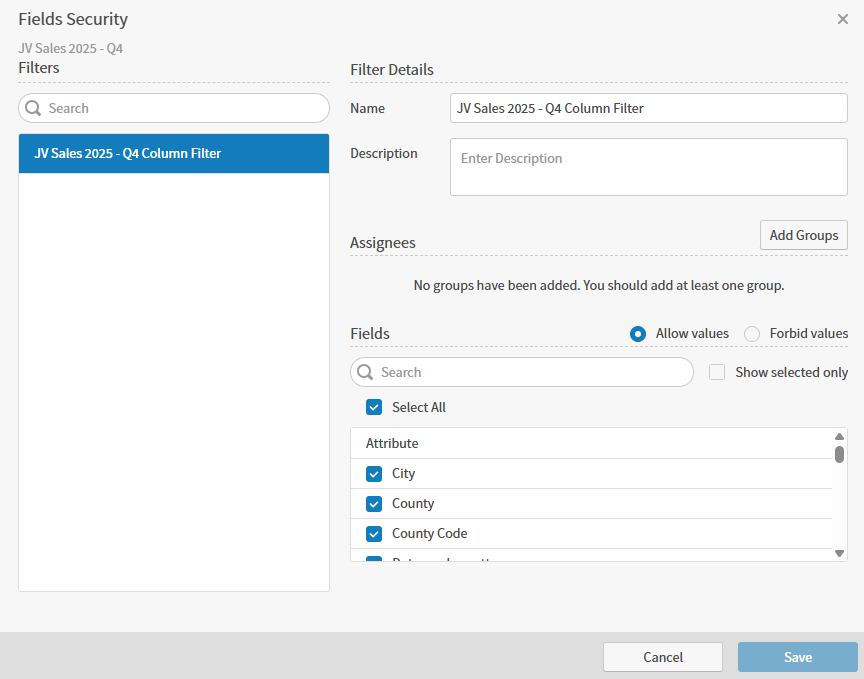 5. Specify a name for the column security definition in the **Name** field. This name will be used to distinguish one column security definition from another here.
6. Optionally, use the **Description** field to supply a description for the column security definition.
7. Select **Add Groups** to select one or more groups to which the column security definition applies. The Add Groups dialog appears.
8. Select one or more groups for the column security filter. You can search for group names using the search box at the top of the dialog. When you have finished selecting groups, select **Apply**.
The groups appear under **Assignees** on the Column Security dialog. If you want to remove a group from the filter, select
5. Specify a name for the column security definition in the **Name** field. This name will be used to distinguish one column security definition from another here.
6. Optionally, use the **Description** field to supply a description for the column security definition.
7. Select **Add Groups** to select one or more groups to which the column security definition applies. The Add Groups dialog appears.
8. Select one or more groups for the column security filter. You can search for group names using the search box at the top of the dialog. When you have finished selecting groups, select **Apply**.
The groups appear under **Assignees** on the Column Security dialog. If you want to remove a group from the filter, select  next to the group name in the **Assignees** section.
9. Select fields in the **Fields** list to be visible to the members of the selected groups. By default, all fields are selected, and all values are allowed (the **Allow values** option is selected).
Check or clear (uncheck) fields, then optionally select **Forbid values** to forbid selected fields, or leave **Allow values** selected to allow your selected fields. Use the Search bar to search for fields in the list.
To see only the fields you have selected in the list, select **Show selected fields only**. To see all fields in the list (including fields you have not selected), clear (uncheck) **Show selected fields only**.
10. When you are finished selecting data source fields that can be visible to the groups, select **Save** to save the column security definition.
11. Repeat Steps 4-9 to add more column security definitions.
12. When all column security definition modifications have been made, select **Close** to close the Column Security dialog.
next to the group name in the **Assignees** section.
9. Select fields in the **Fields** list to be visible to the members of the selected groups. By default, all fields are selected, and all values are allowed (the **Allow values** option is selected).
Check or clear (uncheck) fields, then optionally select **Forbid values** to forbid selected fields, or leave **Allow values** selected to allow your selected fields. Use the Search bar to search for fields in the list.
To see only the fields you have selected in the list, select **Show selected fields only**. To see all fields in the list (including fields you have not selected), clear (uncheck) **Show selected fields only**.
10. When you are finished selecting data source fields that can be visible to the groups, select **Save** to save the column security definition.
11. Repeat Steps 4-9 to add more column security definitions.
12. When all column security definition modifications have been made, select **Close** to close the Column Security dialog.
Modify Column Security Definitions
Modify column security to restrict the data source fields that can be viewed or used by the group.
1. Log in as a user in a group that has been granted the **Administer Sources** [privilege](/simba-embedded-analytics/docs/self-service-analytics/26.3/administer/users/aaa-ov#group-privilege-reference), or a user in a group that has been granted the **Manage Source Permissions** [privilege](/simba-embedded-analytics/docs/self-service-analytics/26.3/administer/users/aaa-ov#group-privilege-reference) *and* who also has **read** [permission](/simba-embedded-analytics/docs/self-service-analytics/26.3/connect-to-data/sources/ds-permissions) for the data source. If you are logged in as a tenant admin, verify you're in or switch to the appropriate tenant.
2. Select the **Sources** card on your home page or **Data Sources** from the main menu. The Sources page appears.
3. Locate the data source and select the column icon in the **Column** column for the data source. The Fields Security dialog appears.
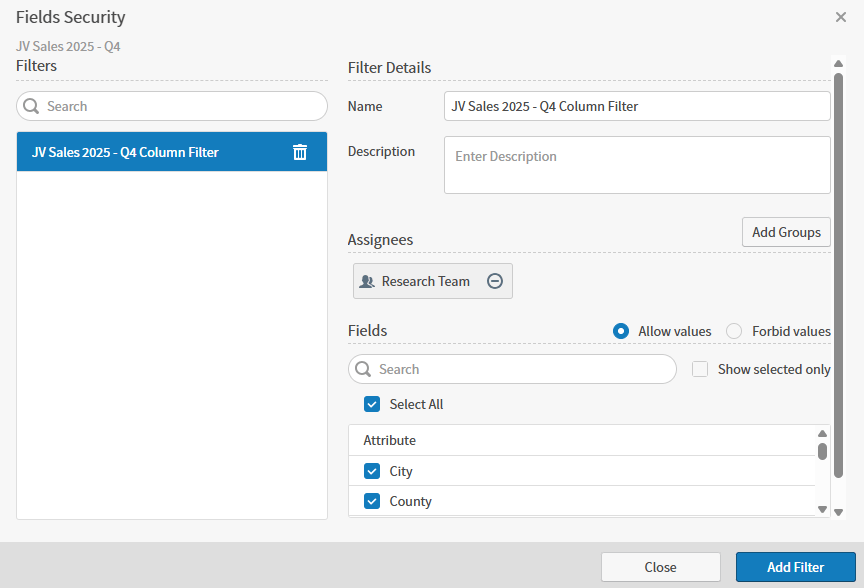 4. To modify a column security definition, select it on the left side of the Field Security dialog. The settings for the definition appear in the Filter Details on the right side of the dialog and can be modified.
5. Modify any of the information for the column security definition, as described in [Add Column Security Definitions](#add-column-security-definitions). When you are finished, select **Save** to save your settings.
6. When all column security definition modifications have been made, select **Close** to close the dialog.
4. To modify a column security definition, select it on the left side of the Field Security dialog. The settings for the definition appear in the Filter Details on the right side of the dialog and can be modified.
5. Modify any of the information for the column security definition, as described in [Add Column Security Definitions](#add-column-security-definitions). When you are finished, select **Save** to save your settings.
6. When all column security definition modifications have been made, select **Close** to close the dialog.
Remove Column Security Definitions
**Remove column security for a data source**
1. Log in as a user in a group that has been granted the **Administer Sources** [privilege](/simba-embedded-analytics/docs/self-service-analytics/26.3/administer/users/aaa-ov#group-privilege-reference), or a user in a group that has been granted the **Manage Source Permissions** [privilege](/simba-embedded-analytics/docs/self-service-analytics/26.3/administer/users/aaa-ov#group-privilege-reference) *and* who also has **read** [permission](/simba-embedded-analytics/docs/self-service-analytics/26.3/connect-to-data/sources/ds-permissions) for the data source. If you are logged in as a tenant admin, verify you're in or switch to the appropriate tenant.
2. Select the **Sources** card on your home page or **Data Sources** from the main menu.. The Sources page appears.
3. Locate the data source and select the icon in the **Column** column for the data source. The Fields Security dialog appears.
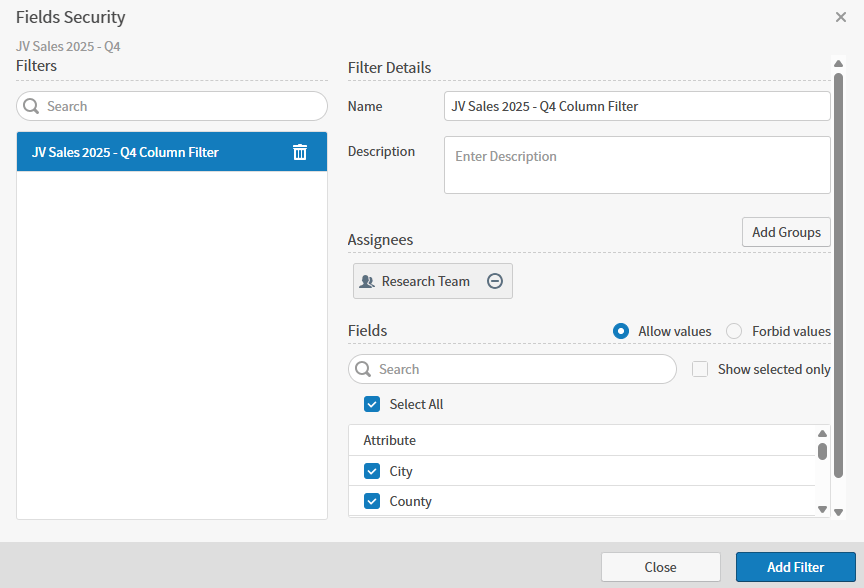 4. Locate the column security definition you want to remove (delete) on the left side of the Column Security dialog and select
  next to its name.
5. Select **Delete** on the confirmation dialog. The column security definition is removed.
6. When all column security definition modifications have been made, select **Close** to close the Column Security dialog.
next to its name.
5. Select **Delete** on the confirmation dialog. The column security definition is removed.
6. When all column security definition modifications have been made, select **Close** to close the Column Security dialog.