> ## Documentation Index
> Fetch the complete documentation index at: https://insightsoftware.mintlify.site/llms.txt
> Use this file to discover all available pages before exploring further.
# About Source Permissions
> Data source authorization allows you to permit your entire account or groups or users within your account to read, write, or delete a data source configuration.
As a Self-Service Analytics user assigned to a group with the **Administer Sources** [privilege](/simba-embedded-analytics/docs/self-service-analytics/26.3/administer/users/aaa-ov#group-privilege-reference) or with the **Manage Source Permissions** [privilege](/simba-embedded-analytics/docs/self-service-analytics/26.3/administer/users/aaa-ov#group-privilege-reference), you can enable users to work with data sources by enabling **Data Access**, **Read**, **Write**, and **Delete** permissions for sources.
If you try to delete a visual, filter snippet, dashboard, self service report, dashboard link, source, or source field, Self-Service Analytics displays an error message naming any objects dependent on the item you’re trying to delete. You can delete the item after you’ve removed the association from the dependent object. See [Fields Usage](/simba-embedded-analytics/docs/self-service-analytics/26.3/connect-to-data/sources/data-source-config-fields-tab#fields-usage).
Users who create a data source can always modify or remove it, unless their permissions are revoked. Users who belong to a group with the **Administer Sources** [privilege](/simba-embedded-analytics/docs/self-service-analytics/26.3/administer/users/aaa-ov#group-privilege-reference) enabled have **Data Access**, **Read**, **Write**, and **Delete** permissions for any source in Self-Service Analytics.
You can grant data source access to users who do not belong to a group with [privileges](/simba-embedded-analytics/docs/self-service-analytics/26.3/administer/users/aaa-ov#group-privilege-reference) enabled by defining **Data Access**, **Read**, **Write**, and **Delete** permissions for individual sources.
**Data Access** is a separate permission for sources. It can be set directly on sources for users, groups, and tenants, and is enabled for users, groups, and tenants when you assign **Read** permission for a visual that uses that source. Unless they are granted Read permission to the source as well, they can not see the source listed on the Source page, or select the source to create a new visual (for users with the **Create Visuals** or **Administer Visuals** [privilege](/simba-embedded-analytics/docs/self-service-analytics/26.3/administer/users/aaa-ov#group-privilege-reference)).
#### Privilege Considerations
To manage permission settings for a source, a user must meet **one** of the following criteria:
* The user is an administrator, belonging to the [**Administrators** group](/simba-embedded-analytics/docs/self-service-analytics/26.3/administer/users/aaa-ov#about-supplied-groups).
* The user belongs to a group with the **Administer Sources** (ROLE\_ADMINISTER\_SOURCES) [privilege](/simba-embedded-analytics/docs/self-service-analytics/26.3/administer/users/aaa-ov#group-privilege-reference) enabled.
* The user belongs to a group with the **Manage Source Permissions** (ROLE\_PERMISSION\_SOURCES) [privilege](/simba-embedded-analytics/docs/self-service-analytics/26.3/administer/users/aaa-ov#group-privilege-reference) enabled. If a user only has this privilege (and *not* the **Administer Sources** privilege), they can only manage permissions for sources they can read.
In addition, you may be restricted in which permissions you can assign. You can only assign permissions equivalent to your own. For example, if your user account has read permission for a source, you can grant and revoke the read option available on the Source Permissions panel. If you have write permission for a source, you can grant and revoke the write option on the Source Permissions panel.
If your user account does not have read permission for a source, you can not see the source on the Sources page.
Source permissions are determined using a most permissive model. For more information, see [How Source Permissions Are Determined](#how-source-permissions-are-determined).
#### Data Store Connection Considerations
Users with write permissions for a data source are automatically able to read the [connection definitions](/simba-embedded-analytics/docs/self-service-analytics/26.3/connect-to-data/connections-managing) for a data source. However, connection definitions can only be maintained by Self-Service Analytics administrators or users belonging to groups that have been granted the **Manage Connections** [privilege](/simba-embedded-analytics/docs/self-service-analytics/26.3/administer/users/aaa-ov#group-privilege-reference).
#### Row and Column Security Considerations
Row and column security filters can be maintained for a data source by:
* an administrator.
* User in a group that has been granted the **Administer Sources** [privilege.](/simba-embedded-analytics/docs/self-service-analytics/26.3/administer/users/aaa-ov#group-privilege-reference)
* User in a group that has been granted the **Manage Source Permissions** [privilege](/simba-embedded-analytics/docs/self-service-analytics/26.3/administer/users/aaa-ov#group-privilege-reference) who also has **read** permission for the data source.
Security filters will not be applied to users with the privileges mentioned above. Source administrators can manage security filters for regular users but not for other source administrators.
For specific information about source permissions, see the following topics:
* [Grant Permissions for a Source](#grant-permissions-for-a-source)
* [Modify Permissions for a Data Source](#modify-permissions-for-a-data-source)
* [Revoke Permissions for a Data Source](#revoke-permissions-for-a-data-source)
* [How Source Permissions Are Determined](#how-source-permissions-are-determined)
Data source permissions can also be managed using the API endpoints `GET /api/sources/{sourceId}/acls`, `PATCH and PUT /api/sources/{sourceId}/acls/bulk`, `GET /api/user/permissions/sources/{sourceId}`, `GET /api/user/permissions/sources`, and `GET /api/inventory/SOURCE/{id}`.
When you use the `GET /api/sources/{sourceId}/acls` endpoint, you can read the source data. Use `PATCH` and `PUT` to restrict the list to specific users, groups, or tenants using the `sidTypes` parameter. In addition, you can use the `returnSids` parameter to restrict the list so it retrieves only users, groups, or tenants with access to the sources or to only users, groups, or tenants without access.
API documentation is provided in your environment at this link: `https:///composer/swagger-ui.html`.
**Permissions for imported objects**
When you [import dashboards](/simba-embedded-analytics/docs/self-service-analytics/26.3/analyze-data/dashboards/dash-import), associated resources such as visuals, sources, and connections are imported as well. You can quickly grant default access levels to all imported and associated objects in your tenants by enabling **Share Default Access With All Users** at import time. Users are granted Data access to sources and Read access to visuals and dashboards.
How Source Permissions Are Determined
By default, the creator of a source configuration always has **Data Access**, **Read**, **Write**, and **Delete** permissions until those permissions are changed by an administrator or someone with appropriate authorization to change source permissions. If a user is removed from your software environment, sources created by that user are retained. The system admin becomes the creator of these orphaned data sources.
The default **supervisor** user is no longer installed; add users to the **Supervisors** group instead.
Data Access is a separate permission for sources. It can be set directly on sources for users, groups, and accounts, and is enabled for users, groups, and accounts when you assign **Read** permission for a visual that uses that source. Unless they are granted Read permission to the source as well, they can not see the source listed on the Source page, or select the source to create a new visual (for users with the **Create Visuals** or **Administer Visuals** [privilege](/simba-embedded-analytics/docs/self-service-analytics/26.3/administer/users/aaa-ov#group-privilege-reference)).
If conflicting source permissions are specified for a tenant, the group within a tenant, and the user within a tenant, the permissions granted to the users are determined using a most permissive model. Users are granted the highest level of permission specified for the tenant, group, and user. For example, if the tenant is granted read and write permissions, but Group A is granted write and delete permissions, users in Group A will be able to read, write, and delete the source. However, users in any other groups in the tenant will only be able to read and write the data source.
Here's another example. If the tenant is granted data access, read, write, and delete permissions, but the groups in the tenant are only granted data access permissions, all users in the tenant will have data access, read, write, and delete permissions for the data source.
If you try to delete a visual, filter snippet, dashboard, self service report, dashboard link, source, or source field, Self-Service Analytics displays an error message naming any objects dependent on the item you’re trying to delete. You can delete the item after you’ve removed the association from the dependent object. See [Fields Usage](/simba-embedded-analytics/docs/self-service-analytics/26.3/connect-to-data/sources/data-source-config-fields-tab#fields-usage).
**Permissions for imported objects**
When you [import dashboards](/simba-embedded-analytics/docs/self-service-analytics/26.3/analyze-data/dashboards/dash-import), associated resources such as visuals, sources, and connections are imported as well. You can quickly grant default access levels to all imported and associated objects in your tenants by enabling **Share Default Access With All Users** at import time. Users are granted Data access to sources and Read access to visuals and dashboards.
Grant Permissions for a Source
You can grant read, write, or delete data source configuration permissions for your tenant, groups in your tenant, or specific users in your tenant.
**Grant permissions for a data source**
1. Log in as an administrator or a user belonging to a group that includes the **Administer Sources** or the **Manage Source Permissions** [privilege](/simba-embedded-analytics/docs/self-service-analytics/26.3/administer/users/aaa-ov#group-privilege-reference). If you are logged in as a tenant admin, verify you're in or switch to the appropriate tenant.
2. Select the **Sources** card on your home page or **Data Sources** from the main menu. The Sources work area opens.
Some columns in this work area can be resized or sorted as needed; select the column header break to resize, or select the column name to change the sort.
3. Locate the row for the data source configuration in the list and select icon in its **Permissions** column. The Source Permissions dialog appears.
Initially, this dialog lists only the creator of the data source.
4. Select **Add** on the Source Permissions dialog and then select **Groups**, **Users**, or **Tenant** from the drop-down menu.
* If you select **Groups**, the Add Groups dialog appears, listing all the groups available in your tenant. The [supplied groups](/simba-embedded-analytics/docs/self-service-analytics/26.3/administer/users/aaa-ov#about-supplied-groups) are not shown; permissions can not be changed for those groups.
* If you select **Users**, the Add Users dialog appears, listing all the users available in your tenant.
* If you select **Tenant**, Read permission is selected for your tenant on the Source Permissions dialog.
5. Select the tenant or any specific groups or users you want to permit to read, write, or delete the data source and select **Apply**. The Source Permissions dialog lists your selections.
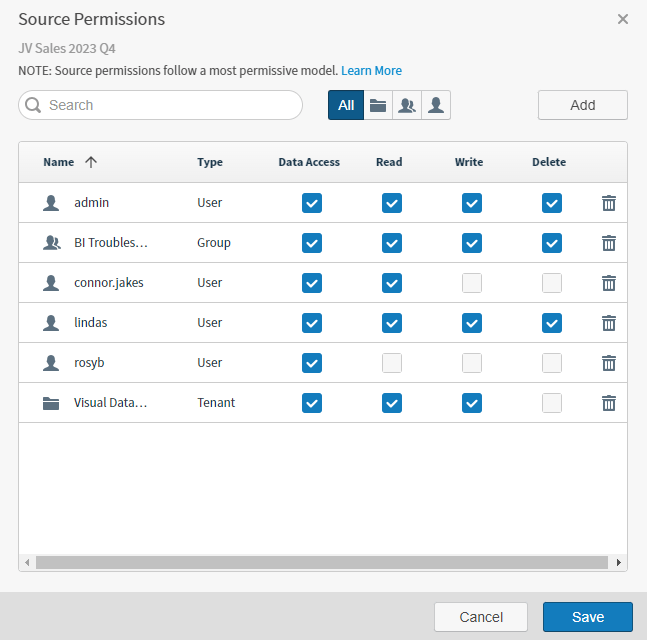 * Members of the Administrators group have data access, read, write, and delete permissions for every data source in the tenant.
* The user who creates a data source is automatically selected and has **Data Access**, **Read**, **Write**, and **Delete** permissions.
6. Select the **Data Access**, **Read**, **Write**, or **Delete** checkboxes for the tenant, groups, or users to indicate what users in them can do with the data source. **Data Access** permission is assumed and is always selected. If you clear (uncheck) the check box (revoke **Data Access** permission), permission for the entire data source is revoked for the tenant, group, or user after you save.
7. Select **Save**. The Save Details dialog appears, listing the changes that you made.
* Members of the Administrators group have data access, read, write, and delete permissions for every data source in the tenant.
* The user who creates a data source is automatically selected and has **Data Access**, **Read**, **Write**, and **Delete** permissions.
6. Select the **Data Access**, **Read**, **Write**, or **Delete** checkboxes for the tenant, groups, or users to indicate what users in them can do with the data source. **Data Access** permission is assumed and is always selected. If you clear (uncheck) the check box (revoke **Data Access** permission), permission for the entire data source is revoked for the tenant, group, or user after you save.
7. Select **Save**. The Save Details dialog appears, listing the changes that you made.
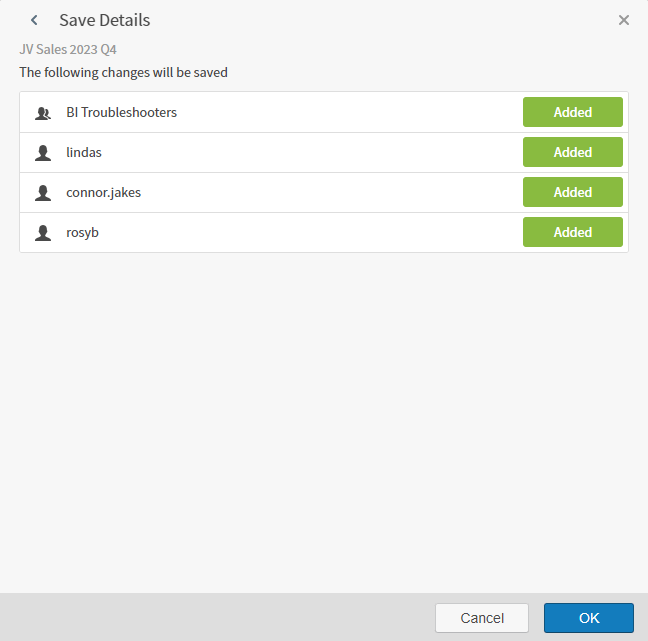 8. Review the changes and select **OK**. The source authorization permissions are set.
**Permissions for imported objects**
When you [import dashboards](/simba-embedded-analytics/docs/self-service-analytics/26.3/analyze-data/dashboards/dash-import), associated resources such as visuals, sources, and connections are imported as well. You can quickly grant default access levels to all imported and associated objects in your tenants by enabling **Share Default Access With All Users** at import time. Users are granted Data access to sources and Read access to visuals and dashboards.
8. Review the changes and select **OK**. The source authorization permissions are set.
**Permissions for imported objects**
When you [import dashboards](/simba-embedded-analytics/docs/self-service-analytics/26.3/analyze-data/dashboards/dash-import), associated resources such as visuals, sources, and connections are imported as well. You can quickly grant default access levels to all imported and associated objects in your tenants by enabling **Share Default Access With All Users** at import time. Users are granted Data access to sources and Read access to visuals and dashboards.
Modify Permissions for a Data Source
You can modify the data source permissions you granted to your tenant, to groups in your tenant, or to specific users in your tenant.
In this release, when your admin enables the Enhanced Experience user interface, you will see changes to workflows you may have used in previous releases.
**Modify permissions for a data source**
1. Log in as an administrator or a user belonging to a group that includes the **Administer Sources** or the **Manage Source Permissions** [privilege](/simba-embedded-analytics/docs/self-service-analytics/26.3/administer/users/aaa-ov#group-privilege-reference). If you are logged in as a tenant admin, verify you're in or switch to the appropriate tenant.
2. Select the **Sources** card on your home page or **Data Sources** from the main menu. The Sources work area opens.
Some columns in this work area can be resized or sorted as needed; select the column header break to resize, or select the column name to change the sort.
3. Locate the row for the data source in the list and select the permissions icon in the **Permissions** column. The Source Permissions dialog appears.
4. If you want to add permissions for all users in your tenant or for additional groups or users in your tenant, select **Add** on the Source Permissions dialog and then select **Groups**, **Users**, or **Tenant** from the drop-down menu.
* If you select **Groups**, the Add Groups dialog appears, listing all the groups available in your tenant. The [supplied groups](/simba-embedded-analytics/docs/self-service-analytics/26.3/administer/users/aaa-ov#about-supplied-groups) are not shown; permissions can not be changed for those groups.
* If you select **Users**, the Add Users dialog appears, listing all the users available in your tenant.
* If you select **Tenant**, Read permission is selected for your tenant on the Source Permissions dialog.
* Members of the Administrators group have read, write, and delete permissions for every source in the tenant.
* The user who created the source is automatically selected and has**Data Access**, **Read**, **Write**, and **Delete** permissions unless you revoke these permissions.
5. Select the **Data Access**, **Read**, **Write**, or **Delete** checkboxes for the tenant, groups, or users to indicate what users in them can do with the data source. **Data Access** permission is assumed and is always selected. If you clear (uncheck) the check box (revoke **Data Access** permission), permission for the entire data source is revoked for the tenant , group, or user after you save.
6. Select **Save**. The Save Details dialog appears, listing the changes that you made.
7. Review the changes and select **OK**. The source authorization permissions are set.
Revoke Permissions for a Data Source
You can revoke the data source permissions you previously granted to your tenant, to groups in your tenant, or to specific users in your tenant.
In this release, when your admin enables the Enhanced Experience user interface, you will see changes to workflows you may have used in previous releases.
**Revoke permissions for a data source**
1. Log in as an administrator or a user belonging to a group that includes the **Administer Sources** or the **Manage Source Permissions** [privilege](/simba-embedded-analytics/docs/self-service-analytics/26.3/administer/users/aaa-ov#group-privilege-reference). If you are logged in as a tenant admin, verify you're in or switch to the appropriate tenant.
2. Select the **Sources** card on your home page or **Data Sources** from the main menu. The Sources work area opens.
Some columns in this work area can be resized or sorted as needed; select the column header break to resize, or select the column name to change the sort.
3. Locate the row for the data source configuration in the list and select the permissions icon in the **Permissions** column. The Source Permissions dialog opens.
4. To completely revoke all source permissions for the tenant or for a group or user, locate the row for the tenant, group or user on the Source Permissions dialog and select the delete icon. The tenant , group, or user is removed from the dialog.
You can also revoke specific permissions by changing the checkbox selections for the tenant or group on the Source Permissions dialog. If you clear (uncheck) the **Data Access** box (revoke **Data Access** permission), permission for the entire data source is revoked for the tenant, group, or user after you save. See [Modify Permissions for a Data Source](#modify-permissions-for-a-data-source).
5. Select **Save**. The Save Details dialog appears, listing the changes that you made.
6. Review the changes and select **OK**. The source authorization permissions are set.