> ## Documentation Index
> Fetch the complete documentation index at: https://insightsoftware.mintlify.site/llms.txt
> Use this file to discover all available pages before exploring further.

# Create and Manage Data Sources

> Describes how to manage data source configurations.

Self-Service Analytics can connect to a wide array of data stores—from modern databases such as Hadoop, Search, Streaming, and NoSQL, to traditional stores like SQL-based stores.

To use the data from a data store in a Self-Service Analytics visual, dashboard, or self service report, you must first [create a connection](/simba-embedded-analytics/docs/self-service-analytics/26.3/connect-to-data/connectors/connectors-ov#define-a-new-connector) to it. From there, create your data source that uses that connection, then create visuals, dashboards, and reports using the data sources.

The following topics describe how to create and maintain your data sources.

<Note>
  Self-Service Analytics supports only underscores and dashes in data store field names. No other special characters or white space are supported. If your data store uses special characters other than underscores and dashes in field names, please remove them before attempting to create a data source configuration.
</Note>

<Note>
  You cannot save a data source with an invisible field, if the invisible field is referenced in a visual (charted or used in filters and keysets).
</Note>

Data source configurations are managed from the Sources page.

* [Data Sources Page](#data-sources-page)
* [Search and Filter Lists](/simba-embedded-analytics/docs/self-service-analytics/26.3/get-started/welcome#search-and-filter-lists)
* [About Source Permissions](/simba-embedded-analytics/docs/self-service-analytics/26.3/connect-to-data/sources/ds-permissions)
* [Define a Source](#define-a-source)
* [Edit a Data Source](#edit-a-data-source)
* [Clear the Cache for a Data Source Configuration](/simba-embedded-analytics/docs/self-service-analytics/26.3/connect-to-data/sources/data-source-config-global-settings-tab#clear-the-cache-for-a-data-source-configuration)
* [Import or Export Sources](/simba-embedded-analytics/docs/self-service-analytics/26.3/connect-to-data/sources/import-export-data-source)
* [Restrict Access to Data Using Row and Column Security](/simba-embedded-analytics/docs/self-service-analytics/26.3/connect-to-data/sources/ds-security-row)
* [Restrict Access to Fields Using Column Security](/simba-embedded-analytics/docs/self-service-analytics/26.3/connect-to-data/sources/ds-security-row#restrict-access-to-fields-using-column-security)
* [Delete a Data Source](#delete-a-data-source)

For information about how Self-Service Analytics caches data, see [How Self-Service Analytics Caches Data](/simba-embedded-analytics/docs/self-service-analytics/26.3/connect-to-data/sources/data-source-config-global-settings-tab#how-self-service-analytics-caches-data). For information on ways you can manipulate the data received from your data store, see [Manipulate Data in the Data Store](/simba-embedded-analytics/docs/self-service-analytics/26.3/connect-to-data/data/manipulate-data).

For information on configuring the time bar or search bar defaults, including the default refresh rates, for your data source, see [Configure Time Bar Defaults](/simba-embedded-analytics/docs/self-service-analytics/26.3/connect-to-data/sources/data-source-config-global-settings-tab#configure-time-bar-defaults) and [Configure Search Box Defaults](/simba-embedded-analytics/docs/self-service-analytics/26.3/connect-to-data/sources/data-source-config-global-settings-tab#configure-search-box-defaults).

<h2 id="data-sources-page">
  Data Sources Page
</h2>

Use **Sources** to create, [import](/simba-embedded-analytics/docs/self-service-analytics/26.3/connect-to-data/sources/import-export-data-source), [export](/simba-embedded-analytics/docs/self-service-analytics/26.3/connect-to-data/sources/import-export-data-source), search, view, review, and [maintain](#edit-a-data-source) your data sources.

All users can view the **Sources** work area.

* If you log in as a user who has not been granted [permissions](/simba-embedded-analytics/docs/self-service-analytics/26.3/connect-to-data/sources/ds-permissions) for any data sources, the **Sources** work area displays a message indicating that no sources are available.
* If you log in as a user who only has **read** [permissions](/simba-embedded-analytics/docs/self-service-analytics/26.3/connect-to-data/sources/ds-permissions) for one or more data sources, they are shown here, but Connection information is not available for the sources.
* If you log in as a user who belongs to a group that is granted the **Create New Data Sources** or **Administer Sources** [privilege](/simba-embedded-analytics/docs/self-service-analytics/26.3/administer/users/aaa-ov#group-privilege-reference), you can create, [import](/simba-embedded-analytics/docs/self-service-analytics/26.3/connect-to-data/sources/import-export-data-source), [export](/simba-embedded-analytics/docs/self-service-analytics/26.3/connect-to-data/sources/import-export-data-source), search, preview, review, and [maintain](#edit-a-data-source) your data source configurations using this work area.

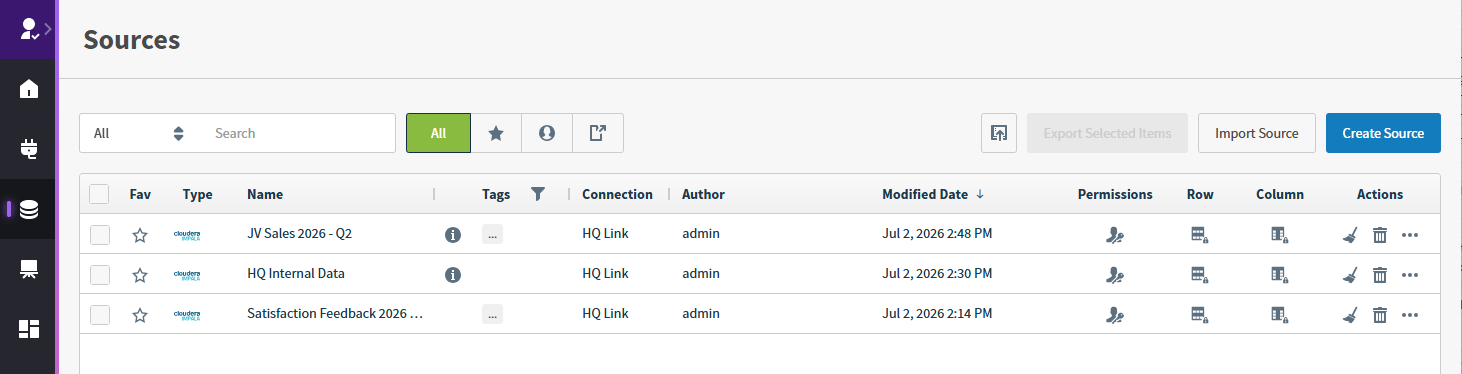
<img src="https://mintcdn.com/insightsoftware/b9ogX_L4Mqut_Uxb/simba-embedded-analytics/docs/self-service-analytics/26.3/images/v26/work-areas/sources/source-lib-26-2.png?fit=max&auto=format&n=b9ogX_L4Mqut_Uxb&q=85&s=52f0c1db71b85f11027c6642627b6dc1" alt="Use this work area to create, import, and edit data sources." width="1462" height="374" data-path="simba-embedded-analytics/docs/self-service-analytics/26.3/images/v26/work-areas/sources/source-lib-26-2.png" />

The Data Sources work area includes the following features:

1. **Create Source**: Select to create a new data source configuration. See [Define a Source](#define-a-source).
2. **Import Source**: Select to import a new data source configuration and connection information. See [Import or Export Sources](/simba-embedded-analytics/docs/self-service-analytics/26.3/connect-to-data/sources/import-export-data-source).
3. **Export Selected Items**: Export one or more data sources by selecting the checkbox for a source to export. The **Export Selected Items** button becomes active. Select to download the sources in JSON format. See [Import or Export Sources](/simba-embedded-analytics/docs/self-service-analytics/26.3/connect-to-data/sources/import-export-data-source).
4. **Embed Sources Inventory**: Select <img src="https://mintcdn.com/insightsoftware/sLccJ1EJ28cO5lT_/simba-embedded-analytics/docs/self-service-analytics/26.3/images/icons/dashboard-embed.png?fit=max&auto=format&n=sLccJ1EJ28cO5lT_&q=85&s=64e9abef187115e782e94be2349f4b08" alt="" width="30" height="30" noZoom style={{display: 'inline', verticalAlign: 'middle', margin: '0 2px'}} data-path="simba-embedded-analytics/docs/self-service-analytics/26.3/images/icons/dashboard-embed.png" /> to generate a code snippet to embed the sources inventory in your application. See [Generate a Sources Inventory HTML Snippet](/simba-embedded-analytics/docs/self-service-analytics/26.3/embed-and-extend/embed/dash-embed-gencode-dashboard#generate-a-sources-inventory-html-snippet).
5. A table that lists the data sources you can see, sort, and favorite.
6. Options to modify source permissions, view and modify row and column security filters, refresh the cache, and manage Available Visual Types.
7. A search bar at the top of the page you can use to search for a specific data source in the table.

**Access the Data Sources work area**

1. Log into Self-Service Analytics.
2. Select the **Sources** card on your home page or **Data Sources** from the main menu.. The Sources work area appears.

Depending on your settings, you can edit and delete data sources listed in the table. You can also clear the cache for a data source. If there are many sources listed, you may need to search for the source you need.

### Search Field

You can use the search field to filter the sources in this work area by source Name, Description (if provided), Connection, or Author. For example, if you type a **C** in the search box, only sources that include the letter *C* in the selected field searched are shown in the working area. See [Search and Filter Lists](/simba-embedded-analytics/docs/self-service-analytics/26.3/get-started/welcome#search-and-filter-lists).

### Buttons

The buttons on the page allow easy access to saved data sources, as well as other data sources created by other users in your Self-Service Analytics environment that you have been granted access to see. Use the options shown to create new sources, filter the data sources shown, as well as import, export, or create sources.

<table>
  <thead>
    <tr>
      <th>Button</th>
      <th>Description</th>
    </tr>
  </thead>

  <tbody>
    <tr>
      <td>All</td>
      <td>Removes any filters for the sources list and displays all sources available to you within your environment.</td>
    </tr>

    <tr>
      <td>
        <img src="https://mintcdn.com/insightsoftware/2cXq_sDOxrDVXUcv/simba-embedded-analytics/docs/self-service-analytics/26.3/images/buttons/dash-favorites.png?fit=max&auto=format&n=2cXq_sDOxrDVXUcv&q=85&s=3f42e7b5a7ec088f144961fc4e0b8168" alt="" width="35" height="35" noZoom style={{display: 'inline', verticalAlign: 'middle', width: '35px', height: '35px', margin: '0 2px'}} data-path="simba-embedded-analytics/docs/self-service-analytics/26.3/images/buttons/dash-favorites.png" />
      </td>

      <td>Displays only the sources that you have marked as favorites.</td>
    </tr>

    <tr>
      <td>
        <img src="https://mintcdn.com/insightsoftware/2cXq_sDOxrDVXUcv/simba-embedded-analytics/docs/self-service-analytics/26.3/images/buttons/dash-myitems.png?fit=max&auto=format&n=2cXq_sDOxrDVXUcv&q=85&s=75cdbc10c3bd2b5d2e24e0f566314a74" alt="" width="35" height="35" noZoom style={{display: 'inline', verticalAlign: 'middle', width: '35px', height: '35px', margin: '0 2px'}} data-path="simba-embedded-analytics/docs/self-service-analytics/26.3/images/buttons/dash-myitems.png" />
      </td>

      <td>Displays only the sources that you created and saved. Sources created and saved by other users are hidden.</td>
    </tr>

    <tr>
      <td>
        <img src="https://mintcdn.com/insightsoftware/2cXq_sDOxrDVXUcv/simba-embedded-analytics/docs/self-service-analytics/26.3/images/buttons/dash-shared.png?fit=max&auto=format&n=2cXq_sDOxrDVXUcv&q=85&s=acc922b30add9660f0e1a0c755601279" alt="" width="35" height="35" noZoom style={{display: 'inline', verticalAlign: 'middle', width: '35px', height: '35px', margin: '0 2px'}} data-path="simba-embedded-analytics/docs/self-service-analytics/26.3/images/buttons/dash-shared.png" />
      </td>

      <td>Displays only the sources that other users shared with you.</td>
    </tr>

    <tr>
      <td>
        <img src="https://mintcdn.com/insightsoftware/sLccJ1EJ28cO5lT_/simba-embedded-analytics/docs/self-service-analytics/26.3/images/icons/dashboard-embed.png?fit=max&auto=format&n=sLccJ1EJ28cO5lT_&q=85&s=64e9abef187115e782e94be2349f4b08" alt="" width="33" height="33" noZoom style={{display: 'inline', verticalAlign: 'middle', width: '33px', height: '33px', margin: '0 2px'}} data-path="simba-embedded-analytics/docs/self-service-analytics/26.3/images/icons/dashboard-embed.png" />
      </td>

      <td>
        Select to generate an embeddable sources inventory link.

        <br />

        See [Generate a Sources Inventory HTML Snippet](/simba-embedded-analytics/docs/self-service-analytics/26.3/embed-and-extend/embed/dash-embed-gencode-dashboard#generate-a-sources-inventory-html-snippet).
      </td>
    </tr>

    <tr>
      <td>**Export Selected Items**</td>
      <td>Allows you to export multiple selected items.</td>
    </tr>

    <tr>
      <td>**Import Source**</td>

      <td>
        Allows you to import a source.

        <br />

        See [Import or Export Sources](/simba-embedded-analytics/docs/self-service-analytics/26.3/connect-to-data/sources/import-export-data-source).
      </td>
    </tr>

    <tr>
      <td>**Create Source**</td>

      <td>
        Allows you to create a new source.

        <br />

        See [Define a Source](#define-a-source).
      </td>
    </tr>
  </tbody>
</table>

### The Sources List

The sources list columns are described below. Several of these columns can be used to sort the list: select the column header to sort first to last and again to sort last to first. You can search for items by the contents of several columns. See [Search and Filter Lists](/simba-embedded-analytics/docs/self-service-analytics/26.3/get-started/welcome#search-and-filter-lists).

<table>
  <thead>
    <tr>
      <th>Column</th>
      <th>Description</th>
    </tr>
  </thead>

  <tbody>
    <tr>
      <td>Select (not labeled)</td>
      <td>Select one or more items to perform bulk actions, such as export, for your resources.</td>
    </tr>

    <tr>
      <td>Fav</td>
      <td>Mark the source as a favorite.</td>
    </tr>

    <tr>
      <td>Type</td>
      <td>An icon identifying the data store type for the data source.</td>
    </tr>

    <tr>
      <td>Name</td>
      <td>The name assigned during data source creation.</td>
    </tr>

    <tr>
      <td>Description (not labeled)</td>
      <td>The description icon is visible if a description associated with a source. You can search for a source by the contents of this field.</td>
    </tr>

    <tr>
      <td>Tags</td>
      <td>Content tags applied to the source. Select the filter icon to open a drop down list and select tags to filter your list or to [narrow your search results](/simba-embedded-analytics/docs/self-service-analytics/26.3/get-started/welcome#filter-lists-and-search-results-using-tags). If several tags are associated with an item, hover over the ellipsis to see all tags for this resource.</td>
    </tr>

    <tr>
      <td>Filter icon</td>
      <td>Select to filter the work area's contents by one or more content tags.</td>
    </tr>

    <tr>
      <td>Connection</td>
      <td>The display name of the [data store connection definition](/simba-embedded-analytics/docs/self-service-analytics/26.3/connect-to-data/connections-managing) connected to this data source. For flat files, you define a Display Name when you upload the file; this name is shown.</td>
    </tr>

    <tr>
      <td>Author</td>
      <td>The user name of the data source creator.</td>
    </tr>

    <tr>
      <td>Modified Date</td>
      <td>The time stamp when the data source configuration definition was last modified.</td>
    </tr>

    <tr>
      <td>Permissions</td>
      <td>Select the permissions icon for a data source to assign and manage its permissions. You can only define permissions for a data source if you are logged in as a user with the **Administer Sources** [privilege](/simba-embedded-analytics/docs/self-service-analytics/26.3/administer/users/aaa-ov#group-privilege-reference), or as a user with the **Manage Source Permissions** privilege.</td>
    </tr>

    <tr>
      <td>Row</td>
      <td>Select the row security (<img src="https://mintcdn.com/insightsoftware/sLccJ1EJ28cO5lT_/simba-embedded-analytics/docs/self-service-analytics/26.3/images/icons/security-row.png?fit=max&auto=format&n=sLccJ1EJ28cO5lT_&q=85&s=c525cc131f08f415be95e343aefcb457" alt="" width="24" height="24" noZoom style={{display: 'inline', verticalAlign: 'middle', width: '24px', height: '24px', margin: '0 2px'}} data-path="simba-embedded-analytics/docs/self-service-analytics/26.3/images/icons/security-row.png" /> ) icon for a data source to define its row security for [authorization groups](/simba-embedded-analytics/docs/self-service-analytics/26.3/administer/users/aaa-ov#manage-user-groups). You can only define row security for a data source if you are logged in as a user with the **Administer Sources** [privilege](/simba-embedded-analytics/docs/self-service-analytics/26.3/administer/users/aaa-ov#group-privilege-reference), or as a user with the **Manage Source Permissions** privilege.</td>
    </tr>

    <tr>
      <td>Column</td>
      <td>Select the column security (<img src="https://mintcdn.com/insightsoftware/sLccJ1EJ28cO5lT_/simba-embedded-analytics/docs/self-service-analytics/26.3/images/icons/security-col.png?fit=max&auto=format&n=sLccJ1EJ28cO5lT_&q=85&s=844cb310857966308a2b987da8f54448" alt="" width="24" height="21" noZoom style={{display: 'inline', verticalAlign: 'middle', width: '24px', height: '21px', margin: '0 2px'}} data-path="simba-embedded-analytics/docs/self-service-analytics/26.3/images/icons/security-col.png" /> ) icon for a data source to define its column security for different [authorization groups](/simba-embedded-analytics/docs/self-service-analytics/26.3/administer/users/aaa-ov#manage-user-groups). You can only define row security for a data source if you are logged in as a user with the **Administer Sources** [privilege](/simba-embedded-analytics/docs/self-service-analytics/26.3/administer/users/aaa-ov#group-privilege-reference), or as a user with the **Manage Source Permissions** privilege.</td>
    </tr>

    <tr>
      <td>Actions</td>

      <td>
        Shows icons you can select to perform actions for the data source.

        <br />

        * Select the delete (<img src="https://mintcdn.com/insightsoftware/2cXq_sDOxrDVXUcv/simba-embedded-analytics/docs/self-service-analytics/26.3/images/buttons/trashcan-btn.png?fit=max&auto=format&n=2cXq_sDOxrDVXUcv&q=85&s=e0444c59e4d25eade63214b407b5c151" alt="" width="20" height="22" noZoom style={{display: 'inline', verticalAlign: 'middle', width: '20px', height: '22px', margin: '0 2px'}} data-path="simba-embedded-analytics/docs/self-service-analytics/26.3/images/buttons/trashcan-btn.png" />) icon to delete a data source configuration. Before you delete a data source configuration, you must delete all the dashboards and visuals that use it. See [Delete a Data Source](#delete-a-data-source). You can only delete a data source if you are logged in as, a user with the **Administer Sources** [privilege](/simba-embedded-analytics/docs/self-service-analytics/26.3/administer/users/aaa-ov#group-privilege-reference), or a user with **read** and **delete** [permission](/simba-embedded-analytics/docs/self-service-analytics/26.3/connect-to-data/sources/ds-permissions) for the data source.

        <br />

        * Select the clear cache (<img src="https://mintcdn.com/insightsoftware/2cXq_sDOxrDVXUcv/simba-embedded-analytics/docs/self-service-analytics/26.3/images/buttons/clear-cache-btn.png?fit=max&auto=format&n=2cXq_sDOxrDVXUcv&q=85&s=55d9ef70a6b7105e4a3cdf3608862640" alt="" width="30" height="31" noZoom style={{display: 'inline', verticalAlign: 'middle', width: '30px', height: '31px', margin: '0 2px'}} data-path="simba-embedded-analytics/docs/self-service-analytics/26.3/images/buttons/clear-cache-btn.png" />) icon to clear the data cache for a data source configuration. Select one or more cache options to clear:

        <br />

        * Data Cache: Clears the cached query results.
        * Statistics Cache: Clears the cache of fields statistic metadata, such as min, max, and distinct values numbers.

        <br />

        See [How Self-Service Analytics Caches Data](/simba-embedded-analytics/docs/self-service-analytics/26.3/connect-to-data/sources/data-source-config-global-settings-tab#how-self-service-analytics-caches-data) and [Clear the Cache for a Data Source Configuration](/simba-embedded-analytics/docs/self-service-analytics/26.3/connect-to-data/sources/data-source-config-global-settings-tab#clear-the-cache-for-a-data-source-configuration). You can only clear the cache for a data source if you a user with the **Administer Sources** [privilege](/simba-embedded-analytics/docs/self-service-analytics/26.3/administer/users/aaa-ov#group-privilege-reference), or a user with **write** [permission](/simba-embedded-analytics/docs/self-service-analytics/26.3/connect-to-data/sources/ds-permissions) for the data source.

        <br />

        <Note>
          If a [Custom Range](/simba-embedded-analytics/docs/self-service-analytics/26.3/connect-to-data/sources/data-source-config-fields-tab#filter-values-panel-fields-tab) has been defined for a field, the minimum and maximum fields used in filters remain unchanged when you refresh source data. These fields are shown with cache actions disabled on the [Cache tab](/simba-embedded-analytics/docs/self-service-analytics/26.3/connect-to-data/sources/data-source-config-global-settings-tab#cache-tab).
        </Note>

        <br />

        * Select the More menu (<img src="https://mintcdn.com/insightsoftware/sLccJ1EJ28cO5lT_/simba-embedded-analytics/docs/self-service-analytics/26.3/images/icons/more-menu.png?fit=max&auto=format&n=sLccJ1EJ28cO5lT_&q=85&s=1471c7a569a7e100cd7fa4083b04551a" alt="Selet the three dots icon to open a show more menu or take actions for the named column" width="21" height="12" noZoom style={{display: 'inline', verticalAlign: 'middle', width: '21px', height: '12px', margin: '0 2px'}} data-path="simba-embedded-analytics/docs/self-service-analytics/26.3/images/icons/more-menu.png" />) button to view the More menu for a data source configuration. Options include:

        <br />

        * Available Visual Types: Select to define what visuals are available for this data source configuration. See [Available Visual Types](/simba-embedded-analytics/docs/self-service-analytics/26.3/analyze-data/visuals/available-visual-types).
        * Export Source: Select to export the source information in JSON format. See [Import or Export Sources](/simba-embedded-analytics/docs/self-service-analytics/26.3/connect-to-data/sources/import-export-data-source).

        <br />

        <Note>
          If you try to delete a visual, filter snippet, dashboard, self service report, dashboard link, source, or source field, Self-Service Analytics displays an error message naming any objects dependent on the item you’re trying to delete. You can delete the item after you’ve removed the association from the dependent object. See [Fields Usage](/simba-embedded-analytics/docs/self-service-analytics/26.3/connect-to-data/sources/data-source-config-fields-tab#fields-usage).
        </Note>
      </td>
    </tr>
  </tbody>
</table>

<h2 id="define-a-source">
  Define a Source
</h2>

Sources define what data you and your users can access through a data connection or in an uploaded file. Use this data to create visuals, self service reports, and dashboards in your environment. You can create a source from an existing connection, uploaded files, or as a combination of data from multiple connections as joins or hierarchical data. Adjust the available content by selecting specific entities, associated schemas, or providing custom SQL.

* If you are creating a fusion or hierarchical source, add multiple data entities and set up a join configuration. See [Create a Fusion Source](/simba-embedded-analytics/docs/self-service-analytics/26.3/connect-to-data/sources/data-fusion-overview#create-a-fusion-source), [Hierarchical Fields and Structures](/simba-embedded-analytics/docs/self-service-analytics/26.3/connect-to-data/sources/hierarchical-fields-ov), and [Define a Hierarchical Source](/simba-embedded-analytics/docs/self-service-analytics/26.3/connect-to-data/sources/hierarchical-fields-ov#define-a-hierarchical-source).
* If you are adding a file as a data entity, some options may differ. See [Manage File Uploads](/simba-embedded-analytics/docs/self-service-analytics/26.3/connect-to-data/connectors/uploading-a-flat-file) and [Data Entity Details - From File](/simba-embedded-analytics/docs/self-service-analytics/26.3/connect-to-data/sources/data-source-config-source-creation-tab#data-entity-details-from-file).
* After you define a source, you can make a copy of the source to save time setting up a new source with a different schema, connecting to different fused sources, or other variations as needed. See [Copy a Source](#copy-a-source).

<Note>
  In this release, when your admin enables the Enhanced Experience user interface, you will see changes to workflows you may have used in previous releases. If you are running an earlier release or your admin has not enabled the new interface, see [Define a New Source (Earlier Releases)](https://logi-composer-v26.insightsoftware.com/hc/en-us/articles/43701080450061-Define-a-Source#v25.3).
</Note>

### Define a New Source

**Define a new source**

1. Log in as a user with the **Administer Sources** or **Create New Data Sources** [privilege](/simba-embedded-analytics/docs/self-service-analytics/26.3/administer/users/aaa-ov#group-privilege-reference).

2. Select the **Sources** card on your home page or **Data Sources** from the main menu. The [Sources](#data-sources-page) work area appears.

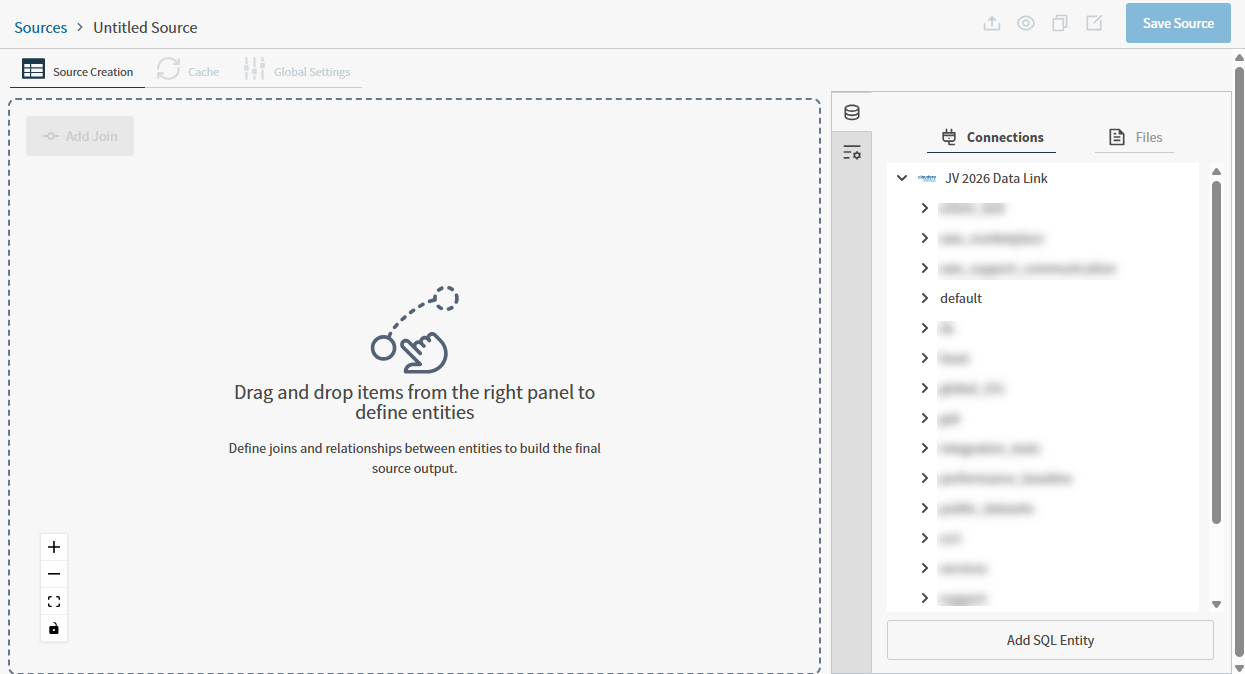
3. On the [Sources](#data-sources-page) page, select the **Create Source** button. A work area opens with the [Source Creation](/simba-embedded-analytics/docs/self-service-analytics/26.3/connect-to-data/sources/data-source-config-source-creation-tab) tab selected.

   <img src="https://mintcdn.com/insightsoftware/b9ogX_L4Mqut_Uxb/simba-embedded-analytics/docs/self-service-analytics/26.3/images/v26/work-areas/sources/src-cnvs-blank-26-2.png?fit=max&auto=format&n=b9ogX_L4Mqut_Uxb&q=85&s=768a6d3a442fe9f74497d189cd2abc59" alt="use this work area to create your source and define the data entities and relationships it contains" width="1245" height="674" data-path="simba-embedded-analytics/docs/self-service-analytics/26.3/images/v26/work-areas/sources/src-cnvs-blank-26-2.png" />

4. Enter a unique name (replacing the default name, **Untitled Source**) for your source.

5. Select and expand a connection from the right **Connections** panel to find a schema and entity in your selected connection. If using a Dundas BI (Managed) connection, see [Define a New Source from a Dundas BI (Managed) Connection](#define-a-new-source-from-a-dundas-bi-managed-connection).

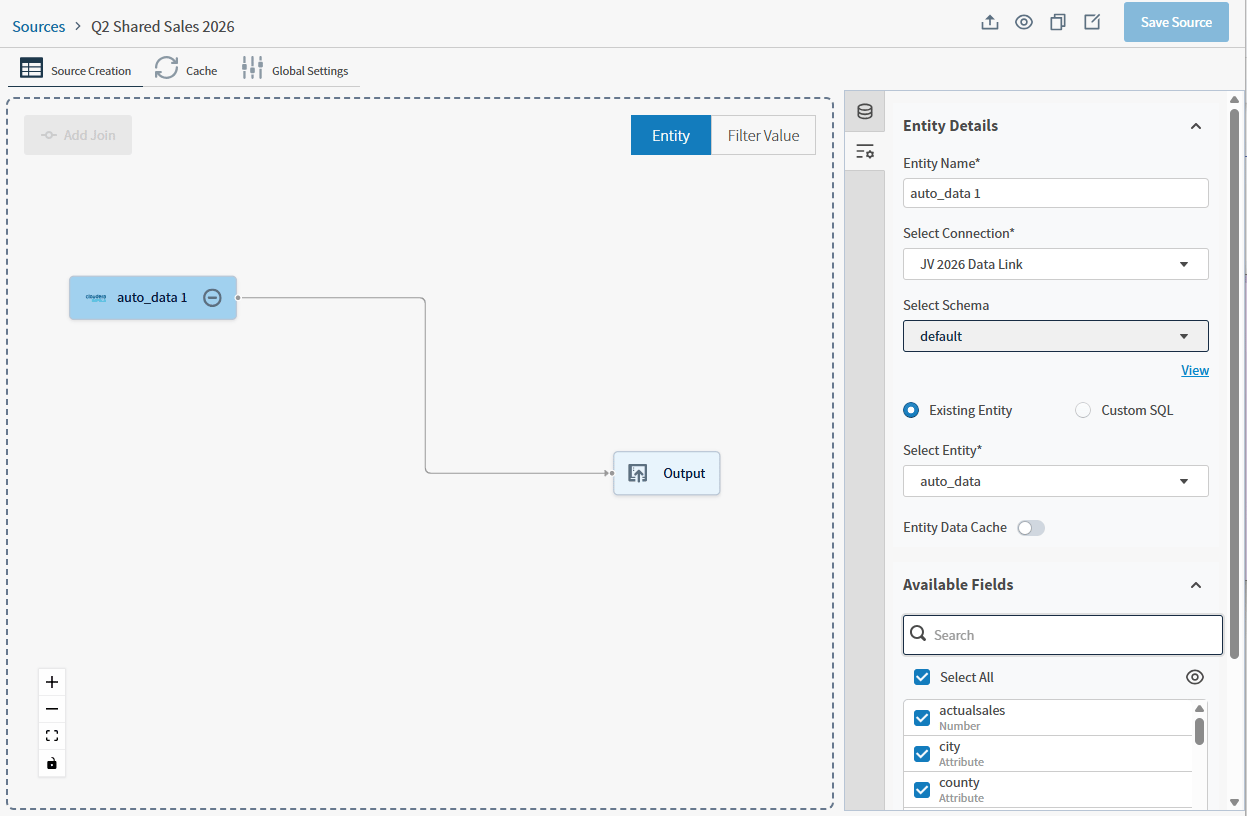
6. Drag and drop a selected entity from the right panel. This is added to your source work area as a connection node, linked to an output node. The default name is the same as the entity, appended with a number. After you save the source, you can select the connection node to rename the entity using the properties panel.

   <img src="https://mintcdn.com/insightsoftware/b9ogX_L4Mqut_Uxb/simba-embedded-analytics/docs/self-service-analytics/26.3/images/v26/work-areas/sources/src-1-ent-26-2.png?fit=max&auto=format&n=b9ogX_L4Mqut_Uxb&q=85&s=7e9ddf0363c1349200176fd4b112d726" alt="drag and drop your entity and schema to the work area" width="1247" height="680" data-path="simba-embedded-analytics/docs/self-service-analytics/26.3/images/v26/work-areas/sources/src-1-ent-26-2.png" />

   <Note>
     If you need to delete a node, select the delete icon, or select it and delete it using the backspace key.
   </Note>

7. Select **Save Source** to save your output and make further changes to your source. Optionally, edit the Description and Tags for this source.

   <Note>
     Alternatively, select an item from the Files panel or select Add SQL Entity to define an entity and data to retrieve from a selected connection.
   </Note>

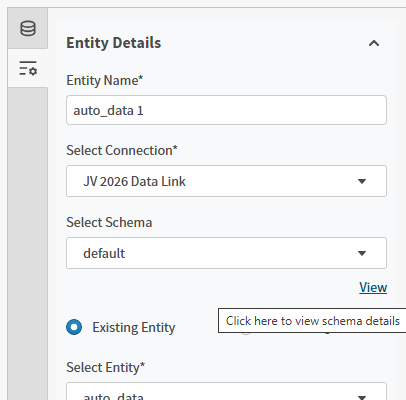
8. Select the connection node of entity you have added to view and edit information in the **Properties** panel. Use this panel to edit the **Entity Name**, change the **Select Connection**, change the schema in **Select Schema**, or to **View** see a visual layout of the entity’s schema. Optionally, adjust the **Available Fields**.

   <img src="https://mintcdn.com/insightsoftware/b9ogX_L4Mqut_Uxb/simba-embedded-analytics/docs/self-service-analytics/26.3/images/v26/work-areas/sources/src-2-ent-prp-262.png?fit=max&auto=format&n=b9ogX_L4Mqut_Uxb&q=85&s=f6cb39ec32412171039dfd15e1030c1c" alt="use this work area to edit and update the entity details" width="1247" height="816" data-path="simba-embedded-analytics/docs/self-service-analytics/26.3/images/v26/work-areas/sources/src-2-ent-prp-262.png" />

9. If you choose to use the **Existing Entity**, you can enable **Entity Data Cache**, and select which fields you want to include by expanding and making selections in the **Available Fields** list. The Preview icon in the Available Fields work area opens an **Entity Preview** dialog box. This preview includes all of the fields in the entity (no matter your selections) to help you decide what to include or exclude.
   <Note>
     Alternatively, select Custom SQL to define the data to retrieve from your selected connection.
   </Note>

10. Select **Apply** to apply your changes, and **Save Source**, if needed. Once saved, your new source is added to the list on the Sources page.

    <Note>
      There are two preview icons in the Source work area. The Preview icon in the Available Fields work area opens an **Entity Preview** dialog box. This preview includes all of the fields in the entity (no matter your selections) to help you decide what to include or exclude. The Preview Source icon next to the Save Source button opens a **Source Preview**. This preview includes only what fields you have made available after applying your field selections and saving your work.
    </Note>

11. As needed, update the default settings on the [Cache tab](/simba-embedded-analytics/docs/self-service-analytics/26.3/connect-to-data/sources/data-source-config-global-settings-tab#cache-tab) or [Global Settings tab](/simba-embedded-analytics/docs/self-service-analytics/26.3/connect-to-data/sources/data-source-config-global-settings-tab).

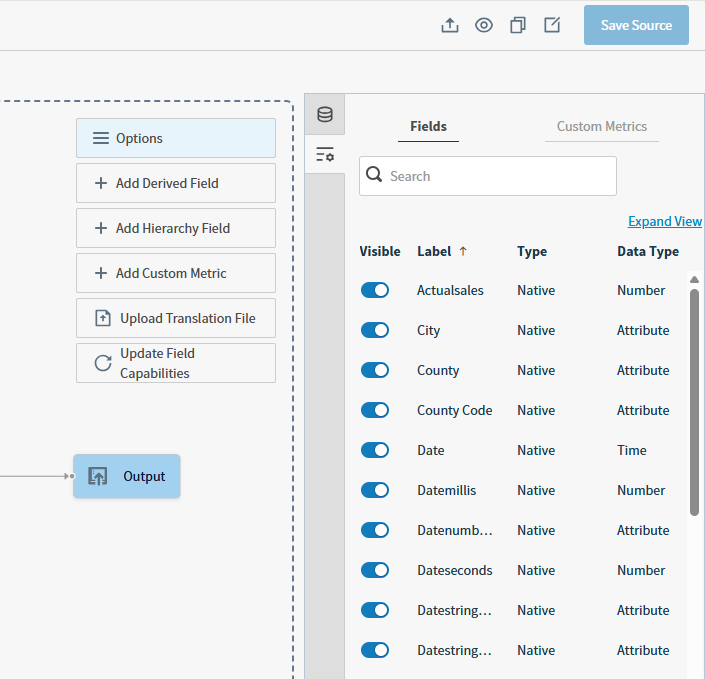
12. Manage the **Fields** and **Custom Metrics** in the Properties panel for this data source by selecting the **Output** icon in the work area. If you need a larger work area, select the **Expand View** link to open a larger work area. See [Manage the Fields Work Areas](/simba-embedded-analytics/docs/self-service-analytics/26.3/connect-to-data/sources/data-source-config-fields-tab).

    <img src="https://mintcdn.com/insightsoftware/b9ogX_L4Mqut_Uxb/simba-embedded-analytics/docs/self-service-analytics/26.3/images/v26/work-areas/sources/src-3-output-mg-26-2.png?fit=max&auto=format&n=b9ogX_L4Mqut_Uxb&q=85&s=a85b465ebc06e24e8d599875058e8696" alt="use this work area to manage the visibility of fields and other information related to your data" width="705" height="679" data-path="simba-embedded-analytics/docs/self-service-analytics/26.3/images/v26/work-areas/sources/src-3-output-mg-26-2.png" />

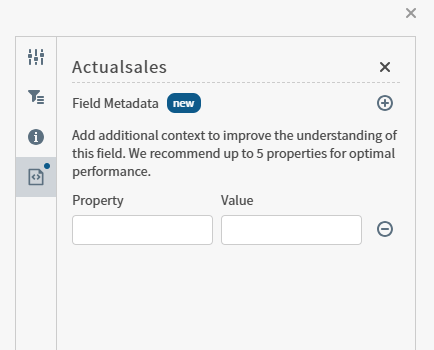
    Optionally, add metadata at the field level stored as a keyed pair of Property and Value in your environment. Use in several ways:

    * As information consumed by an integrated AI tool: for example, Simba Intelligence or other tool can read the information and interpret it without adding it to the visual.
    * As internal information for users who can view the data in your source.
    <img src="https://mintcdn.com/insightsoftware/GTXU--ZlYc3DodOR/simba-embedded-analytics/docs/self-service-analytics/26.3/images/datasources/paired-values-meta-26-1.png?fit=max&auto=format&n=GTXU--ZlYc3DodOR&q=85&s=3fb5fe6a347a7e967be65c756d03086b" alt="Add Field Metadata work area" width="434" height="350" data-path="simba-embedded-analytics/docs/self-service-analytics/26.3/images/datasources/paired-values-meta-26-1.png" />

    The metadata you define is available using the API, and exported with the source (JSON format); when you move, share, and [copy](#copy-a-source) or [export](/simba-embedded-analytics/docs/self-service-analytics/26.3/connect-to-data/sources/import-export-data-source) your source to share with other environments.

    API documentation is provided in your environment at this link: `https://<Self-Service Analytics-URL>/composer/swagger-ui.html`.
For more information about working with the data source fields in your source, see:

* [Manage the Fields Work Areas](/simba-embedded-analytics/docs/self-service-analytics/26.3/connect-to-data/sources/data-source-config-fields-tab)
* [Cache Tab](/simba-embedded-analytics/docs/self-service-analytics/26.3/connect-to-data/sources/data-source-config-global-settings-tab#cache-tab)
* [Global Settings Work Areas](/simba-embedded-analytics/docs/self-service-analytics/26.3/connect-to-data/sources/data-source-config-global-settings-tab)

<h4 id="view-relationships-for-a-schema-in-a-source">
  View Relationships for a Schema in a Source
</h4>

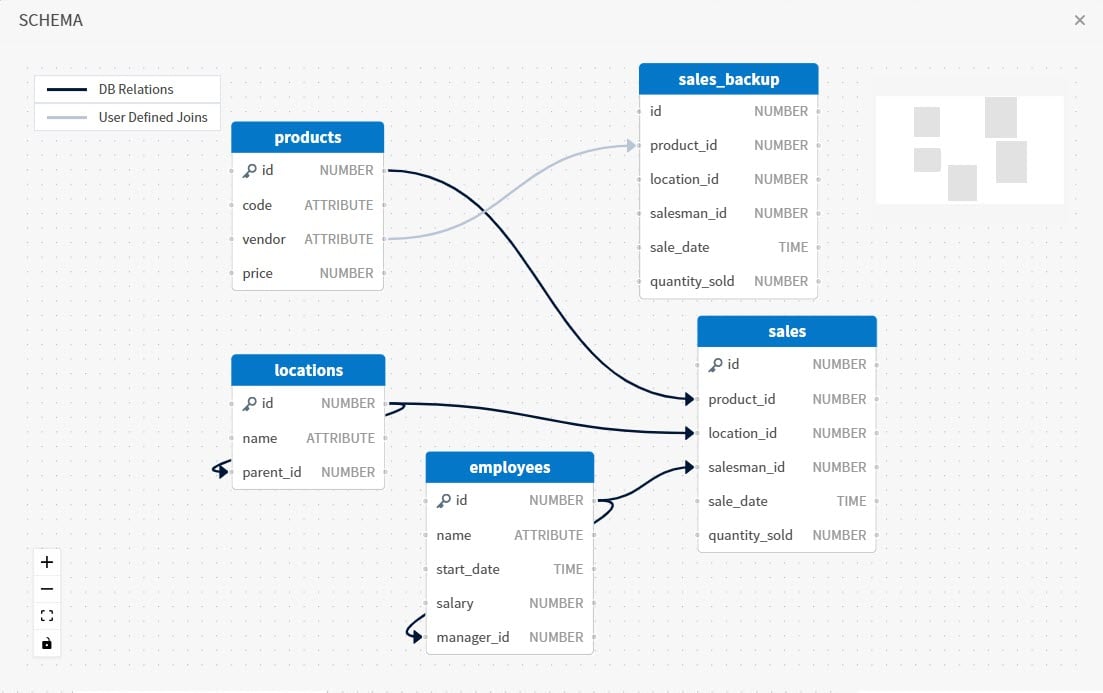
You [can view the relationships](/simba-embedded-analytics/docs/self-service-analytics/26.3/connect-to-data/data/nested-data-structures#visualize-schemas-and-joins) for the schemas you add to your data sources to better understand the relationships present. Add a schema and select the view link to see how the data in your tables are connected. To add more relationships to a schema, [edit it in the connection](/simba-embedded-analytics/docs/self-service-analytics/26.3/connect-to-data/data/nested-data-structures#edit-and-view-relationships-in-schemas) directly.

Zoom in or out in this work area, or use the mini map to navigate among the various tables that make up your schema.

<img src="https://mintcdn.com/insightsoftware/2cXq_sDOxrDVXUcv/simba-embedded-analytics/docs/self-service-analytics/26.3/images/connectors/cmp-view-schema-source-24-2-rev.jpg?fit=max&auto=format&n=2cXq_sDOxrDVXUcv&q=85&s=9724f041579ec83ed9a04d73a7ff722b" alt="Use this work area to view relationships in available schemas" width="1103" height="693" data-path="simba-embedded-analytics/docs/self-service-analytics/26.3/images/connectors/cmp-view-schema-source-24-2-rev.jpg" />

**View a schema in a source**

1. Create or edit a source that uses a schema.

2. Select the View link next to your selected Schema. A schema work area opens you can use to view the tables and relationships of that schema. Larger data sets may take a few moments to load.
   <img src="https://mintcdn.com/insightsoftware/b9ogX_L4Mqut_Uxb/simba-embedded-analytics/docs/self-service-analytics/26.3/images/v26/work-areas/sources/view-schm-26-2.png?fit=max&auto=format&n=b9ogX_L4Mqut_Uxb&q=85&s=c7d1197743897b7b332fa0c6c8e7fc24" alt="Use this work area to view information about the relationships in your selected schema" width="406" height="400" data-path="simba-embedded-analytics/docs/self-service-analytics/26.3/images/v26/work-areas/sources/view-schm-26-2.png" />

3. View the existing relationships and any user defined joins to better understand the relationships present.

4. Close the work area when you're done viewing the schema information, and repeat for other schemas if needed.
<Note>
  For Postgres connections, both tables and data relationship information are read from the connection. Other supported connections include table information but do not read relationship information. See [Connector Support for Schema Visualization](/simba-embedded-analytics/docs/self-service-analytics/26.3/connect-to-data/data/nested-data-structures#connector-support-for-schema-visualization). No information is provided for unsupported connections.
</Note>

<h4 id="copy-a-source">
  Copy a Source
</h4>

After you have created a source, you can optionally make a copy of this source to use in your environment. Instead of creating a similar source from start to finish every time you want to create a source, you can make a copy of a working source and make the changes you need. Use this functionality to:

* Select a different schema to use in the copied source
* Include an additional or different data connection for fused sources
* Allow access to a different group of users for internal testing or to separate groups more completely than by privileges alone

<h3 id="define-a-new-source-from-a-dundas-bi-managed-connection">
  **Define a New Source from a Dundas BI (Managed) Connection**
</h3>

1. Log in as a user with the **Administer Sources** or **Create New Data Sources** [privilege](/simba-embedded-analytics/docs/self-service-analytics/26.3/administer/users/aaa-ov#group-privilege-reference).

2. Select **Sources** from the main menu. The [Sources](#data-sources-page) page appears.

3. On the [Sources](#data-sources-page) page, select the **Create Source** button. The [Source Creation](/simba-embedded-analytics/docs/self-service-analytics/26.3/connect-to-data/sources/data-source-config-source-creation-tab) work area opens.

4. Enter a unique name (replacing the default name, **Untitled Source**) for your source in the Source Creation work area.

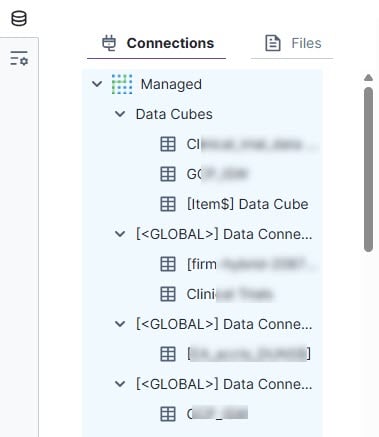
5. Select and expand a Managed connection from the right Connections panel. Select the appropriate entity from your available data cubes or shared data connectors.

   <img src="https://mintcdn.com/insightsoftware/GTXU--ZlYc3DodOR/simba-embedded-analytics/docs/self-service-analytics/26.3/images/datasources/sym-mg-connect-25-4.jpg?fit=max&auto=format&n=GTXU--ZlYc3DodOR&q=85&s=edf921edb9232633f1c980c2f3ac3cfe" alt="select an entty from available Data Cubes or shared data connections" width="379" height="437" data-path="simba-embedded-analytics/docs/self-service-analytics/26.3/images/datasources/sym-mg-connect-25-4.jpg" />

6. Drag and drop the entity to the source creation work area. This is added to your visual work area, linked to an output.

7. Select **Save Source** to save your output and make further changes to your source. Optionally, edit the Description and Tags for this source.
   <Note>
     Alternatively, select an item from the Files panel.
   </Note>

8. Select the entity you have added to view and edit information in the **Properties** panel. Use this panel to edit the **Entity Name**, change the **Select Connection**, or select a different folder in **Select Folder**.

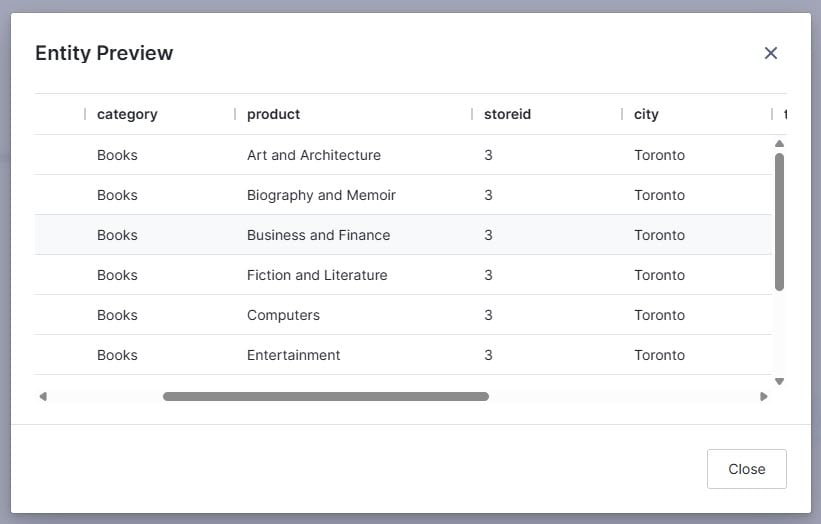
9. **Existing Entity** is enabled by default, and you can enable **Entity Data Cache**, then select which fields you want to include by expanding and making selections in the **Available Fields list**. The Preview icon in the Available Fields work area opens an **Entity Preview** dialog box. This preview includes all of the fields in the entity (no matter your selections) to help you decide what to include or exclude.

   <img src="https://mintcdn.com/insightsoftware/GTXU--ZlYc3DodOR/simba-embedded-analytics/docs/self-service-analytics/26.3/images/datasources/sym-ent-prev-25-4.jpg?fit=max&auto=format&n=GTXU--ZlYc3DodOR&q=85&s=2ccc2a42536c7d16bc9437bcddfb61c4" alt="use this work area to preview view the available data in your source" width="821" height="524" data-path="simba-embedded-analytics/docs/self-service-analytics/26.3/images/datasources/sym-ent-prev-25-4.jpg" />

10. Select **Apply** to apply your changes, and **Save Source**, if needed. Once saved, your new source is added to the list on the Sources page.

    <Note>
      There are two preview icons in the Source work area. The Preview icon in the Available Fields work area opens an **Entity Preview** dialog box. This preview includes all of the fields in the entity (no matter your selections) to help you decide what to include or exclude. The Preview Source icon next to the Save Source button opens a **Source Preview**. This preview includes only what fields you have made available after applying your field selections and saving your work.
    </Note>

11. As needed, update the default settings on the [Cache tab](/simba-embedded-analytics/docs/self-service-analytics/26.3/connect-to-data/sources/data-source-config-global-settings-tab#cache-tab) or [Global Settings tab](/simba-embedded-analytics/docs/self-service-analytics/26.3/connect-to-data/sources/data-source-config-global-settings-tab).

12. Manage the Fields and Custom Metrics in the Properties panel for this data source by selecting the **Output** icon in the work area. If you need a larger work area, select the **Expand View** link.

    <img src="https://mintcdn.com/insightsoftware/b9ogX_L4Mqut_Uxb/simba-embedded-analytics/docs/self-service-analytics/26.3/images/v26/work-areas/sources/src-3-output-mg-26-2.png?fit=max&auto=format&n=b9ogX_L4Mqut_Uxb&q=85&s=a85b465ebc06e24e8d599875058e8696" alt="use this work area to manage the visibility of fields and other information related to your data" width="705" height="679" data-path="simba-embedded-analytics/docs/self-service-analytics/26.3/images/v26/work-areas/sources/src-3-output-mg-26-2.png" />

<h2 id="edit-a-data-source">
  Edit a Data Source
</h2>

You can only edit a data source configuration if you are logged in as a user with the **Administer Sources** [privilege](/simba-embedded-analytics/docs/self-service-analytics/26.3/administer/users/aaa-ov#group-privilege-reference), or a user with **read** and **write** [permission](/simba-embedded-analytics/docs/self-service-analytics/26.3/connect-to-data/sources/ds-permissions) for the data source.

You can add additional [data entities](/simba-embedded-analytics/docs/self-service-analytics/26.3/connect-to-data/sources/data-source-config-source-creation-tab#source-work-area-left-panel) to a source to convert into a fusion data source at any time. See [Create a Fusion Source](/simba-embedded-analytics/docs/self-service-analytics/26.3/connect-to-data/sources/data-fusion-overview#create-a-fusion-source).

**Edit a data source configuration**

1. Log in as a user with the **Administer Sources** [privilege](/simba-embedded-analytics/docs/self-service-analytics/26.3/administer/users/aaa-ov#group-privilege-reference), or a user with **read** and **write** [permission](/simba-embedded-analytics/docs/self-service-analytics/26.3/connect-to-data/sources/ds-permissions) for the data source.

2. Select the **Sources** card on your home page or **Data Sources** from the main menu. The [Sources](#data-sources-page) page appears.

3. On the [Sources](#data-sources-page) page, locate and select the data source configuration you want to edit. The Source Creation work area opens.

4. Select and alter the settings on the tabs, as appropriate. Some changes can include, but are not limited to:

   * [Source Creation Work Areas](/simba-embedded-analytics/docs/self-service-analytics/26.3/connect-to-data/sources/data-source-config-source-creation-tab)

     * Add or change data entities, files, or connections. If fields from the original source are in use in a visual, you can make a change if the same field is present in the new entity, file, or connection.
     * Add or remove fields. Fields can not be removed if in use in a visual, but can be hidden on the Fields tab.

   * [Manage the Fields Work Areas](/simba-embedded-analytics/docs/self-service-analytics/26.3/connect-to-data/sources/data-source-config-fields-tab)

     * Hide fields, edit Settings of fields, derived fields, and custom metrics.
     * Upload a translation file.
     * Update field capabilities for your fields in bulk.
     * Add or edit derived fields and custom metrics.
     * Add hierarchy fields.
     * Manage Field Metadata.

   * [Cache Tab](/simba-embedded-analytics/docs/self-service-analytics/26.3/connect-to-data/sources/data-source-config-global-settings-tab#cache-tab)

     * Edit cache settings, including scheduling refresh jobs.

   * [Global Settings Work Areas](/simba-embedded-analytics/docs/self-service-analytics/26.3/connect-to-data/sources/data-source-config-global-settings-tab)

     * Make changes to new and existing visuals.

   See also [Define a Source](#define-a-source).

5. When your changes are complete, select **Save Source**.

<Warning>
  Applied filter values that later have **Filtering** disabled to not automatically mask or hide those fields. You must recreate the filter that uses these values.
</Warning>

<Note>
  When you add a new field to a data source, the scheduled refresh is not enabled for the new fields by default. Quickly enable scheduled refresh for all fields using the bulk update option in the [Schedule Refresh menu on the Cache](/simba-embedded-analytics/docs/self-service-analytics/26.3/connect-to-data/sources/data-source-config-global-settings-tab#cache-tab) tab, or enable each field for scheduled refresh manually on the Cache tab.
</Note>

If you attempt make changes that remove a field currently in use by a visual, you can not save your changes to the source unless specific conditions are met:

* You remove the visuals using affected fields.

For information on configuring the time bar or search bar defaults, including the refresh rate settings, for your data source, see [Configure Time Bar Defaults](/simba-embedded-analytics/docs/self-service-analytics/26.3/connect-to-data/sources/data-source-config-global-settings-tab#configure-time-bar-defaults) and [Configure Search Box Defaults](/simba-embedded-analytics/docs/self-service-analytics/26.3/connect-to-data/sources/data-source-config-global-settings-tab#configure-search-box-defaults).

<h2 id="delete-a-data-source">
  Delete a Data Source
</h2>

You cannot delete a data source if it has been used in any visuals on any dashboard. You must first remove it from the visuals. In addition, you can only delete a data source if you are logged in as a user with the **Administer Sources** [privilege](/simba-embedded-analytics/docs/self-service-analytics/26.3/administer/users/aaa-ov#group-privilege-reference), or a user with **delete** [permission](/simba-embedded-analytics/docs/self-service-analytics/26.3/connect-to-data/sources/ds-permissions) for the data source.

<Note>
  In this release, when your admin enables the Enhanced Experience user interface, you will see changes to workflows you may have used in previous releases.
</Note>

**Delete a data source**

1. Make sure you are logged in as a Self-Service Analytics a user with the **Administer Sources** [privilege](/simba-embedded-analytics/docs/self-service-analytics/26.3/administer/users/aaa-ov#group-privilege-reference), or a user with **delete** [permission](/simba-embedded-analytics/docs/self-service-analytics/26.3/connect-to-data/sources/ds-permissions) for the data source.

2. Select the **Sources** card on your home page or **Data Sources** from the main menu.. The [Sources](#data-sources-page) page appears.

3. In the table on the Sources page, locate the row displaying the data source configuration you want to delete.

4. Select the delete icon in the **Actions** column for the row. A warning dialog requests confirmation of your delete request.

5. Select **Delete** on the warning dialog.

   The data source configuration is deleted.

<h2 id="select-a-connection-for-a-source">
  Select a Connection for a Source
</h2>

Data store connections are selected as part of creating sources. If you can modify and save sources, you can select or change the data store connections they use.

<Note>
  You must be logged in as an administrator or as a user with the [group privilege](/simba-embedded-analytics/docs/self-service-analytics/26.3/administer/users/aaa-ov#group-privilege-reference) **Manage Connections** to select or change the data store connection for a data source.
</Note>

If you are logged in as an administrator or as a user with both the [group privileges](/simba-embedded-analytics/docs/self-service-analytics/26.3/administer/users/aaa-ov#group-privilege-reference) **Manage Connections** and **Create New Data Sources**, you select the data store connection for a source on the Source Creation tab of the source. See [Source Creation Work Areas](/simba-embedded-analytics/docs/self-service-analytics/26.3/connect-to-data/sources/data-source-config-source-creation-tab) and [Create and Manage Data Store Connections](/simba-embedded-analytics/docs/self-service-analytics/26.3/connect-to-data/connections-managing).

You can also use a Dundas BI (Managed) connection as a source or in a fusion source. See [Add and Validate a Connection to a Dundas BI Data Source or Data Cube](/simba-embedded-analytics/docs/self-service-analytics/26.3/connect-to-data/connections-managing#add-and-validate-a-connection-to-a-dundas-bi-data-source-or).

## Preview and Edit Schemas

Use Self-Service Analytics to preview and edit the schemas associated with your connections and the data sources.

When you preview a schema, the relationships detected from the database, stored in the metadata for your instance, are highlighted. This helps you understand to understand the relationships present, whether created by the database, or by users. Preview a schema when you create or edit a data source.

Users with appropriate permissions can also edit schemas at the connection level. Select a field in a table, then draw a link to another field to create a join. Create one-to-one or one-to-many joins as needed. When you **Save** your changes, the new relationships are added to your metadata store.