> ## Documentation Index
> Fetch the complete documentation index at: https://insightsoftware.mintlify.site/llms.txt
> Use this file to discover all available pages before exploring further.
# Fuse Data Sources
> Data fusion is the concept of tying together two or more disparate data sources as a single data source for exploration and analysis. After the server joins together data from various data sources, you can view the combined results in visuals and dashboards. your software supports data fusion between all data stores it supports.
Data fusion is the concept of tying together data from two or more connections or flat files into a single source for exploration and analysis. After Self-Service Analytics joins the data, you can visualize the combined results in visuals and dashboards. Data fusion is supported between all supported data connections.
Fused data can generate more meaningful insights than what might be available in the data from a single data store. For example, suppose a data warehouse stores ticketing sales and events data in the following different data stores:
* Information about buyers and sellers stored in SAP IQ
* Events data stored in Elasticsearch
* Ticket sales stored in Cloudera Impala
You can create a Fusion source to fuse the data in these data stores together. After you create [a connection](/simba-embedded-analytics/docs/self-service-analytics/26.3/connect-to-data/connections-managing#add-data-store-connections) to each data store, create [data entities](/simba-embedded-analytics/docs/self-service-analytics/26.3/connect-to-data/sources/data-source-config-source-creation-tab#source-work-area-left-panel) for each during [source creation](#create-a-fusion-source), you can join the data to use the combined data for more in-depth and complete analysis and exploration.
The following diagram depicts the basic concept of Self-Service Analytics data fusion.
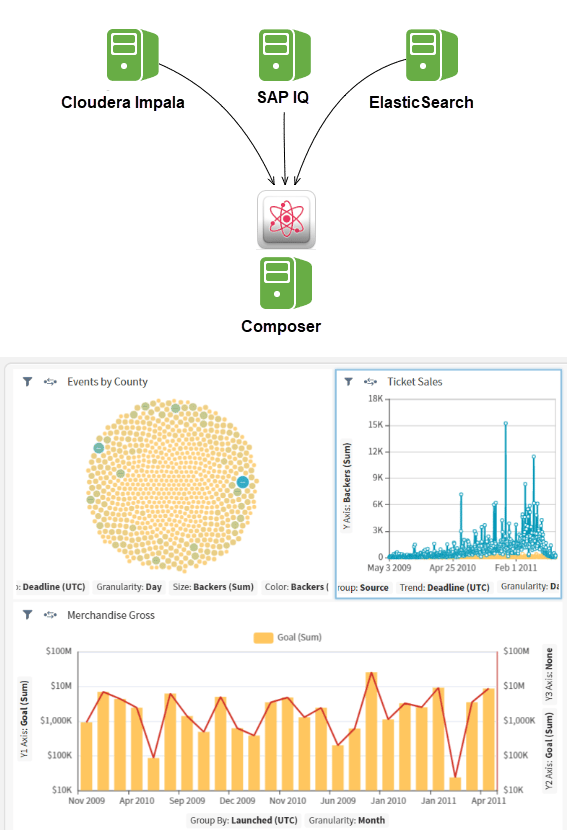 Data fusion is available through Self-Service Analytics’s familiar and intuitive user interface. Step-by-step instructions are provided in [Create a Fusion Source](#create-a-fusion-source).
Fused data sets are stored as a Fusion source (
Data fusion is available through Self-Service Analytics’s familiar and intuitive user interface. Step-by-step instructions are provided in [Create a Fusion Source](#create-a-fusion-source).
Fused data sets are stored as a Fusion source ( ). Access Fusion data sources in the same way as other data sources. Visualize the fused data in standard or custom charts.
For more information, see:
* [Data Fusion Limitations](#data-fusion-limitations)
* [Data Fusion Processing](#data-fusion-processing)
* [Data Fusion Join Rules](#data-fusion-join-rules)
* [Filter Fused Data](#filter-fused-data)
* [Data Fusion Table Structures](#data-fusion-table-structures)
* [Data Fusion Use Cases](#data-fusion-use-cases)
* [Create a Fusion Source](#create-a-fusion-source)
* [Optimize Joins](#optimize-joins)
). Access Fusion data sources in the same way as other data sources. Visualize the fused data in standard or custom charts.
For more information, see:
* [Data Fusion Limitations](#data-fusion-limitations)
* [Data Fusion Processing](#data-fusion-processing)
* [Data Fusion Join Rules](#data-fusion-join-rules)
* [Filter Fused Data](#filter-fused-data)
* [Data Fusion Table Structures](#data-fusion-table-structures)
* [Data Fusion Use Cases](#data-fusion-use-cases)
* [Create a Fusion Source](#create-a-fusion-source)
* [Optimize Joins](#optimize-joins)
Create a Fusion Source
Fusing data in a source in Self-Service Analytics is very similar to adding other data sources. Add multiple entities to a new or existing source, then use the [Join Definition](/simba-embedded-analytics/docs/self-service-analytics/26.3/connect-to-data/sources/data-source-config-source-creation-tab#join-definition) work area to identify and specify the data from those entities you want to join.
For an overview of Self-Service Analytics’s data fusion capability, see Fuse Data Sources.
You must log in as a user with the **Administer Sources** or **Create New Data Sources** [privilege](/simba-embedded-analytics/docs/self-service-analytics/26.3/administer/users/aaa-ov#group-privilege-reference), or write permission for the source for which you want to create a join.
### Before You Start
Before you attempt to create a fusion source, verify you can access the connections. If not, create them. See [Create and Manage Data Store Connections](/simba-embedded-analytics/docs/self-service-analytics/26.3/connect-to-data/connections-managing).
In this release, when your admin enables the Enhanced Experience user interface, you will see changes to workflows you may have used in previous releases. If you are running an earlier release or your admin has not enabled the new interface, see [Configure a Fusion Source (Earlier Releases)](https://logi-composer-v26.insightsoftware.com/hc/en-us/articles/43701072201741-Create-a-Fusion-Source#v25.3).
### Configure a Fusion Source
To create a Fusion source, add multiple data entities to a new or existing source, then use the [Join Definition](/simba-embedded-analytics/docs/self-service-analytics/26.3/connect-to-data/sources/data-source-config-source-creation-tab#join-definition) work area to specify the fields and join nodes included in your fused source.
#### Add Joins to a New or Existing Source
1. Log in as a user with the **Administer Sources** or **Create New Data Sources** [privilege](/simba-embedded-analytics/docs/self-service-analytics/26.3/administer/users/aaa-ov#group-privilege-reference), or write permission for the source for which you want to create a join.
2. [Create](/simba-embedded-analytics/docs/self-service-analytics/26.3/connect-to-data/sources/data-source-config-overview#define-a-source) or [edit](/simba-embedded-analytics/docs/self-service-analytics/26.3/connect-to-data/sources/data-source-config-overview#edit-a-data-source) an existing source, adding multiple entities from a [connection](/simba-embedded-analytics/docs/self-service-analytics/26.3/connect-to-data/sources/data-source-config-source-creation-tab#connections-panel) or [file](/simba-embedded-analytics/docs/self-service-analytics/26.3/connect-to-data/sources/data-source-config-source-creation-tab#data-entity-details-from-file). You will only see the connections you have read permission for. See [About Source Permissions](/simba-embedded-analytics/docs/self-service-analytics/26.3/connect-to-data/sources/ds-permissions).
If your source contains multiple data entities, you must use all entities in a join to save the source.
You can also use a Dundas BI (Managed) connection as a source or in a fusion source. See [Add and Validate a Connection to a Dundas BI Data Source or Data Cube](/simba-embedded-analytics/docs/self-service-analytics/26.3/connect-to-data/connections-managing#add-and-validate-a-connection-to-a-dundas-bi-data-source-or).
3. To create a new join, select **Add Join** to add a join node to your work area.
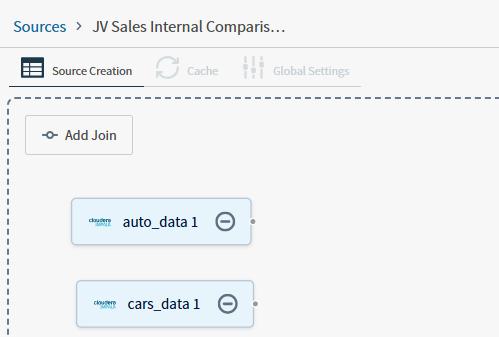 4. Select the join node. A **Join Settings** work area opens. Use this to define how the entities use a join type to connect specific fields.
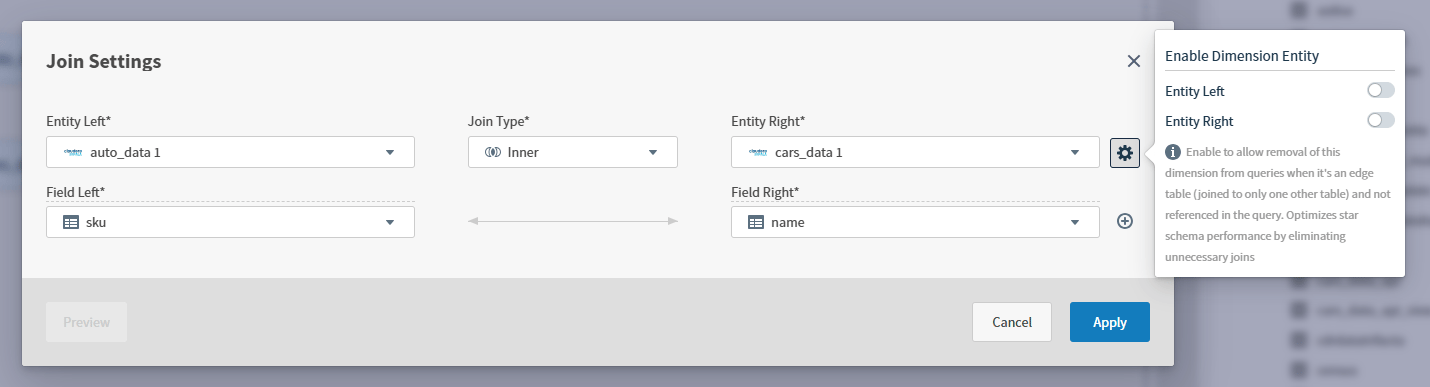 5. Define your entities, join type, and fields.
Ensure you have matching fields across the data sources you are joining.
* **Entity Left**: Select an available entity from the data entities you defined.
* **Join Type**: Select Left, Inner, or Full Outer.
* **Entity Right**: Select an available entity from the data entities you defined.
* **Enable Dimension Entity**: Select the settings icon to enable dimension for one or both entities. This improves the performance of queries execution by removing unused data entities from the join.
* **Field Left**: Select at least one field from this entity. You can add multiple fields by selecting the add field icon, or remove fields by selecting the remove icon.
* **Field Right**: Select at least one field from this entity. You can add multiple fields by selecting the add field icon, or remove fields by selecting the remove icon.
6. Select **Apply** to finish creating the join. Remove joins by selecting the remove icon.
You can also view the relationships of your joins and add more joins in a visualization. See [Visualize Joins](#visualize-joins).
7. After creating your joins, select **Preview Source** to preview your data, or select **Save Source** to save your updated source.
8. As needed, update the default settings on the [Fields tab](/simba-embedded-analytics/docs/self-service-analytics/26.3/connect-to-data/sources/data-source-config-fields-tab), [Cache tab](/simba-embedded-analytics/docs/self-service-analytics/26.3/connect-to-data/sources/data-source-config-global-settings-tab#cache-tab), or [Global Settings tab](/simba-embedded-analytics/docs/self-service-analytics/26.3/connect-to-data/sources/data-source-config-global-settings-tab).
#### Fields Tab for Fusion Sources
Use the [Fields](/simba-embedded-analytics/docs/self-service-analytics/26.3/connect-to-data/sources/data-source-config-fields-tab) tab to manage your fused source data: rename field Labels, add [derived fields](/simba-embedded-analytics/docs/self-service-analytics/26.3/connect-to-data/data/derived-fields#create-and-modify-derived-fields), or select the custom metrics tab [add a custom metric](/simba-embedded-analytics/docs/self-service-analytics/26.3/connect-to-data/data/custom-metrics#create-and-modify-custom-metrics). If your fused data sources include duplicate field names, Self-Service Analytics appends a number to the duplicate field name.
#### Cache Tab for Fusion Sources
Use the [Cache](/simba-embedded-analytics/docs/self-service-analytics/26.3/connect-to-data/sources/data-source-config-global-settings-tab#cache-tab) tab to enable or disable caching of aggregated results of queries for this source. See [How Self-Service Analytics Caches Data](/simba-embedded-analytics/docs/self-service-analytics/26.3/connect-to-data/sources/data-source-config-global-settings-tab#how-self-service-analytics-caches-data).
#### Global Settings Tab for Fusion Sources
Use the [Global Settings](/simba-embedded-analytics/docs/self-service-analytics/26.3/connect-to-data/sources/data-source-config-global-settings-tab) tab to configure settings for new visuals for this fused source. Not all visual types are available for Fusion data sources. See [Data Fusion Limitations](#data-fusion-limitations).
5. Define your entities, join type, and fields.
Ensure you have matching fields across the data sources you are joining.
* **Entity Left**: Select an available entity from the data entities you defined.
* **Join Type**: Select Left, Inner, or Full Outer.
* **Entity Right**: Select an available entity from the data entities you defined.
* **Enable Dimension Entity**: Select the settings icon to enable dimension for one or both entities. This improves the performance of queries execution by removing unused data entities from the join.
* **Field Left**: Select at least one field from this entity. You can add multiple fields by selecting the add field icon, or remove fields by selecting the remove icon.
* **Field Right**: Select at least one field from this entity. You can add multiple fields by selecting the add field icon, or remove fields by selecting the remove icon.
6. Select **Apply** to finish creating the join. Remove joins by selecting the remove icon.
You can also view the relationships of your joins and add more joins in a visualization. See [Visualize Joins](#visualize-joins).
7. After creating your joins, select **Preview Source** to preview your data, or select **Save Source** to save your updated source.
8. As needed, update the default settings on the [Fields tab](/simba-embedded-analytics/docs/self-service-analytics/26.3/connect-to-data/sources/data-source-config-fields-tab), [Cache tab](/simba-embedded-analytics/docs/self-service-analytics/26.3/connect-to-data/sources/data-source-config-global-settings-tab#cache-tab), or [Global Settings tab](/simba-embedded-analytics/docs/self-service-analytics/26.3/connect-to-data/sources/data-source-config-global-settings-tab).
#### Fields Tab for Fusion Sources
Use the [Fields](/simba-embedded-analytics/docs/self-service-analytics/26.3/connect-to-data/sources/data-source-config-fields-tab) tab to manage your fused source data: rename field Labels, add [derived fields](/simba-embedded-analytics/docs/self-service-analytics/26.3/connect-to-data/data/derived-fields#create-and-modify-derived-fields), or select the custom metrics tab [add a custom metric](/simba-embedded-analytics/docs/self-service-analytics/26.3/connect-to-data/data/custom-metrics#create-and-modify-custom-metrics). If your fused data sources include duplicate field names, Self-Service Analytics appends a number to the duplicate field name.
#### Cache Tab for Fusion Sources
Use the [Cache](/simba-embedded-analytics/docs/self-service-analytics/26.3/connect-to-data/sources/data-source-config-global-settings-tab#cache-tab) tab to enable or disable caching of aggregated results of queries for this source. See [How Self-Service Analytics Caches Data](/simba-embedded-analytics/docs/self-service-analytics/26.3/connect-to-data/sources/data-source-config-global-settings-tab#how-self-service-analytics-caches-data).
#### Global Settings Tab for Fusion Sources
Use the [Global Settings](/simba-embedded-analytics/docs/self-service-analytics/26.3/connect-to-data/sources/data-source-config-global-settings-tab) tab to configure settings for new visuals for this fused source. Not all visual types are available for Fusion data sources. See [Data Fusion Limitations](#data-fusion-limitations).
Visualize Joins
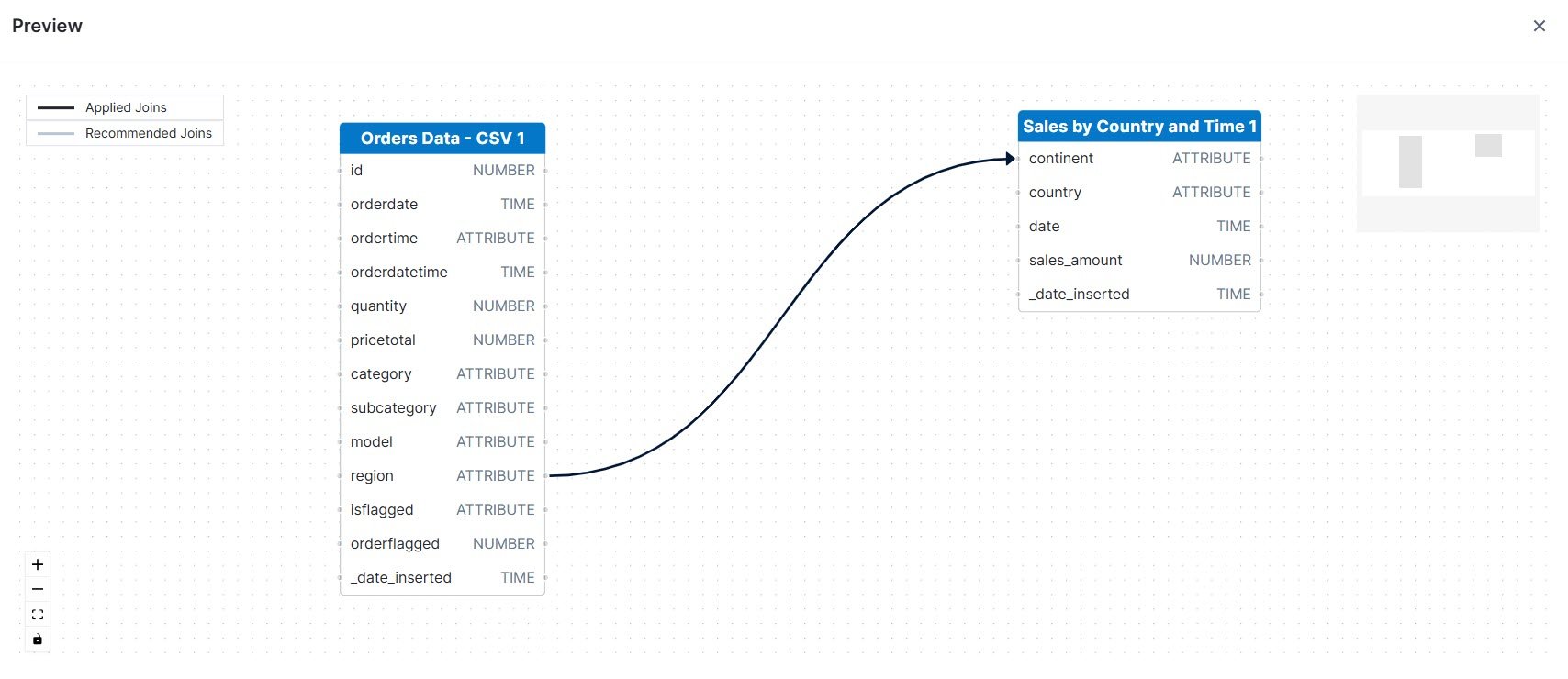
You can use the provided work area to create joins, or view and create joins in a move visual way.
Zoom in or out in this work area, or use the mini map to navigate among the various tables that make up your joins.
**View or edit a joins for a fused data source**
1. Create or edit a fusion source that uses a join.
2. Select the Preview button in the Joins work area to open a visualization of existing joins.
3. Optionally, draw more joins in this work area, then **Save** your changes. New joins are added to the list of those in Join Settings.
To remove a user-applied join node, double-click to select the join node, then select the backspace key. The relationship is removed.
If you add joins that create one-to-many relationships here, Self-Service Analytics may return an error that prevents use of the data in a visual. For best results, when you create a one-to-many relationship with a specific left entity, any additional joins must refer to that table as the right entity. See [Recommended Joins](#recommended-joins).
For Postgres connections, both tables and data relationship information are read from the connection. Other supported connections include table information but do not read relationship information. See [Connector Support for Schema Visualization](/simba-embedded-analytics/docs/self-service-analytics/26.3/connect-to-data/data/nested-data-structures#connector-support-for-schema-visualization). No information is provided for unsupported connections.
Recommended Joins
Self-Service Analytics provides some visual guidance for recommended joins. You can add these suggested joins, or create your own.
Recommended Joins may present one-to-many or many-to-one relationships that when implemented return an error. You can still implement the recommended joins: when you create a one-to-many relationship with a specific left entity, any additional joins must refer to that table as the right entity.
For example:
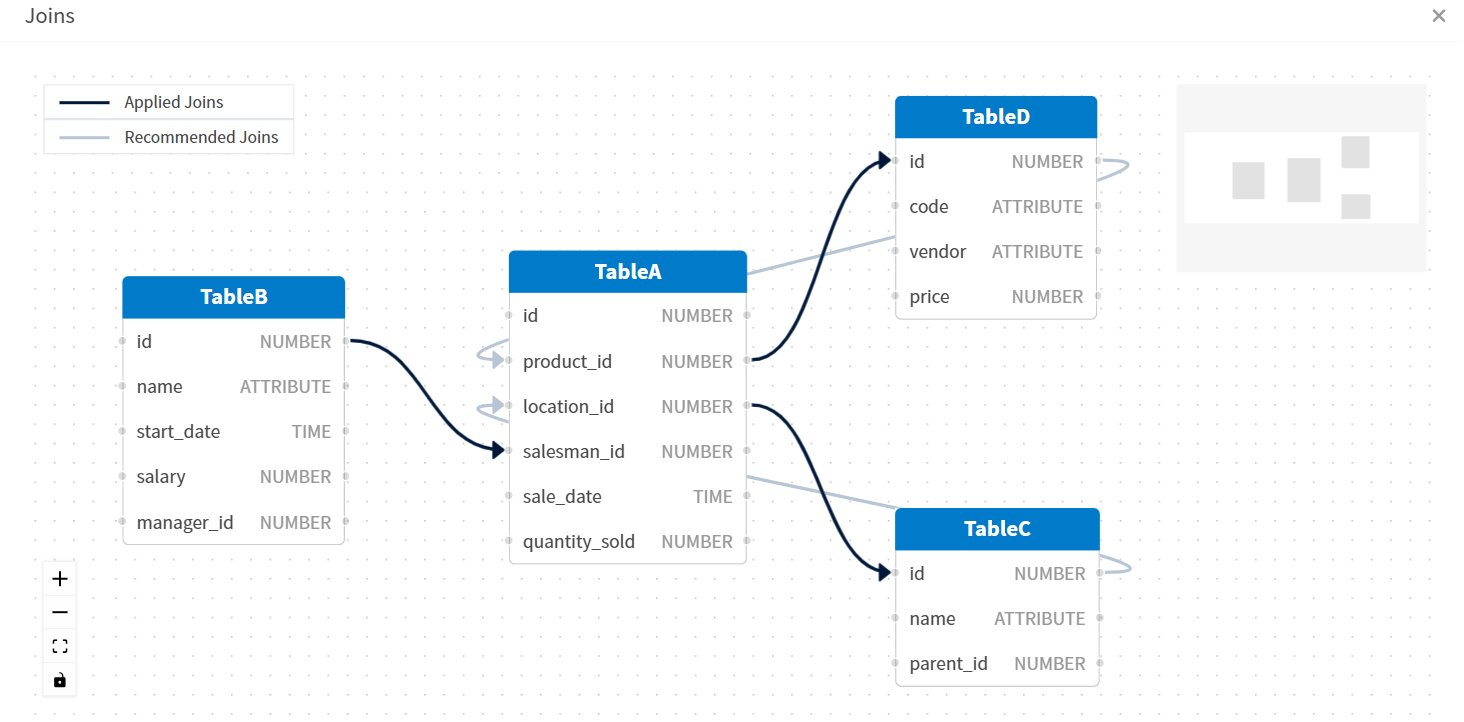 **Table A** has relationships with **Table B**, **Table C**, and **Table D**.
* After defining a relationship with **Table A** as the left entity, include **Table A** as the right entity in additional joins.
* If you are using the visual interface, position only one of the other tables (**Table B**, **Table C**, or **Table D**) on the left side of **Table A**. Remaining tables should be placed to the right of **Table A**.
**Table A** has relationships with **Table B**, **Table C**, and **Table D**.
* After defining a relationship with **Table A** as the left entity, include **Table A** as the right entity in additional joins.
* If you are using the visual interface, position only one of the other tables (**Table B**, **Table C**, or **Table D**) on the left side of **Table A**. Remaining tables should be placed to the right of **Table A**.
Data Fusion Join Rules
Data fusion joins are key to the success of your attempts to fuse data. So they must adhere to the rules described in this section.
You can explicitly specify the [type of join](https://www.w3schools.com/sql/sql_join.asp) that occurs for fusion: [inner join](https://www.w3schools.com/sql/sql_join_inner.asp), [left outer join](https://www.w3schools.com/sql/sql_join_left.asp), or [full outer join](https://www.w3schools.com/sql/sql_join_full.asp). [Right outer joins](https://www.w3schools.com/sql/sql_join_right.asp) are not supported. The join type can be selected for each pair of mapped fields in a join condition.
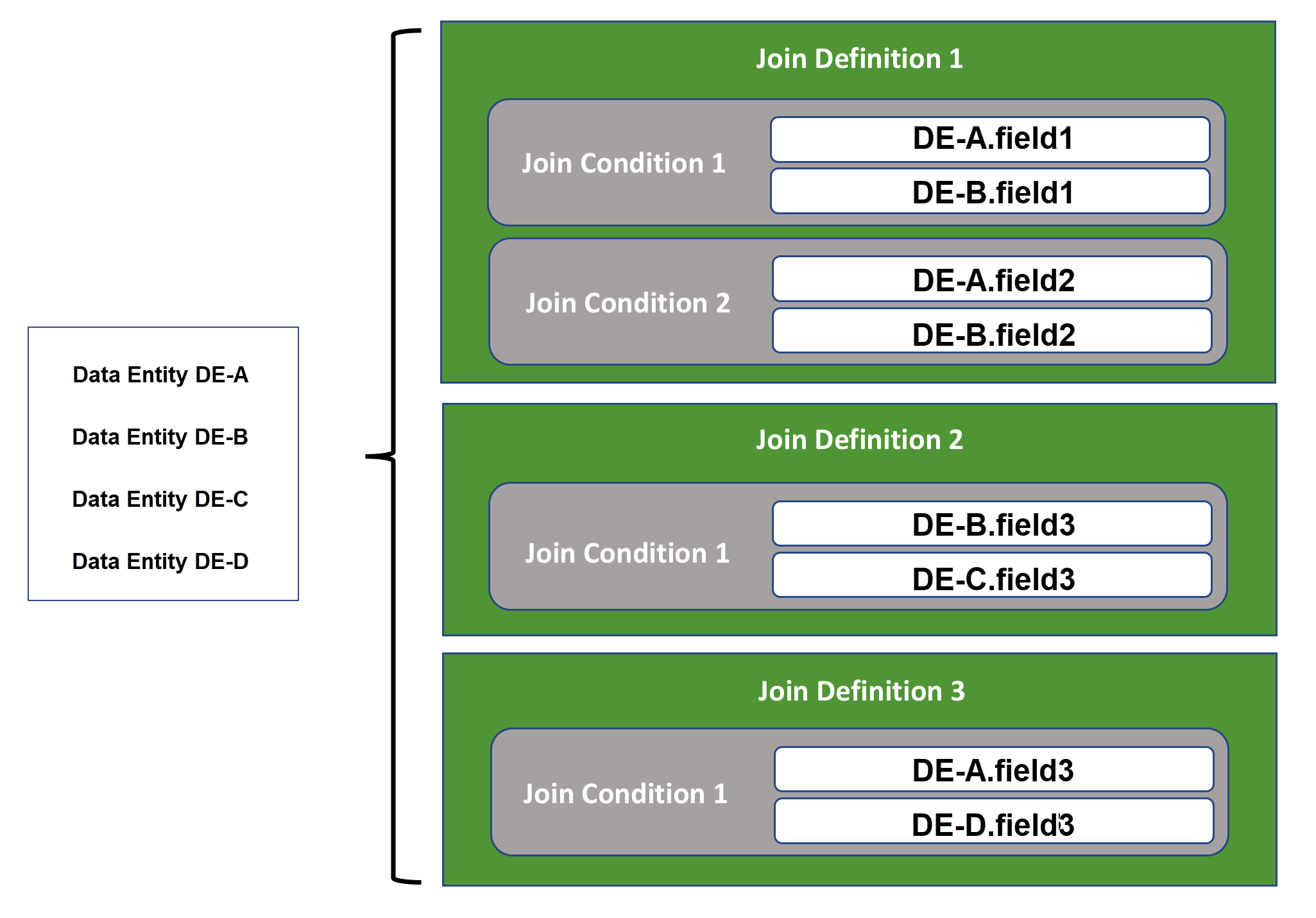
The following diagram depicts the relationship between the data entities you include in a Fusion data source and the join definitions and join conditions (mappings) you define in a Fusion data source.
 The following rules must be adhered to for data fusion joins:
1. Joins are processed in the order in which they are specified in the UI. This affects the resulting data and the performance of the join.
2. Only a single join definition is allowed between two data entities. The join definition can contain multiple join conditions (mappings), previously called *forms*. Each mapping must contain exactly two fields. The fields used in the mapping must be of the same type and should contain the same kind of data.
If there are more than two data entities in a Fusion data source definition, a single join definition can be specified for each unique combination of the included data entities. For example, if you have four data entities in your Fusion data source definition (sources A, B, C, and D), you can specify six join definitions, one each for these data entity combinations: A+B, A+C, A+D, B+C, B+D, and C+D.
3. Every data entity in a Fusion data source must be connected to at least one other data entity in the fused source. The data entities in a Fusion data source must be interconnected in some way.
For example, if you have four data entities (A, B, C, and D) in your Fusion data source definition, you cannot define only a join between sources A and B and a second join between entities C and D. In addition, all the data entities must be connected in some way to one of the others. So the following join sequence would be correct because every data entity is included: A+B, B+D, D+C. However, the following join sequence would be incorrect because data entity C is entirely omitted: A+B, A+D, B+D.
4. Each subsequent join in the Fusion data source configuration must use a data entity from one of the previously defined joins.
For example, if you have four data entities (A, B, C, and D) in your Fusion data source definition, if a join between entities A and B is the first join defined, the second join defined for the fused source must include either entity A or entity B and one of the other entities (C or D). So the following join sequence would be correct: A+B, B+D, D+C. However, the following join sequence would be incorrect because entity C and D are introduced before they have been linked to either entity A or entity B: A+B, D+C, B+D.
5. The data in mapped time fields must have the same granularity. Self-Service Analytics assumes that the granularity of a time field correctly matches the granularity of its data. For example, if one time field contains data in days and another time field contains data in seconds, they cannot be joined. The only way to join these two time fields would be to modify the granularity of the underlying data in the data store.
The following rules must be adhered to for data fusion joins:
1. Joins are processed in the order in which they are specified in the UI. This affects the resulting data and the performance of the join.
2. Only a single join definition is allowed between two data entities. The join definition can contain multiple join conditions (mappings), previously called *forms*. Each mapping must contain exactly two fields. The fields used in the mapping must be of the same type and should contain the same kind of data.
If there are more than two data entities in a Fusion data source definition, a single join definition can be specified for each unique combination of the included data entities. For example, if you have four data entities in your Fusion data source definition (sources A, B, C, and D), you can specify six join definitions, one each for these data entity combinations: A+B, A+C, A+D, B+C, B+D, and C+D.
3. Every data entity in a Fusion data source must be connected to at least one other data entity in the fused source. The data entities in a Fusion data source must be interconnected in some way.
For example, if you have four data entities (A, B, C, and D) in your Fusion data source definition, you cannot define only a join between sources A and B and a second join between entities C and D. In addition, all the data entities must be connected in some way to one of the others. So the following join sequence would be correct because every data entity is included: A+B, B+D, D+C. However, the following join sequence would be incorrect because data entity C is entirely omitted: A+B, A+D, B+D.
4. Each subsequent join in the Fusion data source configuration must use a data entity from one of the previously defined joins.
For example, if you have four data entities (A, B, C, and D) in your Fusion data source definition, if a join between entities A and B is the first join defined, the second join defined for the fused source must include either entity A or entity B and one of the other entities (C or D). So the following join sequence would be correct: A+B, B+D, D+C. However, the following join sequence would be incorrect because entity C and D are introduced before they have been linked to either entity A or entity B: A+B, D+C, B+D.
5. The data in mapped time fields must have the same granularity. Self-Service Analytics assumes that the granularity of a time field correctly matches the granularity of its data. For example, if one time field contains data in days and another time field contains data in seconds, they cannot be joined. The only way to join these two time fields would be to modify the granularity of the underlying data in the data store.
Data Fusion Processing
With data fusion, Self-Service Analytics can perform Group By operations using fields that are available across tables. A variety of table structures residing in data repositories can be fused, including lookup tables, fact tables, star and snowflake schema structures. See [Data Fusion Table Structures](#data-fusion-table-structures).
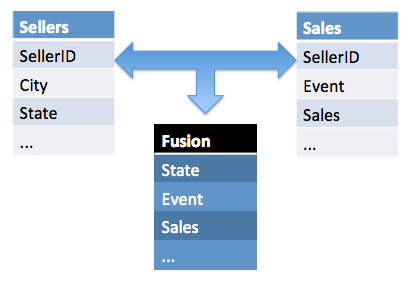
For example, if a table in one data repository contains the IDs and address information of sellers and another table in another data store contains IDs, events, and sales information for sellers, these disparate fields can be fused into one sellers table with the three fields joined and accessible (as shown below).
 Using data fusion, you can create data entities to join disparate data repositories that are connected to Self-Service Analytics. Multiple data entities (three or more) can be fused into a single Fusion data source.
To fuse these disparate data entities together, you must join matching fields from the different data sources on the [Source Creation tab](/simba-embedded-analytics/docs/self-service-analytics/26.3/connect-to-data/sources/data-source-config-source-creation-tab) of the Fusion [data source](/simba-embedded-analytics/docs/self-service-analytics/26.3/connect-to-data/sources/data-source-config-overview). This is the key step to data fusion and must adhere to specific rules.
Joins are usually performed in-memory. However, if a data connector supports pushdown joins and the data to be joined comes from the same data connection, Self-Service Analytics pushes the join operation to the underlying data engines and allows those data stores to join the data instead. In addition, if the joins are [inner joins](https://www.w3schools.com/sql/sql_join_inner.asp) and aggregate functions SUM, MIN, MAX, COUNT, DISTINCT COUNT, and aggregations are used in the data, the Self-Service Analytics engine intelligently pushes the aggregate queries to the underlying data engines, thus reducing the amount of data that needs to be processed. This aggregate pushdown occurs when joining data from the same or from different data connections. For more information about optimizing joins in your Fusion data connections, see [Optimize Joins](#optimize-joins).
Because most joins are performed in-memory, a configurable limit has been placed on the number of records that can be processed from each joined source. This limit is initially set at 1,000,000 records per joined data source and can be configured by your Self-Service Analytics administrator or supervisor using the `qe.zengine.edc.rows.limit` property in the `query-engine.properties` file. See [Manage the Self-Service Analytics Query Engine](/simba-embedded-analytics/docs/self-service-analytics/26.3/administer/install/about-microsvcs#manage-the-self-service-analytics-query-engine). When this threshold is exceeded, no data is shown on the visuals containing the fused data and a message appears indicating that the threshold (maximum row number) is exceeded. If you find you are hitting this limit, use filters on the visual or dashboard to reduce the number of records processed and shown.
After you have joined the necessary fields from the data entities and saved your Fusion data source, you can visualize and explore the fused data in visuals and dashboards.
Using data fusion, you can create data entities to join disparate data repositories that are connected to Self-Service Analytics. Multiple data entities (three or more) can be fused into a single Fusion data source.
To fuse these disparate data entities together, you must join matching fields from the different data sources on the [Source Creation tab](/simba-embedded-analytics/docs/self-service-analytics/26.3/connect-to-data/sources/data-source-config-source-creation-tab) of the Fusion [data source](/simba-embedded-analytics/docs/self-service-analytics/26.3/connect-to-data/sources/data-source-config-overview). This is the key step to data fusion and must adhere to specific rules.
Joins are usually performed in-memory. However, if a data connector supports pushdown joins and the data to be joined comes from the same data connection, Self-Service Analytics pushes the join operation to the underlying data engines and allows those data stores to join the data instead. In addition, if the joins are [inner joins](https://www.w3schools.com/sql/sql_join_inner.asp) and aggregate functions SUM, MIN, MAX, COUNT, DISTINCT COUNT, and aggregations are used in the data, the Self-Service Analytics engine intelligently pushes the aggregate queries to the underlying data engines, thus reducing the amount of data that needs to be processed. This aggregate pushdown occurs when joining data from the same or from different data connections. For more information about optimizing joins in your Fusion data connections, see [Optimize Joins](#optimize-joins).
Because most joins are performed in-memory, a configurable limit has been placed on the number of records that can be processed from each joined source. This limit is initially set at 1,000,000 records per joined data source and can be configured by your Self-Service Analytics administrator or supervisor using the `qe.zengine.edc.rows.limit` property in the `query-engine.properties` file. See [Manage the Self-Service Analytics Query Engine](/simba-embedded-analytics/docs/self-service-analytics/26.3/administer/install/about-microsvcs#manage-the-self-service-analytics-query-engine). When this threshold is exceeded, no data is shown on the visuals containing the fused data and a message appears indicating that the threshold (maximum row number) is exceeded. If you find you are hitting this limit, use filters on the visual or dashboard to reduce the number of records processed and shown.
After you have joined the necessary fields from the data entities and saved your Fusion data source, you can visualize and explore the fused data in visuals and dashboards.
Optimize Joins
Data fusion joins are processed in the order in which they are specified in the UI. This affects the resulting data and the performance of the join. In addition, the type of join you select affects whether fusion processing time is optimized.
Joins are usually performed in-memory. However, when join processing can be pushed down to the data connectors to perform, fusion processing time is greatly reduced. Self-Service Analytics supports pushdown join processing in the following ways.
* If a data connector supports pushdown joins and if the data to be joined comes from the same data source connection, Self-Service Analytics pushes the join operation to the underlying data connectors and allows them to join the data instead. Several examples are given later.
* If the [type of join](https://www.w3schools.com/sql/sql_join.asp) is an [inner join](https://www.w3schools.com/sql/sql_join_inner.asp) and aggregate functions SUM, MIN, MAX, or COUNT are used in the data, the Self-Service Analytics engine intelligently pushes the aggregate queries to the underlying data connectors, thus reducing the amount of data that needs to be processed. In these cases, the aggregation is performed first before the data is joined. This aggregate pushdown occurs when joining data from the same or from different data sources.
Because most joins are performed in-memory, a configurable limit has been placed on the number of records that can be processed from each joined source. This limit is initially set at 1,000,000 records per joined data source and can be configured by your administrator or supervisor group member using the `qe.zengine.edc.rows.limit` property in the `query-engine.properties` file. See [Manage the Self-Service Analytics Query Engine](/simba-embedded-analytics/docs/self-service-analytics/26.3/administer/install/about-microsvcs#manage-the-self-service-analytics-query-engine). When this threshold is exceeded, no data is shown on the visuals containing the fused data and a message appears indicating that the threshold (maximum row number) is exceeded. If you find you are hitting this limit, use filters on the visual or dashboard to reduce the number of records processed and shown.
Support for this feature by connector is shown in the following table.
Key:**Y** - Supported; **N** - Not Supported; N/A - not applicable
| Connector | Supported? |
| ------------------------------------------------------------------------------------------------------------------------------------------------------ | ---------------- |
| [Amazon Redshift](/simba-embedded-analytics/docs/self-service-analytics/26.3/connect-to-data/connectors/connecting-to-amazon-redshift) | **Y** |
| [Amazon S3](/simba-embedded-analytics/docs/self-service-analytics/26.3/connect-to-data/connectors/connecting-to-amazon-s3) | **N** |
| [Apache Drill](/simba-embedded-analytics/docs/self-service-analytics/26.3/connect-to-data/connectors/connecting-to-apache-drill) | **Y** |
| [Apache Phoenix](/simba-embedded-analytics/docs/self-service-analytics/26.3/connect-to-data/connectors/connecting-to-apache-phoenix) | **N** |
| [Apache Phoenix Query Server (QS)](/simba-embedded-analytics/docs/self-service-analytics/26.3/connect-to-data/connectors/connecting-to-apache-phoenix) | **N** |
| [Apache Solr](/simba-embedded-analytics/docs/self-service-analytics/26.3/connect-to-data/connectors/connecting-to-solr) | **N** |
| [BigQuery](/simba-embedded-analytics/docs/self-service-analytics/26.3/connect-to-data/connectors/connecting-to-bigquery) | **Y** |
| [Business Central Jet](/simba-embedded-analytics/docs/self-service-analytics/26.3/connect-to-data/connectors/connect-to-biz-central) | **N** |
| [Cloudera Impala](/simba-embedded-analytics/docs/self-service-analytics/26.3/connect-to-data/connectors/cloudera-ov#manage-the-impala-connector) | **Y** |
| [Cloudera Search](/simba-embedded-analytics/docs/self-service-analytics/26.3/connect-to-data/connectors/cloudera-search) | **N** |
| [Couchbase](/simba-embedded-analytics/docs/self-service-analytics/26.3/connect-to-data/connectors/couchbase) | **N** |
| [Dremio](/simba-embedded-analytics/docs/self-service-analytics/26.3/connect-to-data/connectors/connecting-to-dremio) | **N** |
| [Dundas BI (Managed)](/simba-embedded-analytics/docs/self-service-analytics/26.3/connect-to-data/connectors/dbi) | source-dependent |
| [Elasticsearch 7.0](/simba-embedded-analytics/docs/self-service-analytics/26.3/connect-to-data/connectors/connecting-to-elastic-search) | **N** |
| [Elasticsearch 8.0](/simba-embedded-analytics/docs/self-service-analytics/26.3/connect-to-data/connectors/connecting-to-elastic-search) | **N** |
| [File Upload (Upload API)](/simba-embedded-analytics/docs/self-service-analytics/26.3/connect-to-data/connectors/uploading-a-flat-file) | **Y** |
| [HDFS](/simba-embedded-analytics/docs/self-service-analytics/26.3/connect-to-data/connectors/hdfs) | **N** |
| [Hive](/simba-embedded-analytics/docs/self-service-analytics/26.3/connect-to-data/connectors/hive) | **Y** |
| [Jira](/simba-embedded-analytics/docs/self-service-analytics/26.3/connect-to-data/connectors/connecting-to-jira) | **N** |
| [MemSQL](/simba-embedded-analytics/docs/self-service-analytics/26.3/connect-to-data/connectors/connecting-to-memsql) | **Y** |
| [Microsoft SQL Server](/simba-embedded-analytics/docs/self-service-analytics/26.3/connect-to-data/connectors/connecting-to-sql-server) | **Y** |
| [MongoDB](/simba-embedded-analytics/docs/self-service-analytics/26.3/connect-to-data/connectors/connecting-to-mongodb) | **N** |
| [MySQL](/simba-embedded-analytics/docs/self-service-analytics/26.3/connect-to-data/connectors/connecting-to-mysql) | **Y** |
| [OpenSearch](/simba-embedded-analytics/docs/self-service-analytics/26.3/connect-to-data/connectors/connecting-to-opensearch) | **N** |
| [Oracle](/simba-embedded-analytics/docs/self-service-analytics/26.3/connect-to-data/connectors/connecting-to-oracle) | **Y** |
| [PostgreSQL](/simba-embedded-analytics/docs/self-service-analytics/26.3/connect-to-data/connectors/connecting-to-postgresql) | **Y** |
| [Python](/simba-embedded-analytics/docs/self-service-analytics/26.3/connect-to-data/connectors/connecting-to-python) | **N** |
| [Real Time Sales](/simba-embedded-analytics/docs/self-service-analytics/26.3/connect-to-data/connectors/enabling-real-time-sales-demo-source) | N/A |
| [Salesforce](/simba-embedded-analytics/docs/self-service-analytics/26.3/connect-to-data/connectors/connecting-to-salesforce) | **N** |
| [SAP Hana](/simba-embedded-analytics/docs/self-service-analytics/26.3/connect-to-data/connectors/connecting-to-sap-hana) | **N** |
| [SAP S/4HANA](/simba-embedded-analytics/docs/self-service-analytics/26.3/connect-to-data/connectors/connecting-to-saps-4hana) | **N** |
| [SAP IQ](/simba-embedded-analytics/docs/self-service-analytics/26.3/connect-to-data/connectors/connecting-to-sap-iqsql) | **N** |
| [Spark SQL](/simba-embedded-analytics/docs/self-service-analytics/26.3/connect-to-data/connectors/connecting-to-sparksql) | **Y** |
| [Snowflake](/simba-embedded-analytics/docs/self-service-analytics/26.3/connect-to-data/connectors/connecting-to-snowflake) | **Y** |
| [Teradata](/simba-embedded-analytics/docs/self-service-analytics/26.3/connect-to-data/connectors/connecting-to-teradata) | **Y** |
| [TIBCO DV](/simba-embedded-analytics/docs/self-service-analytics/26.3/connect-to-data/connectors/tibcodv) | **Y** |
| [Trino](/simba-embedded-analytics/docs/self-service-analytics/26.3/connect-to-data/connectors/connecting-to-trino) | **N** |
| [File Upload (Upload API)](/simba-embedded-analytics/docs/self-service-analytics/26.3/connect-to-data/connectors/uploading-a-flat-file) | **Y** |
| [Vertica](/simba-embedded-analytics/docs/self-service-analytics/26.3/connect-to-data/connectors/connecting-to-vertica) | **Y** |
### Examples
#### Example 1
In the following two fusion data sources, **Fusion Data Source 1** will be pushed to the Impala connector to perform, whereas **Fusion Data Source 2** will be performed in-memory because the two data sources use different Impala connections.
```
Fusion Data Source 1 join:
Impala-Data-Source1-using-Impala-Connection-1
Impala-Data-Source2-using-Impala-Connection-1
Fusion Data Source 2 join:
Impala-Data-Source1-using-Impala-Connection-1
Impala-Data-Source3-using-Impala-Connection-2
```
#### Example 2
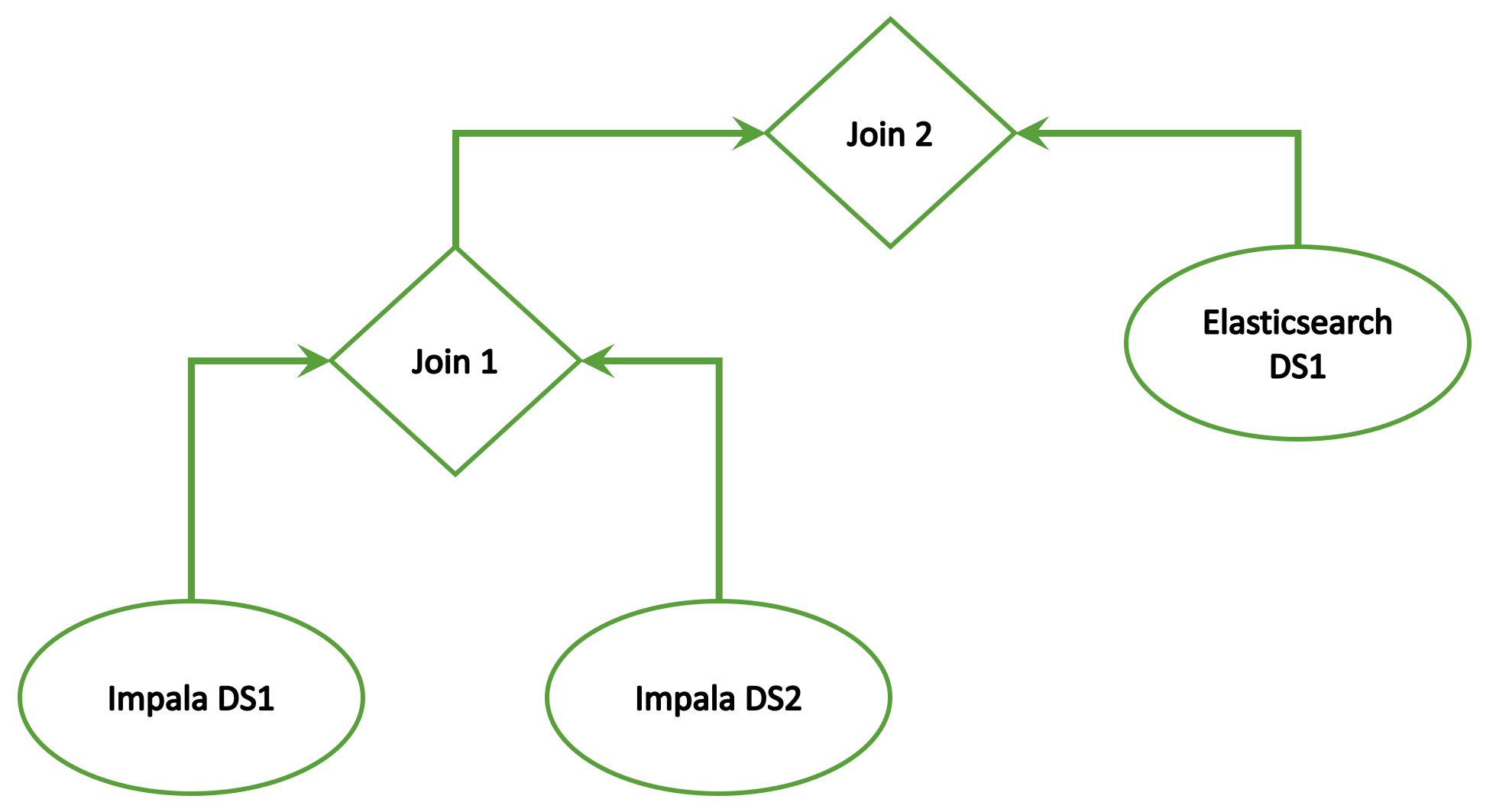
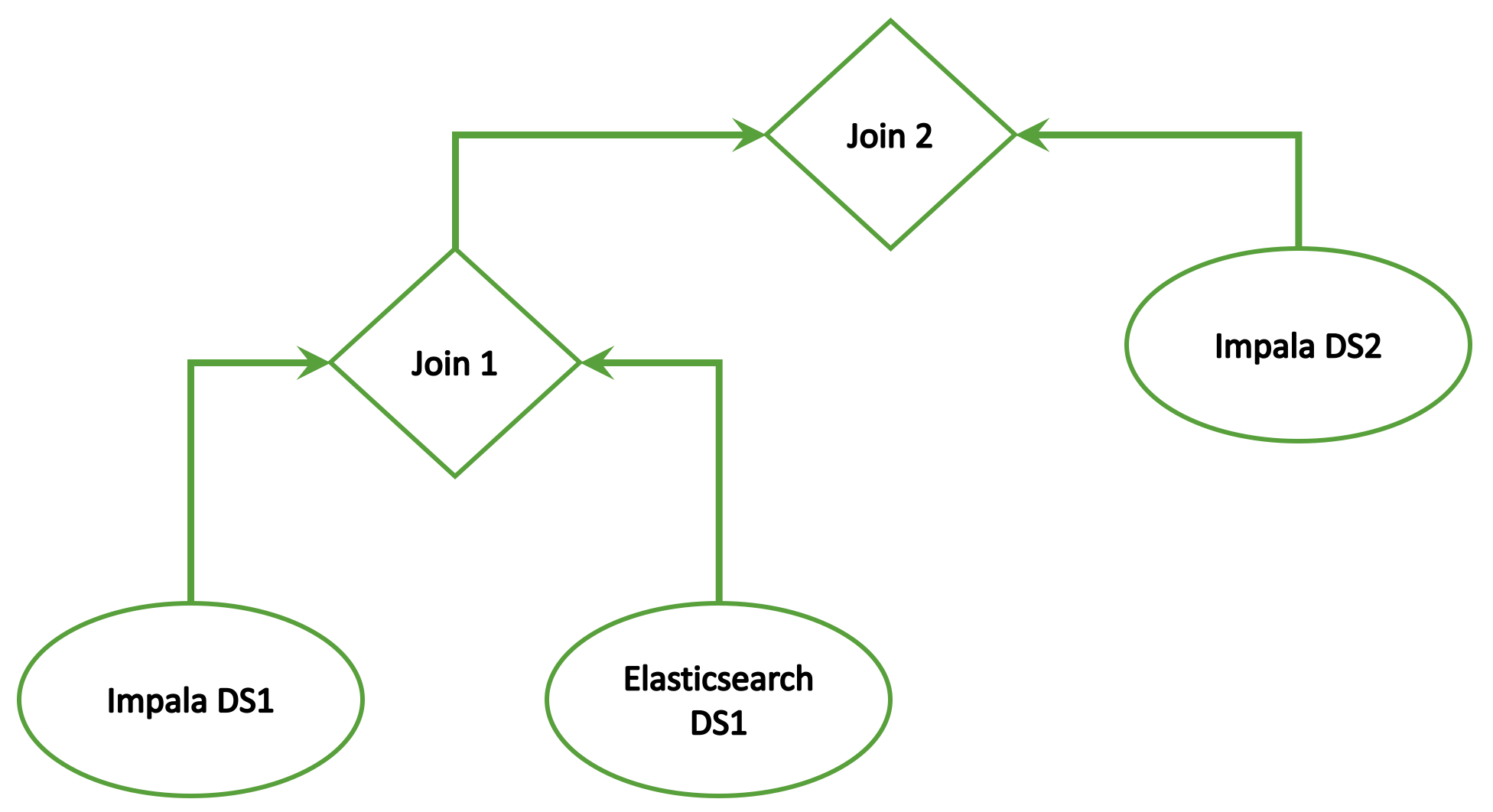
The following multisource fusion example has more than one join defined. Assuming both joins are inner joins, **join 1** will be performed by the Impala connector and **join 2** will be performed in-memory.
```
Fusion Data Source
inner join 1:
Impala-Data-Source1-using-Impala-Connection-1
Impala-Data-Source2-using-Impala-Connection-1
inner join 2:
Impala-Data-Source1-using-Impala-Connection-1
Elasticsearch-Data-Source1-using Elasticsearch-Connection-1
```
The following diagram depicts the relationship of the joins in the fused data source:
 #### Example 3
If the join order from Example 2 is switched as shown below and if the first join is changed to a left join, neither join can be performed by data connectors. They are both performed in-memory.
```
Fusion Data Source
left join 1:
Elasticsearch-Data-Source1-using-Elasticsearch-Connection-1
Impala-Data-Source1-using-Impala-Connection-1
inner join 2:
Impala-Data-Source1-using-Impala-Connection-1
Impala-Data-Source2-using-Impala-Connection-1
```
The following diagram depicts the relationship of the joins in the fused data source:
#### Example 3
If the join order from Example 2 is switched as shown below and if the first join is changed to a left join, neither join can be performed by data connectors. They are both performed in-memory.
```
Fusion Data Source
left join 1:
Elasticsearch-Data-Source1-using-Elasticsearch-Connection-1
Impala-Data-Source1-using-Impala-Connection-1
inner join 2:
Impala-Data-Source1-using-Impala-Connection-1
Impala-Data-Source2-using-Impala-Connection-1
```
The following diagram depicts the relationship of the joins in the fused data source:
Data Fusion Table Structures
The following table structures are used when data is fused using Self-Service Analytics's data fusion feature. For examples of these used in data fusion, see [Data Fusion Use Cases](#data-fusion-use-cases).
You can flag one or both entities used in creating a join for a fused data source as a dimensional entity. See [Create a Fusion Source](#create-a-fusion-source).
Lookup Table
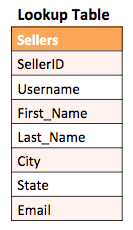
A lookup table contains description fields that describe dimensional data. For example, a lookup table may contain information about sellers that includes the seller's username, first name, last name and contact information. But this table may not contain pertinent sales data linked to the seller. This table may need to be joined with a [fact table](#fact-table) to provide more insightful information. The following is an example of a lookup table.
Fact Table
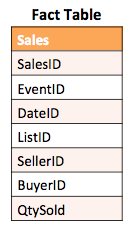
A fact table stores measurements, metrics and other analytical information. A fact table typically contains two types of columns:
* Fact columns that contain the measures to analyze
* Dimensional keys to analyze the facts using different attribute contexts.
For example, analyzing quantities sold (fact) and price of tickets (fact) by event would be one context. Another context might be to analyze the same facts by seller. Fact tables may be missing the descriptions needed for categorizing and analyzing the data. Combining fact tables with [lookup tables](#lookup-table) may be necessary to conduct proper data analysis.
The following figure illustrates a sample fact table containing sales information that includes the identifiers for each sales transaction along with the related event (and other information).
 ### Star Schema
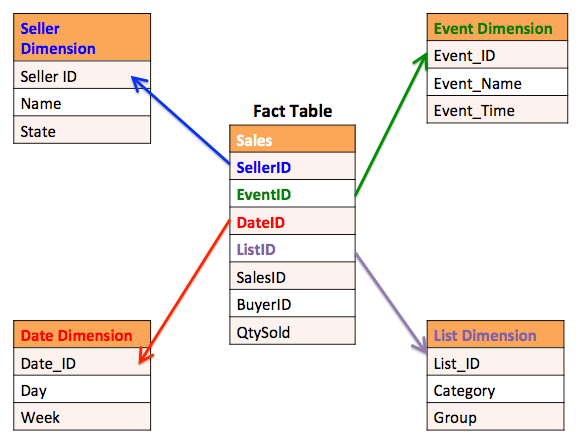
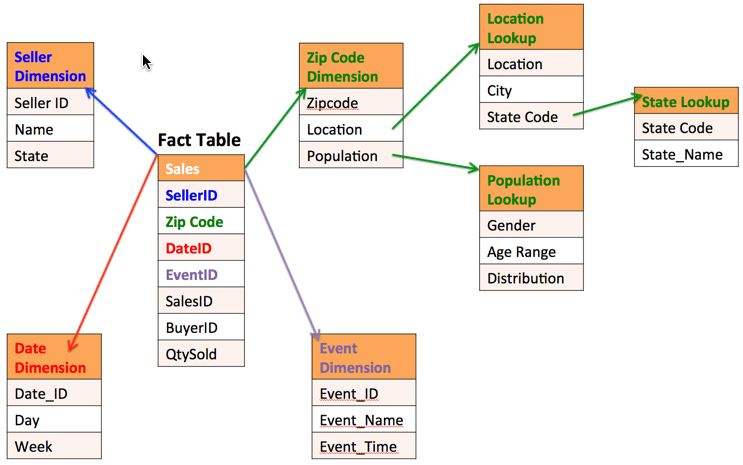
A star schema consists of one or more fact tables with references to dimension tables. Dimension tables store descriptions for key identifiers in the fact table as well as parent attributes that can allow aggregation of metric data to higher levels. This type of table structure is useful for rolling up and analyzing metric data using various dimensional attributes. The following figure depicts a sample star schema.
### Star Schema
A star schema consists of one or more fact tables with references to dimension tables. Dimension tables store descriptions for key identifiers in the fact table as well as parent attributes that can allow aggregation of metric data to higher levels. This type of table structure is useful for rolling up and analyzing metric data using various dimensional attributes. The following figure depicts a sample star schema.
 ### Snowflake Schema
A snowflake schema consists of one or more fact tables that have references to multiple dimension tables which in turn may connect to additional dimension tables. The logical arrangement of tables in a multidimensional database when displayed in a diagram resembles a snowflake shape. Like a star schema, dimension tables store descriptions for key identifiers in the fact table as well as parent attributes that can allow aggregation of metric data to higher levels. However, the difference is that the dimension table themselves may connect to additional dimension tables providing further information. The following figure depicts a sample snowflake schema.
### Snowflake Schema
A snowflake schema consists of one or more fact tables that have references to multiple dimension tables which in turn may connect to additional dimension tables. The logical arrangement of tables in a multidimensional database when displayed in a diagram resembles a snowflake shape. Like a star schema, dimension tables store descriptions for key identifiers in the fact table as well as parent attributes that can allow aggregation of metric data to higher levels. However, the difference is that the dimension table themselves may connect to additional dimension tables providing further information. The following figure depicts a sample snowflake schema.
Data Fusion Use Cases
Self-Service Analytics supports the following data fusion use cases:
* Looking up descriptions from lookup tables
* Aggregating data using dimensional tables in a star or snowflake schema
* Joining multiple fact tables on common keys
We’ll explore each use case in greater detail and then demonstrate how you can combine these different scenarios together to build unique data fusion data sets for your research and analysis.
Fact-to-Lookup Table Use Case
The lookup description is the simplest use case since it is joining a fact table to a lookup table using a common identity key. In this scenario, the description from a lookup table can be visualized along with metrics information from a fact table. The following diagram illustrates an example of a join between the event (lookup table) and the price paid. The common field between the two disparate tables is **event\_id**.
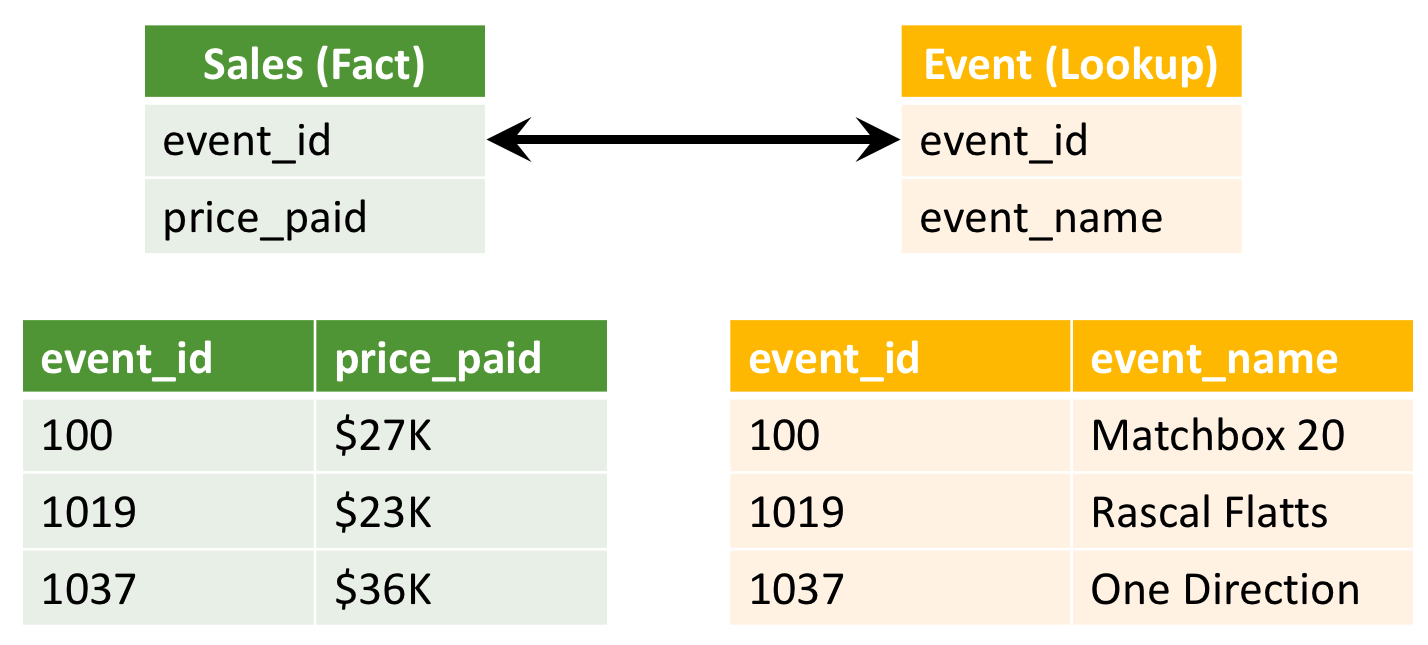 The resulting fused data includes the attributes from the lookup table and the metrics from the fact table. Any additional group-by attributes that are available from the lookup table are displayed as well.
### Star Schema Table Use Case
A star schema table extends the capability of the lookup description use case to dimensional tables that contain attribute descriptions and higher level group-by attributes than on fact table. The fact table can be joined to several dimensional tables using common ID keys (limited to one key per join). This allows you to visualize the fused data set using group-bys and filtering on dimensional attributes sourced from the dimension table in conjunction with metrics from the fact table.
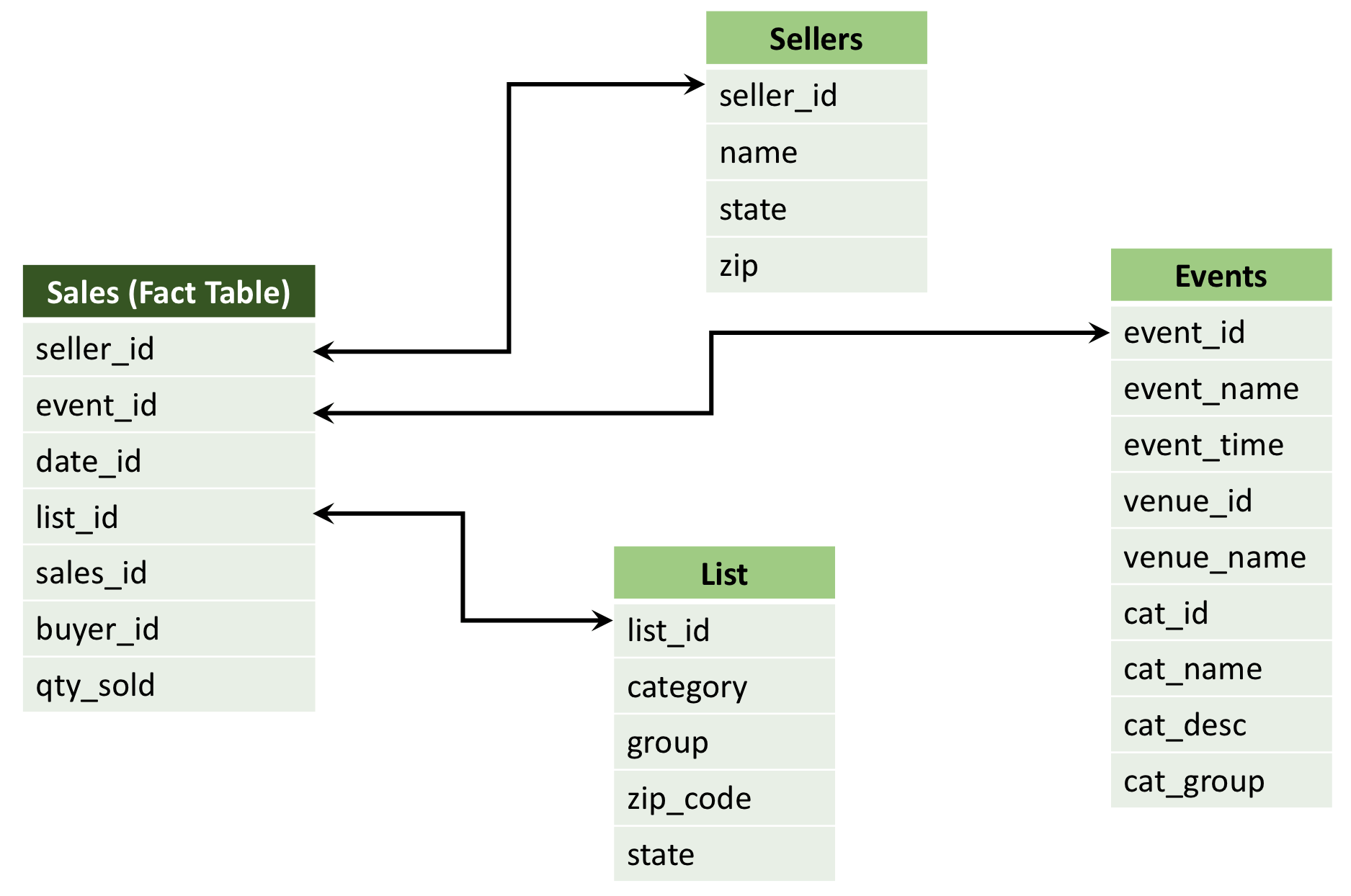
For example, the following diagram illustrates a star schema table. The Sales table is the fused data set resulting from the following disparate data repositories: seller details from the Sellers data entity, event information from the Events data entity, and listing details from the List data entity.
For example, the following diagram illustrates a star schema table. The Sales table is the fused data set resulting from the following disparate data sources: seller details from the Sellers data source, event information from the Events data source, and listing details from the List data source.
The resulting fused data includes the attributes from the lookup table and the metrics from the fact table. Any additional group-by attributes that are available from the lookup table are displayed as well.
### Star Schema Table Use Case
A star schema table extends the capability of the lookup description use case to dimensional tables that contain attribute descriptions and higher level group-by attributes than on fact table. The fact table can be joined to several dimensional tables using common ID keys (limited to one key per join). This allows you to visualize the fused data set using group-bys and filtering on dimensional attributes sourced from the dimension table in conjunction with metrics from the fact table.
For example, the following diagram illustrates a star schema table. The Sales table is the fused data set resulting from the following disparate data repositories: seller details from the Sellers data entity, event information from the Events data entity, and listing details from the List data entity.
For example, the following diagram illustrates a star schema table. The Sales table is the fused data set resulting from the following disparate data sources: seller details from the Sellers data source, event information from the Events data source, and listing details from the List data source.
 ### Multiple Fact Table Use Case
supports the capability to join different fact tables together. Similar to the lookup description use case, multiple fact tables are joined using a common key. As a result, metrics from different tables can be displayed on the same visual with common keys as the Group By keys. The following diagram shows two disparate fact tables being joined under the common attribute - **seller\_id**.
### Multiple Fact Table Use Case
supports the capability to join different fact tables together. Similar to the lookup description use case, multiple fact tables are joined using a common key. As a result, metrics from different tables can be displayed on the same visual with common keys as the Group By keys. The following diagram shows two disparate fact tables being joined under the common attribute - **seller\_id**.
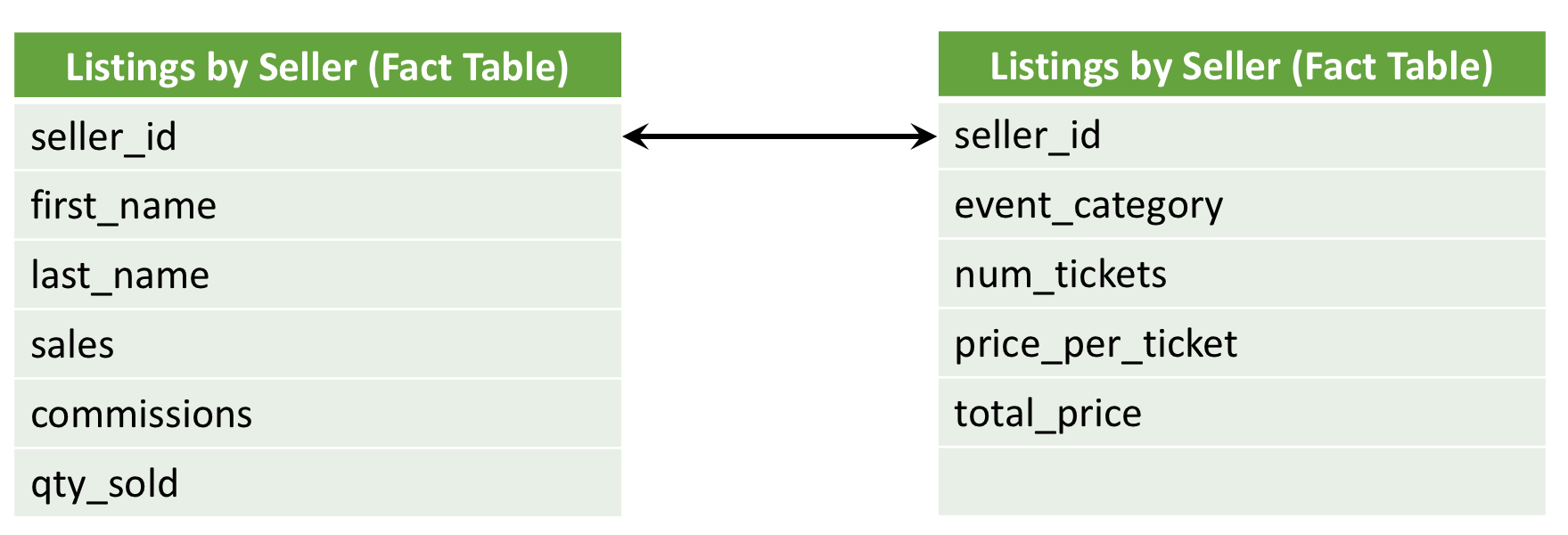 If a join is attempted between tables that have a one-to-many or many-to-many relationship, the table metrics will be duplicated.
### Combination Use Case
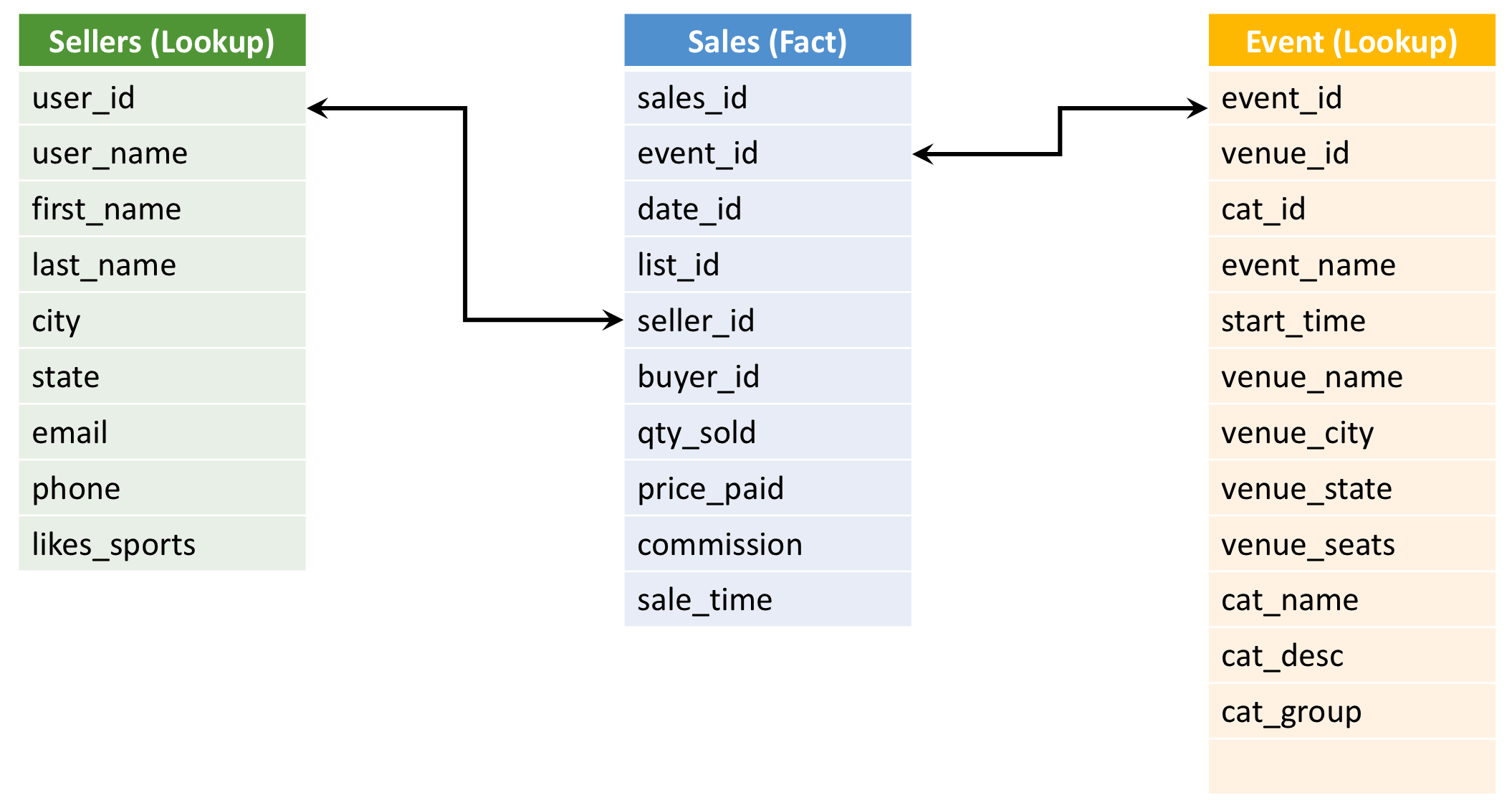
You can also fuse data using a combination of these use cases. For example, you can create a lookup to fact to lookup join (as shown in the diagram below) to explore the sellers, their ticket sales and event information all on one visual. In this example, seller information is located in a lookup table, sales data is housed in a fact table, and event details are stored in a lookup table. The common keys connecting these data sets are **user\_id**, **seller\_id**, and **event\_id**.
If a join is attempted between tables that have a one-to-many or many-to-many relationship, the table metrics will be duplicated.
### Combination Use Case
You can also fuse data using a combination of these use cases. For example, you can create a lookup to fact to lookup join (as shown in the diagram below) to explore the sellers, their ticket sales and event information all on one visual. In this example, seller information is located in a lookup table, sales data is housed in a fact table, and event details are stored in a lookup table. The common keys connecting these data sets are **user\_id**, **seller\_id**, and **event\_id**.
Data Fusion Limitations
Fusion data sources have the following limitations:
* Fused data can be used in [tables (raw data)](/simba-embedded-analytics/docs/self-service-analytics/26.3/analyze-data/visuals/rdt). insightsoftware recommends that you initially use a subset of fields from Fusion data sources on tables to limit the load on your instance's query engine and improve its performance. You can change the subset in data source configurations and add additional fields, later, as needed while working on a dashboard.
* Text Search and Facet filtering are not supported for fused data, even if one or all the data sources defining the fused source support it.
* The [COUNT](/simba-embedded-analytics/docs/self-service-analytics/26.3/connect-to-data/data/fx-aggregate#column-aggregation-functions), [COUNTD](/simba-embedded-analytics/docs/self-service-analytics/26.3/connect-to-data/data/fx-aggregate#column-aggregation-functions), [TableCOUNT](/simba-embedded-analytics/docs/self-service-analytics/26.3/connect-to-data/data/fx-aggregate#table-aggregation-functions), [TableCOUNTD](/simba-embedded-analytics/docs/self-service-analytics/26.3/connect-to-data/data/fx-aggregate#table-aggregation-functions), [WindowCOUNT](/simba-embedded-analytics/docs/self-service-analytics/26.3/connect-to-data/data/fx-aggregate#window-aggregation-functions), and [WindowCOUNTD](/simba-embedded-analytics/docs/self-service-analytics/26.3/connect-to-data/data/fx-aggregate#window-aggregation-functions) [aggregate functions](/simba-embedded-analytics/docs/self-service-analytics/26.3/connect-to-data/data/fx-aggregate) are supported for Fusion data sources. However, they normally ignore null values for the specified field. Consequently, the result of these aggregate functions may not be the same as the actual number of records in the data. Use the wildcard character (\*) for `` to include null values for the field in the count.
* [Live mode and historical playback](/simba-embedded-analytics/docs/self-service-analytics/26.3/analyze-data/time-bar#live-mode-and-historical-playback) are now supported for fused data.
* [Data Sharpening](/simba-embedded-analytics/docs/self-service-analytics/26.3/connect-to-data/sources/data-sharpening-ov) is not supported for Fusion data sources.
* Two levels of top-of-the-top [multi-group](/simba-embedded-analytics/docs/self-service-analytics/26.3/embed-and-extend/custom-charts/custom-chart-config#properties) fusion are supported. If you have [custom charts](/simba-embedded-analytics/docs/self-service-analytics/26.3/embed-and-extend/custom-charts/custom-chart-managing) that require more than two levels, you cannot use fused data sources.
Multi-group fusion provides multiple levels of grouping under a single header. A multi-group variable is a stringified array of grouped queries. Each of the listed groups is described in the same manner as a group in the [Query Configuration Object](/simba-embedded-analytics/docs/self-service-analytics/26.3/embed-and-extend/api/application-framework/getting-started-with-the-application-framework#query-configuration-object).
Filter Fused Data
Fused data can also be filtered in visuals and dashboards. Filtering fused data sets is possible in the following scenarios:
* Different visuals contain metrics from different fact tables but have common attributes.
* Filtering on a common attribute in one data fusion visual can be applied to other visuals in the dashboard.