| Connector | Supported? | Notes |
|---|---|---|
| [Amazon Redshift](/simba-embedded-analytics/docs/self-service-analytics/26.3/connect-to-data/connectors/connecting-to-amazon-redshift) | **Y** | |
| [Amazon S3](/simba-embedded-analytics/docs/self-service-analytics/26.3/connect-to-data/connectors/connecting-to-amazon-s3) | **Y** | |
| [Apache Drill](/simba-embedded-analytics/docs/self-service-analytics/26.3/connect-to-data/connectors/connecting-to-apache-drill) | **Y** | |
| [Apache Phoenix](/simba-embedded-analytics/docs/self-service-analytics/26.3/connect-to-data/connectors/connecting-to-apache-phoenix) | **Y** |
Apache Phoenix and Apache Phoenix Query Server connectors support row-level expressions (derived fields) with the following limitations:
* The filter IS NULL does not work properly on grouped fields. * The LOCATE [text row-level function](/simba-embedded-analytics/docs/self-service-analytics/26.3/connect-to-data/data/fx-aggregate#text-functions) only supports a constant as a argument. * A COALESCE [conditional row-level function](/simba-embedded-analytics/docs/self-service-analytics/26.3/connect-to-data/data/fx-aggregate#conditional-functions) specified with and empty argument does not work properly. * If the CASE [conditional row-level function](/simba-embedded-analytics/docs/self-service-analytics/26.3/connect-to-data/data/fx-aggregate#conditional-functions) returns a null value as a an argument of another function, a NullPointerException may occur. * The LPAD and RPAD [text row-level functions](/simba-embedded-analytics/docs/self-service-analytics/26.3/connect-to-data/data/fx-aggregate#text-functions) are not supported. |
| [Apache Phoenix Query Server (QS)](/simba-embedded-analytics/docs/self-service-analytics/26.3/connect-to-data/connectors/connecting-to-apache-phoenix) | **Y** | |
| [Apache Solr](/simba-embedded-analytics/docs/self-service-analytics/26.3/connect-to-data/connectors/connecting-to-solr) | **N** | |
| [BigQuery](/simba-embedded-analytics/docs/self-service-analytics/26.3/connect-to-data/connectors/connecting-to-bigquery) | **Y** | If you need to access a BigQuery partition, explicitly include an alias for the built in partition column in your select clause, such as `select *, _PARTITIONTIME as pt from projectId.datasetId.tableId`. |
| [Business Central Jet](/simba-embedded-analytics/docs/self-service-analytics/26.3/connect-to-data/connectors/connect-to-biz-central) | **Y** | |
| [Cloudera Impala](/simba-embedded-analytics/docs/self-service-analytics/26.3/connect-to-data/connectors/cloudera-ov#manage-the-impala-connector) | **Y** | |
| [Cloudera Search](/simba-embedded-analytics/docs/self-service-analytics/26.3/connect-to-data/connectors/cloudera-search) | **N** | |
| [Couchbase](/simba-embedded-analytics/docs/self-service-analytics/26.3/connect-to-data/connectors/couchbase) | **Y** | |
| [Dremio](/simba-embedded-analytics/docs/self-service-analytics/26.3/connect-to-data/connectors/connecting-to-dremio) | **N** | |
| [Dundas BI (Managed)](/simba-embedded-analytics/docs/self-service-analytics/26.3/connect-to-data/connectors/dbi) | source-dependent | |
| [Elasticsearch 7.0](/simba-embedded-analytics/docs/self-service-analytics/26.3/connect-to-data/connectors/connecting-to-elastic-search) | **Y** | |
| [Elasticsearch 8.0](/simba-embedded-analytics/docs/self-service-analytics/26.3/connect-to-data/connectors/connecting-to-elastic-search) | **Y** | |
| [File Upload (Upload API)](/simba-embedded-analytics/docs/self-service-analytics/26.3/connect-to-data/connectors/uploading-a-flat-file) | **Y** | |
| [HDFS](/simba-embedded-analytics/docs/self-service-analytics/26.3/connect-to-data/connectors/hdfs) | **Y** | |
| [Hive](/simba-embedded-analytics/docs/self-service-analytics/26.3/connect-to-data/connectors/hive) | **Y** | |
| [Jira](/simba-embedded-analytics/docs/self-service-analytics/26.3/connect-to-data/connectors/connecting-to-jira) | **Y** | |
| [MemSQL](/simba-embedded-analytics/docs/self-service-analytics/26.3/connect-to-data/connectors/connecting-to-memsql) | **Y** | |
| [Microsoft SQL Server](/simba-embedded-analytics/docs/self-service-analytics/26.3/connect-to-data/connectors/connecting-to-sql-server) | **Y** | |
| [MongoDB](/simba-embedded-analytics/docs/self-service-analytics/26.3/connect-to-data/connectors/connecting-to-mongodb) | **Y** | MongoDB connectors support derived fields with some exceptions. See the discussion in [Manage the MongoDB Connector](/simba-embedded-analytics/docs/self-service-analytics/26.3/connect-to-data/connectors/connecting-to-mongodb). |
| [MySQL](/simba-embedded-analytics/docs/self-service-analytics/26.3/connect-to-data/connectors/connecting-to-mysql) | **Y** | |
| [OpenSearch](/simba-embedded-analytics/docs/self-service-analytics/26.3/connect-to-data/connectors/connecting-to-opensearch) | **Y** | |
| [Oracle](/simba-embedded-analytics/docs/self-service-analytics/26.3/connect-to-data/connectors/connecting-to-oracle) | **Y** | |
| [PostgreSQL](/simba-embedded-analytics/docs/self-service-analytics/26.3/connect-to-data/connectors/connecting-to-postgresql) | **Y** | |
| [Python](/simba-embedded-analytics/docs/self-service-analytics/26.3/connect-to-data/connectors/connecting-to-python) | **Y** | |
| [Real Time Sales](/simba-embedded-analytics/docs/self-service-analytics/26.3/connect-to-data/connectors/enabling-real-time-sales-demo-source) | N/A | |
| [Salesforce](/simba-embedded-analytics/docs/self-service-analytics/26.3/connect-to-data/connectors/connecting-to-salesforce) | **Y** | |
| [SAP Hana](/simba-embedded-analytics/docs/self-service-analytics/26.3/connect-to-data/connectors/connecting-to-sap-hana) | **Y** | |
| [SAP S/4HANA](/simba-embedded-analytics/docs/self-service-analytics/26.3/connect-to-data/connectors/connecting-to-saps-4hana) | **Y** | |
| [SAP IQ](/simba-embedded-analytics/docs/self-service-analytics/26.3/connect-to-data/connectors/connecting-to-sap-iqsql) | **Y** | |
| [Spark SQL](/simba-embedded-analytics/docs/self-service-analytics/26.3/connect-to-data/connectors/connecting-to-sparksql) | **Y** | |
| [Snowflake](/simba-embedded-analytics/docs/self-service-analytics/26.3/connect-to-data/connectors/connecting-to-snowflake) | **Y** | |
| [Teradata](/simba-embedded-analytics/docs/self-service-analytics/26.3/connect-to-data/connectors/connecting-to-teradata) | **Y** | |
| [TIBCO DV](/simba-embedded-analytics/docs/self-service-analytics/26.3/connect-to-data/connectors/tibcodv) | **Y** | |
| [Trino](/simba-embedded-analytics/docs/self-service-analytics/26.3/connect-to-data/connectors/connecting-to-trino) | **N** | |
| [File Upload (Upload API)](/simba-embedded-analytics/docs/self-service-analytics/26.3/connect-to-data/connectors/uploading-a-flat-file) | **Y** | |
| [Vertica](/simba-embedded-analytics/docs/self-service-analytics/26.3/connect-to-data/connectors/connecting-to-vertica) | **Y** |
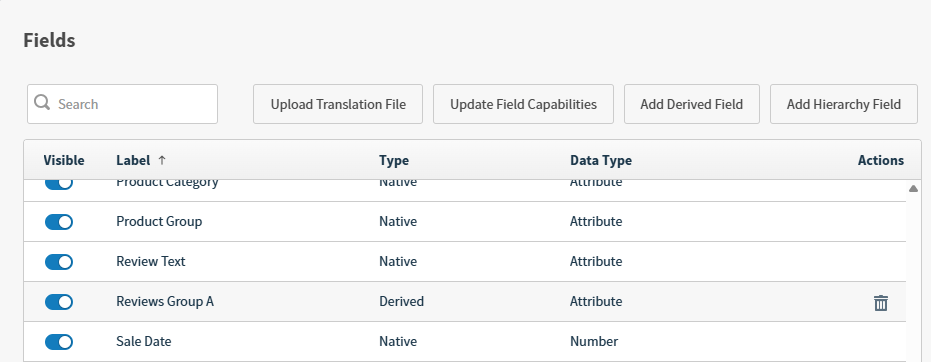 4. Select the delete icon (
 ) in the Actions column.
5. Select **Delete** in the pop-up confirmation dialog. The derived field is deleted if it is not in use.
) in the Actions column.
5. Select **Delete** in the pop-up confirmation dialog. The derived field is deleted if it is not in use.
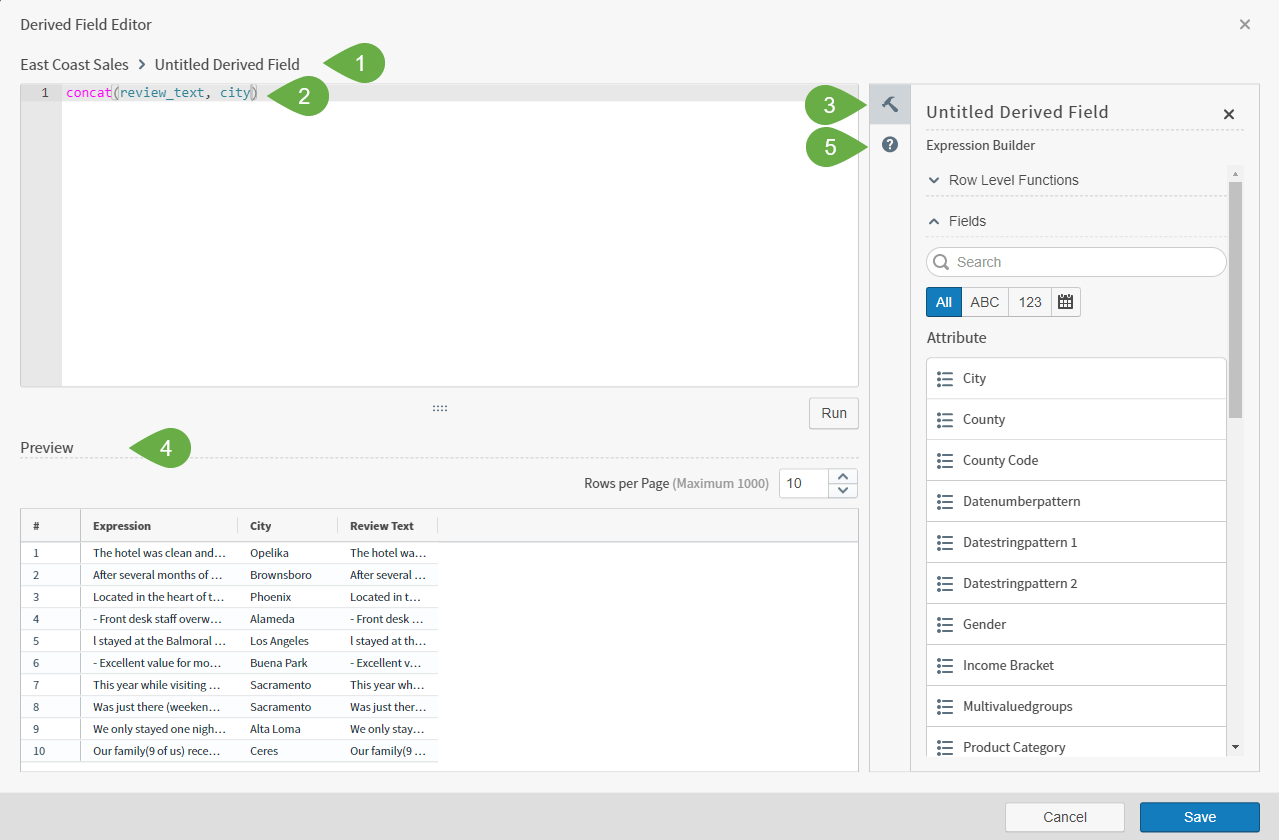 The numbered regions are:
1. Derived Field Label: Mandatory, fewer than 255 characters long.
2. Editing space: Build your expression in this space. Syntax highlighting improves the readability of your expression.
3. Expression Builder: This tool includes Row Level Functions and Fields to help you build your derived field.
4. Preview space: Shows a preview of the results of your expression.
5. Calculation Help: Provides more detailed information about the types of expressions Self-Service Analytics supports.
Create a derived field by defining a formula composed of metrics and attributes that include row level functions. You can also include existing derived fields in your new derived field formula. Self-Service Analytics automatically assigns data types to your derived fields.
Derived Field Editor Features:
* Syntax highlighting improves the readability of your expressions to provide visual clues about the items being used and their validity.
Parts of an expression are highlighted in different colors or with different text treatments:
* function names, both row level and aggregate
* fields and metrics
* keywords such as CASE and IN
* example parameters
* date period constants such as `year`
* values such as numbers and `true` or `false`
* strings
* arithmetic operators such as `+`
References to fields that do not exist in the data source or are otherwise not usable in an expression are interpreted as values. These are shown in black, alerting you to possible typos or other issues.
* Row Level Functions and Fields sections always appear in the Expression Builder.
* Autocomplete functionality is included: Type two letters and a list of possible auto-completions appears.
1. Function completions provide the type of function, the name of the function, the description of the function, and an example of how the function is used, including parameters.
2. Field completions are available by typing either the field ID or the field label. The field ID appears in square brackets next to the field label when the two are different. Field completions provide the type of the field, the field label and ID, expressions for derived fields, and information about whether the field is hidden (as applicable).
3. Metric completions provide the metric label and the expression that will be inserted into the editor when the metric is selected.
* Syntax and validation errors are shown in the Preview area.
* When you're creating or editing an expression, select **Cancel** to return your expression to the initial state.
* Self-Service Analytics disables the **Save** button, preventing you from saving a derived field unless it has a successfully run expression.
* When you close the editor with unsaved changes, Self-Service Analytics displays a confirmation message.
* Select **Cancel** to continue editing or changing the text of the label for your derived field.
* Select **Discard** to discard your changes. If you are editing an existing item, your last saved version remains in Self-Service Analytics.
* If you select **Discard** while creating a new expression, Self-Service Analytics returns you to the source work area.
Access the Derived Field Editor in the following ways:
* [Access the Derived Field Editor from a Data Source](#access-the-derived-field-editor-from-a-data-source)
* [Access the Derived Field Editor from the Metric Selection Dialog](#access-the-derived-field-editor-from-the-metric-selection-dialog)
* [Access the Derived Field Editor from the Group Selection Dialog](#access-the-derived-field-editor-from-the-group-selection-dialog)
* [Access the Derived Field Editor from the Color Sidebar](#access-the-derived-field-editor-from-the-color-sidebar)
* [Access the Derived Field Editor from the Filters Sidebar](#access-the-derived-field-editor-from-the-filters-sidebar)
The numbered regions are:
1. Derived Field Label: Mandatory, fewer than 255 characters long.
2. Editing space: Build your expression in this space. Syntax highlighting improves the readability of your expression.
3. Expression Builder: This tool includes Row Level Functions and Fields to help you build your derived field.
4. Preview space: Shows a preview of the results of your expression.
5. Calculation Help: Provides more detailed information about the types of expressions Self-Service Analytics supports.
Create a derived field by defining a formula composed of metrics and attributes that include row level functions. You can also include existing derived fields in your new derived field formula. Self-Service Analytics automatically assigns data types to your derived fields.
Derived Field Editor Features:
* Syntax highlighting improves the readability of your expressions to provide visual clues about the items being used and their validity.
Parts of an expression are highlighted in different colors or with different text treatments:
* function names, both row level and aggregate
* fields and metrics
* keywords such as CASE and IN
* example parameters
* date period constants such as `year`
* values such as numbers and `true` or `false`
* strings
* arithmetic operators such as `+`
References to fields that do not exist in the data source or are otherwise not usable in an expression are interpreted as values. These are shown in black, alerting you to possible typos or other issues.
* Row Level Functions and Fields sections always appear in the Expression Builder.
* Autocomplete functionality is included: Type two letters and a list of possible auto-completions appears.
1. Function completions provide the type of function, the name of the function, the description of the function, and an example of how the function is used, including parameters.
2. Field completions are available by typing either the field ID or the field label. The field ID appears in square brackets next to the field label when the two are different. Field completions provide the type of the field, the field label and ID, expressions for derived fields, and information about whether the field is hidden (as applicable).
3. Metric completions provide the metric label and the expression that will be inserted into the editor when the metric is selected.
* Syntax and validation errors are shown in the Preview area.
* When you're creating or editing an expression, select **Cancel** to return your expression to the initial state.
* Self-Service Analytics disables the **Save** button, preventing you from saving a derived field unless it has a successfully run expression.
* When you close the editor with unsaved changes, Self-Service Analytics displays a confirmation message.
* Select **Cancel** to continue editing or changing the text of the label for your derived field.
* Select **Discard** to discard your changes. If you are editing an existing item, your last saved version remains in Self-Service Analytics.
* If you select **Discard** while creating a new expression, Self-Service Analytics returns you to the source work area.
Access the Derived Field Editor in the following ways:
* [Access the Derived Field Editor from a Data Source](#access-the-derived-field-editor-from-a-data-source)
* [Access the Derived Field Editor from the Metric Selection Dialog](#access-the-derived-field-editor-from-the-metric-selection-dialog)
* [Access the Derived Field Editor from the Group Selection Dialog](#access-the-derived-field-editor-from-the-group-selection-dialog)
* [Access the Derived Field Editor from the Color Sidebar](#access-the-derived-field-editor-from-the-color-sidebar)
* [Access the Derived Field Editor from the Filters Sidebar](#access-the-derived-field-editor-from-the-filters-sidebar)
 and then **Color** from the [visual drop-down menu](/simba-embedded-analytics/docs/self-service-analytics/26.3/analyze-data/visuals/visual-setup#use-the-visual-drop-down-menu) to access the Color sidebar.
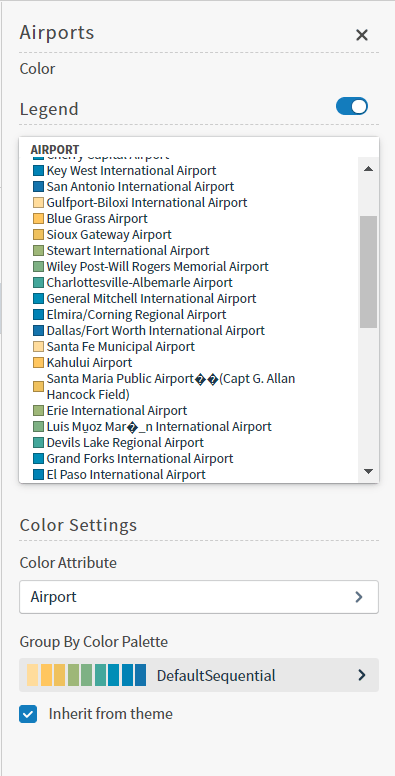 2. Select the **Color Attribute** box on the Color sidebar. A list of attribute, number, and time fields you can select for the color attribute appears in the Color sidebar.
3. Select the add icon
2. Select the **Color Attribute** box on the Color sidebar. A list of attribute, number, and time fields you can select for the color attribute appears in the Color sidebar.
3. Select the add icon  in the Attribute, Number, or Time fields section of the sidebar. A menu opens with two options: **Add Derived Field** and **Add Custom Metric**.
4. Select **Add Derived Field** to access the [Derived Field Editor](#derived-field-editor) and create a derived field.
You can also access the Derived Field Editor when you edit any derived field listed on the Color sidebar. See the following steps.
**Edit a derived field**
1. Select and then Color from the menu to access the Color sidebar.
2. Select the **Color Metric** box on the Color sidebar. A list of fields you can select for the color metric appears in the Color sidebar.
3. Locate a derived field listed on the Color sidebar and select the ellipsis () next to it. The following menu appears:
in the Attribute, Number, or Time fields section of the sidebar. A menu opens with two options: **Add Derived Field** and **Add Custom Metric**.
4. Select **Add Derived Field** to access the [Derived Field Editor](#derived-field-editor) and create a derived field.
You can also access the Derived Field Editor when you edit any derived field listed on the Color sidebar. See the following steps.
**Edit a derived field**
1. Select and then Color from the menu to access the Color sidebar.
2. Select the **Color Metric** box on the Color sidebar. A list of fields you can select for the color metric appears in the Color sidebar.
3. Locate a derived field listed on the Color sidebar and select the ellipsis () next to it. The following menu appears:
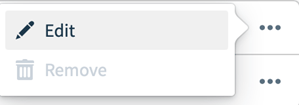 4. Select **Edit** on the menu to edit the derived field. The [Derived Field Editor](#derived-field-editor) appears.
 ) on the visual or filter snippet, or select
  on the [sidebar menu](/simba-embedded-analytics/docs/self-service-analytics/26.3/analyze-data/visuals/visual-setup#use-the-visual-sidebar-menu). If the visual is in a dashboard, select **Settings** from the [menu](/simba-embedded-analytics/docs/self-service-analytics/26.3/analyze-data/visuals/visual-setup#use-the-visual-drop-down-menu) (), then select on the [sidebar menu](/simba-embedded-analytics/docs/self-service-analytics/26.3/analyze-data/visuals/visual-setup#use-the-visual-sidebar-menu).
* To access the dashboard filter sidebar, select the dashboard filter icon (
on the [sidebar menu](/simba-embedded-analytics/docs/self-service-analytics/26.3/analyze-data/visuals/visual-setup#use-the-visual-sidebar-menu). If the visual is in a dashboard, select **Settings** from the [menu](/simba-embedded-analytics/docs/self-service-analytics/26.3/analyze-data/visuals/visual-setup#use-the-visual-drop-down-menu) (), then select on the [sidebar menu](/simba-embedded-analytics/docs/self-service-analytics/26.3/analyze-data/visuals/visual-setup#use-the-visual-sidebar-menu).
* To access the dashboard filter sidebar, select the dashboard filter icon ( ) next to the dashboard title. The dashboard-level filter icon is available only when all the visuals are from the same data source.
The Filters sidebar appears.
2. Select the add icon at the top of the Attribute, Number, or Time sections on the Row or Group tab. A menu opens with two options: **Add Derived Field** and **Add Custom Metric**.
3. Select **Add Derived Field** to access the [Derived Field Editor](#derived-field-editor) and create a derived field.
You can also access the [Derived Field Editor](#derived-field-editor) when you edit any derived field listed on the Filters sidebar. See the following steps.
**Edit a derived field**
1. Select the filter icon to access the Filters sidebar.
2. Select **Add Filter**.
3. Locate a derived field listed on the Filters sidebar and select the ellipsis () next to it. The following menu appears:
4. Select **Edit** on the menu to edit the derived field. The [Derived Field Editor](#derived-field-editor) appears, depending on the field you selected.
) next to the dashboard title. The dashboard-level filter icon is available only when all the visuals are from the same data source.
The Filters sidebar appears.
2. Select the add icon at the top of the Attribute, Number, or Time sections on the Row or Group tab. A menu opens with two options: **Add Derived Field** and **Add Custom Metric**.
3. Select **Add Derived Field** to access the [Derived Field Editor](#derived-field-editor) and create a derived field.
You can also access the [Derived Field Editor](#derived-field-editor) when you edit any derived field listed on the Filters sidebar. See the following steps.
**Edit a derived field**
1. Select the filter icon to access the Filters sidebar.
2. Select **Add Filter**.
3. Locate a derived field listed on the Filters sidebar and select the ellipsis () next to it. The following menu appears:
4. Select **Edit** on the menu to edit the derived field. The [Derived Field Editor](#derived-field-editor) appears, depending on the field you selected.
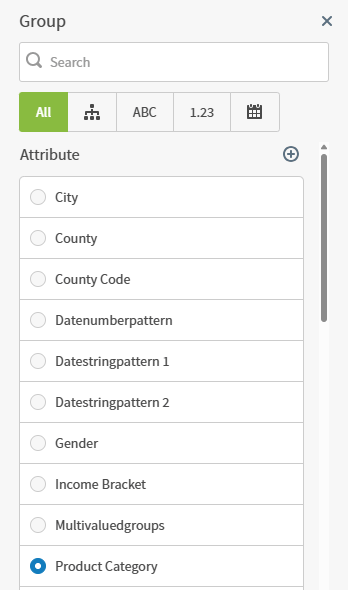 2. Select the add icon in the Attributes, Number or Time section of the dialog. A menu opens with two options: **Add Derived Field** and **Add Custom Metric**.
3. Select **Add Derived Field** to access the [Derived Field Editor](#derived-field-editor) and create a derived field.
You can also access the Derived Field Editor when you edit any derived field listed on the Group selection dialog. See the following steps.
**Edit a derived field**
1. On a visual, select the group label (x-axis label) to view the Group selection dialog.
2. Locate a derived field listed on the Group selection dialog and select the ellipsis () next to it. The following menu appears:
3. Select **Edit** on the menu to edit the derived field. The [Derived Field Editor](#derived-field-editor) appears.
2. Select the add icon in the Attributes, Number or Time section of the dialog. A menu opens with two options: **Add Derived Field** and **Add Custom Metric**.
3. Select **Add Derived Field** to access the [Derived Field Editor](#derived-field-editor) and create a derived field.
You can also access the Derived Field Editor when you edit any derived field listed on the Group selection dialog. See the following steps.
**Edit a derived field**
1. On a visual, select the group label (x-axis label) to view the Group selection dialog.
2. Locate a derived field listed on the Group selection dialog and select the ellipsis () next to it. The following menu appears:
3. Select **Edit** on the menu to edit the derived field. The [Derived Field Editor](#derived-field-editor) appears.
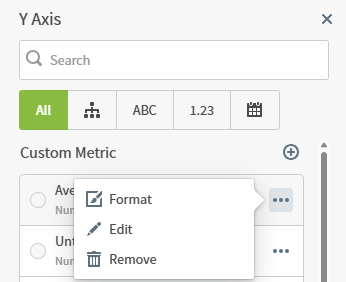 2. Select the icon in the Number or Custom Metric section of the dialog. A menu opens with two options: **Add Derived Field** and **Add Custom Metric**.
3. Select **Add Derived Field** to access the [Derived Field Editor](#derived-field-editor) and create a derived field.
You can also access the [Derived Field Editor](#derived-field-editor) when you edit any derived field listed on the Metric selection dialog. See the following steps.
**Edit a derived field**
1. On a visual, select the metric label (y-axis label) to view the Metric selection dialog.
2. Locate a derived field listed on the Metric selection dialog and select the ellipsis () next to it. The following menu appears:
3. Select **Edit** on the menu to edit the derived field. The [Derived Field Editor](#derived-field-editor) appears.
2. Select the icon in the Number or Custom Metric section of the dialog. A menu opens with two options: **Add Derived Field** and **Add Custom Metric**.
3. Select **Add Derived Field** to access the [Derived Field Editor](#derived-field-editor) and create a derived field.
You can also access the [Derived Field Editor](#derived-field-editor) when you edit any derived field listed on the Metric selection dialog. See the following steps.
**Edit a derived field**
1. On a visual, select the metric label (y-axis label) to view the Metric selection dialog.
2. Locate a derived field listed on the Metric selection dialog and select the ellipsis () next to it. The following menu appears:
3. Select **Edit** on the menu to edit the derived field. The [Derived Field Editor](#derived-field-editor) appears.
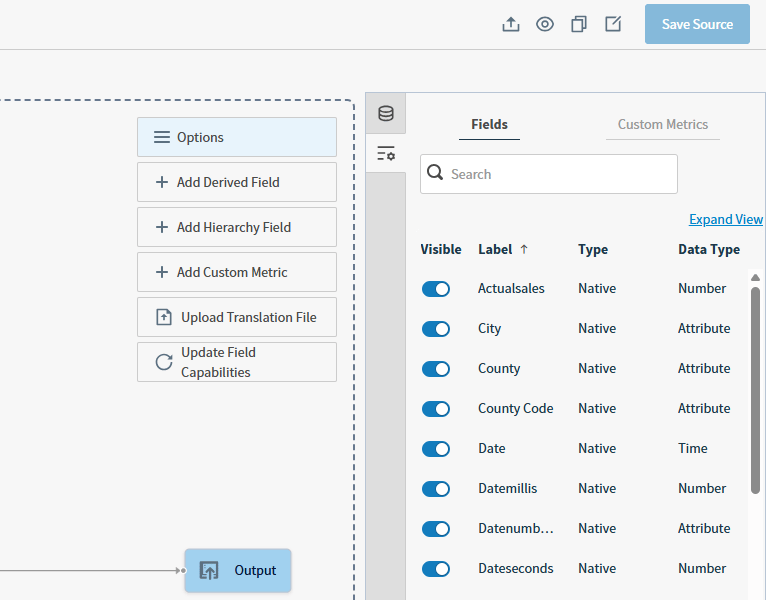 3. Select **Add Derived Field** at the top of the Fields table to add a derived field. To modify an existing derived field, select derived field then the edit (
 ) expression icon in the Settings side bar menu.
The [Derived Field Editor](#derived-field-editor) appears.
) expression icon in the Settings side bar menu.
The [Derived Field Editor](#derived-field-editor) appears.