> ## Documentation Index
> Fetch the complete documentation index at: https://insightsoftware.mintlify.site/llms.txt
> Use this file to discover all available pages before exploring further.
# Manage File Uploads
> Describes how to upload, edit, and manage file upload data.
Self-Service Analytics can visualize data from file uploads including CSV, JSON, and TSV files.
* The maximum supported file size is 500 MB
* Data from the file upload is stored in a PostgreSQL database
* When you upload a flat data file, the first 1,000 records are used to determine if fields are imported as NUMBER or INTEGER.
* If there are no decimal number records in the first 1,000 records, the numeric fields are imported as INTEGER instead of NUMBER: any decimal number records after row 1,000 may not upload fully.
* To ensure all records are imported, sort your data to ensure decimal numbers are included in the first 1,000 records.
In this release, when your admin enables the Enhanced Experience user interface, you will see changes to workflows you may have used in previous releases. If you are running an earlier release or your admin has not enabled the new interface, see [Upload a New File (Earlier Releases)](https://logi-composer-v26.insightsoftware.com/hc/en-us/articles/43701044052621-Manage-File-Uploads#25.3).
Before you can establish a connection from Self-Service Analytics to your file uploads storage, a connector server needs to be installed and configured. See [Manage Connectors and Connector Servers](/simba-embedded-analytics/docs/self-service-analytics/26.3/connect-to-data/connectors/connectors-ov#manage-connectors-and-connector-servers) for general instructions.
After the connector has been set up, create a data source configuration and upload your file or files to that source. See:
* [Define a Source](/simba-embedded-analytics/docs/self-service-analytics/26.3/connect-to-data/sources/data-source-config-overview#define-a-source)
* [Upload a New File](#upload-a-new-file)
* [Edit an Existing File](#edit-an-existing-file)
* [Delete a File](#delete-a-file)
* [API Endpoints](#api-endpoints)
Upload a New File
1. Log in as a user with the **Administer Sources** or **Create New Data Sources** [privilege](/simba-embedded-analytics/docs/self-service-analytics/26.3/administer/users/aaa-ov#group-privilege-reference).
2. [Create](/simba-embedded-analytics/docs/self-service-analytics/26.3/connect-to-data/sources/data-source-config-overview#define-a-source) or [edit](/simba-embedded-analytics/docs/self-service-analytics/26.3/connect-to-data/sources/data-source-config-overview#edit-a-data-source) an existing data source.
3. Select the **Files** tab in the Data Source panel, then **Upload New File**.
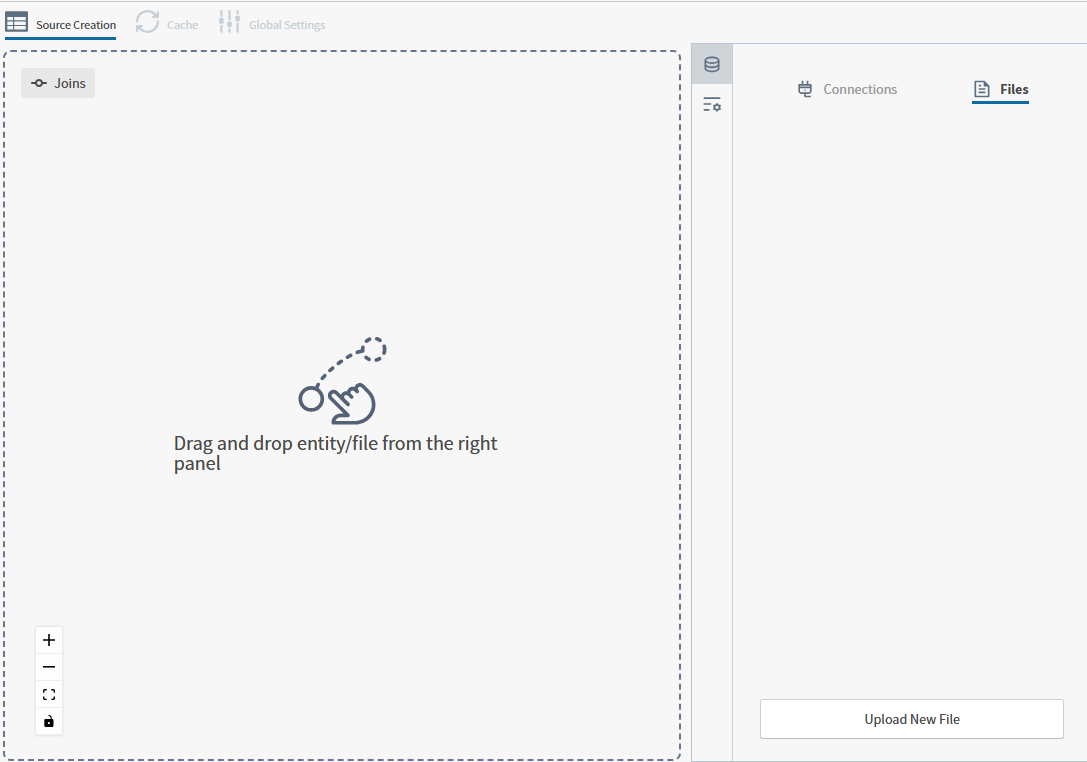 4. Add a unique Data Entity Name, then select **Upload New File**. The File Upload work area opens.
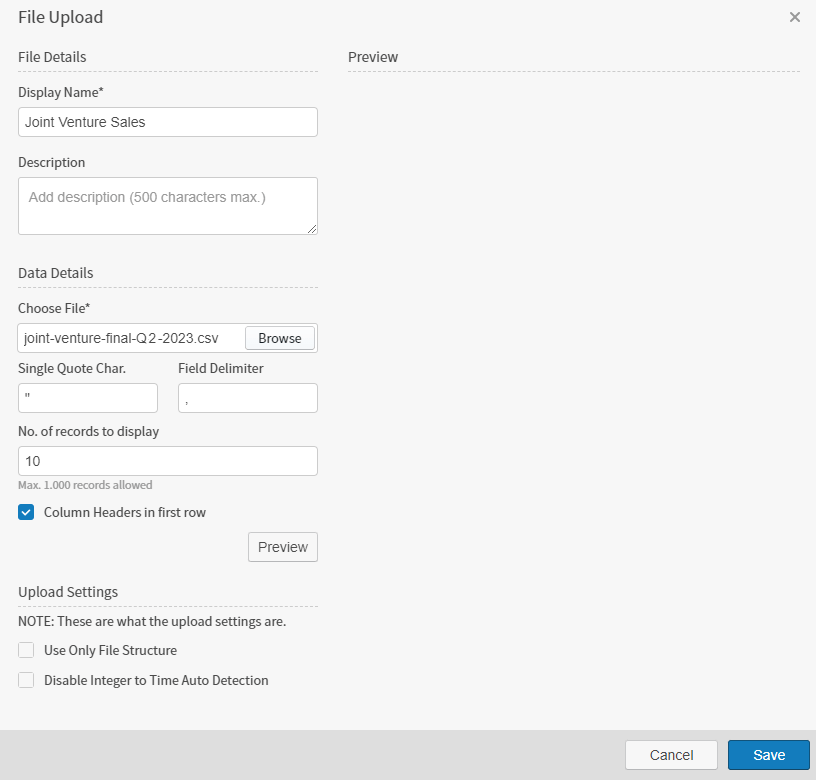 5. Enter File Details, such as a unique **Display Name**, and optional **Description**.
6. Use the **Browse** button to select a file to upload.
7. After you have selected a file, Self-Service Analytics may autofill the **Single Quote Char.** and Field **Delimiter** fields. Adjust if needed.
8. If needed, change the **No. of records to display** from 10 to up to 1,000 records.
9. Enable or disable the checkbox **Column Headers** in first row to match your file layout. If no column headers are in your data, Self-Service Analytics assigns numerical column headings, **field\_1**, **field\_2**, and so on.
10. Optionally, select **Preview** to preview your data.
11. Enable the checkbox **Use Only File Structure** to create the file using only the existing file structure, no data.
12. Enable the checkbox **Disable Integer to Time Auto Detection** to prevent auto detection of time fields.
13. Select **Save** to close the File Upload work area and continue creating or updating your data entity for this source.
5. Enter File Details, such as a unique **Display Name**, and optional **Description**.
6. Use the **Browse** button to select a file to upload.
7. After you have selected a file, Self-Service Analytics may autofill the **Single Quote Char.** and Field **Delimiter** fields. Adjust if needed.
8. If needed, change the **No. of records to display** from 10 to up to 1,000 records.
9. Enable or disable the checkbox **Column Headers** in first row to match your file layout. If no column headers are in your data, Self-Service Analytics assigns numerical column headings, **field\_1**, **field\_2**, and so on.
10. Optionally, select **Preview** to preview your data.
11. Enable the checkbox **Use Only File Structure** to create the file using only the existing file structure, no data.
12. Enable the checkbox **Disable Integer to Time Auto Detection** to prevent auto detection of time fields.
13. Select **Save** to close the File Upload work area and continue creating or updating your data entity for this source.
Edit an Existing File
1. Log in as a user with the **Administer Sources** or **Create New Data Sources** [privilege](/simba-embedded-analytics/docs/self-service-analytics/26.3/administer/users/aaa-ov#group-privilege-reference).
2. [Edit](/simba-embedded-analytics/docs/self-service-analytics/26.3/connect-to-data/sources/data-source-config-overview#edit-a-data-source) an existing data source.
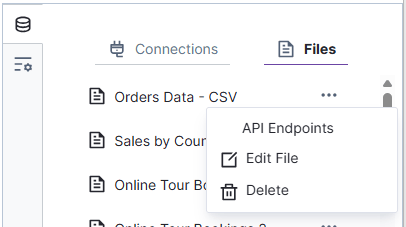
3. Select the data entity with the file you want to edit, then select **Edit File**. The File Upload work area opens.
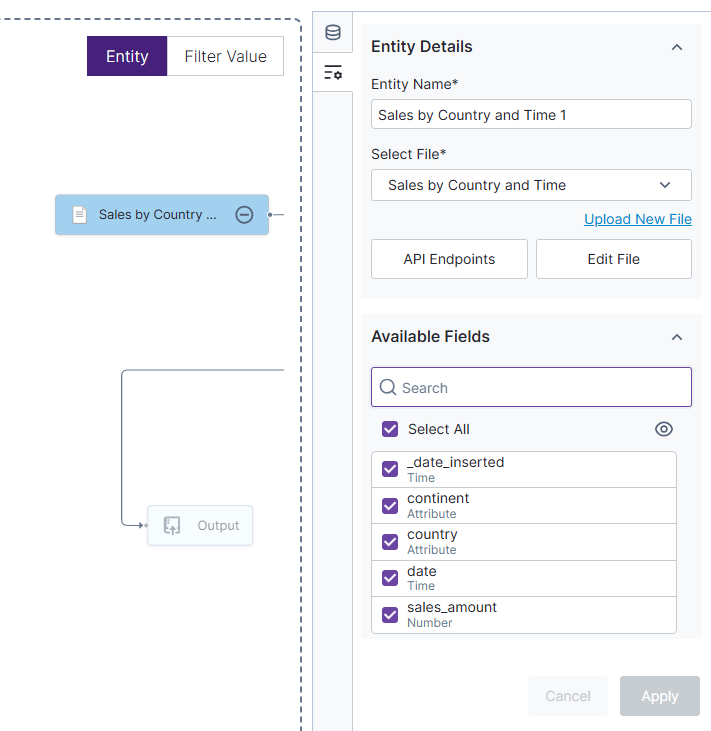 4. **Browse** for a new file.
* If you are replacing the existing file, your new file must use the same data file structure as the existing file. Enable the **Replace** checkbox in Upload Settings: previous data is replaced.
* If you are adding data to the existing file, your new file must use the same data file structure as the existing file. Disable the **Replace** checkbox in Upload Settings: previous data is appended with new rows of data.
4. **Browse** for a new file.
* If you are replacing the existing file, your new file must use the same data file structure as the existing file. Enable the **Replace** checkbox in Upload Settings: previous data is replaced.
* If you are adding data to the existing file, your new file must use the same data file structure as the existing file. Disable the **Replace** checkbox in Upload Settings: previous data is appended with new rows of data.
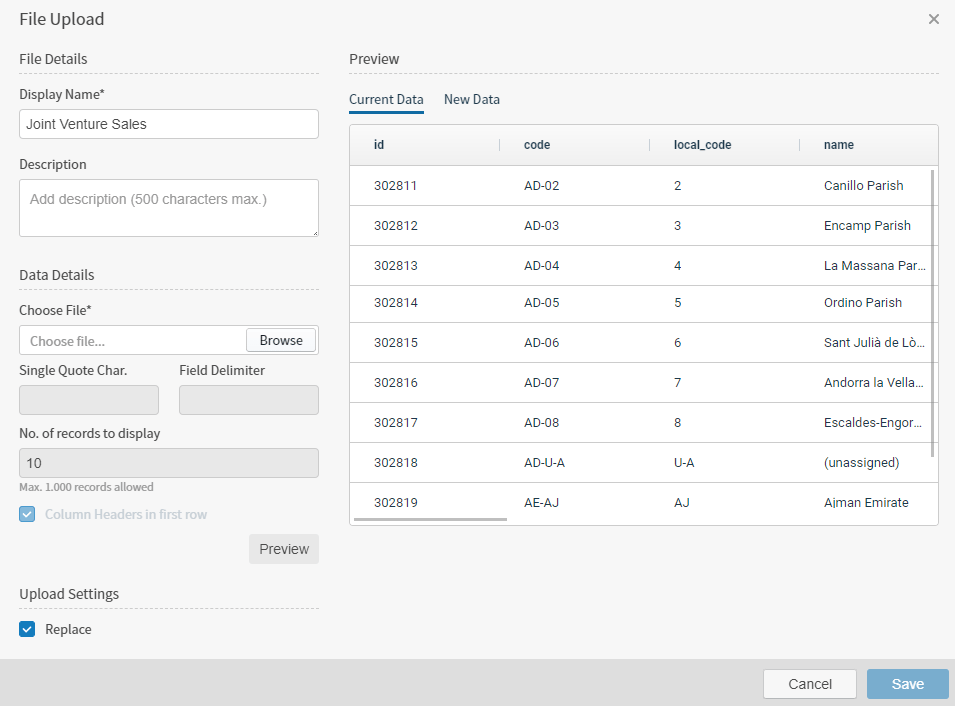 5. Select **Preview** to preview your data.
* The Current Data tab shows the data of your existing file.
* The New Data shows the replaced or amended data preview.
6. Select Save to **Save** your changes or **Cancel** to discard your changes. The File Upload work area closes.
5. Select **Preview** to preview your data.
* The Current Data tab shows the data of your existing file.
* The New Data shows the replaced or amended data preview.
6. Select Save to **Save** your changes or **Cancel** to discard your changes. The File Upload work area closes.
API Endpoints
1. Log in as a user with the **Administer Sources** or **Create New Data Sources** [privilege](/simba-embedded-analytics/docs/self-service-analytics/26.3/administer/users/aaa-ov#group-privilege-reference).
2. [Edit](/simba-embedded-analytics/docs/self-service-analytics/26.3/connect-to-data/sources/data-source-config-overview#edit-a-data-source) an existing data source.
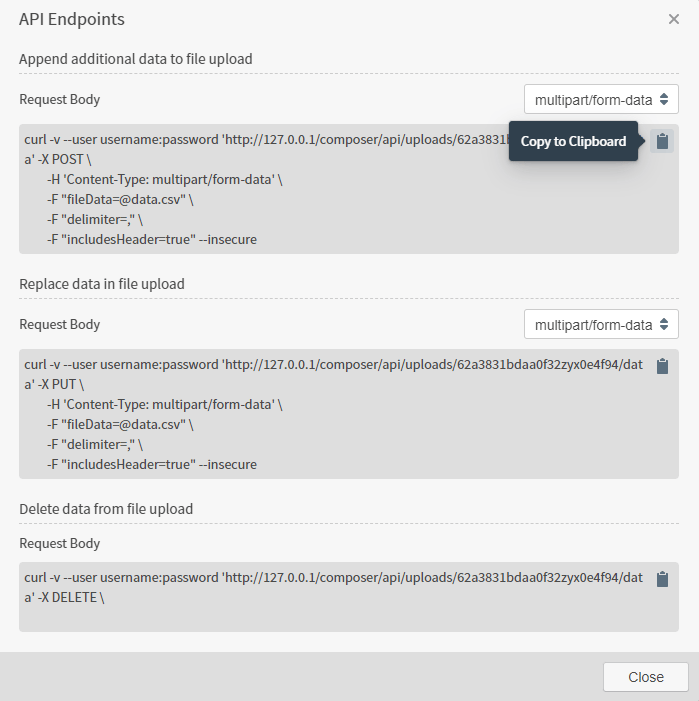
3. Select the data entity with the file you want to edit, then select **API Endpoints**. The API Endpoints work area opens.
4. The dialog offers convenient example cURL requests but the APIs can be leveraged from your preferred development platform.
5. Copy and modify the example cURL requests to include your own Self-Service Analytics credentials, replacing the placeholders for username and password. Select **Close** to close the dialog.
Delete a File
If you have the [privilege](/simba-embedded-analytics/docs/self-service-analytics/26.3/administer/users/aaa-ov#group-privilege-reference) to manage file uploads, you can delete uploaded files as needed. Select the Delete icon next to the file name in the **Files** tab of the Data Source panel.
Work with the Upload API
There are two operations that can be performed using the Upload API: appending additional data and clearing previously uploaded data. The source creation page offers convenient example cURL requests but the APIs can be leveraged from your preferred development platform. Select API Endpoints on the [source creation tab](/simba-embedded-analytics/docs/self-service-analytics/26.3/connect-to-data/sources/data-source-config-source-creation-tab) to edit your data.
Modify the example cURL requests to include your own Self-Service Analytics credentials, replacing the placeholders for username and password.
```bash theme={null}
curl -v --user :
```
Example: Append Data
In the following example, the Upload API accepts an array of JSON objects. Note that the object field types must match those used to create the Upload API source originally. For example, if the value of the ***price*** field is a number, you can not upload new rows in which the value of the ***price*** field is a string.
```bash theme={null}
curl -v --user : 'https:/// composer/api/upload/' -X POST -H "Content-Type: application/vnd.composer.v3+json" -d '[{"price":100.5,"venue_id":"V678","venue_name": "Pizza Barn"}]' --insecure
```
Example: Clear Previously Uploaded Data
In the example below, the Upload API will clear all previously uploaded data from the data source with the ID of ``.
```bash theme={null}
curl -v --user : 'https:/// api/upload/' -X DELETE --insecure
```
### Feature Support
File upload support for specific [features](/simba-embedded-analytics/docs/self-service-analytics/26.3/connect-to-data/connectors/connector-feature-support) is shown in the following table.
**Key:** **Y** - Supported; **N** - Not Supported; N/A - not applicable
| Feature | Supported? |
| -------------------------------------------------------------------------------------------------------------------------------------------------------------------------------------------- | ---------- |
| [Admin-Defined Functions](/simba-embedded-analytics/docs/self-service-analytics/26.3/connect-to-data/data/admin-fx-ov) | **Y** |
| [Box Plots](/simba-embedded-analytics/docs/self-service-analytics/26.3/analyze-data/visuals/scatter-plot#box-plots) | **Y** |
| [Custom SQL Queries](/simba-embedded-analytics/docs/self-service-analytics/26.3/connect-to-data/connectors/connector-feature-support#custom-sql-queries-2) | **Y** |
| [Derived Fields (Row-Level Expressions)](/simba-embedded-analytics/docs/self-service-analytics/26.3/connect-to-data/data/derived-fields) | **Y** |
| [Distinct Counts](/simba-embedded-analytics/docs/self-service-analytics/26.3/connect-to-data/data/fx-aggregate#distinct-counts) | **Y** |
| [Fast Distinct Values](/simba-embedded-analytics/docs/self-service-analytics/26.3/connect-to-data/connectors/connector-feature-support#fast-distinct-values) | N/A |
| [Group By Multiple Fields](/simba-embedded-analytics/docs/self-service-analytics/26.3/connect-to-data/connectors/connector-feature-support#group-by-multiple-fields) | **Y** |
| [Group By Time](/simba-embedded-analytics/docs/self-service-analytics/26.3/connect-to-data/connectors/connector-feature-support#group-by-time) | **Y** |
| [Group By UNIX Time](/simba-embedded-analytics/docs/self-service-analytics/26.3/connect-to-data/connectors/connector-feature-support#group-by-unix-time) | **Y** |
| [Histogram Floating Point Values](/simba-embedded-analytics/docs/self-service-analytics/26.3/connect-to-data/connectors/connector-feature-support#histogram-floating-point-values) | **Y** |
| [Histograms](/simba-embedded-analytics/docs/self-service-analytics/26.3/analyze-data/visuals/bar-standard#bars-histograms) | **Y** |
| [Kerberos Authentication](/simba-embedded-analytics/docs/self-service-analytics/26.3/administer/security/kerberos-sso) | **N** |
| [Last Value](/simba-embedded-analytics/docs/self-service-analytics/26.3/connect-to-data/connectors/connector-feature-support#last-value) | **Y** |
| [Live Mode and Playback](/simba-embedded-analytics/docs/self-service-analytics/26.3/analyze-data/time-bar#live-mode-and-historical-playback) | **Y** |
| [Multivalued Fields](/simba-embedded-analytics/docs/self-service-analytics/26.3/connect-to-data/connectors/connector-feature-support#multivalued-fields-2) | N/A |
| [Nested Fields](/simba-embedded-analytics/docs/self-service-analytics/26.3/connect-to-data/data/nested-data-structures) | N/A |
| [Partitions](/simba-embedded-analytics/docs/self-service-analytics/26.3/connect-to-data/connectors/connector-feature-support#partitions) | **N** |
| [Pushdown Joins for Fusion Data Sources](/simba-embedded-analytics/docs/self-service-analytics/26.3/connect-to-data/sources/data-fusion-overview#optimize-joins) | **Y** |
| [Schemas](/simba-embedded-analytics/docs/self-service-analytics/26.3/connect-to-data/connectors/connector-feature-support#schemas-2) | **Y** |
| [Text Search](/simba-embedded-analytics/docs/self-service-analytics/26.3/connect-to-data/connectors/connector-feature-support#text-search) | N/A |
| [TLS](/simba-embedded-analytics/docs/self-service-analytics/26.3/connect-to-data/connectors/connector-feature-support#tls) | **Y** |
| [User Delegation](/simba-embedded-analytics/docs/self-service-analytics/26.3/connect-to-data/connectors/connectors-ov#enable-user-delegation) | **N** |
| [Wildcard Filters](/simba-embedded-analytics/docs/self-service-analytics/26.3/analyze-data/filters/filters-attr#apply-wildcard-filters-to-a-visual-filter-snippet-or-dashboard) | **Y** |
| [Wildcard Filters, Case-Insensitive Mode](/simba-embedded-analytics/docs/self-service-analytics/26.3/connect-to-data/connectors/connector-feature-support#wildcard-case-insensitive-filters) | **Y** |
| [Wildcard Filters, Case-Sensitive Mode](/simba-embedded-analytics/docs/self-service-analytics/26.3/connect-to-data/connectors/connector-feature-support#wildcard-case-sensitive-filters) | **Y** |
Before you can establish a connection from Self-Service Analytics to your file uploads storage, a connector server needs to be installed and configured. See [Manage Connectors and Connector Servers](/simba-embedded-analytics/docs/self-service-analytics/26.3/connect-to-data/connectors/connectors-ov#manage-connectors-and-connector-servers) for general instructions.
After the connector has been set up, create a data source configuration and upload your file or files to that source.