> ## Documentation Index
> Fetch the complete documentation index at: https://insightsoftware.mintlify.site/llms.txt
> Use this file to discover all available pages before exploring further.

# Manage the BigQuery Connector

> Describes the BigQuery connector.

The Self-Service Analytics BigQuery connector lets you access the data available in Google BigQuery storage using the Self-Service Analytics client. The Self-Service Analytics BigQuery connector supports the current version of this software as a microservice (SaaS) product.

The Self-Service Analytics BigQuery connector is a cloud connector that connects to Google BigQuery via the BigQuery API. See [Manage Connectors and Connector Servers](/simba-embedded-analytics/docs/self-service-analytics/26.3/connect-to-data/connectors/connectors-ov#manage-connectors-and-connector-servers) for general instructions and [Connect to BigQuery](#connect-to-bigquery) for details specific to the BigQuery connector.

After setting up the connector, create data sources that specify the necessary connection information and identify the data you want to use. See [Create and Manage Data Sources](/simba-embedded-analytics/docs/self-service-analytics/26.3/connect-to-data/sources/data-source-config-overview) for more information. After you set up your data sources, create [dashboards](/simba-embedded-analytics/docs/self-service-analytics/26.3/analyze-data/dashboards/dash-manage#create-dashboards), [self service reports](/simba-embedded-analytics/docs/self-service-analytics/26.3/analyze-data/ssr-manage), and [visuals](/simba-embedded-analytics/docs/self-service-analytics/26.3/analyze-data/visuals/visual-add-dash#create-and-add-visuals-to-the-visual-gallery) from the data in these data sources.

### Feature Support

Connector support for specific [features](/simba-embedded-analytics/docs/self-service-analytics/26.3/connect-to-data/connectors/connector-feature-support) is shown in the following table.

**Key:** **Y** - Supported; **N** - Not Supported; N/A - not applicable

| Feature                                                                                                                                                                                      | Supported? |
| -------------------------------------------------------------------------------------------------------------------------------------------------------------------------------------------- | ---------- |
| [Admin-Defined Functions](/simba-embedded-analytics/docs/self-service-analytics/26.3/connect-to-data/data/admin-fx-ov)                                                                       | **Y**      |
| [Box Plots](/simba-embedded-analytics/docs/self-service-analytics/26.3/analyze-data/visuals/scatter-plot#box-plots)                                                                          | **Y**      |
| [Custom SQL Queries](/simba-embedded-analytics/docs/self-service-analytics/26.3/connect-to-data/connectors/connector-feature-support#custom-sql-queries-2)                                   | **Y**      |
| [Derived Fields (Row-Level Expressions)](/simba-embedded-analytics/docs/self-service-analytics/26.3/connect-to-data/data/derived-fields)                                                     | **Y**      |
| [Distinct Counts](/simba-embedded-analytics/docs/self-service-analytics/26.3/connect-to-data/data/fx-aggregate#distinct-counts)                                                              | **Y**      |
| [Fast Distinct Values](/simba-embedded-analytics/docs/self-service-analytics/26.3/connect-to-data/connectors/connector-feature-support#fast-distinct-values)                                 | N/A        |
| [Group By Multiple Fields](/simba-embedded-analytics/docs/self-service-analytics/26.3/connect-to-data/connectors/connector-feature-support#group-by-multiple-fields)                         | **Y**      |
| [Group By Time](/simba-embedded-analytics/docs/self-service-analytics/26.3/connect-to-data/connectors/connector-feature-support#group-by-time)                                               | **Y**      |
| [Group By UNIX Time](/simba-embedded-analytics/docs/self-service-analytics/26.3/connect-to-data/connectors/connector-feature-support#group-by-unix-time)                                     | **Y**      |
| [Histogram Floating Point Values](/simba-embedded-analytics/docs/self-service-analytics/26.3/connect-to-data/connectors/connector-feature-support#histogram-floating-point-values)           | **Y**      |
| [Histograms](/simba-embedded-analytics/docs/self-service-analytics/26.3/analyze-data/visuals/bar-standard#bars-histograms)                                                                   | **Y**      |
| [Kerberos Authentication](/simba-embedded-analytics/docs/self-service-analytics/26.3/administer/security/kerberos-sso)                                                                       | N/A        |
| [Last Value](/simba-embedded-analytics/docs/self-service-analytics/26.3/connect-to-data/connectors/connector-feature-support#last-value)                                                     | **Y**      |
| [Live Mode and Playback](/simba-embedded-analytics/docs/self-service-analytics/26.3/analyze-data/time-bar#live-mode-and-historical-playback)                                                 | **Y**      |
| [Multivalued Fields](/simba-embedded-analytics/docs/self-service-analytics/26.3/connect-to-data/connectors/connector-feature-support#multivalued-fields-2)                                   | N/A        |
| [Nested Fields](/simba-embedded-analytics/docs/self-service-analytics/26.3/connect-to-data/data/nested-data-structures)                                                                      | N/A        |
| [Partitions](/simba-embedded-analytics/docs/self-service-analytics/26.3/connect-to-data/connectors/connector-feature-support#partitions)                                                     | **Y**      |
| [Pushdown Joins for Fusion Data Sources](/simba-embedded-analytics/docs/self-service-analytics/26.3/connect-to-data/sources/data-fusion-overview#optimize-joins)                             | **Y**      |
| [Schemas](/simba-embedded-analytics/docs/self-service-analytics/26.3/connect-to-data/connectors/connector-feature-support#schemas-2)                                                         | **Y**      |
| [Text Search](/simba-embedded-analytics/docs/self-service-analytics/26.3/connect-to-data/connectors/connector-feature-support#text-search)                                                   | N/A        |
| [TLS](/simba-embedded-analytics/docs/self-service-analytics/26.3/connect-to-data/connectors/connector-feature-support#tls)                                                                   | N/A        |
| [User Delegation](/simba-embedded-analytics/docs/self-service-analytics/26.3/connect-to-data/connectors/connectors-ov#enable-user-delegation)                                                | **N**      |
| [Wildcard Filters](/simba-embedded-analytics/docs/self-service-analytics/26.3/analyze-data/filters/filters-attr#apply-wildcard-filters-to-a-visual-filter-snippet-or-dashboard)              | **Y**      |
| [Wildcard Filters, Case-Insensitive Mode](/simba-embedded-analytics/docs/self-service-analytics/26.3/connect-to-data/connectors/connector-feature-support#wildcard-case-insensitive-filters) | **Y**      |
| [Wildcard Filters, Case-Sensitive Mode](/simba-embedded-analytics/docs/self-service-analytics/26.3/connect-to-data/connectors/connector-feature-support#wildcard-case-sensitive-filters)     | **Y**      |

<h3 id="connect-to-bigquery">
  Connect to BigQuery
</h3>

When connecting to BigQuery, provide the following information:

* Key Path: you have to specify the absolute path to the file that must be available for the connector.
* Public Project IDs.

For more information about these values, refer to Google BigQuery's documentation.

#### Authorize the BigQuery Connection

To authorize the BigQuery connection, you need to create a security key for it. Before you can create the security key, you must access or create a BigQuery microservice account.

**Create a BigQuery microservice account**

1. Login to your Google API Console.

2. Select the required project from the list.

3. Make sure that current account is linked to a billing account. To check this, select the menu (<img src="https://mintcdn.com/insightsoftware/sLccJ1EJ28cO5lT_/simba-embedded-analytics/docs/self-service-analytics/26.3/images/icons/google-api-console-menu.png?fit=max&auto=format&n=sLccJ1EJ28cO5lT_&q=85&s=0a7d543b9f56233fb502e89d6e42dafe" alt="" width="17" height="15" noZoom style={{display: 'inline', verticalAlign: 'middle', width: '17px', height: '15px', margin: '0 2px'}} data-path="simba-embedded-analytics/docs/self-service-analytics/26.3/images/icons/google-api-console-menu.png" />) icon and then select **Billing**.

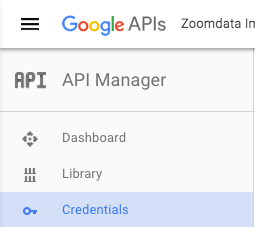
4. On the API Manager page, select **Credentials**:
   <img src="https://mintcdn.com/insightsoftware/2cXq_sDOxrDVXUcv/simba-embedded-analytics/docs/self-service-analytics/26.3/images/connectors/bigquery-selecting-credentials-menu.png?fit=max&auto=format&n=2cXq_sDOxrDVXUcv&q=85&s=589da006dc360d9e774f59deb280a1d2" alt="" width="255" height="227" data-path="simba-embedded-analytics/docs/self-service-analytics/26.3/images/connectors/bigquery-selecting-credentials-menu.png" />

5. On the Credentials page, select **Manage service accounts**.

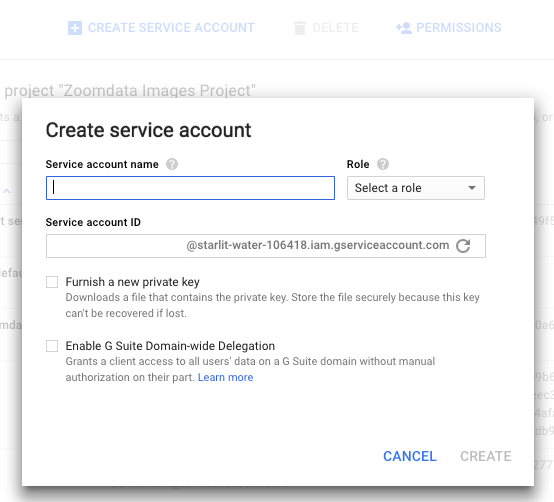
6. On the Service Accounts page, select **Create Service Account** and specify the following:

   * Service account name
   * Role - grant this microservice account role based access to the project. From the list, select the **BigQuery** category and then select **BigQuery Data Viewer** and **BigQuery User** roles.
   * Service account ID
   <img src="https://mintcdn.com/insightsoftware/2cXq_sDOxrDVXUcv/simba-embedded-analytics/docs/self-service-analytics/26.3/images/connectors/bigquery-create-service-account.png?fit=max&auto=format&n=2cXq_sDOxrDVXUcv&q=85&s=a7f9fb8265cd6358153909de39231786" alt="" width="554" height="502" data-path="simba-embedded-analytics/docs/self-service-analytics/26.3/images/connectors/bigquery-create-service-account.png" />

7. Select **Create**.

After you have created an account, create a security key for it.

**Create a security key**

1. On the **Service Accounts** page, find the required account.

2. From the menu, select **Create key**.

3. In the Create private key dialog, select **JSON** for the key type and select **Create**. The local copy of the key is saved on your computer.

   For more information, see the following Google resource: [BigQuery Introduction to Authentication](https://cloud.google.com/bigquery/docs/authentication/).

4. Move the file with the key to the server, on which the connector is running.

### Connect to BigQuery Using OAuth

To create a BigQuery connection use one of the available authentication methods:

* Key authentication flow requires a security key to be generated at BigQuery and placed to the Self-Service Analytics instance.
* OAuth 2.0 requires providing OAuth `client_id` and `client_secrets` generated for a user that will serve for data retrieval, such as an integration user. Users are asked to authenticate via a separate authentication form. Users provide their individual credentials when accessing the data retrieved using this connection.

If both authentication methods are selected, connection via OAuth will have higher priority over key authentication except for the scheduled overrides setup.

<table>
  <thead>
    <tr>
      <th />

      <th>Authentication Flow</th>

      <th />
    </tr>
  </thead>

  <tbody>
    <tr>
      <td>Key Path</td>
      <td rowSpan={2}>Key Authentication</td>
      <td>Absolute path to the key authentication file obtained from BigQuery and placed to Self-Service Analytics instance.</td>
    </tr>

    <tr>
      <td>Public Project Ids</td>
      <td>List of public project IDs that will be queried for the data.</td>
    </tr>

    <tr>
      <td>**OAuth 2.0 Enabled**</td>
      <td rowSpan={4}>OAuth 2.0</td>
      <td>TRUE/FALSE</td>
    </tr>

    <tr>
      <td>**Project Id**</td>

      <td>
        Billing project ID that will be queried for the data.

        <br />

        <Note>
          Optional if keys authentication is used.
        </Note>

        <br />

        <Warning>
          Mandatory if OAuth 2.0 connection is enabled.
        </Warning>
      </td>
    </tr>

    <tr>
      <td>**OAuth 2.0 Client Id**</td>

      <td>
        `client_id`: Obtain from BigQuery.

        <br />

        See [https://cloud.google.com/bigquery/docs/authentication/end-user-installed](https://cloud.google.com/bigquery/docs/authentication/end-user-installed).
      </td>
    </tr>

    <tr>
      <td>**OAuth 2.0 Client Secrets**</td>

      <td>
        `client_secrets`: Obtain from BigQuery.

        <br />

        See [https://cloud.google.com/bigquery/docs/authentication/end-user-installed](https://cloud.google.com/bigquery/docs/authentication/end-user-installed).
      </td>
    </tr>
  </tbody>
</table>

#### Scheduled Override Options

To maintain Self-Service Analytics's ability to perform scheduled operations such as scheduled dashboard reports, alerts notifications, and more when using OAuth 2.0 authentication flow, you can setup scheduled overrides with key authentication method by providing a key path.

Additional OAuth 2.0 parameters available for override, however, already have prepopulated BigQuery values and do not require manual editing:

* `OAUTH2.AUTHORIZATION_URI`
* `OAUTH2.TOKEN_URI`
* `OAUTH2.SCOPES`

<Note>
  Scheduled source refresh is not available when you use OAuth 2.0 authentication.
</Note>

To avoid frequent authentication requests for users, Self-Service Analytics operates with long-lived tokens and preemptively refreshes the tokens when they are close to expiration.

<Warning>
  Users' OAuth sessions are terminated when the OAuth token is revoked, if the connection is deleted, or connection details are modified.
</Warning>
