> ## Documentation Index
> Fetch the complete documentation index at: https://insightsoftware.mintlify.site/llms.txt
> Use this file to discover all available pages before exploring further.
# Export Visuals
> You can export your visuals in a variety of formats.
Export your visuals in a variety of formats, as an image or data you can share with others. To export visuals for import into another instance of your software, see [Export Visual Gallery Visuals](/simba-embedded-analytics/docs/self-service-analytics/26.3/analyze-data/visuals/visual-gallery#export-visual-gallery-visuals).
Exports do not support special characters. If names associated with your visual, such as visual name, display name, or data source name contain special characters, update the name before export.
You can export your data from your visuals in several formats:
* Screenshot (PNG) - an image
* PDF - an image
* Visual Data
* CSV - Comma separated values file
* XLSX - Excel compatible file
* Raw Data
* CSV - Comma separated values file
* XLSX - Excel compatible file
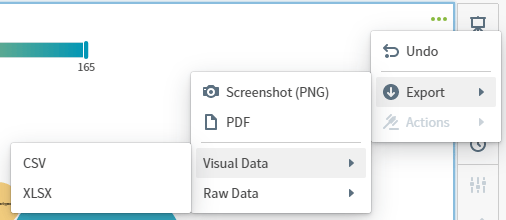 Grouped table data can not be exported as raw or aggregate visual data.
The number of records included is limited by the setting of the `zoomdata.export.data.max.rows` property in the `zoomdata.properties` file. See [Configuration Property Files](/simba-embedded-analytics/docs/self-service-analytics/26.3/administer/configure/config-mgmt-ov#configuration-property-files).
## Export a Visual as XLSX With Formatting
Table visuals can export to Excel (XLSX) files with formatting and conditional formatting when the [report service](/simba-embedded-analytics/docs/self-service-analytics/26.3/administer/configure/config-mgmt-ov#server-level-variables) is [enabled](/simba-embedded-analytics/docs/self-service-analytics/26.3/get-started/arch-microservice#self-service-report-microservice).
1. Select **Export** from the [visual drop-down menu](/simba-embedded-analytics/docs/self-service-analytics/26.3/analyze-data/visuals/visual-setup#use-the-visual-drop-down-menu). Select the export option **XLSX With Formatting**.
2. The Export as XLSX dialog opens.
Grouped table data can not be exported as raw or aggregate visual data.
The number of records included is limited by the setting of the `zoomdata.export.data.max.rows` property in the `zoomdata.properties` file. See [Configuration Property Files](/simba-embedded-analytics/docs/self-service-analytics/26.3/administer/configure/config-mgmt-ov#configuration-property-files).
## Export a Visual as XLSX With Formatting
Table visuals can export to Excel (XLSX) files with formatting and conditional formatting when the [report service](/simba-embedded-analytics/docs/self-service-analytics/26.3/administer/configure/config-mgmt-ov#server-level-variables) is [enabled](/simba-embedded-analytics/docs/self-service-analytics/26.3/get-started/arch-microservice#self-service-report-microservice).
1. Select **Export** from the [visual drop-down menu](/simba-embedded-analytics/docs/self-service-analytics/26.3/analyze-data/visuals/visual-setup#use-the-visual-drop-down-menu). Select the export option **XLSX With Formatting**.
2. The Export as XLSX dialog opens.
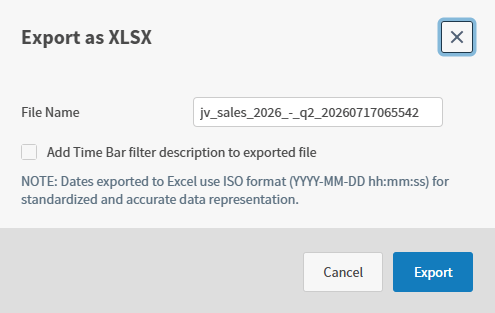 3. Accept or change the file name.
4. Select **Export**. Self-Service Analytics prepares an Excel (XLSX) file downloaded by your browser.
Control whether a visual can be exported in your embedded environment using the interactivity sidebar. See [Control How Users Interact With a Visual](/simba-embedded-analytics/docs/self-service-analytics/26.3/analyze-data/visuals/visual-interactivity).
For more information, see the following articles:
* [Export Visual Gallery Visuals](/simba-embedded-analytics/docs/self-service-analytics/26.3/analyze-data/visuals/visual-gallery#export-visual-gallery-visuals)
* [Export a Visual as an Image](#export-a-visual-as-an-image)
* [Export Visual Data in CSV or XLSX Format](#export-visual-data-in-csv-or-xlsx-format)
* [Export Raw Data in CSV or XLSX Format](#export-raw-data-in-csv-or-xlsx-format)
3. Accept or change the file name.
4. Select **Export**. Self-Service Analytics prepares an Excel (XLSX) file downloaded by your browser.
Control whether a visual can be exported in your embedded environment using the interactivity sidebar. See [Control How Users Interact With a Visual](/simba-embedded-analytics/docs/self-service-analytics/26.3/analyze-data/visuals/visual-interactivity).
For more information, see the following articles:
* [Export Visual Gallery Visuals](/simba-embedded-analytics/docs/self-service-analytics/26.3/analyze-data/visuals/visual-gallery#export-visual-gallery-visuals)
* [Export a Visual as an Image](#export-a-visual-as-an-image)
* [Export Visual Data in CSV or XLSX Format](#export-visual-data-in-csv-or-xlsx-format)
* [Export Raw Data in CSV or XLSX Format](#export-raw-data-in-csv-or-xlsx-format)
Export a Visual as an Image
**Export a visual as a screenshot or PDF**
1. Select **Export** from the [visual drop-down menu](/simba-embedded-analytics/docs/self-service-analytics/26.3/analyze-data/visuals/visual-setup#use-the-visual-drop-down-menu). Select an export option for your visual.
2. Select an image format on the submenu, **Screenshot (PNG)** or **PDF**.
3. If you select **Screenshot (PNG)**, the screenshot is prepared, and automatically downloaded by your browser.
4. If you select **PDF**, the Export as PDF dialog opens.
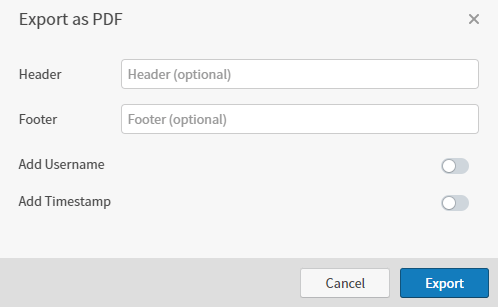 5. Use this work area to optionally:
1. Enter a header and footer for your PDF.
2. Enable **Add Username** to include your user name on the PDF.
3. Enable **Add Timestamp** to add a date and time stamp to the PDF.
6. Select **Export**. Self-Service Analytics prepares a PDF downloaded by your browser.
The number of records included is limited by the setting of the `zoomdata.export.data.max.rows` property in the `zoomdata.properties` file. See [Configuration Property Files](/simba-embedded-analytics/docs/self-service-analytics/26.3/administer/configure/config-mgmt-ov#configuration-property-files).
When you export raw data from your visuals to XLSX, numeric fields are exported as numbers. Dates are exported as dates in ISO 8601 format. When you export raw data to csv format, both numeric and date fields are exported as strings..
**Export raw data in CSV format**
1. Select **Export** from the [visual drop-down menu](/simba-embedded-analytics/docs/self-service-analytics/26.3/analyze-data/visuals/visual-setup#use-the-visual-drop-down-menu). Select an export option for your visual.
2. Select a file format on the submenu, **Raw Data > CSV**.
3. The Export as CSV dialog opens.
5. Use this work area to optionally:
1. Enter a header and footer for your PDF.
2. Enable **Add Username** to include your user name on the PDF.
3. Enable **Add Timestamp** to add a date and time stamp to the PDF.
6. Select **Export**. Self-Service Analytics prepares a PDF downloaded by your browser.
The number of records included is limited by the setting of the `zoomdata.export.data.max.rows` property in the `zoomdata.properties` file. See [Configuration Property Files](/simba-embedded-analytics/docs/self-service-analytics/26.3/administer/configure/config-mgmt-ov#configuration-property-files).
When you export raw data from your visuals to XLSX, numeric fields are exported as numbers. Dates are exported as dates in ISO 8601 format. When you export raw data to csv format, both numeric and date fields are exported as strings..
**Export raw data in CSV format**
1. Select **Export** from the [visual drop-down menu](/simba-embedded-analytics/docs/self-service-analytics/26.3/analyze-data/visuals/visual-setup#use-the-visual-drop-down-menu). Select an export option for your visual.
2. Select a file format on the submenu, **Raw Data > CSV**.
3. The Export as CSV dialog opens.
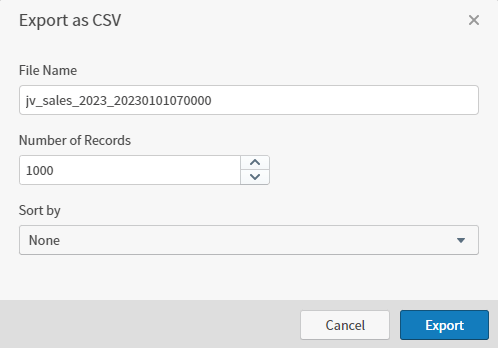 4. Accept or change the default settings:
* Accept or change the file name.
* Specify the **Number of Records** to include in the export. The default is 1,000.
The number of records you can specify is limited by the setting of the `zoomdata.export.data.max.rows` property in the `zoomdata.properties` file. See [Configuration Property Files](/simba-embedded-analytics/docs/self-service-analytics/26.3/administer/configure/config-mgmt-ov#configuration-property-files).
* Select a field to sort the data included in the export. The default for **Sort by** field is none. Depending on the field type selected, you have sort order options you can use to organize your data.
5. Select **Export**. Self-Service Analytics prepares a CSV file downloaded by your browser.
The number of records included is limited by the setting of the `zoomdata.export.data.max.rows` property in the `zoomdata.properties` file. See [Configuration Property Files](/simba-embedded-analytics/docs/self-service-analytics/26.3/administer/configure/config-mgmt-ov#configuration-property-files).
**Export raw data in XLSX format**
1. Select **Export** from the [visual drop-down menu](/simba-embedded-analytics/docs/self-service-analytics/26.3/analyze-data/visuals/visual-setup#use-the-visual-drop-down-menu). Select an export option for your visual.
2. Select a file format on the submenu, **Raw Data > XLSX**.
3. The Export as XLSX dialog opens.
4. Accept or change the default settings:
* Accept or change the file name.
* Specify the **Number of Records** to include in the export. The default is 1,000.
The number of records you can specify is limited by the setting of the `zoomdata.export.data.max.rows` property in the `zoomdata.properties` file. See [Configuration Property Files](/simba-embedded-analytics/docs/self-service-analytics/26.3/administer/configure/config-mgmt-ov#configuration-property-files).
* Select a field to sort the data included in the export. The default for **Sort by** field is none. Depending on the field type selected, you have sort order options you can use to organize your data.
5. Select **Export**. Self-Service Analytics prepares a CSV file downloaded by your browser.
The number of records included is limited by the setting of the `zoomdata.export.data.max.rows` property in the `zoomdata.properties` file. See [Configuration Property Files](/simba-embedded-analytics/docs/self-service-analytics/26.3/administer/configure/config-mgmt-ov#configuration-property-files).
**Export raw data in XLSX format**
1. Select **Export** from the [visual drop-down menu](/simba-embedded-analytics/docs/self-service-analytics/26.3/analyze-data/visuals/visual-setup#use-the-visual-drop-down-menu). Select an export option for your visual.
2. Select a file format on the submenu, **Raw Data > XLSX**.
3. The Export as XLSX dialog opens.
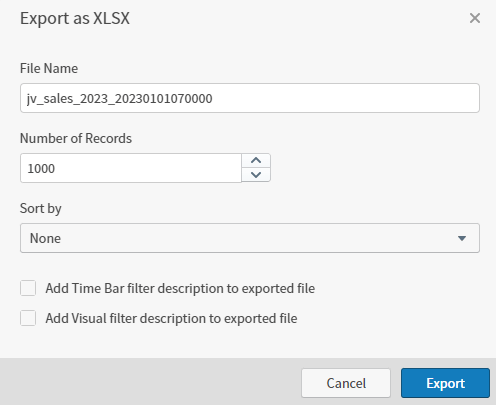 4. Accept or change the default settings:
* Accept or change the file name.
* Specify the **Number of Records** to include in the export. The default is 1,000.
The number of records you can specify is limited by the setting of the `zoomdata.export.data.max.rows` property in the `zoomdata.properties` file. See [Configuration Property Files](/simba-embedded-analytics/docs/self-service-analytics/26.3/administer/configure/config-mgmt-ov#configuration-property-files).
* Select a field to sort the data included in the export. The default for **Sort by** field is none. Depending on the field type selected, you have sort order options you can use to organize your data.
* Select **Add Time Bar filter description to exported file** to include in the export.
* Select **Add Visual filter description to exported file** to include in the export.
5. Select **Export**. Self-Service Analytics prepares an XLSX file downloaded by your browser.
The number of records included is limited by the setting of the `zoomdata.export.data.max.rows` property in the `zoomdata.properties` file. See [Configuration Property Files](/simba-embedded-analytics/docs/self-service-analytics/26.3/administer/configure/config-mgmt-ov#configuration-property-files).
**Export visual data in CSV or XLSX format**
1. Select **Export** from the [visual drop-down menu](/simba-embedded-analytics/docs/self-service-analytics/26.3/analyze-data/visuals/visual-setup#use-the-visual-drop-down-menu). Select an export option for your visual.
2. Select a file format on the submenu, **Visual Data > CSV** or **Visual Data > XLSX**.
3. If you select **CSV**, the Export as CSV dialog opens.
4. Accept or change the default settings:
* Accept or change the file name.
* Specify the **Number of Records** to include in the export. The default is 1,000.
The number of records you can specify is limited by the setting of the `zoomdata.export.data.max.rows` property in the `zoomdata.properties` file. See [Configuration Property Files](/simba-embedded-analytics/docs/self-service-analytics/26.3/administer/configure/config-mgmt-ov#configuration-property-files).
* Select a field to sort the data included in the export. The default for **Sort by** field is none. Depending on the field type selected, you have sort order options you can use to organize your data.
* Select **Add Time Bar filter description to exported file** to include in the export.
* Select **Add Visual filter description to exported file** to include in the export.
5. Select **Export**. Self-Service Analytics prepares an XLSX file downloaded by your browser.
The number of records included is limited by the setting of the `zoomdata.export.data.max.rows` property in the `zoomdata.properties` file. See [Configuration Property Files](/simba-embedded-analytics/docs/self-service-analytics/26.3/administer/configure/config-mgmt-ov#configuration-property-files).
**Export visual data in CSV or XLSX format**
1. Select **Export** from the [visual drop-down menu](/simba-embedded-analytics/docs/self-service-analytics/26.3/analyze-data/visuals/visual-setup#use-the-visual-drop-down-menu). Select an export option for your visual.
2. Select a file format on the submenu, **Visual Data > CSV** or **Visual Data > XLSX**.
3. If you select **CSV**, the Export as CSV dialog opens.
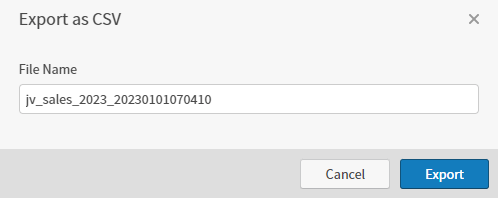 Accept or change the file name, then select **Export**. Self-Service Analytics prepares a CSV file downloaded by your browser.
4. If you select **XLSX**, the Export as XLSX dialog opens.
Accept or change the file name, then select **Export**. Self-Service Analytics prepares a CSV file downloaded by your browser.
4. If you select **XLSX**, the Export as XLSX dialog opens.
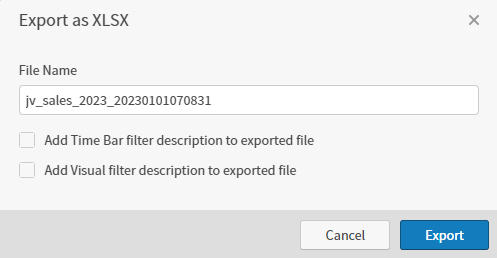 Accept or change the default settings:
* Accept or change the file name.
* Select **Add Time Bar filter description to exported file** to include in the export.
* Select **Add Visual filter description to exported file** to include in the export.
5. Select **Export**. Self-Service Analytics prepares an XLSX file downloaded by your browser.
The number of records included is limited by the setting of the `zoomdata.export.data.max.rows` property in the `zoomdata.properties` file. See [Configuration Property Files](/simba-embedded-analytics/docs/self-service-analytics/26.3/administer/configure/config-mgmt-ov#configuration-property-files).
When you [enable](/simba-embedded-analytics/docs/self-service-analytics/26.3/administer/configure/config-mgmt-ov#server-level-variables) self service report [microservice](/simba-embedded-analytics/docs/self-service-analytics/26.3/get-started/arch-microservice#self-service-report-microservice) in your environment, users can export self service reports and table visuals, complete with formatting and conditional formatting, to a formatted Excel (XLSX) file format.
Table visuals can export to Excel (XLSX) files with formatting and conditional formatting when the [report service](/simba-embedded-analytics/docs/self-service-analytics/26.3/administer/configure/config-mgmt-ov#server-level-variables) is [enabled](/simba-embedded-analytics/docs/self-service-analytics/26.3/get-started/arch-microservice#self-service-report-microservice).
1. Select **Export** from the [visual drop-down menu](/simba-embedded-analytics/docs/self-service-analytics/26.3/analyze-data/visuals/visual-setup#use-the-visual-drop-down-menu). Select the export option **XLSX With Formatting**.
2. The Export as XLSX dialog opens.
3. Accept or change the file name.
4. Select **Export**. Self-Service Analytics prepares an Excel (XLSX) file downloaded by your browser.
Accept or change the default settings:
* Accept or change the file name.
* Select **Add Time Bar filter description to exported file** to include in the export.
* Select **Add Visual filter description to exported file** to include in the export.
5. Select **Export**. Self-Service Analytics prepares an XLSX file downloaded by your browser.
The number of records included is limited by the setting of the `zoomdata.export.data.max.rows` property in the `zoomdata.properties` file. See [Configuration Property Files](/simba-embedded-analytics/docs/self-service-analytics/26.3/administer/configure/config-mgmt-ov#configuration-property-files).
When you [enable](/simba-embedded-analytics/docs/self-service-analytics/26.3/administer/configure/config-mgmt-ov#server-level-variables) self service report [microservice](/simba-embedded-analytics/docs/self-service-analytics/26.3/get-started/arch-microservice#self-service-report-microservice) in your environment, users can export self service reports and table visuals, complete with formatting and conditional formatting, to a formatted Excel (XLSX) file format.
Table visuals can export to Excel (XLSX) files with formatting and conditional formatting when the [report service](/simba-embedded-analytics/docs/self-service-analytics/26.3/administer/configure/config-mgmt-ov#server-level-variables) is [enabled](/simba-embedded-analytics/docs/self-service-analytics/26.3/get-started/arch-microservice#self-service-report-microservice).
1. Select **Export** from the [visual drop-down menu](/simba-embedded-analytics/docs/self-service-analytics/26.3/analyze-data/visuals/visual-setup#use-the-visual-drop-down-menu). Select the export option **XLSX With Formatting**.
2. The Export as XLSX dialog opens.
3. Accept or change the file name.
4. Select **Export**. Self-Service Analytics prepares an Excel (XLSX) file downloaded by your browser.