> ## Documentation Index
> Fetch the complete documentation index at: https://insightsoftware.mintlify.site/llms.txt
> Use this file to discover all available pages before exploring further.

# Number and Date Formatting for Visuals

> Administrators and users assigned data source privileges can configure number formatting for number fields in a data source.

## Configure Number Formatting

Formats for Number attributes [are set at the source](/simba-embedded-analytics/docs/self-service-analytics/26.3/connect-to-data/sources/data-source-config-fields-tab#settings-panel-fields-tab). You can override source formats by changing a visual directly, without affecting the underlying source format. For information on other settings that may apply to Number attributes, see [Configure Number Formatting - Data Sources](/simba-embedded-analytics/docs/self-service-analytics/26.3/connect-to-data/data/data-number-formatting).

<Note>
  You can also override formatting for the Time attribute at the visual level. See [Configure Date and Time Formatting](#configure-date-and-time-formatting).
</Note>

<h2 id="configure-formatting-number-attributes">
  Configure Formatting - Number Attributes
</h2>

1. Select the visual with time attributes you want to format in a dashboard or the visual gallery.

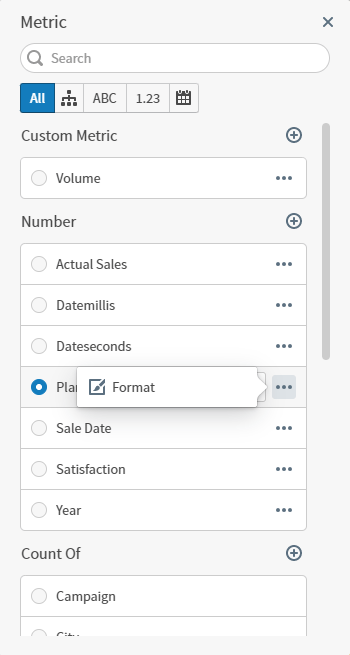
2. Select a Metric, X or Y axis, Group, Color, Trend line, size, or other available measure. A dialog for your selection opens.

   <img src="https://mintcdn.com/insightsoftware/cQU1Auv4yvPMjcip/simba-embedded-analytics/docs/self-service-analytics/26.3/images/visuals/vis-num-metric-select-format-23-1.png?fit=max&auto=format&n=cQU1Auv4yvPMjcip&q=85&s=9f5012076dfb36bc89c01876953a69eb" alt="Select Format to format a numeric attribute" width="350" height="655" data-path="simba-embedded-analytics/docs/self-service-analytics/26.3/images/visuals/vis-num-metric-select-format-23-1.png" />

3. Locate your number field using **Search**, or navigate to the field or fields you want to format. Select the menu <img src="https://mintcdn.com/insightsoftware/sLccJ1EJ28cO5lT_/simba-embedded-analytics/docs/self-service-analytics/26.3/images/icons/more-menu.png?fit=max&auto=format&n=sLccJ1EJ28cO5lT_&q=85&s=1471c7a569a7e100cd7fa4083b04551a" alt="Selet the three dots icon to open a show more menu or take actions for the named column" width="21" height="12" noZoom style={{display: 'inline', verticalAlign: 'middle', width: '21px', height: '12px', margin: '0 2px'}} data-path="simba-embedded-analytics/docs/self-service-analytics/26.3/images/icons/more-menu.png" /> for a field, then select Format. The **Format: \<field>** work area opens.
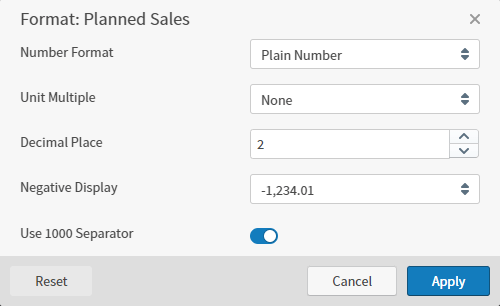
   <img src="https://mintcdn.com/insightsoftware/cQU1Auv4yvPMjcip/simba-embedded-analytics/docs/self-service-analytics/26.3/images/visuals/vis-num-format-work-area-23-1.png?fit=max&auto=format&n=cQU1Auv4yvPMjcip&q=85&s=e0b0bd047fa3f9fdc6b65d125357f793" alt="Use this work area to format your numeric field attribute on a visual metric" width="384" height="235" data-path="simba-embedded-analytics/docs/self-service-analytics/26.3/images/visuals/vis-num-format-work-area-23-1.png" />

4. Define your format options, and select **Apply** to apply to this field.

5. Repeat for all fields you want to modify.

   <Note>
     To clear your applied changes to a field, open the formatting work area and select **Reset**.
   </Note>

### Format Options Number Attributes

Select one of the following number formats in the drop-down list in the Number Format box. The other fields on the Format dialog change based on the number format you select.

* **Plain Number**: Select this format to display the field as plain number values. Additional format information you can select includes:

  | Format Option      | Description                                                                                                                                                                                                                                                                                       |
  | ------------------ | ------------------------------------------------------------------------------------------------------------------------------------------------------------------------------------------------------------------------------------------------------------------------------------------------- |
  | Unit Multiple      | Select the unit of measure you want to use for the field from the drop-down list. Valid values are **None**, **Thousands (K)**, **Millions (M)**, **Billions (B)**, and **Trillions (T)**. The unit multiple is used in visuals. For example, a value of 1,500,000 would show as 1.5M in visuals. |
  | Decimal Place      | Specify the number of decimal places used in the data.                                                                                                                                                                                                                                            |
  | Negative Display   | Select the desired negative value format from the drop-down list. Valid values are the dash (-) in front of a negative value or parentheses surrounding negative values. For example, value of negative 30 could show as -30 or (30) in visuals.                                                  |
  | Use 1000 Separator | If you want commas used to separate number values into thousands, millions, billions, and trillions, check the **Use 1000 Separator** box. For example, if this box is checked, 2500 appears as 2,500 in visuals.                                                                                 |

* **Percentage**: Select this format to display the field as percentage values. Additional format information you can select includes:

  | Format Option      | Description                                                                                                                                                                                                                                                         |
  | ------------------ | ------------------------------------------------------------------------------------------------------------------------------------------------------------------------------------------------------------------------------------------------------------------- |
  | Decimal Place      | Specify the number of decimal places used in the data.                                                                                                                                                                                                              |
  | Negative Display   | Select the desired negative value format from the drop-down list. Valid values are the dash (-) in front of a negative value or parentheses surrounding negative values. For example, value of negative 30.25 percent could show as -30.25% or (30.25%) in visuals. |
  | Use 1000 Separator | If you want commas used to separate number values into thousands, millions, billions, and trillions, check the **Use 1000 Separator** box.                                                                                                                          |

* **Money**: Select this format to display the field as currency values. Additional format information you can select includes:

  | Format Option      | Description                                                                                                                                                                                                                                                                                       |
  | ------------------ | ------------------------------------------------------------------------------------------------------------------------------------------------------------------------------------------------------------------------------------------------------------------------------------------------- |
  | Symbol             | Select the currency symbol you want used for money values in visuals.                                                                                                                                                                                                                             |
  | Unit Multiple      | Select the unit of measure you want to use for the field from the drop-down list. Valid values are **None**, **Thousands (K)**, **Millions (M)**, **Billions (B)**, and **Trillions (T)**. The unit multiple is used in visuals. For example, a value of 1,500,000 would show as 1.5M in visuals. |
  | Decimal Place      | Specify the number of decimal places used in the data.                                                                                                                                                                                                                                            |
  | Negative Display   | Select the desired negative value format from the drop-down list. Valid values are the dash (-) in front of a negative value or parentheses surrounding negative values. For example, value of negative 30 dollars and 25 cents could show as -\$30.25 or (\$30.25) in visuals.                   |
  | Use 1000 Separator | If you want commas used to separate number values into thousands, millions, billions, and trillions, check the **Use 1000 Separator** box.                                                                                                                                                        |

* **Storage**: Select this format to display the field as computer storage values. Additional format information you can select includes:

  | Format Option | Description                                                                                                                                                                                                                                                                                                                                              |
  | ------------- | -------------------------------------------------------------------------------------------------------------------------------------------------------------------------------------------------------------------------------------------------------------------------------------------------------------------------------------------------------- |
  | Unit Multiple | Select the unit of measure you want to use for the field from the drop-down list. Valid values are **Bytes (B)**, **Kilobytes (KB)**, **Megabytes (MB)**, **Gigabytes (GB)**, **Terabytes (TB)**, **Petabytes (PB)**, and **Exabytes (EB)**. The unit multiple is used in visuals. For example, a value of 950 kilobytes would show as 950KB in visuals. |
  | Decimal Place | Specify the number of decimal places used in the data.                                                                                                                                                                                                                                                                                                   |

* **Scientific Notation**: Select this format to display the field as scientific decimals. Additional format information you can select includes:

  | Format Option | Description                                            |
  | ------------- | ------------------------------------------------------ |
  | Decimal Place | Specify the number of decimal places used in the data. |

<h2 id="configure-date-and-time-formatting">
  Configure Date and Time Formatting
</h2>

Date and time formats for Time attributes [are set at the source](/simba-embedded-analytics/docs/self-service-analytics/26.3/connect-to-data/sources/data-source-config-fields-tab#settings-panel-fields-tab). You can override source formats by changing a visual directly, without affecting the underlying source format. For information on other settings that may apply to Time attributes, see [Configure Date and Time Formatting - Data Sources](/simba-embedded-analytics/docs/self-service-analytics/26.3/connect-to-data/data/data-number-formatting#configure-date-and-time-formatting-data-sources).

<Note>
  You can also override formatting for the Number attribute at the visual level. See Number and Date Formatting for Visuals.
</Note>

<h3 id="configure-formatting-time-attributes">
  Configure Formatting - Time Attributes
</h3>

1. Select the visual with time attributes you want to format in a dashboard or the visual gallery.

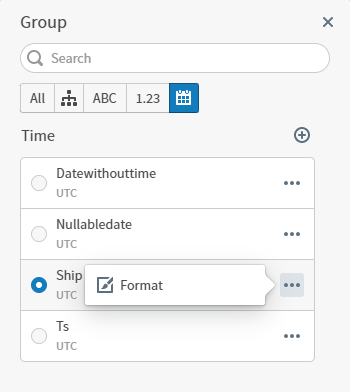
2. Select a Metric, X or Y axis, Group, Color, Trend line, size, or other available measure. A dialog for your selection opens.
   <img src="https://mintcdn.com/insightsoftware/cQU1Auv4yvPMjcip/simba-embedded-analytics/docs/self-service-analytics/26.3/images/visuals/vis-time-metric-select-format-23-1.png?fit=max&auto=format&n=cQU1Auv4yvPMjcip&q=85&s=24d375851ec20764aaf3b84dbbcb057e" alt="Select Format to format a time attribute" width="350" height="392" data-path="simba-embedded-analytics/docs/self-service-analytics/26.3/images/visuals/vis-time-metric-select-format-23-1.png" />

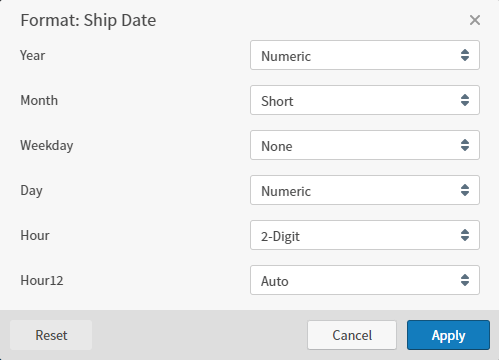
3. Locate your time field using **Search**, or navigate to the field or fields you want to format. Select the menu <img src="https://mintcdn.com/insightsoftware/sLccJ1EJ28cO5lT_/simba-embedded-analytics/docs/self-service-analytics/26.3/images/icons/more-menu.png?fit=max&auto=format&n=sLccJ1EJ28cO5lT_&q=85&s=1471c7a569a7e100cd7fa4083b04551a" alt="Selet the three dots icon to open a show more menu or take actions for the named column" width="21" height="12" noZoom style={{display: 'inline', verticalAlign: 'middle', width: '21px', height: '12px', margin: '0 2px'}} data-path="simba-embedded-analytics/docs/self-service-analytics/26.3/images/icons/more-menu.png" /> for a field, then select Format. The **Format: \<field>** work area opens.
   <img src="https://mintcdn.com/insightsoftware/cQU1Auv4yvPMjcip/simba-embedded-analytics/docs/self-service-analytics/26.3/images/visuals/vis-time-format-work-area-23-1.png?fit=max&auto=format&n=cQU1Auv4yvPMjcip&q=85&s=fd68d6f00bf1498de68aa44131cfce83" alt="Use this work area to format your time field attribute on a visual metric" width="499" height="360" data-path="simba-embedded-analytics/docs/self-service-analytics/26.3/images/visuals/vis-time-format-work-area-23-1.png" />

4. Define your format options, and select **Apply** to apply to this field.

5. Repeat for all fields you want to modify.

   <Note>
     To clear your applied changes to a field, open the formatting work area and select **Reset**.
   </Note>

#### Format Options Time Attributes

When you configure formatting at the visual level, you may not see all the options listed below, depending on the visual you're updating and the available time segments included in the source data.

<table>
  <thead>
    <tr>
      <th>Format Option</th>
      <th>Description</th>
    </tr>
  </thead>

  <tbody>
    <tr>
      <td>Second</td>
      <td>Select **Numeric** (0-59) or **2-Digit** (00-59).</td>
    </tr>

    <tr>
      <td>Minute</td>
      <td>Select **Numeric** (0-59) or **2-Digit** (00-59).</td>
    </tr>

    <tr>
      <td>Hour</td>
      <td>Select **Numeric** (1-24) or **2-Digit** (01-24).</td>
    </tr>

    <tr>
      <td>Hour12</td>

      <td>
        Select a 12 or 24 hour format option for Hour12.

        <br />

        * **Auto** displays the hour format defined in the source data.
        * **True** overrides the source format, displaying the hours in 12 hour format, with an appended **AM** or **PM**.
        * **False** overrides the source format, displaying the hours in 24 hour format.
      </td>
    </tr>

    <tr>
      <td>Day</td>
      <td>Select **Numeric** (1-7) or **2-Digit** (01-07).</td>
    </tr>

    <tr>
      <td>Month</td>
      <td>Select **Numeric** (1-12), **2-Digit** (01-12), **Long** (January, March), **Short** (Jan, Mar), or **Narrow** (J, M).</td>
    </tr>

    <tr>
      <td>Weekday</td>
      <td>Select **Long** (Friday, Sunday), **Short** (Fri, Sun), **Narrow** (F, S), or **None**. The default is **None**, to show no day of the week.</td>
    </tr>

    <tr>
      <td>Quarter</td>
      <td>Select **Range**, **Narrow**, **Numeric** (1-4), or **2-Digit** (01-04). Set Granularity to Quarter; you can define Quarter formatting after the visual reloads with Quarter granularity.</td>
    </tr>

    <tr>
      <td>Year</td>
      <td>Select **Numeric** (2022) or **2-Digit** (22).</td>
    </tr>
  </tbody>
</table>
