> ## Documentation Index
> Fetch the complete documentation index at: https://insightsoftware.mintlify.site/llms.txt
> Use this file to discover all available pages before exploring further.

# Use the Conditional Formatting Sidebar

> You can format tables by information contained in the tables for ease of use.

Format your visuals by adding color and text formats based on the conditions you define. A sidebar menu work area, Conditional Formatting, allows you to set format conditions to apply to your data. Control user access to Conditional Formatting by enabling or disabling the Conditional Formatting on the interactivity panel for a visual, a visual in a dashboard, or the table visual that is used as a self service report..

<Note>
  displays a warning icon if you try to create a conditional formatting rule for tables that include a field or group not present in the visual. The resulting rule will not include the missing field or group.
</Note>

For more information about conditional formatting, see the following topics:

* [Configure Conditional Formatting](#configure-conditional-formatting)
* [Using the Conditional Formatting Sidebar - Tables](#using-the-conditional-formatting-sidebar-tables)
* [Using the Conditional Formatting Sidebar - Pivot Tables](#using-the-conditional-formatting-sidebar-pivot-tables)
* [How Self-Service Analytics Applies Formatting Rules](#how-self-service-analytics-applies-formatting-rules)

<h2 id="how-self-service-analytics-applies-formatting-rules">
  How Self-Service Analytics Applies Formatting Rules
</h2>

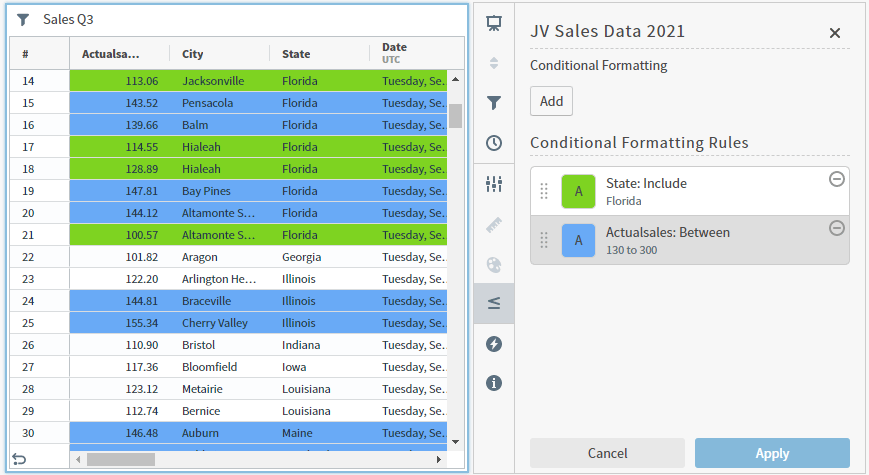
You can apply formatting rules to data affected by multiple conditions. The formatting rules are applied sequentially, and can cancel out a previously applied rule.

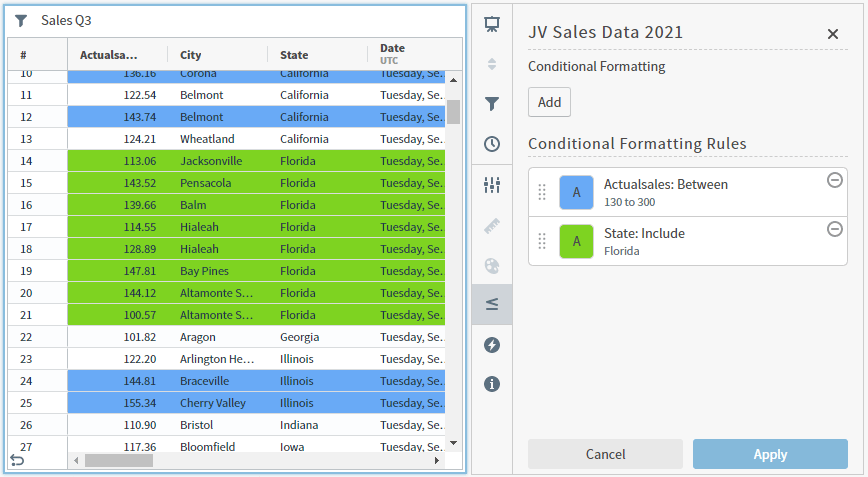
For example, if you define the background row color for orders from Florida to appear green, but define the background row color for orders that fall within a certain threshold to appear blue, the final result will depend on the order in which you organize your format rules.

<img src="https://mintcdn.com/insightsoftware/b9ogX_L4Mqut_Uxb/simba-embedded-analytics/docs/self-service-analytics/26.3/images/visuals/cndtl-format-seq-01-8-3.png?fit=max&auto=format&n=b9ogX_L4Mqut_Uxb&q=85&s=0e3b7cd8c21de3988a781fbed680af30" alt="The blue background rule overrides the green background rule" width="869" height="475" data-path="simba-embedded-analytics/docs/self-service-analytics/26.3/images/visuals/cndtl-format-seq-01-8-3.png" />

In the above example, formatting based on the **State** condition is applied first, then formatting based on the **Actualsales** condition overrides that rule.

<img src="https://mintcdn.com/insightsoftware/b9ogX_L4Mqut_Uxb/simba-embedded-analytics/docs/self-service-analytics/26.3/images/visuals/cndtl-format-seq-02-8-3.png?fit=max&auto=format&n=b9ogX_L4Mqut_Uxb&q=85&s=fd4283f3cadc02f34ac4514201306bf6" alt="" width="868" height="477" data-path="simba-embedded-analytics/docs/self-service-analytics/26.3/images/visuals/cndtl-format-seq-02-8-3.png" />

In the above example, formatting based on the **Actualsales** condition is applied first, then formatting based on the **State** condition overrides that rule.

Mix and match rules as needed to achieve the look and feel you want.

<h2 id="using-the-conditional-formatting-sidebar-tables">
  Using the Conditional Formatting Sidebar - Tables
</h2>

Format your visuals by adding color and text formats based on the conditions you define. A sidebar menu work area, Conditional Formatting, allows you to set format conditions to apply to your data.

<Note>
  displays a warning icon if you try to create a conditional formatting rule for tables that include a field or group not present in the visual. The resulting rule will not include the missing field or group.
</Note>

1. Select the visual in the Visual Gallery, a self service report, or on a dashboard. Open the [sidebar menu](/simba-embedded-analytics/docs/self-service-analytics/26.3/analyze-data/visuals/visual-setup#use-the-visual-sidebar-menu).

2. Select the conditional formatting option <img src="https://mintcdn.com/insightsoftware/sLccJ1EJ28cO5lT_/simba-embedded-analytics/docs/self-service-analytics/26.3/images/icons/cdntl-format-22-4.png?fit=max&auto=format&n=sLccJ1EJ28cO5lT_&q=85&s=ac8100f01d82ac00cba95a8a2993c796" alt="" width="25" height="25" noZoom style={{display: 'inline', verticalAlign: 'middle', width: '25px', height: '25px', margin: '0 2px'}} data-path="simba-embedded-analytics/docs/self-service-analytics/26.3/images/icons/cdntl-format-22-4.png" />. The Conditional Formatting sidebar opens.

   <img src="https://mintcdn.com/insightsoftware/b9ogX_L4Mqut_Uxb/simba-embedded-analytics/docs/self-service-analytics/26.3/images/visuals/cndtl-format-menu-8-3.png?fit=max&auto=format&n=b9ogX_L4Mqut_Uxb&q=85&s=18f3e9215089b764de12656f16b9bba2" alt="Use to create conditional formatting rules" width="352" height="461" data-path="simba-embedded-analytics/docs/self-service-analytics/26.3/images/visuals/cndtl-format-menu-8-3.png" />

3. Use this work area to configure formatting options for your table visuals or the table visual of a self service report.

4. After making changes, select **Apply** to apply the conditional formatting rules you have specified.

5. Save the visual, self service report, or dashboard to save your changes.

<h3 id="using-the-conditional-formatting-sidebar-tables-conditional">
  Conditional Format Options
</h3>

The available options for rules and formatting change to reflect your selections.

<h4 id="using-the-conditional-formatting-sidebar-tables-conditional-2">
  Conditional Formatting Sidebar
</h4>

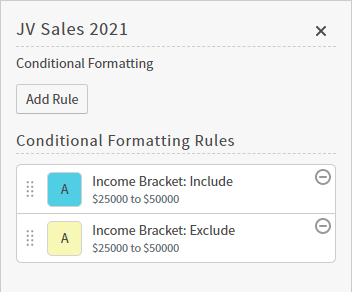
<img src="https://mintcdn.com/insightsoftware/b9ogX_L4Mqut_Uxb/simba-embedded-analytics/docs/self-service-analytics/26.3/images/visuals/cndtl-format-rules-done-8-3.png?fit=max&auto=format&n=b9ogX_L4Mqut_Uxb&q=85&s=28dbfe66999043115d05655590655bce" alt="" width="352" height="292" data-path="simba-embedded-analytics/docs/self-service-analytics/26.3/images/visuals/cndtl-format-rules-done-8-3.png" />

* Select **Add Rule** to add a conditional formatting rule.
* Select an existing rule to edit the rule, or the delete icon <img src="https://mintcdn.com/insightsoftware/sLccJ1EJ28cO5lT_/simba-embedded-analytics/docs/self-service-analytics/26.3/images/icons/delete-black-open.png?fit=max&auto=format&n=sLccJ1EJ28cO5lT_&q=85&s=2dd520b27e17cb3afb7d849272854051" alt="" width="18" height="21" noZoom style={{display: 'inline', verticalAlign: 'middle', width: '18px', height: '21px', margin: '0 2px'}} data-path="simba-embedded-analytics/docs/self-service-analytics/26.3/images/icons/delete-black-open.png" /> to delete the rule.
* Select and drag rules to change their order.

<h4 id="using-the-conditional-formatting-sidebar-tables-conditional-add">
  Add or Edit Conditional Formatting Rule
</h4>

<img src="https://mintcdn.com/insightsoftware/b9ogX_L4Mqut_Uxb/simba-embedded-analytics/docs/self-service-analytics/26.3/images/visuals/cndtl-format-edit-format-8-3.png?fit=max&auto=format&n=b9ogX_L4Mqut_Uxb&q=85&s=c362cbd3c51a863f54fd68e26d70636c" alt="" width="352" height="357" data-path="simba-embedded-analytics/docs/self-service-analytics/26.3/images/visuals/cndtl-format-edit-format-8-3.png" />

<h4 id="using-the-conditional-formatting-sidebar-tables-conditional-3">
  Select When To Apply Formatting
</h4>

Select the add icon <img src="https://mintcdn.com/insightsoftware/sLccJ1EJ28cO5lT_/simba-embedded-analytics/docs/self-service-analytics/26.3/images/icons/add.png?fit=max&auto=format&n=sLccJ1EJ28cO5lT_&q=85&s=9a24b95d9385f23950764407d5e9111a" alt="add icon" width="16" height="16" noZoom style={{display: 'inline', verticalAlign: 'middle', width: '16px', height: '16px', margin: '0 2px'}} data-path="simba-embedded-analytics/docs/self-service-analytics/26.3/images/icons/add.png" /> in **Select When To Apply Formatting** to define the conditions to apply your formatting.

<h4 id="using-the-conditional-formatting-sidebar-tables-conditional-4">
  Select Where To Apply Formatting
</h4>

Enable **Format entire row** in **Select Where To Apply Formatting**to format the entire row. Disable to format only the applicable cell.

Select the add icon <img src="https://mintcdn.com/insightsoftware/sLccJ1EJ28cO5lT_/simba-embedded-analytics/docs/self-service-analytics/26.3/images/icons/add.png?fit=max&auto=format&n=sLccJ1EJ28cO5lT_&q=85&s=9a24b95d9385f23950764407d5e9111a" alt="add icon" width="16" height="16" noZoom style={{display: 'inline', verticalAlign: 'middle', width: '16px', height: '16px', margin: '0 2px'}} data-path="simba-embedded-analytics/docs/self-service-analytics/26.3/images/icons/add.png" /> for **Formatting** to define the formatting for your condition.

Select the delete icon <img src="https://mintcdn.com/insightsoftware/sLccJ1EJ28cO5lT_/simba-embedded-analytics/docs/self-service-analytics/26.3/images/icons/delete-black-open.png?fit=max&auto=format&n=sLccJ1EJ28cO5lT_&q=85&s=2dd520b27e17cb3afb7d849272854051" alt="" width="18" height="21" noZoom style={{display: 'inline', verticalAlign: 'middle', width: '18px', height: '21px', margin: '0 2px'}} data-path="simba-embedded-analytics/docs/self-service-analytics/26.3/images/icons/delete-black-open.png" /> to delete a formatting option.

<h4 id="using-the-conditional-formatting-sidebar-tables-conditional-5">
  Select When To Apply Formatting
</h4>

* **Row** attribute: Select a row attribute to define the values for formatting by this data. Optionally, select the add icon <img src="https://mintcdn.com/insightsoftware/sLccJ1EJ28cO5lT_/simba-embedded-analytics/docs/self-service-analytics/26.3/images/icons/add.png?fit=max&auto=format&n=sLccJ1EJ28cO5lT_&q=85&s=9a24b95d9385f23950764407d5e9111a" alt="add icon" width="16" height="16" noZoom style={{display: 'inline', verticalAlign: 'middle', width: '16px', height: '16px', margin: '0 2px'}} data-path="simba-embedded-analytics/docs/self-service-analytics/26.3/images/icons/add.png" /> to add a derived field or custom metric.

  <img src="https://mintcdn.com/insightsoftware/b9ogX_L4Mqut_Uxb/simba-embedded-analytics/docs/self-service-analytics/26.3/images/visuals/cndtl-format-row-value-8-3.png?fit=max&auto=format&n=b9ogX_L4Mqut_Uxb&q=85&s=0034cd64dd22f3b320814f1cea127262" alt="" width="352" height="302" data-path="simba-embedded-analytics/docs/self-service-analytics/26.3/images/visuals/cndtl-format-row-value-8-3.png" />

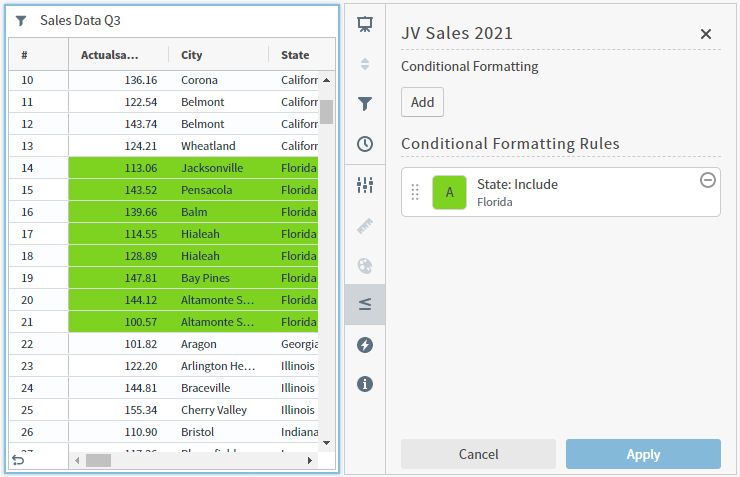
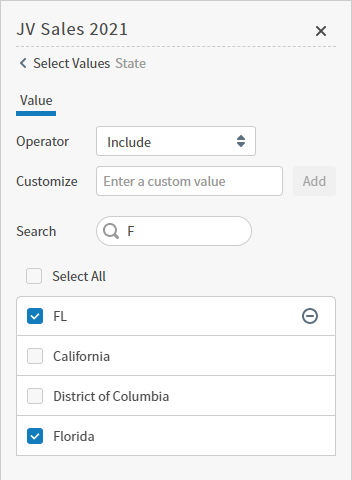
  Example: Apply a background color to a specific **State** condition.

  <img src="https://mintcdn.com/insightsoftware/b9ogX_L4Mqut_Uxb/simba-embedded-analytics/docs/self-service-analytics/26.3/images/visuals/cndtl-format-row-example-8-3.png?fit=max&auto=format&n=b9ogX_L4Mqut_Uxb&q=85&s=ead48a5e014a5728f6462517feb4547e" alt="example of conditional formatting by row attribute" width="740" height="477" data-path="simba-embedded-analytics/docs/self-service-analytics/26.3/images/visuals/cndtl-format-row-example-8-3.png" />

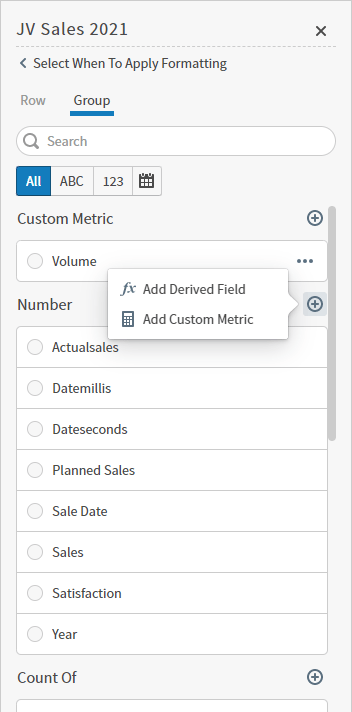
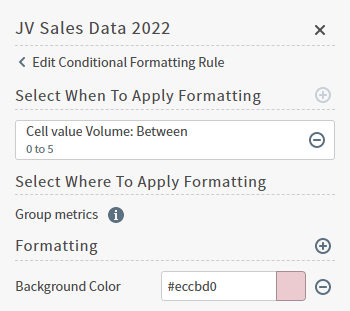
* **Group** attribute: Select an attribute that you’ve grouped your data by to define values for that aggregated data. Optionally, select the add icon <img src="https://mintcdn.com/insightsoftware/sLccJ1EJ28cO5lT_/simba-embedded-analytics/docs/self-service-analytics/26.3/images/icons/add.png?fit=max&auto=format&n=sLccJ1EJ28cO5lT_&q=85&s=9a24b95d9385f23950764407d5e9111a" alt="add icon" width="16" height="16" noZoom style={{display: 'inline', verticalAlign: 'middle', width: '16px', height: '16px', margin: '0 2px'}} data-path="simba-embedded-analytics/docs/self-service-analytics/26.3/images/icons/add.png" /> to add a derived field or custom metric.

  <img src="https://mintcdn.com/insightsoftware/b9ogX_L4Mqut_Uxb/simba-embedded-analytics/docs/self-service-analytics/26.3/images/visuals/cndtl-format-group-value-8-3.png?fit=max&auto=format&n=b9ogX_L4Mqut_Uxb&q=85&s=6803f22a84a326fa873821312aea93bd" alt="" width="352" height="712" data-path="simba-embedded-analytics/docs/self-service-analytics/26.3/images/visuals/cndtl-format-group-value-8-3.png" />

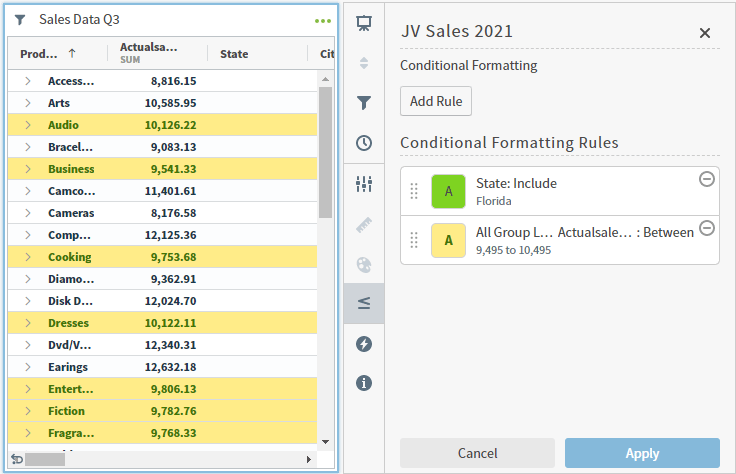
  Example: Format Group attributes that meet the condition: the `Sum` of **Actualsales** grouped by **Product** `Between` a defined range of values.

  <img src="https://mintcdn.com/insightsoftware/b9ogX_L4Mqut_Uxb/simba-embedded-analytics/docs/self-service-analytics/26.3/images/visuals/cndtl-format-group-example-8-3.png?fit=max&auto=format&n=b9ogX_L4Mqut_Uxb&q=85&s=14731c218d15ba3f8ea7f7ebe94ecf75" alt="example of formatting applied to a group condition" width="736" height="474" data-path="simba-embedded-analytics/docs/self-service-analytics/26.3/images/visuals/cndtl-format-group-example-8-3.png" />

#### Select Values for an Attribute

<table>
  <thead>
    <tr>
      <th>Selection</th>
      <th>Description</th>
    </tr>
  </thead>

  <tbody>
    <tr>
      <td>Operator</td>

      <td>
        Select **Include** to include the selected values for this attribute.

        <br />

        Select **Exclude** to exclude the selected values for this attribute.
      </td>
    </tr>

    <tr>
      <td>Customize</td>

      <td>
        Enter a custom value and select **Add** to add it to the values list.

        <br />

        Select the delete icon <img src="https://mintcdn.com/insightsoftware/sLccJ1EJ28cO5lT_/simba-embedded-analytics/docs/self-service-analytics/26.3/images/icons/delete-black-open.png?fit=max&auto=format&n=sLccJ1EJ28cO5lT_&q=85&s=2dd520b27e17cb3afb7d849272854051" alt="" width="18" height="21" noZoom style={{display: 'inline', verticalAlign: 'middle', width: '18px', height: '21px', margin: '0 2px'}} data-path="simba-embedded-analytics/docs/self-service-analytics/26.3/images/icons/delete-black-open.png" /> to remove it from the values list.
      </td>
    </tr>

    <tr>
      <td>Search</td>
      <td>Search for specific values in your list.</td>
    </tr>

    <tr>
      <td>Select All</td>

      <td>
        Select the checkbox to include all listed values.

        <br />

        Clear the checkbox to remove all selected values.
      </td>
    </tr>
  </tbody>
</table>

<img src="https://mintcdn.com/insightsoftware/b9ogX_L4Mqut_Uxb/simba-embedded-analytics/docs/self-service-analytics/26.3/images/visuals/cndtl-format-value-example-8-3.png?fit=max&auto=format&n=b9ogX_L4Mqut_Uxb&q=85&s=127fd4a7c7f46ea24ece42f4885f2b9f" alt="" width="352" height="480" data-path="simba-embedded-analytics/docs/self-service-analytics/26.3/images/visuals/cndtl-format-value-example-8-3.png" />

<h4 id="using-the-conditional-formatting-sidebar-tables-conditional-6">
  Select Values for a Number
</h4>

<table>
  <thead>
    <tr>
      <th>Selection</th>
      <th>Description</th>
    </tr>
  </thead>

  <tbody>
    <tr>
      <td>Range</td>
      <td>Displays the range for this value.</td>
    </tr>

    <tr>
      <td>Operator</td>

      <td>
        Select an operator to use.

        <br />

        Options may include **Between**, **Not Between**, **Equal**, **Not Equal**, **Greater Than**, **Greater Than** or **Equal**, **Less Than**, **Less than or Equal**, **Include**, and **Exclude**.

        <br />

        Depending on the Operator you select, different definition fields are available to use.
      </td>
    </tr>

    <tr>
      <td>From, To</td>
      <td>Define a value range for **Between**and **Not Between**.</td>
    </tr>

    <tr>
      <td>Value</td>
      <td>Define a value for **Equal**, **Not Equal**, **Greater Than**, **Greater Than** or **Equal**, **Less Than**, and **Less than or Equal**.</td>
    </tr>

    <tr>
      <td>Customize</td>

      <td>
        Optionally define for **Include**, and **Exclude**.

        <br />

        Enter a custom value and select **Add** to add it to the values list.

        <br />

        Select the delete icon <img src="https://mintcdn.com/insightsoftware/sLccJ1EJ28cO5lT_/simba-embedded-analytics/docs/self-service-analytics/26.3/images/icons/delete-black-open.png?fit=max&auto=format&n=sLccJ1EJ28cO5lT_&q=85&s=2dd520b27e17cb3afb7d849272854051" alt="" width="18" height="21" noZoom style={{display: 'inline', verticalAlign: 'middle', width: '18px', height: '21px', margin: '0 2px'}} data-path="simba-embedded-analytics/docs/self-service-analytics/26.3/images/icons/delete-black-open.png" /> to remove it from the values list.
      </td>
    </tr>

    <tr>
      <td>Search</td>
      <td>For **Include**, and **Exclude**. Search for specific values in your list.</td>
    </tr>

    <tr>
      <td>Select All</td>

      <td>
        Define for **Include**, and **Exclude**.

        <br />

        Select the checkbox to include all listed values.

        <br />

        Clear the checkbox to remove all selected values.
      </td>
    </tr>
  </tbody>
</table>

#### Select Values for a Date

<table>
  <thead>
    <tr>
      <th>Selection</th>
      <th>Description</th>
    </tr>
  </thead>

  <tbody>
    <tr>
      <td>Range</td>
      <td>Displays the range for this value.</td>
    </tr>

    <tr>
      <td>Operator</td>

      <td>
        Select an operator to use.

        <br />

        Options may include **Between**, **Is NULL**, and **Is not NULL**.

        <br />

        Depending on the Operator you select, different definition fields are available to use.
      </td>
    </tr>

    <tr>
      <td>From, To</td>
      <td>Define a value range for **Between**, using **Static Time** or **Dynamic Time**. See [Set a Time Field Filter](/simba-embedded-analytics/docs/self-service-analytics/26.3/analyze-data/filters/filters-attr#set-a-time-field-filter).</td>
    </tr>

    <tr>
      <td>Presets ...</td>

      <td>
        Select an available **Preset...** for **Between**.

        <br />

        See [Set a Time Field Filter](/simba-embedded-analytics/docs/self-service-analytics/26.3/analyze-data/filters/filters-attr#set-a-time-field-filter).
      </td>
    </tr>
  </tbody>
</table>

<h3 id="using-the-conditional-formatting-sidebar-tables-formatting">
  Formatting
</h3>

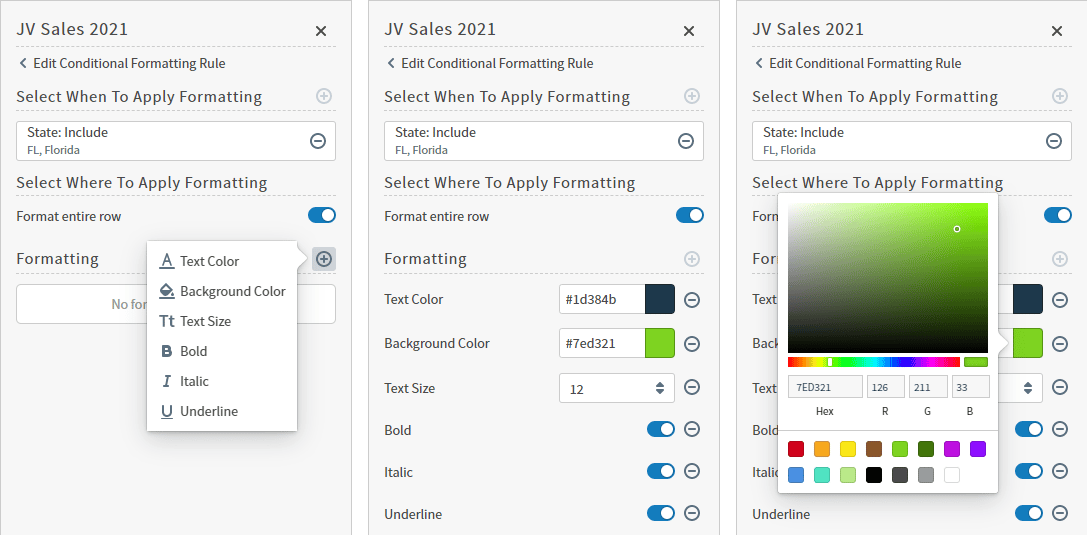
Select the add icon <img src="https://mintcdn.com/insightsoftware/sLccJ1EJ28cO5lT_/simba-embedded-analytics/docs/self-service-analytics/26.3/images/icons/add.png?fit=max&auto=format&n=sLccJ1EJ28cO5lT_&q=85&s=9a24b95d9385f23950764407d5e9111a" alt="add icon" width="16" height="16" noZoom style={{display: 'inline', verticalAlign: 'middle', width: '16px', height: '16px', margin: '0 2px'}} data-path="simba-embedded-analytics/docs/self-service-analytics/26.3/images/icons/add.png" /> to add a formatting option you will apply to your condition. Select the delete icon <img src="https://mintcdn.com/insightsoftware/sLccJ1EJ28cO5lT_/simba-embedded-analytics/docs/self-service-analytics/26.3/images/icons/delete-black-open.png?fit=max&auto=format&n=sLccJ1EJ28cO5lT_&q=85&s=2dd520b27e17cb3afb7d849272854051" alt="" width="18" height="21" noZoom style={{display: 'inline', verticalAlign: 'middle', width: '18px', height: '21px', margin: '0 2px'}} data-path="simba-embedded-analytics/docs/self-service-analytics/26.3/images/icons/delete-black-open.png" /> to remove the formatting option.

<table>
  <thead>
    <tr>
      <th>Format Option</th>
      <th>Description</th>
    </tr>
  </thead>

  <tbody>
    <tr>
      <td>Text Color</td>

      <td>
        Select to define the text color format to apply to your condition.

        <br />

        Enter the color number in hexadecimal, or use the color picker to enter RGB values or pick your color visually.
      </td>
    </tr>

    <tr>
      <td>Background Color</td>

      <td>
        Select to define the background color to apply to your condition.

        <br />

        Enter the color number in hexadecimal, or use the color picker to enter RGB values or pick your color visually.
      </td>
    </tr>

    <tr>
      <td>Bold</td>
      <td>Select to enable or disable bold formatting to apply to your condition.</td>
    </tr>

    <tr>
      <td>Italic</td>
      <td>Select to enable or disable italic formatting to apply to your condition.</td>
    </tr>

    <tr>
      <td>Underline</td>
      <td>Select to enable or disable underline formatting to apply to your condition.</td>
    </tr>
  </tbody>
</table>

<img src="https://mintcdn.com/insightsoftware/b9ogX_L4Mqut_Uxb/simba-embedded-analytics/docs/self-service-analytics/26.3/images/visuals/cndtl-format-format-example-8-3.png?fit=max&auto=format&n=b9ogX_L4Mqut_Uxb&q=85&s=187831ed1e772ae4c3289063362c6901" alt="" width="1087" height="535" data-path="simba-embedded-analytics/docs/self-service-analytics/26.3/images/visuals/cndtl-format-format-example-8-3.png" />

In the above example, formatting based on the **Actualsales** condition is applied first, then formatting based on the **State** condition overrides that rule.

Mix and match rules as needed to achieve the look and feel you want.

<h2 id="using-the-conditional-formatting-sidebar-pivot-tables">
  Using the Conditional Formatting Sidebar - Pivot Tables
</h2>

Format your visuals by adding color and text formats based on the conditions you define. A sidebar menu work area, Conditional Formatting, allows you to set format conditions to apply to your data. You're not limited to formatting information based on data represented in the table, you can create conditional formatting rules based on any data available in the source that is the basis of the pivot table.

1. Select the pivot table visual in the Visual Gallery or on a dashboard.

2. If you selected the visual on a dashboard, select **Settings** on the [visual drop-down menu](/simba-embedded-analytics/docs/self-service-analytics/26.3/analyze-data/visuals/visual-setup#use-the-visual-drop-down-menu) to access the [sidebar menu](/simba-embedded-analytics/docs/self-service-analytics/26.3/analyze-data/visuals/visual-setup#use-the-visual-sidebar-menu) for the visual.

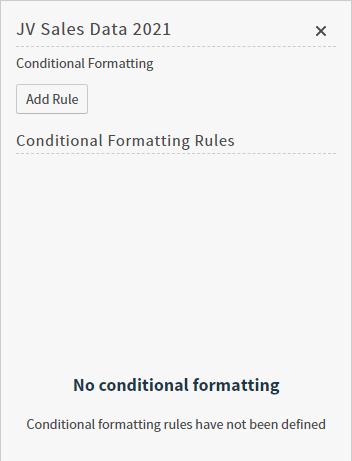
3. Select the conditional formatting option <img src="https://mintcdn.com/insightsoftware/sLccJ1EJ28cO5lT_/simba-embedded-analytics/docs/self-service-analytics/26.3/images/icons/cdntl-format-22-4.png?fit=max&auto=format&n=sLccJ1EJ28cO5lT_&q=85&s=ac8100f01d82ac00cba95a8a2993c796" alt="" width="25" height="25" noZoom style={{display: 'inline', verticalAlign: 'middle', width: '25px', height: '25px', margin: '0 2px'}} data-path="simba-embedded-analytics/docs/self-service-analytics/26.3/images/icons/cdntl-format-22-4.png" /> on the [sidebar menu](/simba-embedded-analytics/docs/self-service-analytics/26.3/analyze-data/visuals/visual-setup#use-the-visual-sidebar-menu) for the visual. The Conditional Formatting sidebar opens.
   <img src="https://mintcdn.com/insightsoftware/b9ogX_L4Mqut_Uxb/simba-embedded-analytics/docs/self-service-analytics/26.3/images/visuals/cndtl-fmt-pivot-22-4.png?fit=max&auto=format&n=b9ogX_L4Mqut_Uxb&q=85&s=cb65f5f406d59a694d1844cfd5c30b7a" alt="Use to create conditional formatting rules" width="352" height="451" data-path="simba-embedded-analytics/docs/self-service-analytics/26.3/images/visuals/cndtl-fmt-pivot-22-4.png" />

4. Using the Conditional Formatting sidebar, you can configure formatting options for your pivot table visuals. See [Configure Conditional Formatting](#configure-conditional-formatting).

5. After making changes, select **Apply** to apply the conditional formatting rules you have specified.

6. Save the visual or dashboard to save your changes.

<h3 id="using-the-conditional-formatting-sidebar-pivot-tables-2">
  Conditional Format Options
</h3>

The available options for rules and formatting change to reflect your selections.

<h4 id="using-the-conditional-formatting-sidebar-pivot-tables-2-2">
  Conditional Formatting Sidebar
</h4>

<img src="https://mintcdn.com/insightsoftware/b9ogX_L4Mqut_Uxb/simba-embedded-analytics/docs/self-service-analytics/26.3/images/visuals/cndtl-format-rules-done-pivot-22-4.png?fit=max&auto=format&n=b9ogX_L4Mqut_Uxb&q=85&s=069bb7b6fd12984aebb72df78f23108a" alt="" width="350" height="262" data-path="simba-embedded-analytics/docs/self-service-analytics/26.3/images/visuals/cndtl-format-rules-done-pivot-22-4.png" />

* Select **Add Rule** to add a conditional formatting rule. See [Configure Conditional Formatting](#configure-conditional-formatting).
* Select an existing rule to edit the rule, or the delete icon <img src="https://mintcdn.com/insightsoftware/sLccJ1EJ28cO5lT_/simba-embedded-analytics/docs/self-service-analytics/26.3/images/icons/delete-black-open.png?fit=max&auto=format&n=sLccJ1EJ28cO5lT_&q=85&s=2dd520b27e17cb3afb7d849272854051" alt="" width="18" height="21" noZoom style={{display: 'inline', verticalAlign: 'middle', width: '18px', height: '21px', margin: '0 2px'}} data-path="simba-embedded-analytics/docs/self-service-analytics/26.3/images/icons/delete-black-open.png" /> to delete the rule.
* Select and drag rules to change their order.
<h4 id="using-the-conditional-formatting-sidebar-pivot-tables-2-add-or">
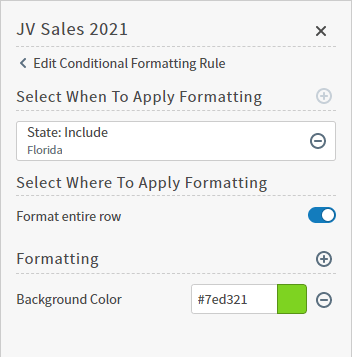
  Add or Edit Conditional Formatting Rule
</h4>

<img src="https://mintcdn.com/insightsoftware/b9ogX_L4Mqut_Uxb/simba-embedded-analytics/docs/self-service-analytics/26.3/images/visuals/cndtl-format-edit-format-pivot-22-4.png?fit=max&auto=format&n=b9ogX_L4Mqut_Uxb&q=85&s=3d58bda2c902b2b86a8cfd689ffbc5b2" alt="" width="350" height="311" data-path="simba-embedded-analytics/docs/self-service-analytics/26.3/images/visuals/cndtl-format-edit-format-pivot-22-4.png" />

<h4 id="using-the-conditional-formatting-sidebar-pivot-tables-2-select">
  Select When To Apply Formatting
</h4>

Select the add icon <img src="https://mintcdn.com/insightsoftware/sLccJ1EJ28cO5lT_/simba-embedded-analytics/docs/self-service-analytics/26.3/images/icons/add.png?fit=max&auto=format&n=sLccJ1EJ28cO5lT_&q=85&s=9a24b95d9385f23950764407d5e9111a" alt="add icon" width="16" height="16" noZoom style={{display: 'inline', verticalAlign: 'middle', width: '16px', height: '16px', margin: '0 2px'}} data-path="simba-embedded-analytics/docs/self-service-analytics/26.3/images/icons/add.png" /> in **Select When To Apply Formatting** to define the conditions to apply your formatting.

<h4 id="using-the-conditional-formatting-sidebar-pivot-tables-2-select-2">
  Select Where To Apply Formatting
</h4>

Select the add icon <img src="https://mintcdn.com/insightsoftware/sLccJ1EJ28cO5lT_/simba-embedded-analytics/docs/self-service-analytics/26.3/images/icons/add.png?fit=max&auto=format&n=sLccJ1EJ28cO5lT_&q=85&s=9a24b95d9385f23950764407d5e9111a" alt="add icon" width="16" height="16" noZoom style={{display: 'inline', verticalAlign: 'middle', width: '16px', height: '16px', margin: '0 2px'}} data-path="simba-embedded-analytics/docs/self-service-analytics/26.3/images/icons/add.png" /> for **Formatting** to define the formatting for your condition.

Select the delete icon <img src="https://mintcdn.com/insightsoftware/sLccJ1EJ28cO5lT_/simba-embedded-analytics/docs/self-service-analytics/26.3/images/icons/delete-black-open.png?fit=max&auto=format&n=sLccJ1EJ28cO5lT_&q=85&s=2dd520b27e17cb3afb7d849272854051" alt="" width="18" height="21" noZoom style={{display: 'inline', verticalAlign: 'middle', width: '18px', height: '21px', margin: '0 2px'}} data-path="simba-embedded-analytics/docs/self-service-analytics/26.3/images/icons/delete-black-open.png" /> to delete a formatting option.

<h4 id="using-the-conditional-formatting-sidebar-pivot-tables-2-select-3">
  Select When To Apply Formatting
</h4>

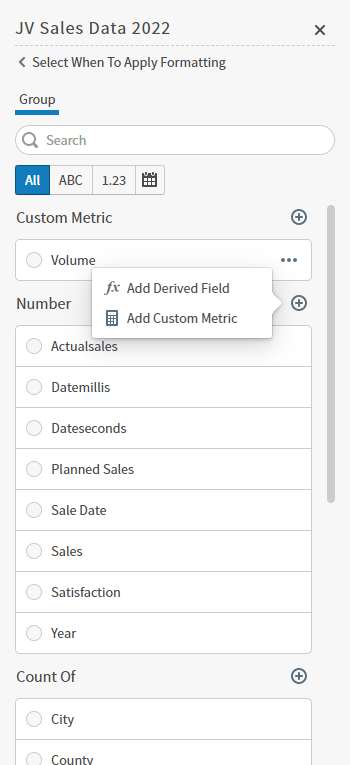
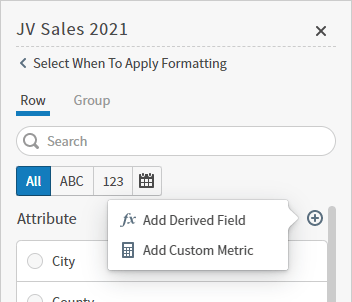
**Group** attribute: Select a group of data to define values for that aggregated data. Optionally, select the add icon <img src="https://mintcdn.com/insightsoftware/sLccJ1EJ28cO5lT_/simba-embedded-analytics/docs/self-service-analytics/26.3/images/icons/add.png?fit=max&auto=format&n=sLccJ1EJ28cO5lT_&q=85&s=9a24b95d9385f23950764407d5e9111a" alt="add icon" width="16" height="16" noZoom style={{display: 'inline', verticalAlign: 'middle', width: '16px', height: '16px', margin: '0 2px'}} data-path="simba-embedded-analytics/docs/self-service-analytics/26.3/images/icons/add.png" /> to add a derived field or custom metric.
<img src="https://mintcdn.com/insightsoftware/b9ogX_L4Mqut_Uxb/simba-embedded-analytics/docs/self-service-analytics/26.3/images/visuals/cndtl-format-group-value-pivot-22-4.png?fit=max&auto=format&n=b9ogX_L4Mqut_Uxb&q=85&s=782e1ec9980887b285d1b08cd1a2bf02" alt="" width="350" height="765" data-path="simba-embedded-analytics/docs/self-service-analytics/26.3/images/visuals/cndtl-format-group-value-pivot-22-4.png" />

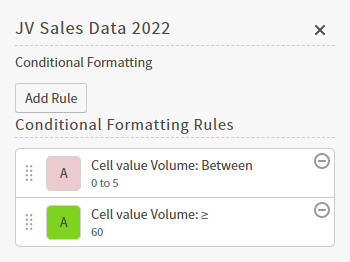
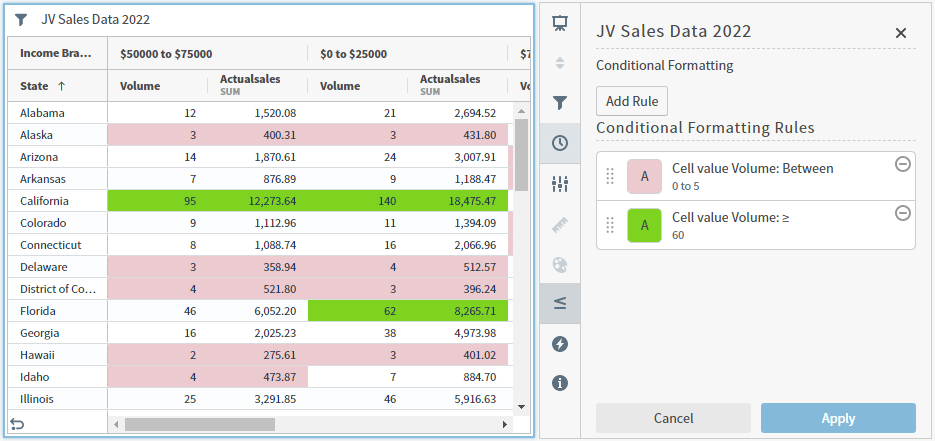
Example: Format Group attributes that meet the condition: the `Range` of **Volume** grouped by **Income Bracket** is `Between` a defined range of values.

<img src="https://mintcdn.com/insightsoftware/b9ogX_L4Mqut_Uxb/simba-embedded-analytics/docs/self-service-analytics/26.3/images/visuals/cndtl-format-group-example-pivot-22-4.png?fit=max&auto=format&n=b9ogX_L4Mqut_Uxb&q=85&s=dc94ac58b6ded81a77805d1941a5fa60" alt="example of formatting applied to a group condition" width="935" height="441" data-path="simba-embedded-analytics/docs/self-service-analytics/26.3/images/visuals/cndtl-format-group-example-pivot-22-4.png" />

#### Select Values for a Custom Metric

<table>
  <thead>
    <tr>
      <th>Selection</th>
      <th>Description</th>
    </tr>
  </thead>

  <tbody>
    <tr>
      <td>Values</td>

      <td>
        Select a range of values to format. Options include:

        <br />

        * **Cell Value** - format the data based on the value of the cell.
        * **Row Total** - format the data based on the value of the row total.
        * **Column Total** - format the data based on the value of the column total.
      </td>
    </tr>

    <tr>
      <td>Operator</td>
      <td>Select an operator to use. Options may include **Between**, **Equal**, **Not Equal**, **Greater Than**, **Greater Than or Equal**, **Less Than**, and **Less than or Equal**. Depending on the Operator you select, different definition fields are available to use.</td>
    </tr>

    <tr>
      <td>From, To</td>
      <td>Define a value range for **Between**.</td>
    </tr>

    <tr>
      <td>Value</td>
      <td>Define a value for **Equal**, **Not Equal**, **Greater Than**, **Greater Than** or **Equal**, **Less Than**, and **Less than or Equal**.</td>
    </tr>
  </tbody>
</table>

<h4 id="using-the-conditional-formatting-sidebar-pivot-tables-2-select-4">
  Select Values for a Number
</h4>

<table>
  <thead>
    <tr>
      <th>Selection</th>
      <th>Description</th>
    </tr>
  </thead>

  <tbody>
    <tr>
      <td>Range</td>
      <td>Displays the range for this value.</td>
    </tr>

    <tr>
      <td>Values</td>

      <td>
        Select a range of values to format. Options include:

        <br />

        * **Cell Value** - format the data based on the value of the cell.
        * **Row Total** - format the data based on the value of the row total.
        * **Column Total** - format the data based on the value of the column total.
      </td>
    </tr>

    <tr>
      <td>Aggregation</td>
      <td>Select an aggregation option for Values. Options include **Avg**, **Min**, **Max**, **Sum**, **Count**, **Distinct Count**, and **Last Value**.</td>
    </tr>

    <tr>
      <td>Operator</td>
      <td>Select an operator to use. Options may include **Between**, **Equal**, **Not Equal**, **Greater Than**, **Greater Than or Equal**, **Less Than**, and **Less than or Equal**. Depending on the Operator you select, different definition fields are available to use.</td>
    </tr>

    <tr>
      <td>From, To</td>
      <td>Define a value range for **Between**.</td>
    </tr>

    <tr>
      <td>Value</td>
      <td>Define a value for **Equal**, **Not Equal**, **Greater Than**, **Greater Than** or **Equal**, **Less Than**, and **Less than or Equal**.</td>
    </tr>
  </tbody>
</table>

#### Select Values for Count Of

<table>
  <thead>
    <tr>
      <th>Selection</th>
      <th>Description</th>
    </tr>
  </thead>

  <tbody>
    <tr>
      <td>Values</td>

      <td>
        Select a range of values to format. Options include:

        <br />

        * **Cell Value** - format the data based on the value of the cell.
        * **Row Total** - format the data based on the value of the row total.
        * **Column Total** - format the data based on the value of the column total.
      </td>
    </tr>

    <tr>
      <td>Aggregation</td>
      <td>Select an aggregation option for Values. Options include **Count**and **Distinct Count**.</td>
    </tr>

    <tr>
      <td>Operator</td>
      <td>Select an operator to use. Options may include **Between**, **Equal**, **Not Equal**, **Greater Than**, **Greater Than or Equal**, **Less Than**, and **Less than or Equal**. Depending on the Operator you select, different definition fields are available to use.</td>
    </tr>

    <tr>
      <td>From, To</td>
      <td>Define a value range for **Between**.</td>
    </tr>

    <tr>
      <td>Value</td>
      <td>Define a value for **Equal**, **Not Equal**, **Greater Than**, **Greater Than or Equal**, **Less Than**, and **Less than or Equal**.</td>
    </tr>
  </tbody>
</table>

<h3 id="using-the-conditional-formatting-sidebar-pivot-tables-formatting">
  Formatting
</h3>

Select the add icon <img src="https://mintcdn.com/insightsoftware/sLccJ1EJ28cO5lT_/simba-embedded-analytics/docs/self-service-analytics/26.3/images/icons/add.png?fit=max&auto=format&n=sLccJ1EJ28cO5lT_&q=85&s=9a24b95d9385f23950764407d5e9111a" alt="add icon" width="16" height="16" noZoom style={{display: 'inline', verticalAlign: 'middle', width: '16px', height: '16px', margin: '0 2px'}} data-path="simba-embedded-analytics/docs/self-service-analytics/26.3/images/icons/add.png" /> to add a formatting option you will apply to your condition. Select the delete icon <img src="https://mintcdn.com/insightsoftware/sLccJ1EJ28cO5lT_/simba-embedded-analytics/docs/self-service-analytics/26.3/images/icons/delete-black-open.png?fit=max&auto=format&n=sLccJ1EJ28cO5lT_&q=85&s=2dd520b27e17cb3afb7d849272854051" alt="" width="18" height="21" noZoom style={{display: 'inline', verticalAlign: 'middle', width: '18px', height: '21px', margin: '0 2px'}} data-path="simba-embedded-analytics/docs/self-service-analytics/26.3/images/icons/delete-black-open.png" /> to remove the formatting option.

<table>
  <thead>
    <tr>
      <th>Format Option</th>
      <th>Description</th>
    </tr>
  </thead>

  <tbody>
    <tr>
      <td>Text Color</td>

      <td>
        Select to define the text color format to apply to your condition.

        <br />

        Enter the color number in hexadecimal, or use the color picker to enter RGB values or pick your color visually.
      </td>
    </tr>

    <tr>
      <td>Background Color</td>

      <td>
        Select to define the background color to apply to your condition.

        <br />

        Enter the color number in hexadecimal, or use the color picker to enter RGB values or pick your color visually.
      </td>
    </tr>

    <tr>
      <td>Bold</td>
      <td>Select to enable or disable bold formatting to apply to your condition.</td>
    </tr>

    <tr>
      <td>Italic</td>
      <td>Select to enable or disable italic formatting to apply to your condition.</td>
    </tr>

    <tr>
      <td>Underline</td>
      <td>Select to enable or disable underline formatting to apply to your condition.</td>
    </tr>
  </tbody>
</table>

<img src="https://mintcdn.com/insightsoftware/b9ogX_L4Mqut_Uxb/simba-embedded-analytics/docs/self-service-analytics/26.3/images/visuals/cndtl-format-format-example-8-3.png?fit=max&auto=format&n=b9ogX_L4Mqut_Uxb&q=85&s=187831ed1e772ae4c3289063362c6901" alt="" width="1087" height="535" data-path="simba-embedded-analytics/docs/self-service-analytics/26.3/images/visuals/cndtl-format-format-example-8-3.png" />

In the above example, formatting based on the **Actualsales** condition is applied first, then formatting based on the **State** condition overrides that rule.

Mix and match rules as needed to achieve the look and feel you want.

<h2 id="configure-conditional-formatting">
  Configure Conditional Formatting
</h2>

Format your tabular visuals and self service reports by adding color and text formats based on the conditions you define. The Conditional Formatting sidebar allows you to set formatting based on conditions to apply to your data.

### Define Conditional Formatting for Table Visuals

1. Select a table visual in a dashboard, a self service report, or the Visual Gallery.

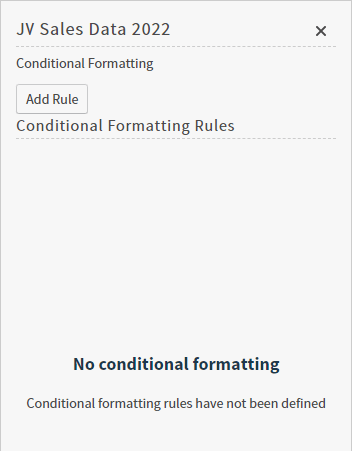
2. Select the conditional formatting icon <img src="https://mintcdn.com/insightsoftware/sLccJ1EJ28cO5lT_/simba-embedded-analytics/docs/self-service-analytics/26.3/images/icons/cdntl-format-8-3.png?fit=max&auto=format&n=sLccJ1EJ28cO5lT_&q=85&s=a68e8d839390bc2674a1b33b6ca61114" alt="" width="25" height="25" noZoom style={{display: 'inline', verticalAlign: 'middle', width: '25px', height: '25px', margin: '0 2px'}} data-path="simba-embedded-analytics/docs/self-service-analytics/26.3/images/icons/cdntl-format-8-3.png" /> in the sidebar menu. The Conditional Formatting sidebar opens.
   <img src="https://mintcdn.com/insightsoftware/b9ogX_L4Mqut_Uxb/simba-embedded-analytics/docs/self-service-analytics/26.3/images/visuals/cndtl-format-menu-8-3.png?fit=max&auto=format&n=b9ogX_L4Mqut_Uxb&q=85&s=18f3e9215089b764de12656f16b9bba2" alt="Add conditional formatting rules here" width="352" height="461" data-path="simba-embedded-analytics/docs/self-service-analytics/26.3/images/visuals/cndtl-format-menu-8-3.png" />

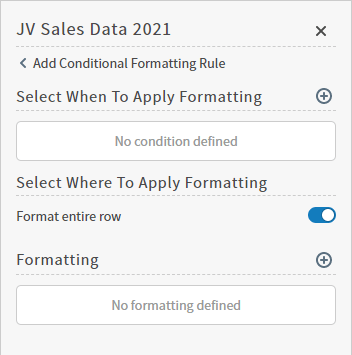
3. Select **Add** to open the add rule work area. Use this work area to define a condition and the formatting to apply.
   <img src="https://mintcdn.com/insightsoftware/b9ogX_L4Mqut_Uxb/simba-embedded-analytics/docs/self-service-analytics/26.3/images/visuals/cndtl-format-rules-8-3.png?fit=max&auto=format&n=b9ogX_L4Mqut_Uxb&q=85&s=7492e37856321aabc4b41c9326aafbcf" alt="define conditions and formatting to apply to tables" width="352" height="355" data-path="simba-embedded-analytics/docs/self-service-analytics/26.3/images/visuals/cndtl-format-rules-8-3.png" />

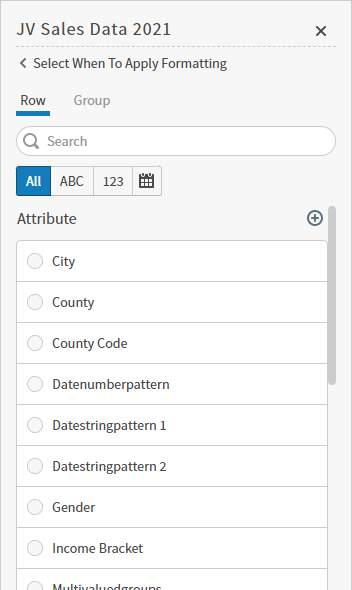
4. Select the add icon <img src="https://mintcdn.com/insightsoftware/sLccJ1EJ28cO5lT_/simba-embedded-analytics/docs/self-service-analytics/26.3/images/icons/add.png?fit=max&auto=format&n=sLccJ1EJ28cO5lT_&q=85&s=9a24b95d9385f23950764407d5e9111a" alt="add icon" width="16" height="16" noZoom style={{display: 'inline', verticalAlign: 'middle', width: '16px', height: '16px', margin: '0 2px'}} data-path="simba-embedded-analytics/docs/self-service-analytics/26.3/images/icons/add.png" /> in **Select When To Apply Formatting** to define the conditions to apply your formatting. See [Using the Conditional Formatting Sidebar - Tables](#using-the-conditional-formatting-sidebar-tables).
   <img src="https://mintcdn.com/insightsoftware/b9ogX_L4Mqut_Uxb/simba-embedded-analytics/docs/self-service-analytics/26.3/images/visuals/cndtl-format-attribute-8-3.png?fit=max&auto=format&n=b9ogX_L4Mqut_Uxb&q=85&s=7686638af60e2220b2114cfd70c8c577" alt="Select an attribute to define a condition" width="352" height="590" data-path="simba-embedded-analytics/docs/self-service-analytics/26.3/images/visuals/cndtl-format-attribute-8-3.png" />

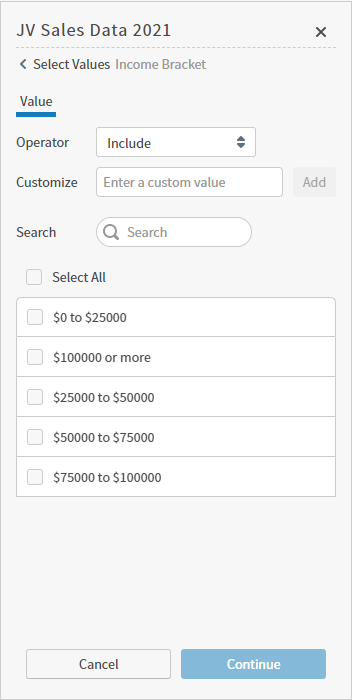
   Select a row or group attribute. The Value work area opens. Define the values for this condition. See Use the Conditional Formatting Sidebar.
   <img src="https://mintcdn.com/insightsoftware/b9ogX_L4Mqut_Uxb/simba-embedded-analytics/docs/self-service-analytics/26.3/images/visuals/cndtl-format-value-8-3.png?fit=max&auto=format&n=b9ogX_L4Mqut_Uxb&q=85&s=0801dc041e0b4f155118dea86e9ca838" alt="Select the values formatting will apply to here" width="352" height="700" data-path="simba-embedded-analytics/docs/self-service-analytics/26.3/images/visuals/cndtl-format-value-8-3.png" />

   Select **Continue** to save your changes and define the formatting options.

5. Optionally, enable **Format entire row** in **Select Where To Apply Formatting** to format the entire row. Disable to format only the applicable cell.

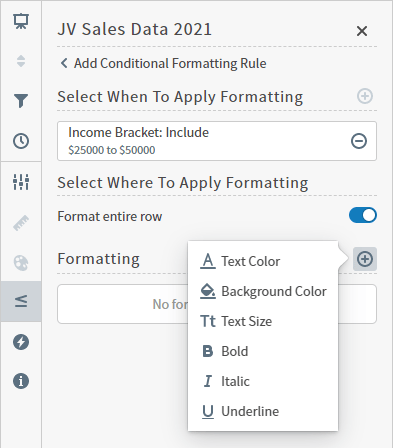
6. Select the add icon <img src="https://mintcdn.com/insightsoftware/sLccJ1EJ28cO5lT_/simba-embedded-analytics/docs/self-service-analytics/26.3/images/icons/add.png?fit=max&auto=format&n=sLccJ1EJ28cO5lT_&q=85&s=9a24b95d9385f23950764407d5e9111a" alt="add icon" width="16" height="16" noZoom style={{display: 'inline', verticalAlign: 'middle', width: '16px', height: '16px', margin: '0 2px'}} data-path="simba-embedded-analytics/docs/self-service-analytics/26.3/images/icons/add.png" /> for **Formatting** to define the formatting to apply to data that matches the condition you set. See Use the Conditional Formatting Sidebar.
   <img src="https://mintcdn.com/insightsoftware/b9ogX_L4Mqut_Uxb/simba-embedded-analytics/docs/self-service-analytics/26.3/images/visuals/cndtl-format-format-8-3.png?fit=max&auto=format&n=b9ogX_L4Mqut_Uxb&q=85&s=71a4177e9d70079dfc88403de09772ee" alt="define the formatting to apply to your selected attribute" width="393" height="448" data-path="simba-embedded-analytics/docs/self-service-analytics/26.3/images/visuals/cndtl-format-format-8-3.png" />

   Select a formatting option and define the look you need. See Use the Conditional Formatting Sidebar.

7. Optionally, add as many formatting options as you need. Formats are applied sequentially: see [How Self-Service Analytics Applies Formatting Rules](#how-self-service-analytics-applies-formatting-rules). Select the delete icon <img src="https://mintcdn.com/insightsoftware/sLccJ1EJ28cO5lT_/simba-embedded-analytics/docs/self-service-analytics/26.3/images/icons/delete-black-open.png?fit=max&auto=format&n=sLccJ1EJ28cO5lT_&q=85&s=2dd520b27e17cb3afb7d849272854051" alt="" width="18" height="21" noZoom style={{display: 'inline', verticalAlign: 'middle', width: '18px', height: '21px', margin: '0 2px'}} data-path="simba-embedded-analytics/docs/self-service-analytics/26.3/images/icons/delete-black-open.png" /> to remove any unneeded options. Select **Continue** to save your changes.

8. Optionally, add more conditional formatting rules. Drag and drop the rules change their order. In a case where multiple formatting rules apply to results of overlapping conditions, formats are applied sequentially. See Use the Conditional Formatting Sidebar.

   <img src="https://mintcdn.com/insightsoftware/b9ogX_L4Mqut_Uxb/simba-embedded-analytics/docs/self-service-analytics/26.3/images/visuals/cndtl-format-rules-done-8-3.png?fit=max&auto=format&n=b9ogX_L4Mqut_Uxb&q=85&s=28dbfe66999043115d05655590655bce" alt="add, remove, or edit rules as needed" width="352" height="292" data-path="simba-embedded-analytics/docs/self-service-analytics/26.3/images/visuals/cndtl-format-rules-done-8-3.png" />

9. Select **Apply** to apply your changes to the visual.

### Define Conditional Formatting for a Pivot Table Visual

1. Select a table visual in a dashboard or in the Visual Gallery.

2. Select the conditional formatting icon <img src="https://mintcdn.com/insightsoftware/sLccJ1EJ28cO5lT_/simba-embedded-analytics/docs/self-service-analytics/26.3/images/icons/cdntl-format-8-3.png?fit=max&auto=format&n=sLccJ1EJ28cO5lT_&q=85&s=a68e8d839390bc2674a1b33b6ca61114" alt="" width="25" height="25" noZoom style={{display: 'inline', verticalAlign: 'middle', width: '25px', height: '25px', margin: '0 2px'}} data-path="simba-embedded-analytics/docs/self-service-analytics/26.3/images/icons/cdntl-format-8-3.png" /> in the sidebar menu. The Conditional Formatting sidebar opens.

   <img src="https://mintcdn.com/insightsoftware/b9ogX_L4Mqut_Uxb/simba-embedded-analytics/docs/self-service-analytics/26.3/images/visuals/cndtl-fmt-pivot-22-4.png?fit=max&auto=format&n=b9ogX_L4Mqut_Uxb&q=85&s=cb65f5f406d59a694d1844cfd5c30b7a" alt="Add conditional formatting rules here" width="352" height="451" data-path="simba-embedded-analytics/docs/self-service-analytics/26.3/images/visuals/cndtl-fmt-pivot-22-4.png" />

3. Select **Add** to open the add rule work area. Use this work area to define a condition and the formatting to apply.
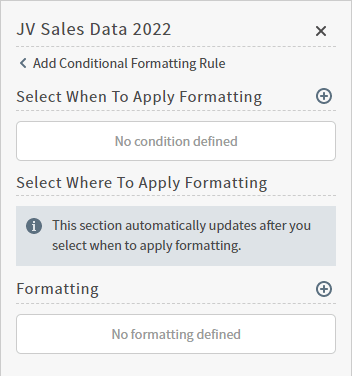
   <img src="https://mintcdn.com/insightsoftware/b9ogX_L4Mqut_Uxb/simba-embedded-analytics/docs/self-service-analytics/26.3/images/visuals/cndtl-fmt-rules-pivot-22-4.png?fit=max&auto=format&n=b9ogX_L4Mqut_Uxb&q=85&s=7825db0f722f29b36e9ede00f6931ed3" alt="define conditions and formatting to apply to pivot tables" width="352" height="376" data-path="simba-embedded-analytics/docs/self-service-analytics/26.3/images/visuals/cndtl-fmt-rules-pivot-22-4.png" />

4. Select the add icon <img src="https://mintcdn.com/insightsoftware/sLccJ1EJ28cO5lT_/simba-embedded-analytics/docs/self-service-analytics/26.3/images/icons/add.png?fit=max&auto=format&n=sLccJ1EJ28cO5lT_&q=85&s=9a24b95d9385f23950764407d5e9111a" alt="add icon" width="16" height="16" noZoom style={{display: 'inline', verticalAlign: 'middle', width: '16px', height: '16px', margin: '0 2px'}} data-path="simba-embedded-analytics/docs/self-service-analytics/26.3/images/icons/add.png" /> in **Select When To Apply Formatting** to define the conditions to apply your formatting. See [Using the Conditional Formatting Sidebar - Pivot Tables](#using-the-conditional-formatting-sidebar-pivot-tables).
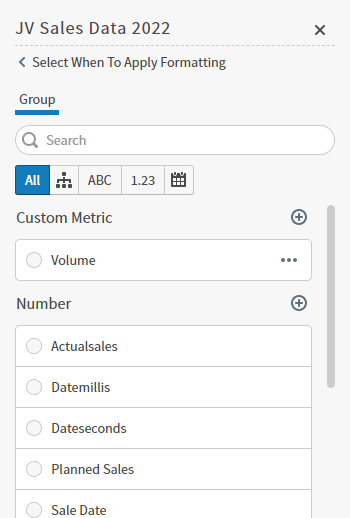
   <img src="https://mintcdn.com/insightsoftware/b9ogX_L4Mqut_Uxb/simba-embedded-analytics/docs/self-service-analytics/26.3/images/visuals/cndtl-fm-attribute-pivot-22-4.png?fit=max&auto=format&n=b9ogX_L4Mqut_Uxb&q=85&s=9f169e348325365501ae523c8800ebd9" alt="Select an attribute to define a condition" width="350" height="518" data-path="simba-embedded-analytics/docs/self-service-analytics/26.3/images/visuals/cndtl-fm-attribute-pivot-22-4.png" />

   Select a group attribute. The Value work area opens. Define the values for this condition. See Use the Conditional Formatting Sidebar.
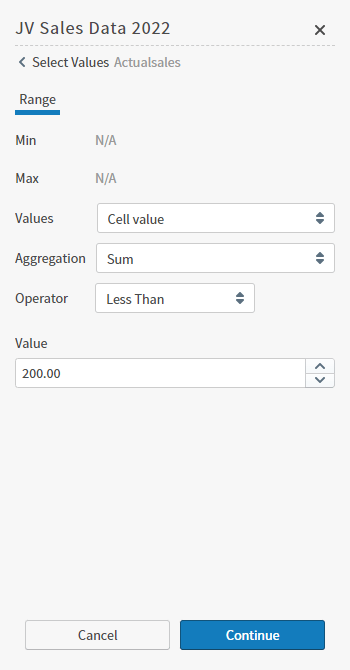
   <img src="https://mintcdn.com/insightsoftware/b9ogX_L4Mqut_Uxb/simba-embedded-analytics/docs/self-service-analytics/26.3/images/visuals/cndtl-fmt-pivot-select-value-22-4.png?fit=max&auto=format&n=b9ogX_L4Mqut_Uxb&q=85&s=6ea885d012afa654e02fb5db3a28ce2d" alt="Select the values formatting will apply to here" width="350" height="670" data-path="simba-embedded-analytics/docs/self-service-analytics/26.3/images/visuals/cndtl-fmt-pivot-select-value-22-4.png" />

   Select **Continue** to save your changes and define the formatting options.

5. Select the add icon <img src="https://mintcdn.com/insightsoftware/sLccJ1EJ28cO5lT_/simba-embedded-analytics/docs/self-service-analytics/26.3/images/icons/add.png?fit=max&auto=format&n=sLccJ1EJ28cO5lT_&q=85&s=9a24b95d9385f23950764407d5e9111a" alt="add icon" width="16" height="16" noZoom style={{display: 'inline', verticalAlign: 'middle', width: '16px', height: '16px', margin: '0 2px'}} data-path="simba-embedded-analytics/docs/self-service-analytics/26.3/images/icons/add.png" /> for **Formatting** to define the formatting to apply to data that matches the condition you set. See Use the Conditional Formatting Sidebar.
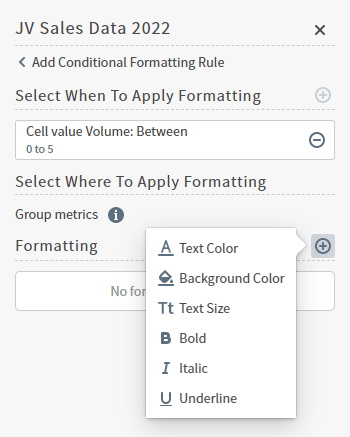
   <img src="https://mintcdn.com/insightsoftware/b9ogX_L4Mqut_Uxb/simba-embedded-analytics/docs/self-service-analytics/26.3/images/visuals/cndtl-fmt-pivot-where-22-4.png?fit=max&auto=format&n=b9ogX_L4Mqut_Uxb&q=85&s=9d26cce01afb300166312ad9d642e010" alt="define the formatting to apply to your selected attribute" width="350" height="437" data-path="simba-embedded-analytics/docs/self-service-analytics/26.3/images/visuals/cndtl-fmt-pivot-where-22-4.png" />

   Select a formatting option and define the look you need. See Use the Conditional Formatting Sidebar.

6. Optionally, add as many formatting options as you need. Formats are applied sequentially: see [How Self-Service Analytics Applies Formatting Rules](#how-self-service-analytics-applies-formatting-rules). Select the delete icon <img src="https://mintcdn.com/insightsoftware/sLccJ1EJ28cO5lT_/simba-embedded-analytics/docs/self-service-analytics/26.3/images/icons/delete-black-open.png?fit=max&auto=format&n=sLccJ1EJ28cO5lT_&q=85&s=2dd520b27e17cb3afb7d849272854051" alt="" width="18" height="21" noZoom style={{display: 'inline', verticalAlign: 'middle', width: '18px', height: '21px', margin: '0 2px'}} data-path="simba-embedded-analytics/docs/self-service-analytics/26.3/images/icons/delete-black-open.png" /> to remove any unneeded options. Select **Continue** to save your changes.

7. Optionally, add more conditional formatting rules. Drag and drop the rules change their order. In a case where multiple formatting rules apply to results of overlapping conditions, formats are applied sequentially. See Use the Conditional Formatting Sidebar.

   <img src="https://mintcdn.com/insightsoftware/b9ogX_L4Mqut_Uxb/simba-embedded-analytics/docs/self-service-analytics/26.3/images/visuals/cndtl-format-rules-done-pivot-22-4.png?fit=max&auto=format&n=b9ogX_L4Mqut_Uxb&q=85&s=069bb7b6fd12984aebb72df78f23108a" alt="add, remove, or edit rules as needed" width="350" height="262" data-path="simba-embedded-analytics/docs/self-service-analytics/26.3/images/visuals/cndtl-format-rules-done-pivot-22-4.png" />

8. Select **Apply** to apply your changes to the visual.