> ## Documentation Index
> Fetch the complete documentation index at: https://insightsoftware.mintlify.site/llms.txt
> Use this file to discover all available pages before exploring further.
# Use Cross-Source Links
> If your dashboard uses data from different data sources, you can link fields between the data sources to create cross-source links. After cross-source links have been defined, you can simultaneously apply filters based on the linked fields to all visuals on the dashboard. In addition, if you have a time fields that are linked in different data sources, you can simultaneously apply the same time filter using the linked time field in the time bar.
You can link fields in dashboard visuals that use different data sources to create cross-source links. After cross-source links have been defined, you can simultaneously apply filters based on the linked fields to all visuals on the dashboard. If you have time fields that are linked in different data sources, you can simultaneously apply the same time filter using the linked time field in the [time bar](/simba-embedded-analytics/docs/self-service-analytics/26.3/analyze-data/time-bar). In addition, you can publish and subscribe cross-source links in a dashboard. See [Control How Cross-Visual Filters Interact in a Dashboard](/simba-embedded-analytics/docs/self-service-analytics/26.3/analyze-data/filters/pubsub-ov).
Cross-source links can only be created on a dashboard that uses at least two different data sources.
This topic provides the following information:
* [Define Cross-Source Links](#define-cross-source-links)
* [Edit Cross-Source Links](#edit-cross-source-links)
* [Remove Cross-Source Links](#remove-cross-source-links)
* [Use Cross-Visual Links for Cross-Visual Filtering](/simba-embedded-analytics/docs/self-service-analytics/26.3/analyze-data/filters/pubsub-ov#use-cross-visual-links-for-cross-visual-filtering)
Define Cross-Source Links
Cross-source links are defined on the Cross-Source Links tab of the Dashboard Interactions dialog. Each cross-source link on your dashboard must use unique sources and fields. There is a one-to-one relationship between cross-source link names and your data fields. You cannot create multiple cross-source links for the same data field. In addition, you cannot use the same cross-source link name for multiple data fields.
**Define a cross-source link in a dashboard**
1. Verify that your dashboard includes at least two visuals using different data sources. Cross-source links will not work on dashboards that use only one data source.
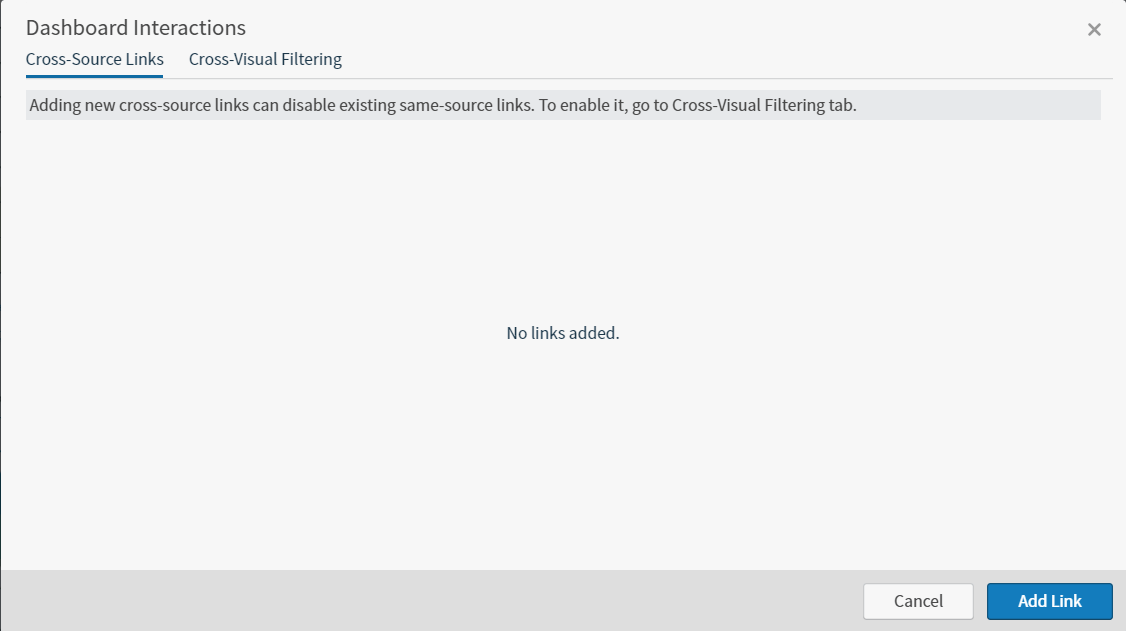
2. Select  on the [dashboard icon bar](/simba-embedded-analytics/docs/self-service-analytics/26.3/analyze-data/dashboards/dash-layout#use-the-dashboard-icons). The Dashboard Interactions dialog appears. In the following image, no cross-source links are defined for the dashboard.
 3. On the **Cross-Source Links** tab, select **Add Link**. The tab populates with fields appear to help you define the cross-source link.
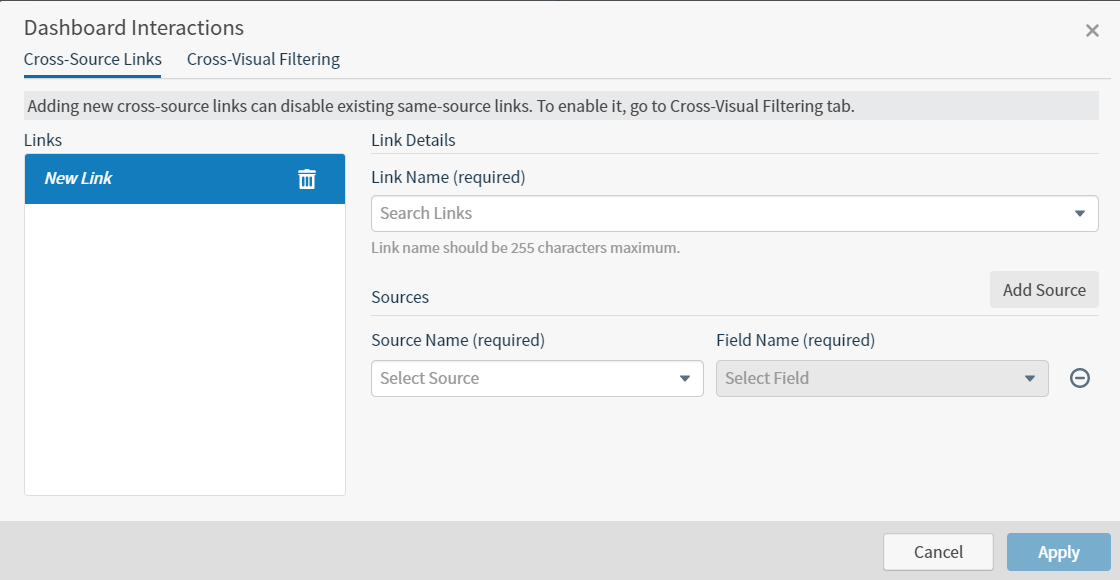 4. Supply a name for the cross-source link in the **Link Name** field. When you select the Link Name field to enter a name, a link name list appears listing all the link names that exist on other dashboards in the system. You can use this list to keep your naming consistent across dashboards. Select a name in the list or supply a new one. When you supply a new name the list shows a "Create new link ..." option which you must select to create the new link definition. In the example below, you would select **Create new link "State"** to create the cross-source link definition for the State field.
 5. Select a first source using the **Source Name** drop-down list.
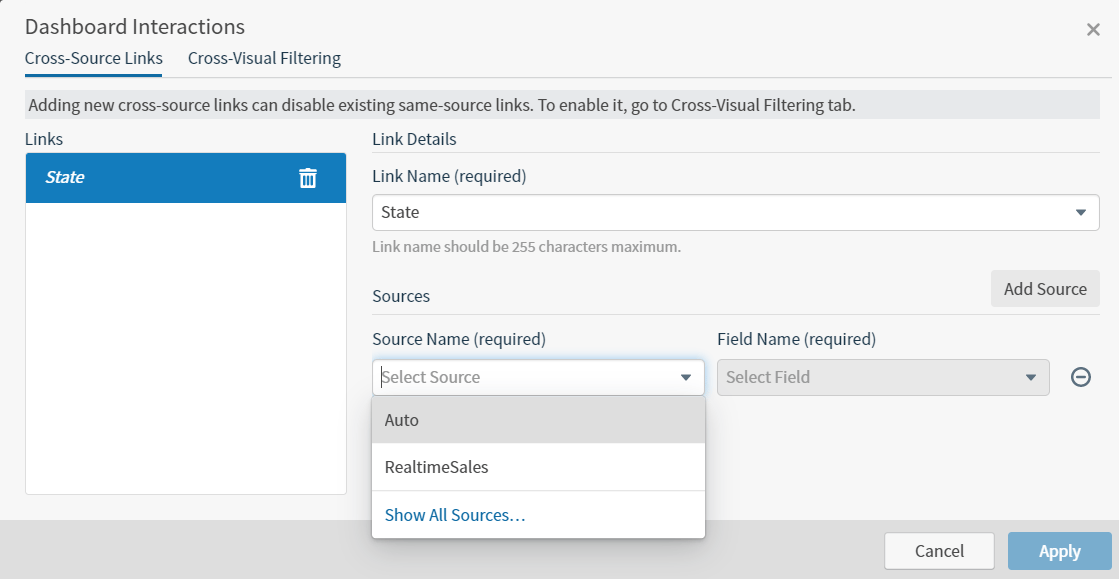 6. Select a field from the first source using the **Field Name** drop-down list.
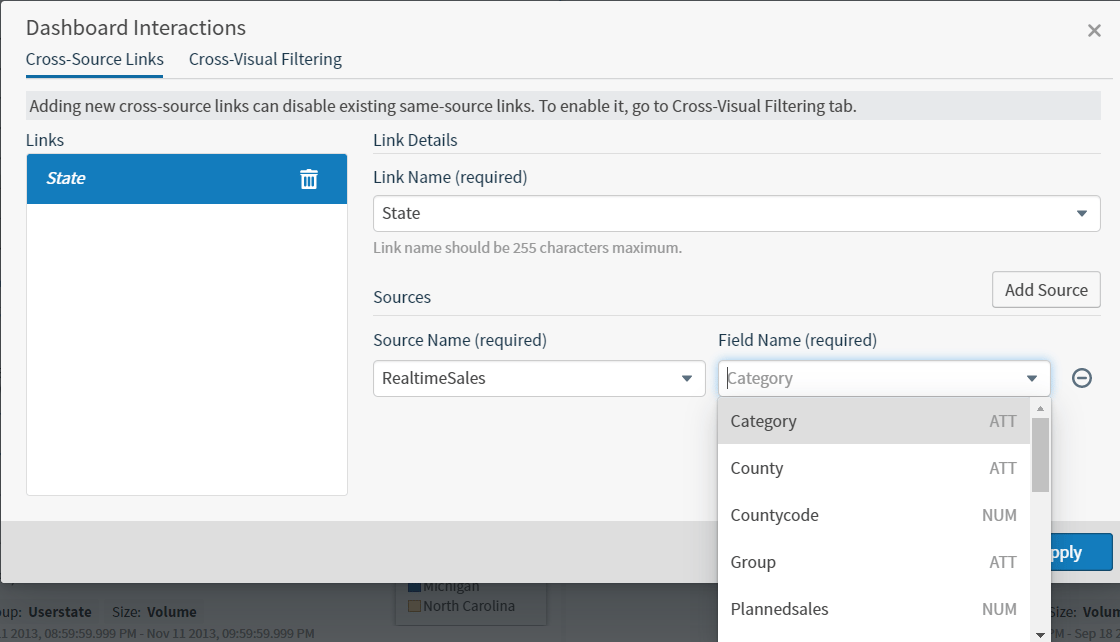 7. Select the **Add Source** button to add another source for the cross-source link definition. A new row appears in the Sources area of the tab.
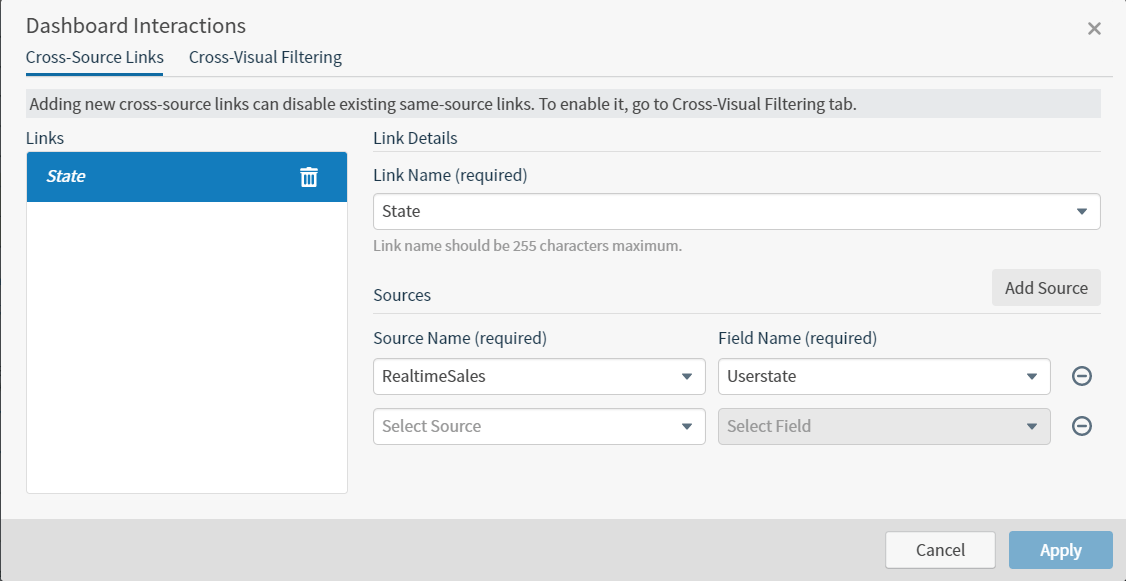 8. Select a second source using the **Source Name** drop-down list in the new row.
9. Select a field from the second source using the **Field Name** drop-down list in the new row.
10. If more than two data sources are used in your dashboard, repeat Steps 7 through 9, as appropriate, to add additional sources and fields to the cross-source link. The fields you select in the sources that comprise a cross-source link should contain the same kind of data.
Self-Service Analytics does not check cross-source links to determine whether they contain the same kind of data. If you do this, the cross-source link will not work.
11. Select **Apply**. A warning dialog appears prompting you to confirm the creation of the link.
8. Select a second source using the **Source Name** drop-down list in the new row.
9. Select a field from the second source using the **Field Name** drop-down list in the new row.
10. If more than two data sources are used in your dashboard, repeat Steps 7 through 9, as appropriate, to add additional sources and fields to the cross-source link. The fields you select in the sources that comprise a cross-source link should contain the same kind of data.
Self-Service Analytics does not check cross-source links to determine whether they contain the same kind of data. If you do this, the cross-source link will not work.
11. Select **Apply**. A warning dialog appears prompting you to confirm the creation of the link.
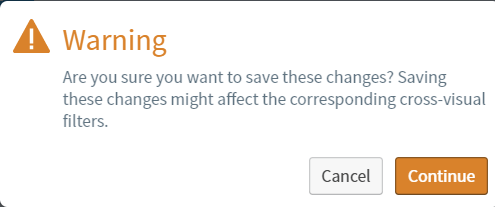 Creating the cross-source link automatically disables any same-source published links for the cross-source linked field. This prevents you from accidentally having duplicate filters. You can, however, re-enable the same-source link later. See [Control How Cross-Visual Filters Interact in a Dashboard](/simba-embedded-analytics/docs/self-service-analytics/26.3/analyze-data/filters/pubsub-ov).
12. Select **Continue**. The cross-source link has been created. The non-table visuals in the dashboard that use the sources that are linked and that are grouped by their cross-source linked fields show a
Creating the cross-source link automatically disables any same-source published links for the cross-source linked field. This prevents you from accidentally having duplicate filters. You can, however, re-enable the same-source link later. See [Control How Cross-Visual Filters Interact in a Dashboard](/simba-embedded-analytics/docs/self-service-analytics/26.3/analyze-data/filters/pubsub-ov).
12. Select **Continue**. The cross-source link has been created. The non-table visuals in the dashboard that use the sources that are linked and that are grouped by their cross-source linked fields show a  icon in the upper left corner.
13. [Save](/simba-embedded-analytics/docs/self-service-analytics/26.3/analyze-data/dashboards/dash-manage#save-a-dashboard) the dashboard to save the cross-source link definition.
The cross-source link data you supply on the dialog is validated. If you forget to supply some information, error messages are returned.
icon in the upper left corner.
13. [Save](/simba-embedded-analytics/docs/self-service-analytics/26.3/analyze-data/dashboards/dash-manage#save-a-dashboard) the dashboard to save the cross-source link definition.
The cross-source link data you supply on the dialog is validated. If you forget to supply some information, error messages are returned.
Edit Cross-Source Links
Cross-source links can be modified on the **Cross-Source Links** tab of the Dashboard Interactions dialog.
**Modify a cross-source link in a dashboard**
1. Open the dashboard containing the cross-source link you want to edit.
2. Select on the [dashboard icon bar](/simba-embedded-analytics/docs/self-service-analytics/26.3/analyze-data/dashboards/dash-layout#use-the-dashboard-icons). The Dashboard Interactions dialog appears. Cross-source links are listed on the **Cross-Source Links** tab.
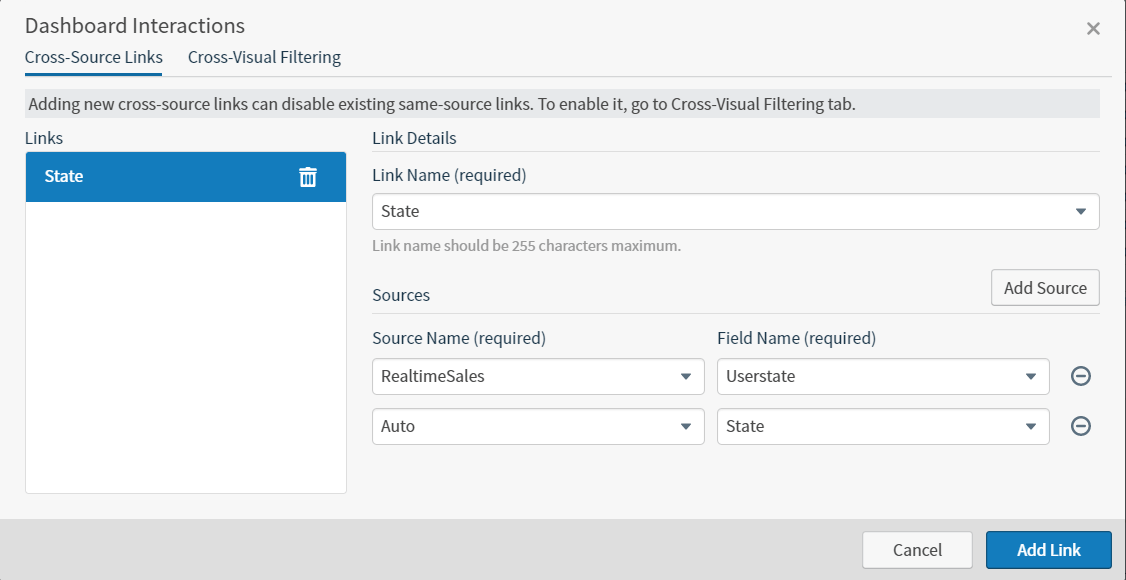 3. Select the link you want to modify in the **Links** list on the left of the tab. Its definition appears on the right.
4. Modify the cross-source link definition as needed. See [Define Cross-Source Links](#define-cross-source-links) for detailed information about defining cross-source links.
5. Select **Apply**. A warning dialog appears prompting you to confirm the link updates.
6. Select **Continue**. The cross-source link is updated.
7. [Save](/simba-embedded-analytics/docs/self-service-analytics/26.3/analyze-data/dashboards/dash-manage#save-a-dashboard) the dashboard to save the cross-source link definition.
The cross-source link data you supply on the dialog is validated. If you forget to supply some information, error messages display.
does not check cross-source links to determine whether they contain the same kind of data. If you do this, the cross-source link will not work.
3. Select the link you want to modify in the **Links** list on the left of the tab. Its definition appears on the right.
4. Modify the cross-source link definition as needed. See [Define Cross-Source Links](#define-cross-source-links) for detailed information about defining cross-source links.
5. Select **Apply**. A warning dialog appears prompting you to confirm the link updates.
6. Select **Continue**. The cross-source link is updated.
7. [Save](/simba-embedded-analytics/docs/self-service-analytics/26.3/analyze-data/dashboards/dash-manage#save-a-dashboard) the dashboard to save the cross-source link definition.
The cross-source link data you supply on the dialog is validated. If you forget to supply some information, error messages display.
does not check cross-source links to determine whether they contain the same kind of data. If you do this, the cross-source link will not work.
Remove Cross-Source Links
Cross-source links can be removed on the Cross-Source Links tab of the Dashboard Interactions dialog. This will delete the cross-source link definition from the Self-Service Analytics environment.
**Remove a cross-source link from a dashboard**
1. Open the dashboard containing the cross-source link you want to edit.
2. Select cross source link icon on the [dashboard icon bar](/simba-embedded-analytics/docs/self-service-analytics/26.3/analyze-data/dashboards/dash-layout#use-the-dashboard-icons). The Dashboard Interactions dialog appears. Cross-source links are listed on the **Cross-Source Links** tab.
3. Select the link you want to remove in the **Links** list on the left of the tab. Its definition appears on the right.
4. Select the trash can icon associated with the link you want to remove. A warning dialog appears prompting you to confirm the deletion.
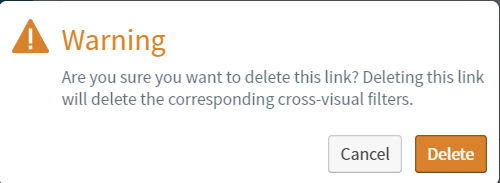 5. Select **Delete**. The cross-source link is removed from the dialog.
6. [Save](/simba-embedded-analytics/docs/self-service-analytics/26.3/analyze-data/dashboards/dash-manage#save-a-dashboard) the dashboard to delete the cross-source link definition.
5. Select **Delete**. The cross-source link is removed from the dialog.
6. [Save](/simba-embedded-analytics/docs/self-service-analytics/26.3/analyze-data/dashboards/dash-manage#save-a-dashboard) the dashboard to delete the cross-source link definition.