> ## Documentation Index
> Fetch the complete documentation index at: https://insightsoftware.mintlify.site/llms.txt
> Use this file to discover all available pages before exploring further.
# Save and Maintain Filters
> Describes how you can maintain saved filters.
After you have created a filter and applied it to a visual or filter snippet, you can save and apply it to other visuals or filter snippets that use the same data source. A saved filter can include the settings of one or more filters.
The following topics describe how to maintain a saved filter.
* [Create a Saved Filter](#create-a-saved-filter)
* [Edit a Saved Filter](#edit-a-saved-filter)
* [Delete a Saved Filter](#delete-a-saved-filter)
Create a Saved Filter
When you have created filters and applied them to a dashboard, they are listed under **Active Filters** on the Filter dialog. You can save these filters to be applied later to visuals or filter snippets from the same data source. A saved filter can include the settings from one or more filters.
Cross-visual filters that have been applied from same-source and cross-source links are not saved when filters are saved for a visual. Saved filters only include row-level filters for the visual.
**Save a filter**
1. Select the filter icon on the [visual](/simba-embedded-analytics/docs/self-service-analytics/26.3/analyze-data/filters/filters#apply-a-row-level-filter-to-a-visual-or-filter-snippet), filter snippet, or [dashboard](/simba-embedded-analytics/docs/self-service-analytics/26.3/analyze-data/filters/filters#apply-a-row-level-filter-to-a-dashboard) to access the appropriate filter sidebar.
* To access the filter sidebar, select its filter icon ( ) or select **Settings** from the [menu](/simba-embedded-analytics/docs/self-service-analytics/26.3/analyze-data/visuals/visual-setup#use-the-visual-drop-down-menu) (
 ) and then select
  on the [sidebar menu](/simba-embedded-analytics/docs/self-service-analytics/26.3/analyze-data/visuals/visual-setup#use-the-visual-sidebar-menu).
* To access the dashboard filter sidebar, select its filter icon (
on the [sidebar menu](/simba-embedded-analytics/docs/self-service-analytics/26.3/analyze-data/visuals/visual-setup#use-the-visual-sidebar-menu).
* To access the dashboard filter sidebar, select its filter icon ( ). The dashboard-level filter icon is available only when all the visuals are from the same data source.
The Filters sidebar appears showing any filters that have been applied. If no filters have been applied, create one that you want to save. See [Apply Row-Level Filters](/simba-embedded-analytics/docs/self-service-analytics/26.3/analyze-data/filters/filters#apply-row-level-filters), [Set a Numeric Field Filter](/simba-embedded-analytics/docs/self-service-analytics/26.3/analyze-data/filters/filters-attr#set-a-numeric-field-filter), and [Set a Time Field Filter](/simba-embedded-analytics/docs/self-service-analytics/26.3/analyze-data/filters/filters-attr#set-a-time-field-filter).
2. Select **Save Filters** on the Filters sidebar. The Save Filter Set dialog appears.
). The dashboard-level filter icon is available only when all the visuals are from the same data source.
The Filters sidebar appears showing any filters that have been applied. If no filters have been applied, create one that you want to save. See [Apply Row-Level Filters](/simba-embedded-analytics/docs/self-service-analytics/26.3/analyze-data/filters/filters#apply-row-level-filters), [Set a Numeric Field Filter](/simba-embedded-analytics/docs/self-service-analytics/26.3/analyze-data/filters/filters-attr#set-a-numeric-field-filter), and [Set a Time Field Filter](/simba-embedded-analytics/docs/self-service-analytics/26.3/analyze-data/filters/filters-attr#set-a-time-field-filter).
2. Select **Save Filters** on the Filters sidebar. The Save Filter Set dialog appears.
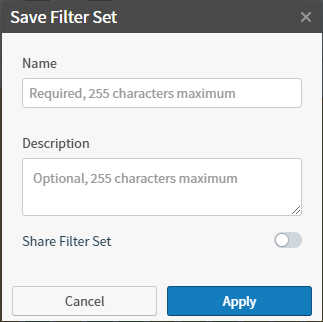 3. Supply a name for the saved filter in the **Name** field.
4. Optionally, provide a description for the saved filter in the **Description** field.
5. If you want to share this set with other users, select **Share Filter Set**.
6. Select **Apply**.
The Save Filter Set dialog closes and the filter is saved. You can see the saved filter on the **Saved Filters** tab of the filters dialog in other visuals that use the same data source.
7. [Save](/simba-embedded-analytics/docs/self-service-analytics/26.3/analyze-data/dashboards/dash-manage#save-a-dashboard) the dashboard.
### Example
Suppose you want to create a saved filter for different jewelry sales.
1. On your sales visual, sales filter snippet, or sales dashboard (if all the visuals on the dashboard are using the same sales data source), open the Filters sidebar.
2. On the Filters sidebar, create and apply a filter for jewelry sales. See [Apply Row-Level Filters](/simba-embedded-analytics/docs/self-service-analytics/26.3/analyze-data/filters/filters#apply-row-level-filters).
* Select the **Row** tab on the Filters sidebar.
* Depending on how the data in your data source is organized, select whatever attribute you use to identify a jewelry sale (for example, Category).
* On the next page of the Filters sidebar, select jewelry types in the possible attribute values (for example, for the Category attribute, you might select rings, earrings, pendants, and bracelets).
* Select **Apply** to apply the filter. You visual, visuals linked to a filter snippet, (or dashboard) now shows all sales data for jewelry. The first page of the Filters sidebar appears again.
3. Select **Save Filter** on the Filters sidebar. The Save Filter Set dialog appears.
4. Enter a name for the saved filter (for example, Jewelry Sales) and, optionally, a description. If you want to share your filter, slide the **Share Filter Set** switch on (to the right). This shares the filter with other users when they view dashboards created using that same source.
5. Select **Apply** to save the Jewelry Sales filter.
3. Supply a name for the saved filter in the **Name** field.
4. Optionally, provide a description for the saved filter in the **Description** field.
5. If you want to share this set with other users, select **Share Filter Set**.
6. Select **Apply**.
The Save Filter Set dialog closes and the filter is saved. You can see the saved filter on the **Saved Filters** tab of the filters dialog in other visuals that use the same data source.
7. [Save](/simba-embedded-analytics/docs/self-service-analytics/26.3/analyze-data/dashboards/dash-manage#save-a-dashboard) the dashboard.
### Example
Suppose you want to create a saved filter for different jewelry sales.
1. On your sales visual, sales filter snippet, or sales dashboard (if all the visuals on the dashboard are using the same sales data source), open the Filters sidebar.
2. On the Filters sidebar, create and apply a filter for jewelry sales. See [Apply Row-Level Filters](/simba-embedded-analytics/docs/self-service-analytics/26.3/analyze-data/filters/filters#apply-row-level-filters).
* Select the **Row** tab on the Filters sidebar.
* Depending on how the data in your data source is organized, select whatever attribute you use to identify a jewelry sale (for example, Category).
* On the next page of the Filters sidebar, select jewelry types in the possible attribute values (for example, for the Category attribute, you might select rings, earrings, pendants, and bracelets).
* Select **Apply** to apply the filter. You visual, visuals linked to a filter snippet, (or dashboard) now shows all sales data for jewelry. The first page of the Filters sidebar appears again.
3. Select **Save Filter** on the Filters sidebar. The Save Filter Set dialog appears.
4. Enter a name for the saved filter (for example, Jewelry Sales) and, optionally, a description. If you want to share your filter, slide the **Share Filter Set** switch on (to the right). This shares the filter with other users when they view dashboards created using that same source.
5. Select **Apply** to save the Jewelry Sales filter.
Edit a Saved Filter
You can edit saved filters that apply to the data source used by a visual or filter snippet on your dashboard. Changes that you make are only applied to the dashboard, visual, or filter snippet where you made the change and not to other objects that have already applied the saved filter.
**Edit a saved filter**
1. Select the filter icon on the [visual](/simba-embedded-analytics/docs/self-service-analytics/26.3/analyze-data/filters/filters#apply-a-row-level-filter-to-a-visual-or-filter-snippet), filter snippet, or [dashboard](/simba-embedded-analytics/docs/self-service-analytics/26.3/analyze-data/filters/filters#apply-a-row-level-filter-to-a-dashboard) to access the appropriate filter sidebar.
* To access the filter sidebar, select its filter icon () or select **Settings** from the [menu](/simba-embedded-analytics/docs/self-service-analytics/26.3/analyze-data/visuals/visual-setup#use-the-visual-drop-down-menu) () and then select on the [sidebar menu](/simba-embedded-analytics/docs/self-service-analytics/26.3/analyze-data/visuals/visual-setup#use-the-visual-sidebar-menu).
* To access the dashboard filter sidebar, select its filter icon (). The dashboard-level filter icon is available only when all the visuals and filter snippets are from the same data source.
The Filters sidebar appears showing any filters that have been applied.
2. Select the Saved tab.
3. Select the name of the saved filter that you want to edit. The saved filter is applied appropriately.
4. Alter the filter as needed. See [Apply Row-Level Filters](/simba-embedded-analytics/docs/self-service-analytics/26.3/analyze-data/filters/filters#apply-row-level-filters) and [Remove a Filter from a Visual, Filter Snippet or Dashboard](/simba-embedded-analytics/docs/self-service-analytics/26.3/analyze-data/filters/filters#remove-a-filter-from-a-visual-filter-snippet-or-dashboard).
5. Optionally, save the altered filter. It will be saved separately from the original saved filter. You are required to enter a unique name for the saved filter.
6. [Save](/simba-embedded-analytics/docs/self-service-analytics/26.3/analyze-data/dashboards/dash-manage#save-a-dashboard) the dashboard.
Delete a Saved Filter
When you delete a saved filter, it is deleted for every visual, filter snippet, and dashboard that uses the same data source.
**Delete a saved filter**
1. Select the filter icon on the [visual](/simba-embedded-analytics/docs/self-service-analytics/26.3/analyze-data/filters/filters#apply-a-row-level-filter-to-a-visual-or-filter-snippet), filter snippet, or [dashboard](/simba-embedded-analytics/docs/self-service-analytics/26.3/analyze-data/filters/filters#apply-a-row-level-filter-to-a-dashboard) to access the appropriate filter sidebar.
* To access the filter sidebar, select its filter icon () or select **Settings** from the [menu](/simba-embedded-analytics/docs/self-service-analytics/26.3/analyze-data/visuals/visual-setup#use-the-visual-drop-down-menu) () and then select on the [sidebar menu](/simba-embedded-analytics/docs/self-service-analytics/26.3/analyze-data/visuals/visual-setup#use-the-visual-sidebar-menu).
* To access the dashboard filter sidebar, select its filter icon (). The dashboard-level filter icon is available only when all the visuals are from the same data source.
The Filters sidebar appears showing any filters that have been applied.
2. Select the Saved tab.
3. Locate the saved filter you want to delete and select  . A warning dialog appears.
4. Click **Delete**. The filter is deleted, but its filter settings are still applied to your current dashboard, visuals, and filter snippets.
5. [Save](/simba-embedded-analytics/docs/self-service-analytics/26.3/analyze-data/dashboards/dash-manage#save-a-dashboard) the dashboard.
. A warning dialog appears.
4. Click **Delete**. The filter is deleted, but its filter settings are still applied to your current dashboard, visuals, and filter snippets.
5. [Save](/simba-embedded-analytics/docs/self-service-analytics/26.3/analyze-data/dashboards/dash-manage#save-a-dashboard) the dashboard.
Apply a Saved Filter to a Visual, Filter Snippet, or Dashboard
You can apply row-level filters for the data in visuals and filter snippets. When all the visuals and filter snippets in a dashboard use data from the same data source, you can apply row-level filters for all the visuals and filter snippets in the dashboard.
**Apply a row-level filter to a visual or dashboard**
1. Select the filter icon on the [visual](/simba-embedded-analytics/docs/self-service-analytics/26.3/analyze-data/filters/filters#apply-a-row-level-filter-to-a-visual-or-filter-snippet), [filter snippet](/simba-embedded-analytics/docs/self-service-analytics/26.3/analyze-data/widgets/fltrsnp-ov), or [dashboard](/simba-embedded-analytics/docs/self-service-analytics/26.3/analyze-data/filters/filters#apply-a-row-level-filter-to-a-dashboard) to access the appropriate filter sidebar.
* To access the filter sidebar, select its filter icon () or select **Settings** from the [menu](/simba-embedded-analytics/docs/self-service-analytics/26.3/analyze-data/visuals/visual-setup#use-the-visual-drop-down-menu) () and then select on the [sidebar menu](/simba-embedded-analytics/docs/self-service-analytics/26.3/analyze-data/visuals/visual-setup#use-the-visual-sidebar-menu).
* To access the dashboard filter sidebar, select its filter icon (). The dashboard-level filter icon is available only when all the visuals are from the same data source.
The Filters sidebar appears showing any filters that have been applied.
If you are using the filters sidebar, three tabs are available: **Row**, **Group**, and **Saved**.
If you are using the dashboard filters sidebar, only the **Row** and **Saved** tabs are available.
| Tab | Description |
| --------- | ------------------------------------------------------------------------------------------------------------------------------------------------------------------------------------------------------------------------------------------------------------------------------------------------------------------------------------------------------ |
| **Row** | The **Row** tab allows you to create a row-level filter, as described in the rest of this topic. |
| **Group** | The **Group** tab allows you to create and use a group filter. See [Group Filters](/simba-embedded-analytics/docs/self-service-analytics/26.3/analyze-data/filters/group-filters) . If you are using a KPI, raw data, histogram, or map markers visual, the **Group** tab is not available because all filters on these visuals are row-level filters. |
| **Saved** | The **Saved** tab shows saved filters that you can apply to the dashboard or visual. See Save and Maintain Filters. |
2. Select the **Saved** tab and then select the save filter you want to use. If none are listed, you must create one. See [Create a Saved Filter](#create-a-saved-filter).