> ## Documentation Index
> Fetch the complete documentation index at: https://insightsoftware.mintlify.site/llms.txt
> Use this file to discover all available pages before exploring further.

# Trusted Access

> Your software provides a security methodology called Trusted Access to authenticate your end users when they use your embedded components.

Self-Service Analytics provides its own security methodology that allows for machine-to-machine authorization of Self-Service Analytics resources when embedded in your application (the “parent” application). This is a form of “delegated” authorization where the parent application can determine, on demand, how and when to authorize any given embedded Self-Service Analytics component to an end-user logged into the parent application. This methodology is called *Trusted Access*.

<Note>
  insightsoftware recommends using Trusted Access for all embed-related workflows.
</Note>

Similar to "single sign-on," this arrangement allows users to log in once to the parent application and yet have their security information propagated to Self-Service Analytics, creating a seamless and secure user experience. This, of course, means that users can not be allowed to "go around" the parent application and directly access Self-Service Analytics. In the stateless world of web applications, this requires some special mechanisms to ensure security that are provided for applications through our SecureKey technology.

On request from the parent application, Trusted Access provides a user access token with defined authorization rules that account for user privileges, object permissions, security filters and any specific user attributes used in interpolation. This user access token can then be used in the parent application to serve any Self-Service Analytics specific embedded components such as dashboards for the respective user. For information on how tokens are initiated and requested in your applications, see [Embed Components Using JavaScript and Trusted Access](/simba-embedded-analytics/docs/self-service-analytics/26.3/embed-and-extend/embed/embed-javascript).

<Note>
  In environments where you use Typescript for your client side code, you can use Embed Manager as an npm package. See [https://www.npmjs.com/package/logi-embed](https://www.npmjs.com/package/logi-embed).
</Note>

Trusted Access tokens are encrypted when stored in Self-Service Analytics metadata. The encryption mode used can be set as described in [Encryption](/simba-embedded-analytics/docs/self-service-analytics/26.3/administer/security/changing-encryption-mode).

This topic also describes:

* [Trusted Access Prerequisites](#trusted-access-prerequisites)
* [Trusted Access Recommendations](#trusted-access-recommendations)
* [Register a Client](#register-a-client)
* [Generate a User's Access Token](#generate-a-user-s-access-token)

The following additional topics provide reference information:

* [Trusted Access API Endpoints](#trusted-access-api-endpoints)
* [Trusted Access Client Properties](#trusted-access-client-properties)

<h3 id="trusted-access-prerequisites">
  Trusted Access Prerequisites
</h3>

* Every end user must have Self-Service Analytics user account defined, unless you are using LDAP autoprovisioning with Self-Service Analytics. See [Manage Users](/simba-embedded-analytics/docs/self-service-analytics/26.3/administer/users/users-manage).
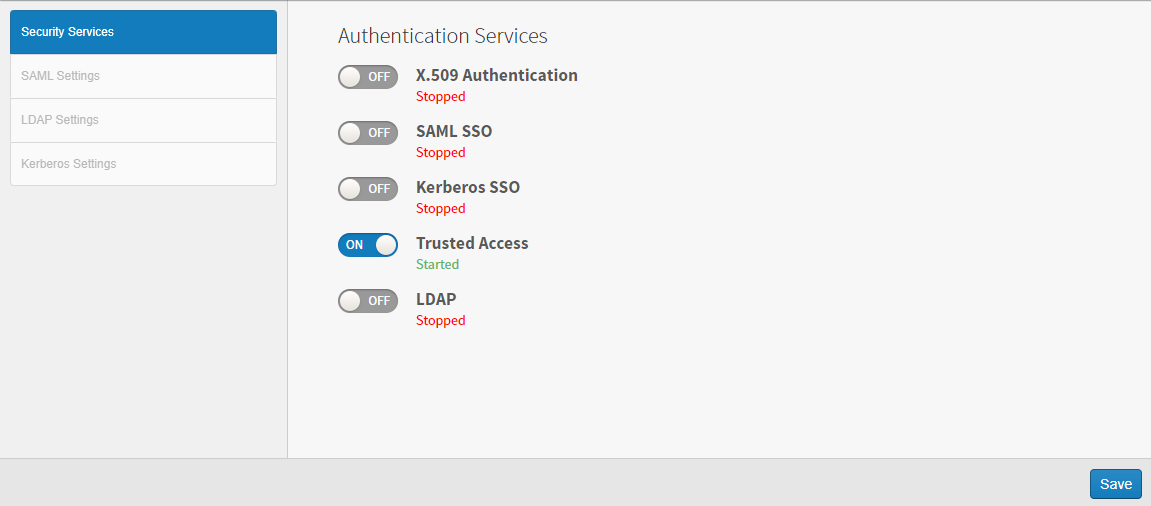
* Trusted Access is enabled by default. If it is disabled, enable Trusted Access by selecting the **Trusted Access** option on the Security page. See [Enable Trusted Access](#enable-trusted-access).

<h3 id="trusted-access-recommendations">
  Trusted Access Recommendations
</h3>

For security reasons, we recommend that you use short-lived tokens. Tokens that are valid for less than 10 minutes are recommended. The validity time of a user access token is defined when you register a client with Self-Service Analytics.

<Warning>
  If you disable Trusted Access in a multi-tenancy environment, data retrieved through the connector you created is fetched using the tenant admin's credentials instead of each user's credentials. Effectively, all row level security settings are removed on the data retrieved.
</Warning>

<h3 id="register-a-client">
  Register a Client
</h3>

To start using Trusted Access, you first need to register your application, as Self-Service Analytics refers to it, as a *client*.

Registering a client will generate a client ID and client secret. These credentials can then be used to generate user access tokens for any user in the Self-Service Analytics platform, as needed.

To register your application as a client, POST the `/api/trusted-access/clients` API endpoint. You can also patch, delete, and list Trusted Access clients using the `/api/trusted-access/clients` API endpoint. See [Trusted Access API Endpoints](#trusted-access-api-endpoints).

<h3 id="generate-a-user-s-access-token">
  Generate a User's Access Token
</h3>

To generate a user's access token, pass the client ID and client secret to HTTP BasicAuth. To obtain the client ID and client secret, use the `/api/trusted-access/clients` API endpoint. See [Trusted Access API Endpoints](#trusted-access-api-endpoints).

<h4 id="generate-a-user-s-access-token-for-existing-self-service">
  Generate a User's Access Token for Existing Self-Service Analytics Users
</h4>

```javascript theme={null}
/********REQUEST TRUSTED ACCESS TOKEN ********/
const AccessToken = (ComposerUrl, Username, callback) => {
	var Client = GetClient();
	if(typeof Client === 'undefined' ||  Client === null)
		callback({ErrorMessage: 'Client Not Found', status : 500});
	else {
		var BasicAuth = Buffer.from(`${Client.client_id}:${Client.client_secret}`).toString('base64');
		Post(BasicAuth, `${ComposerUrl}/api/trusted-access/pull/tokens`, { "username": Username }).then((result) => {
			if(JSON.stringify(result).indexOf('error')>-1)
				callback(result, null);
			else
				callback(null, result);
		});
	}
};
```

<Note>
  You can only generate tokens for regular users and for administrators.
</Note>

<h4 id="generate-a-user-s-access-token-for-new-self-service-analytics">
  Generate a User's Access Token for New Self-Service Analytics Users
</h4>

```javascript theme={null}
/********REQUEST TRUSTED ACCESS TOKEN ********/
const UserContext = {
	"username": "joe",
	"account": "company",
	"fullname": "Example Inc",
	"email": "joe@example.inc",
	"groups": ["Store Manager", "Cashier"],
	"attributes": [{"key": "city", "values": ["London"]}]
};
const AccessToken = (ComposerUrl, UserContext, callback) => {
	var Client = GetClient();
	if (typeof Client === 'undefined' || Client === null)
		callback({ErrorMessage: 'Client Not Found', status: 500});
	else {
		var BasicAuth = Buffer.from(`${Client.client_id}:${Client.client_secret}`).toString('base64');
		Post(BasicAuth, `${ComposerUrl}/api/trusted-access/push/tokens`, UserContext).then((result) => {
			if (JSON.stringify(result).indexOf('error') > -1)
				callback(result, null);
			else
				callback(null, result);
		});
	}
};
```

<Note>
  You can only generate tokens for regular users and for administrators.
</Note>

<h2 id="trusted-access-api-endpoints">
  Trusted Access API Endpoints
</h2>

The following API endpoints can be used to manage Trusted Access.

<table>
  <thead>
    <tr>
      <th>Endpoint</th>
      <th>Method</th>
      <th>Description</th>
    </tr>
  </thead>

  <tbody>
    <tr>
      <td>`/api/trusted-access/clients`</td>
      <td>GET</td>

      <td>
        Returns all the Trusted Access client information in the metadata. Included with this information is the access token validity time (in seconds), client ID, client name, client secret expiration time (in seconds), and the token authentication method.

        <br />

        For a description of these, see [Trusted Access Client Properties](#trusted-access-client-properties).
      </td>
    </tr>

    <tr>
      <td>`/api/trusted-access/clients`</td>
      <td>POST</td>

      <td>
        Creates a Trusted Access client. The request must specify the number of seconds for which the access token is valid and the client name. The client name must be unique.

        <br />

        When you create the client, the client ID, client secret, secret expiration time, and the token authentication method are automatically generated.
      </td>
    </tr>

    <tr>
      <td>`/api/trusted-access/clients/<id>`</td>
      <td>GET</td>

      <td>
        Returns the Trusted Access client information for a specific client.

        <br />

        The request must specify the client ID.
      </td>
    </tr>

    <tr>
      <td>`/api/trusted-access/clients/<id>`</td>
      <td>DELETE</td>

      <td>
        Deletes a specific Trusted Access client.

        <br />

        The request must specify the client ID.
      </td>
    </tr>

    <tr>
      <td>`/api/trusted-access/clients/<id>`</td>
      <td>PATCH</td>

      <td>
        Updates the Trusted Access client information for a specific client.

        <br />

        The request must specify the client ID and the number of seconds for which the access token is valid.
      </td>
    </tr>

    <tr>
      <td>`/api/trusted-access/pull/tokens`</td>
      <td>POST</td>

      <td>
        Use pull to request a user access token for users that already exist in Self-Service Analytics.

        <br />

        The user must already exist, and have an active Self-Service Analytics user account (unless you are using LDAP with automatic provisioning for Self-Service Analytics).

        <br />

        You can not update user context such as user attributes or groups using `pull`.
      </td>
    </tr>

    <tr>
      <td>`/api/trusted-access/push/tokens`</td>
      <td>POST</td>

      <td>
        Use push to request a user access token for new and existing users by sending their context to Self-Service Analytics. Existing users are updated if their context has changed.

        <br />

        Context must contain `username`, and `account`. It can optionally include `email`, `fullname`, `groups` and other individual `attributes`

        <br />

        Several reserved keys are restricted from use in Self-Service Analytics as custom user attributes: `composerUserName` and `accountId`. If you push these reserved keys, a 400 Bad Request error is returned via API.
      </td>
    </tr>
  </tbody>
</table>

<h2 id="trusted-access-client-properties">
  Trusted Access Client Properties
</h2>

The following table describes the Trusted Access client properties. All of this information is encrypted when it is stored in the Self-Service Analytics metadata store, except the client secret, which is hashed using BCrypt.

<table>
  <thead>
    <tr>
      <th>Endpoint</th>
      <th>Description</th>
    </tr>
  </thead>

  <tbody>
    <tr>
      <td>`client_name`</td>
      <td>The human-readable string name of the client application. The client name must be unique.</td>
    </tr>

    <tr>
      <td>`client_id`</td>
      <td>The client ID issued to the client when the client is registered with Trusted Access. This is generated by the system and cannot be modified.</td>
    </tr>

    <tr>
      <td>`client_secret`</td>

      <td>
        The client secret string issued to the client when the client is registered with Trusted Access. This value is used by applications to authenticate to the token endpoint.

        <br />

        The client secret is not available after it is initially created -- developers must store it locally in order to retain it.
      </td>
    </tr>

    <tr>
      <td>`access_token_validity_seconds`</td>
      <td>The validity (in seconds) of the access token. Short-lived tokens (less than 10 minutes) are recommended.</td>
    </tr>

    <tr>
      <td>`client_secret_expires_at`</td>
      <td>The time (in seconds) at which the `client_secret` will expire. A value of zero (0) means that the client secret never expires.</td>
    </tr>

    <tr>
      <td>`token_endpoint_auth_method`</td>
      <td>A string indicator of the authentication method used for the token endpoint. For Trusted Access, this value is always `"client_secret_basic"`, which means that the client must always use HTTP basic authentication to request an access token.</td>
    </tr>
  </tbody>
</table>

<h2 id="enable-trusted-access">
  Enable Trusted Access
</h2>

Trusted Access is enabled by default in Self-Service Analytics. This enables you to create clients, and Self-Service Analytics to provide access tokens to authorized clients using Trusted Access. It can be disabled by a system administrator or member of the supervisors group, and another authentication method used.

<Note>
  insightsoftware recommends using Trusted Access for all embed-related workflows.
</Note>

If Trusted Access is not enabled, all Trusted Access client and token-related API endpoints return a 404 response code or a 401 unauthorized response code (when an existing token is used). In addition, the Trusted Access API endpoints are not visible in the Swagger documentation. For information about Trusted Access endpoints, see [Trusted Access API Endpoints](#trusted-access-api-endpoints).

**Enable or disable Trusted Access:**

1. Log in as a system [admin](/simba-embedded-analytics/docs/self-service-analytics/26.3/administer/users/users-manage#admin-user) or a member of the Supervisors group.

   <Note>
     The default **supervisor** user is no longer installed; add users to the **Supervisors** group instead.
   </Note>

2. Select **Tools** > **Security** from the Administration menu.

   <img src="https://mintcdn.com/insightsoftware/1fCfZrK84x8KmAw8/simba-embedded-analytics/docs/self-service-analytics/26.3/images/secure/security-services-710.png?fit=max&auto=format&n=1fCfZrK84x8KmAw8&q=85&s=e6b9f4c04ab853f808eb547bb9fce01c" alt="" width="1151" height="506" data-path="simba-embedded-analytics/docs/self-service-analytics/26.3/images/secure/security-services-710.png" />

3. Switch the **Trusted Access** setting to **OFF** to disable, or **ON** to enable.

4. Select **Save**.

5. Restart Self-Service Analytics. See [Restart Microservices](/simba-embedded-analytics/docs/self-service-analytics/26.3/administer/install/about-microsvcs#restart-microservices).

When Trusted Access is ON, you can [register a client](#register-a-client) or [generate an access token](#generate-a-user-s-access-token).

<Warning>
  If you disable Trusted Access in a multi-tenancy environment, data retrieved through the Self-Service Analytics connector you created is fetched using the tenant admin's credentials instead of each user's credentials. Effectively, all row level security settings are removed on the data retrieved.
</Warning>